Pricing+7% bonus
Contact sales

Expand Image with AI

Upload a photo, choose the output size, and let AI generate new space around the original frame. Reformat portraits, product shots, landscapes, and artwork without cropping away the part you want to keep.

Images

Including reference images of the element, scene, style, etc.max 10

History
Download
Top up $50 now → Oct 31 – Nov 30 · Limited quota · First come, first served
Top up now

How to Expand an Image with AI in 3 Steps

Turn a tightly cropped or incorrectly sized photo into a wider, taller, or differently shaped image without learning a traditional editing workflow.

  1. Create an Account and Add Credits

    Create an Account and Add Credits

    Sign up for GPTProto and add credits to your account. Credits are used only when you generate an expanded image.

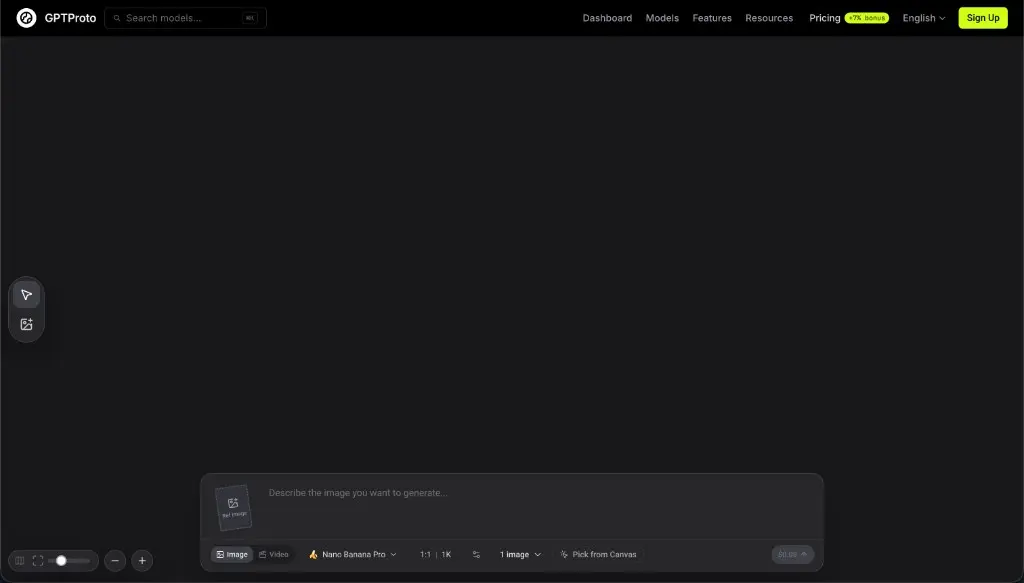
  2. Upload Your Image and Choose a Size: Upload the image you want to expand, then select the output size or aspect ratio that fits your post, banner, product image, or other layout.
    Upload Your Image and Choose a Size

    Upload Your Image and Choose a Size

    Upload the image you want to expand, then select the output size or aspect ratio that fits your post, banner, product image, or other layout.

  3. Generate Your Expanded Image

    Generate Your Expanded Image

    Click Expand Image. The tool creates new visual content around the original frame to fill the selected canvas. Review the result, download it, or generate another version.

Examples

AI Image Expansion Examples

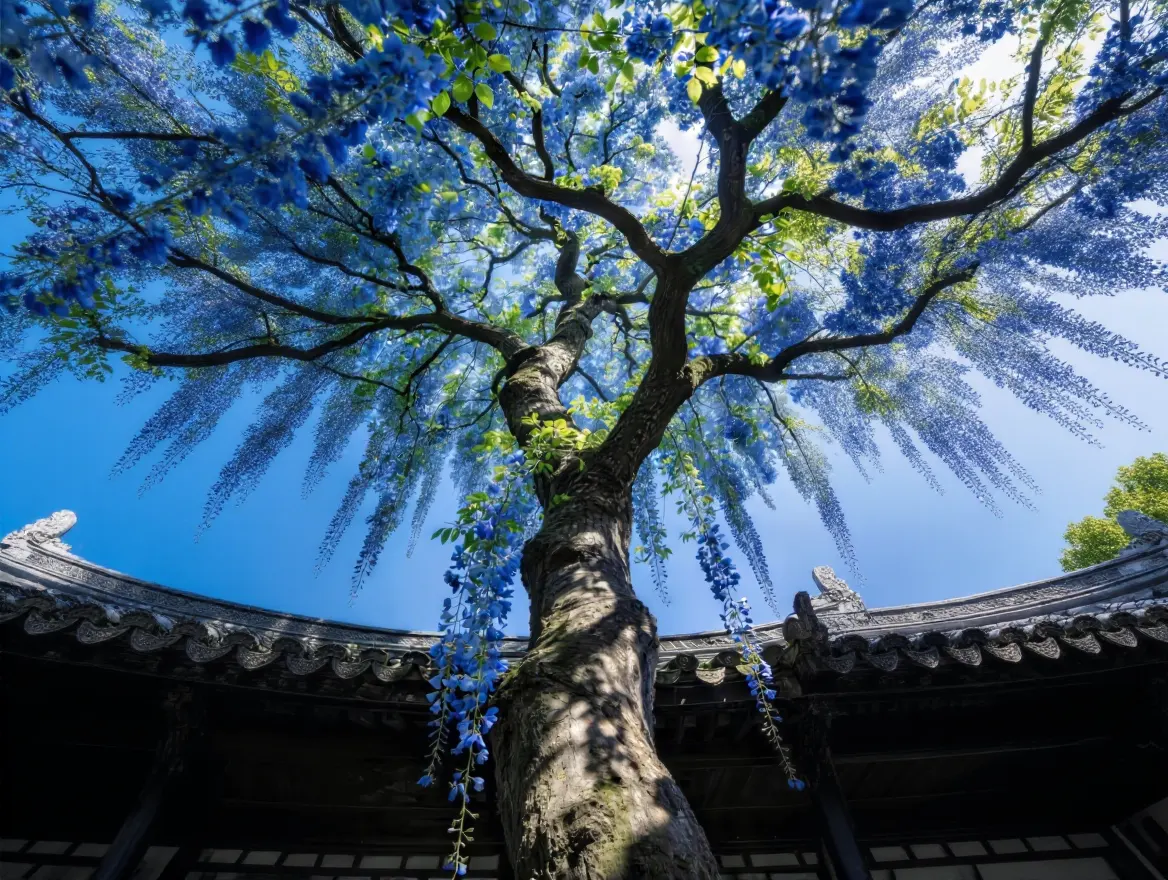
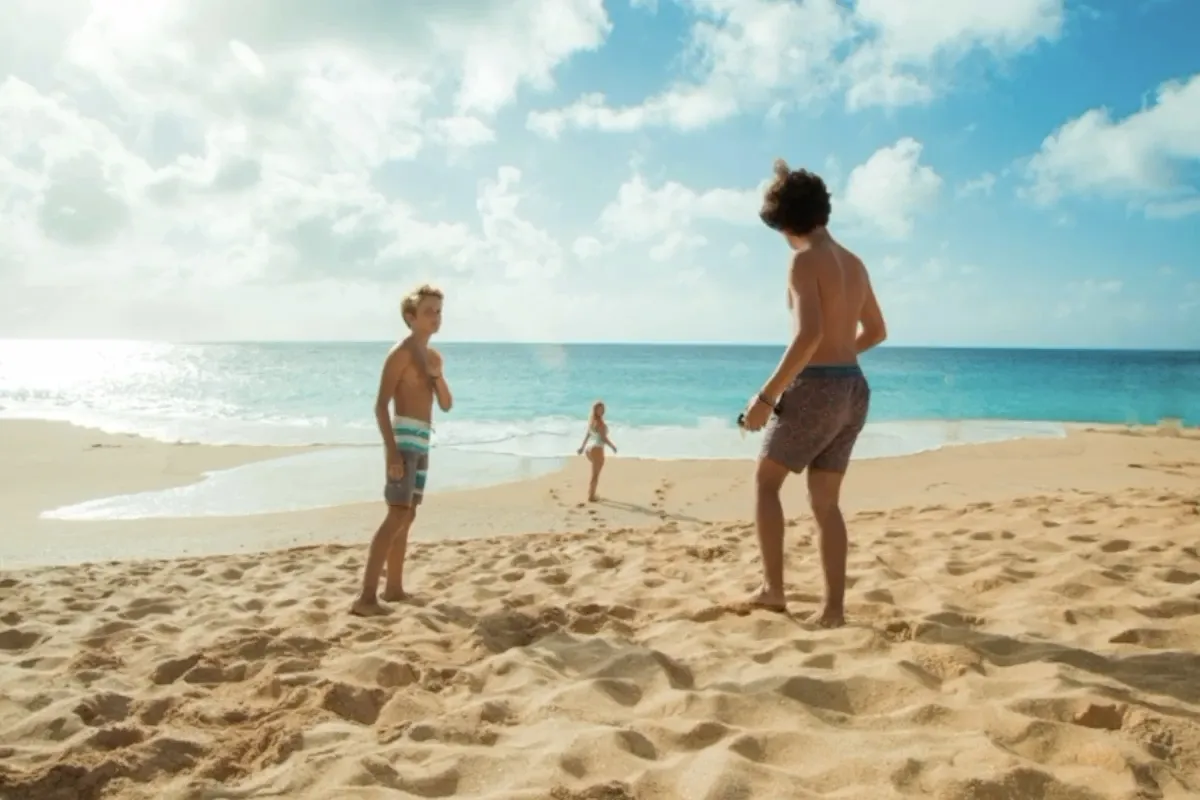
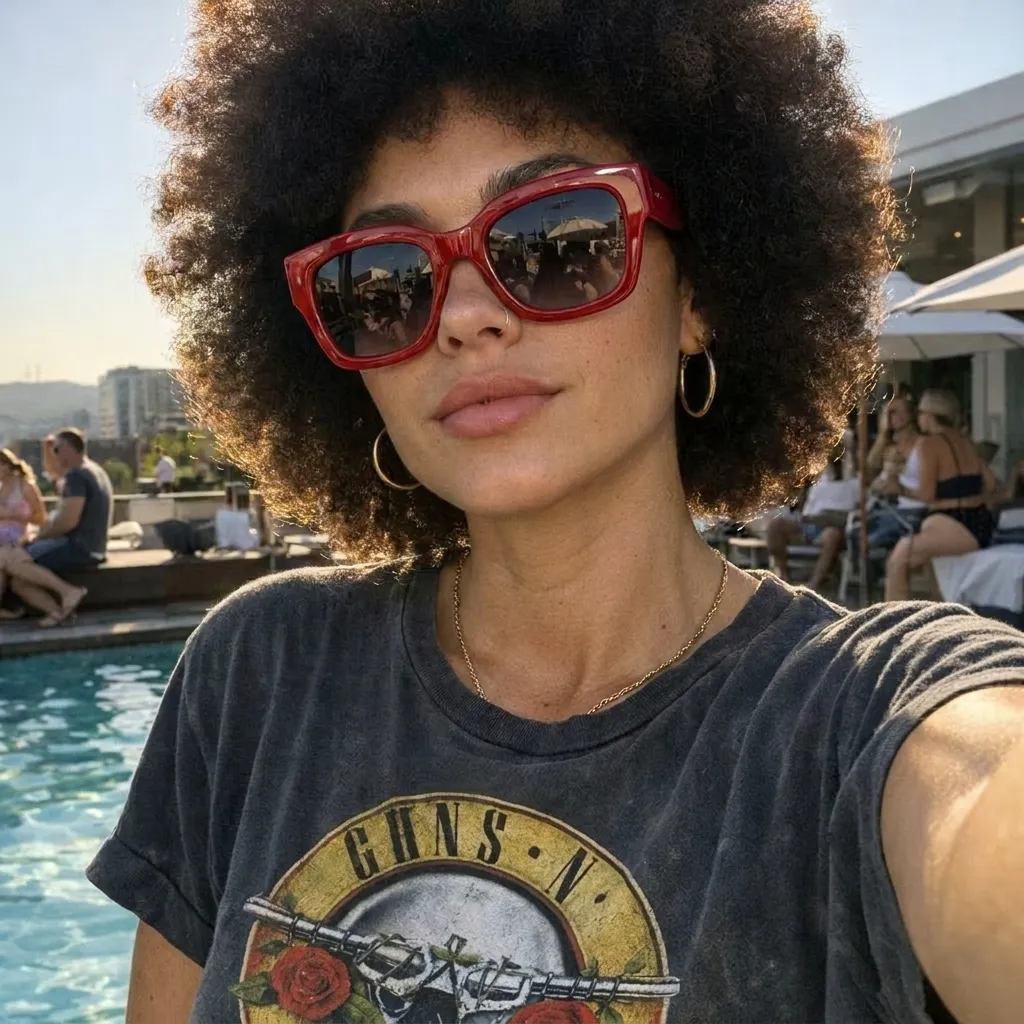
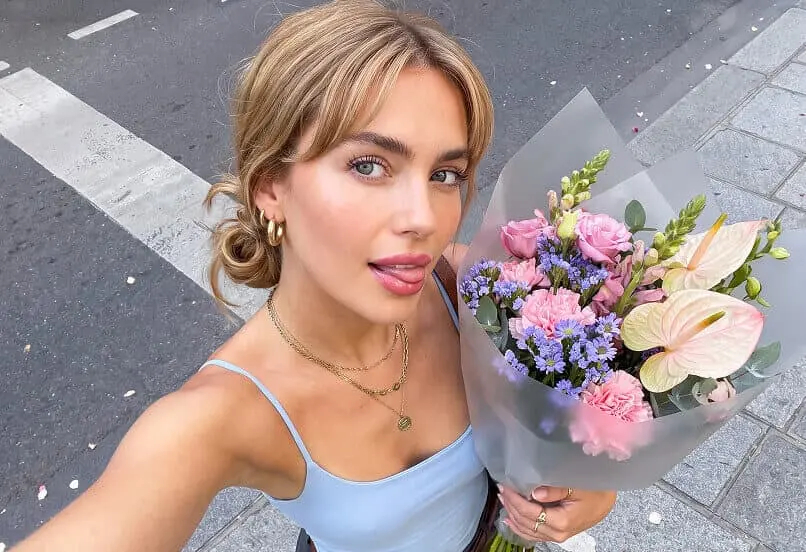
See how one source image can be reframed for different layouts. Each example should show the original image beside the expanded result and display the selected output ratio.

Create

What You Can Create

Use the AI image expander when the original photo is useful but its frame does not fit the layout you need.

  • Social Media Images in the Right Shape

    Turn one photo into square, portrait, vertical, or landscape layouts for Instagram posts, Stories, Reels, thumbnails, and other social content without cutting the main subject out of frame.

  • Wider Product and Promotional Photos

    Add more background around a product to create room for prices, headlines, feature lists, or calls to action in ads, marketplace graphics, and promotional images.

  • Website Headers and Display Banners

    Convert a portrait or square source into a wider visual for landing-page headers, blog covers, email graphics, shop banners, and campaign layouts.

  • Better-Framed Portraits and Landscapes

    Uncrop tightly framed portraits, continue open scenery, or add breathing room around a subject when the original composition feels too narrow or crowded.

What it is

What Is an AI Image Expander?

An AI image expander is an online image-editing tool that generates new content beyond the original borders of a photo. This process is often called AI outpainting or uncropping. Instead of stretching the existing pixels or removing part of the image, the tool places the source inside a larger canvas and creates the missing background around it.

You can use AI to expand an image horizontally, vertically, or into a different aspect ratio. Common uses include turning a portrait into a banner, converting a square image into an Instagram Story, adding more background around a product, and widening an AI-generated illustration.

The generated area is based on visible details near the source image edges, including color, lighting, texture, perspective, and surrounding objects. Because the added area is generated, results can vary between attempts.
How it work

How AI Image Expansion Works

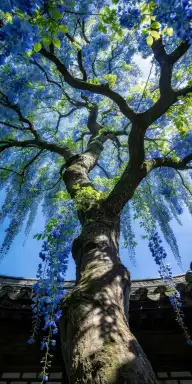
AI expansion creates the part of the scene that was not included in the original frame. It does not simply enlarge or repeat the existing pixels.

  • Reads the visible scene: The tool examines the image edges and uses the visible background, lighting, colors, perspective, and textures as context.

  • Builds a larger canvas: Your selected size determines where new image space is needed around the original photo.

  • Generates the missing area: The model creates new visual content for the empty canvas while trying to continue the existing scene.

  • Blends the boundary: The generated area is joined to the source near its edges so the result reads as one larger composition.

The tool is intended to keep the original subject as the center of the composition, but generative output is not identical every time. Check details near the expanded edges before publishing the image.

Different tools

AI Image Expander vs. Crop, Resize, and Upscale

These tools solve different image problems. Choose the one that matches the result you need.

Dimension AI Image Expander Crop Tool Image Resizer AI Upscaler
Primary Goal Add new image area beyond the original frame Remove unwanted parts of an image Change pixel dimensions or file size Increase resolution and improve visible detail
What Happens to the Frame The canvas becomes wider, taller, or differently shaped The canvas becomes smaller The existing image is scaled The image usually keeps the same composition
What Happens to the Subject The goal is to keep the subject while generating space around it Part of the subject or background may be removed The subject may become larger or smaller The subject remains in the same position
New Content Generated Yes, outside the original borders No No Detail may be reconstructed, but the scene is not extended
Best For Uncropping, banners, social ratios, product backgrounds Tightening a composition Meeting exact pixel requirements Enlarging a small or soft image
Choose It When You need more scene without cutting away the source You no longer need the outer parts The current composition already fits The frame is correct but the resolution is too low

Image sizes

Popular Image Sizes and Where to Use Them

Size or Ratio Common Uses
1:1 Square Product listings, profile images, square social posts
4:5 Portrait Instagram feed posts, product promotions, mobile-first graphics
9:16 Vertical Stories, Reels, Shorts covers, vertical promotional content
16:9 Widescreen YouTube thumbnails, website heroes, presentation covers, video backgrounds
4:3 Standard Blog images, slides, editorial layouts, general web graphics
Wide Banner Website headers, shop banners, advertisements, campaign graphics
Custom Size Exact campaign, print, marketplace, or layout requirements — include only if supported

Better Tips

How to Get Better AI Image Expansion Results

The source image and the amount of new canvas both affect the result. Use these checks before generating and before publishing.

  • Keep the main subject inside the original frame: Faces, products, text, and other important elements are easier to preserve when they are not already cut off at the image edge.

  • Start with a moderate expansion: A very large jump gives the model more missing space to invent. If the first result feels inconsistent, expand the image in smaller stages.

  • Use continuous backgrounds when possible: Sky, water, walls, floors, studio backdrops, grass, and other continuous surfaces usually give the model clearer context than crowded shelves or repeated objects.

  • Upload the clearest source available: Expansion adds new canvas space, but it does not automatically restore a blurry or heavily compressed original. Upscale a small source first when necessary.

  • Choose a size that fits the scene: A wider format adds space mainly to the sides, while a taller format requires more content above and below. Pick the direction that makes sense for the composition.

  • Review important details: Check faces, hands, product shapes, logos, text, reflections, architecture, and repeating patterns before using the expanded result.

  • Generate another version when needed: AI-generated areas can vary. A second result may produce a background or composition that fits the source more naturally.

use case

Expand Product and Promotional Images with AI

AI image expansion can help adapt one approved visual to several marketing layouts. A square product shot can become a website banner, a portrait campaign image can become a landscape ad, and an existing photo can gain extra background space for copy without placing text over the subject.

  • Product listings: Fit one product image into different marketplace or catalog layouts.

  • Advertising: Create space for a headline, offer, price, or call to action.

  • Social campaigns: Reformat the same visual for feeds, Stories, covers, and posts.

  • Website graphics: Adapt source images for hero sections, shop banners, and blog covers.

Before using an expanded image commercially, make sure you have the right to use the source photo, artwork, product, logo, and other protected material. Review generated details for accuracy before publishing them in an advertisement, listing, print file, or client project.

Frequently Asked Questions

What is an AI image expander?

An AI image expander adds newly generated content beyond the original borders of an image. It can make a photo wider, taller, or fit a different aspect ratio without relying only on cropping or stretching.

How do I use AI to expand an image?

Create a GPTProto account and add credits, upload the image you want to expand, choose the target size, and click Expand Image. Review the generated result and download it when it fits your layout.

Can AI expand the background of an image?

Yes. The tool analyzes visible details near the image edges and generates additional background for the larger canvas. It works especially well when the source contains continuous scenery such as sky, walls, floors, water, or studio backdrops.

Is AI image expansion the same as resizing?

No. Resizing changes the dimensions of the existing pixels. AI expansion creates new image content outside the original frame, allowing the image to fit a different shape without simply stretching the source.

Can I uncrop a tightly framed photo?

Yes. AI uncropping can add space around a tightly framed portrait, product, landscape, or illustration. If an important subject is already cut off at the edge, review the generated continuation carefully because the missing part must be estimated.

Can I expand an image for Instagram?

Yes. Choose a supported social format such as a square, portrait, or vertical ratio. The tool generates the additional canvas needed to adapt the source image without cropping away the main subject.

Can I expand an image for a banner?

Yes. Choose a wider output ratio to add space on the left and right. This can help turn a square or portrait photo into a website header, shop banner, promotional graphic, or campaign visual.

Can I use the AI image expander for product photos?

Yes. It can add more studio or environmental background around a product and create room for advertising copy. Check product shape, label text, logos, shadows, reflections, and packaging details before publishing the result.

Does expanding an image improve its resolution?

Image expansion adds new canvas area; it is not the same as upscaling. If the source image is small or blurry, upscale it first, then expand the higher-resolution version.

Is the GPTProto AI image expander free?

GPTProto uses pay-as-you-go credits rather than requiring a monthly subscription for this tool. Create an account, add credits, and use them when you generate an expanded image.

Can I expand images without downloading an app?

Yes. GPTProto’s AI expand image tool runs in a web browser, so you can upload, size, generate, and download an image online without installing traditional photo-editing software.

Can I expand an unlimited number of images?

You can continue generating while your account has sufficient credits and the service is available. Each expansion uses credits, so this should not be described as free unlimited generation.

Can I use an AI-expanded image commercially?

Commercial use depends on your rights to the source image and the applicable GPTProto and model terms. AI expansion does not grant rights to someone else’s photograph, artwork, logo, character, or product. Review the output before using it publicly.

Testimonials

Maya Chen

5 / 5

E-commerce Store Owner

“I had a square product photo but needed a wide banner for my store. The expander added enough background for the headline without forcing me to crop or reshoot the product.”

Daniel Brooks

5 / 5

Social Media Manager

“I often need the same campaign image in several shapes. Choosing a new size and generating the missing background is much quicker than rebuilding each layout manually.”

Sofia Martinez

5 / 5

Freelance Graphic Designer

“A client sent me a portrait with almost no space around the subject. I expanded both sides, added the campaign text, and kept the original composition usable.”

Liam Patel

5 / 5

Photographer

“I use it when a landscape or portrait feels too tightly cropped. It gives the image more breathing room without stretching the people or scenery already in the frame.”

Hannah Lee

5 / 5

Content Creator

“I turned a vertical photo into a widescreen cover in a few steps. The result gave me enough space for a title while keeping the person in the original position.”

Noah Williams

5 / 5

Small Business Marketer

“I can adapt one approved image for posts, banners, and promotional graphics. It saves time when we need several campaign sizes but only have one source photo.”