AI Clothes Remover
Change, remove, or replace the outfit in any photo online. Upload one image, click generate, and get a realistic restyled result in seconds — made for fashion mockups, e-commerce shots, and everyday photo editing.
Transfer dance, gestures, and body movement from a reference video to your character image. Create a custom AI motion video with two uploads and one click — no prompt or motion-capture setup required.
Target Video
MP4, MOV, or WEBM
Your Photo
PNG, JPG, or paste from clipboard
Add one motion reference and one character image, then generate your custom video.
Choose a clear video containing the dance, gesture, or action you want to transfer.
Upload a photo, avatar, anime character, or illustration with one clearly visible subject.
Click Generate to apply the reference movement to your character and create a new video.
Examples
See how reference videos can guide dance, performance, exercise, and character motion across different visual styles.
Use Cases
Reuse a recorded performance to create new character videos without filming every version again.
Apply choreography from a reference clip to a photo, avatar, anime character, or illustrated figure.
Turn a static digital character into a moving video guided by a real performance.
Reuse body language, poses, and expressive gestures from a recorded actor or creator.
Adapt dances, reactions, and short performances for AI influencer posts, Reels, Shorts, and TikTok-style content.
What It Is
Use a real video as the movement guide for a new character video.
AI Motion Transfer is an online tool that applies movement from a reference video to the character in a still image. The reference clip defines the action, pacing, poses, and gestures, while the uploaded image defines the person or character that appears in the result. The tool then returns a new video in which that character follows the selected movement.
The same workflow may also be described as motion transfer AI, AI motion control, or video motion transfer. Unlike general image-to-video generation, it does not ask the model to invent the entire movement. You provide the action you want through a reference clip, giving the output a clearer motion direction without writing a prompt or manually rigging a character.
The tool uses the two uploads for different jobs: the video guides the movement, and the image defines the character.
Reference-video motion guidance: The system reads visible pose changes, gestures, movement timing, and the path of the action in your reference clip. It uses that sequence as the motion guide for the generated video, so a dance, turn, exercise, or acting performance follows the source more closely than prompt-only animation.
Character-aware video generation: Your uploaded image supplies the character's face, outfit, body shape, and visual style. The generator rebuilds the moving scene around that character while following the reference action. Clear subjects and compatible framing make it easier to preserve recognizable character details throughout the motion.
Accuracy Tips
The tool handles the generation, but clear and compatible inputs make the movement easier to reproduce.
Use one clear character. Choose an image with a single visible person or character. Crowded scenes, overlapping subjects, and heavily covered bodies make it harder to identify which subject should follow the motion.
Match the framing of the image and video. Pair a full-body action clip with a full-body character image, or an upper-body performance with an upper-body image. Similar framing gives the movement enough visible body information to work with.
Choose a steady, well-lit reference video. Use footage where the main subject remains visible and the action is easy to follow. Strong shadows, heavy camera shake, and motion blur can hide important pose changes.
Avoid rapid cuts and multiple performers. Continuous movement from one subject is easier to transfer than an edited montage, a crowded dance, or a clip that switches angles every few moments.
Start with one readable action. A short clip focused on one dance sequence, gesture, exercise, or turn is easier to evaluate and refine than a long video containing several unrelated movements.
Clear subjects, compatible framing, and readable motion give AI motion control a stronger reference to follow.
Know the Difference
Both methods animate an image, but they give you different levels of control over the movement.
| Comparison | AI Motion Transfer | Image-to-Video |
|---|---|---|
| Motion source | A reference video supplies the action, timing, and pose sequence | A prompt or the model supplies most of the movement |
| Required inputs | One character image and one reference video | Usually one image, with an optional prompt |
| Motion control | Better suited to a specific, repeatable performance | Better suited to open-ended or improvised animation |
| Best use cases | Dance transfer, acting, gestures, exercise, and character performance | Quick photo animation, environmental movement, and general scene creation |
Choose AI Motion Transfer when you already have a movement you want the character to follow. Choose image-to-video when you want the model to decide how the image should move.
One balance runs every AI tool on GPTProto. Keep editing without switching accounts.
Change, remove, or replace the outfit in any photo online. Upload one image, click generate, and get a realistic restyled result in seconds — made for fashion mockups, e-commerce shots, and everyday photo editing.
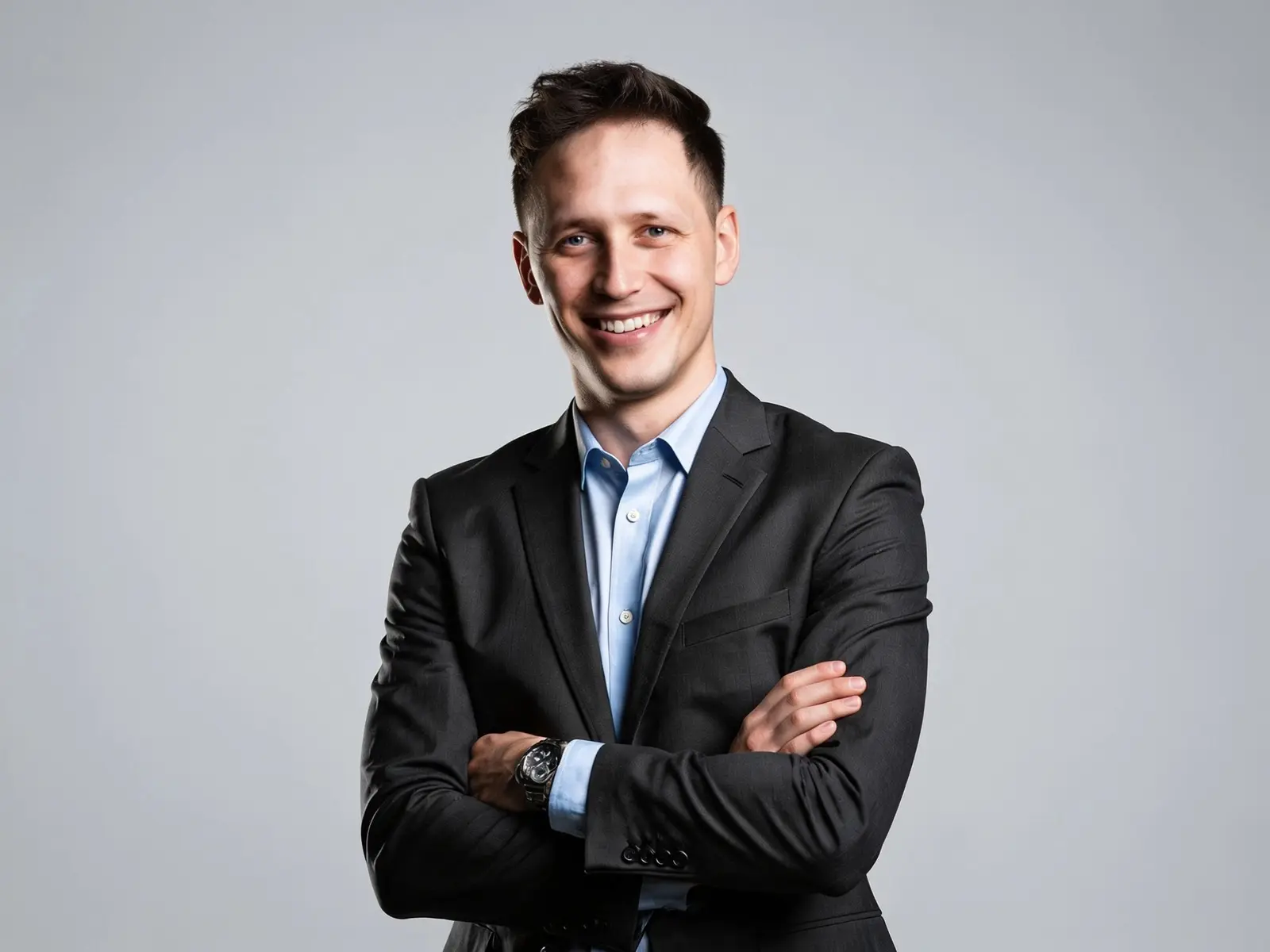
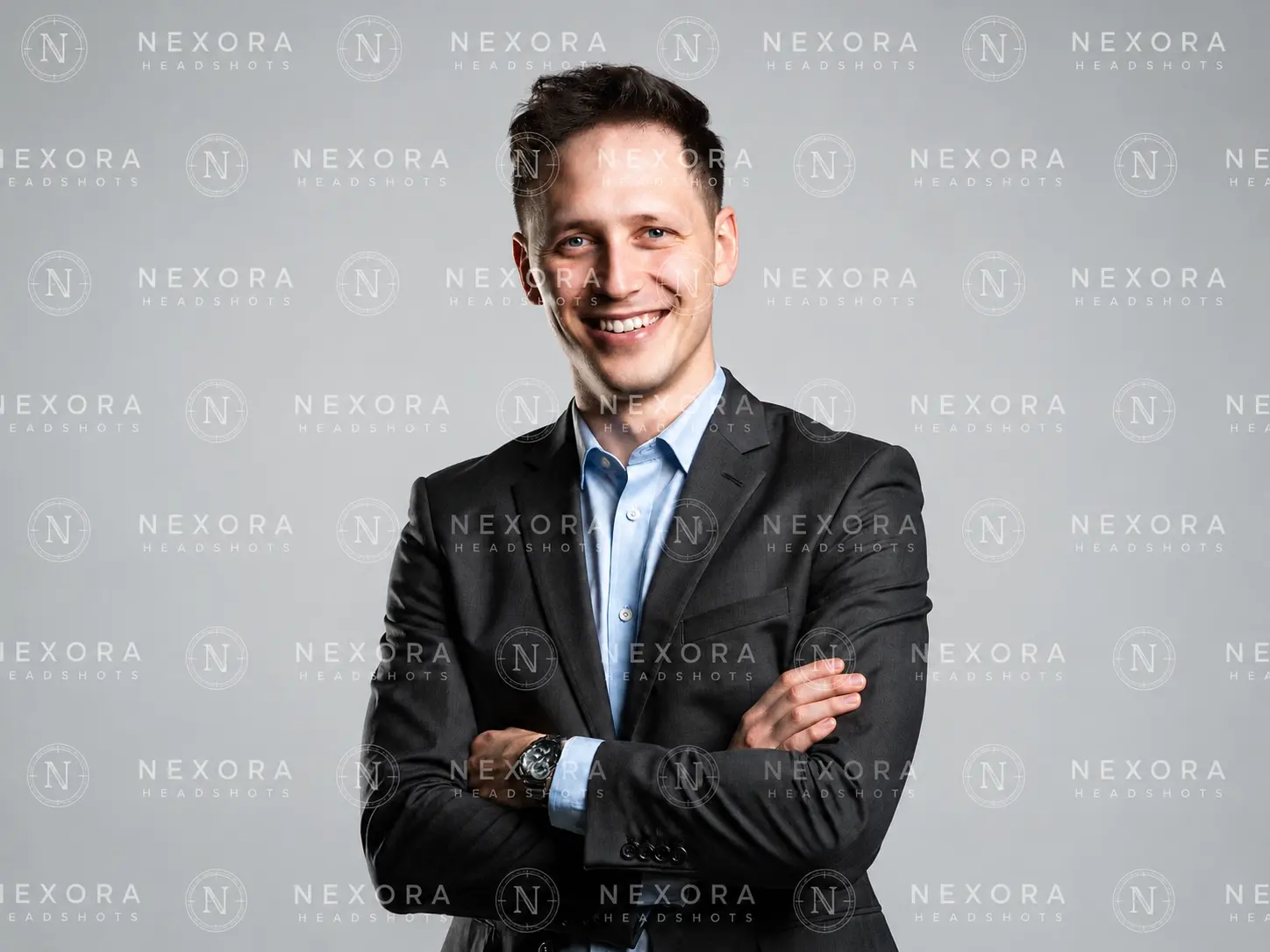
Remove visible logos, text, and date stamps from an image online—one upload, one click, and no editing software required.
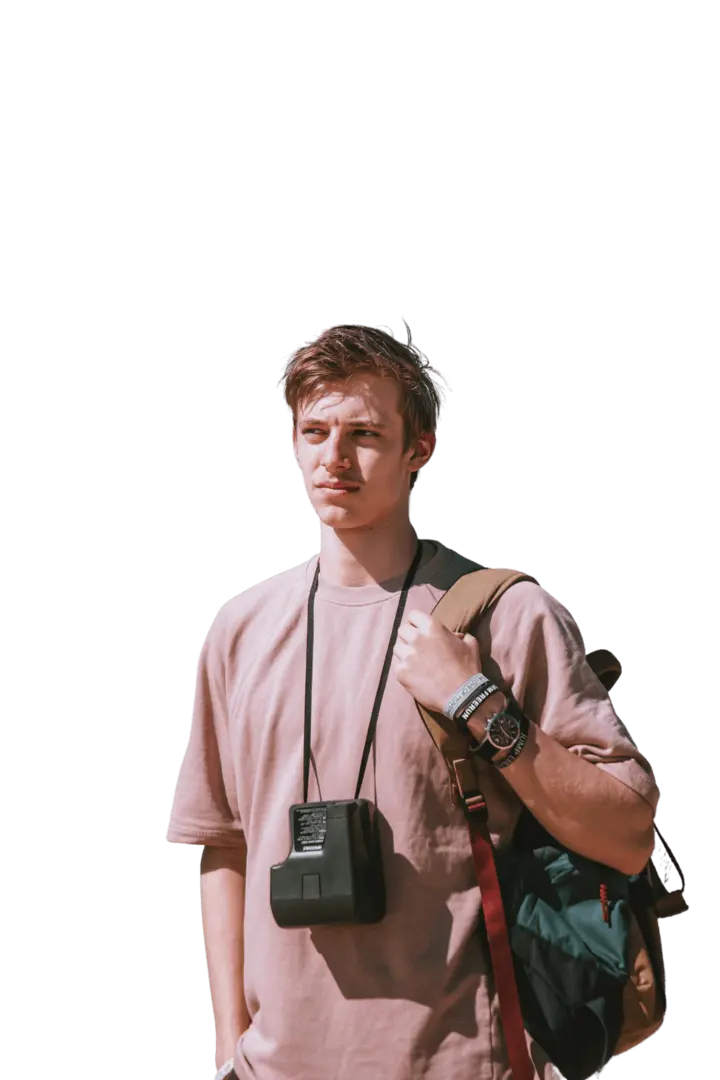
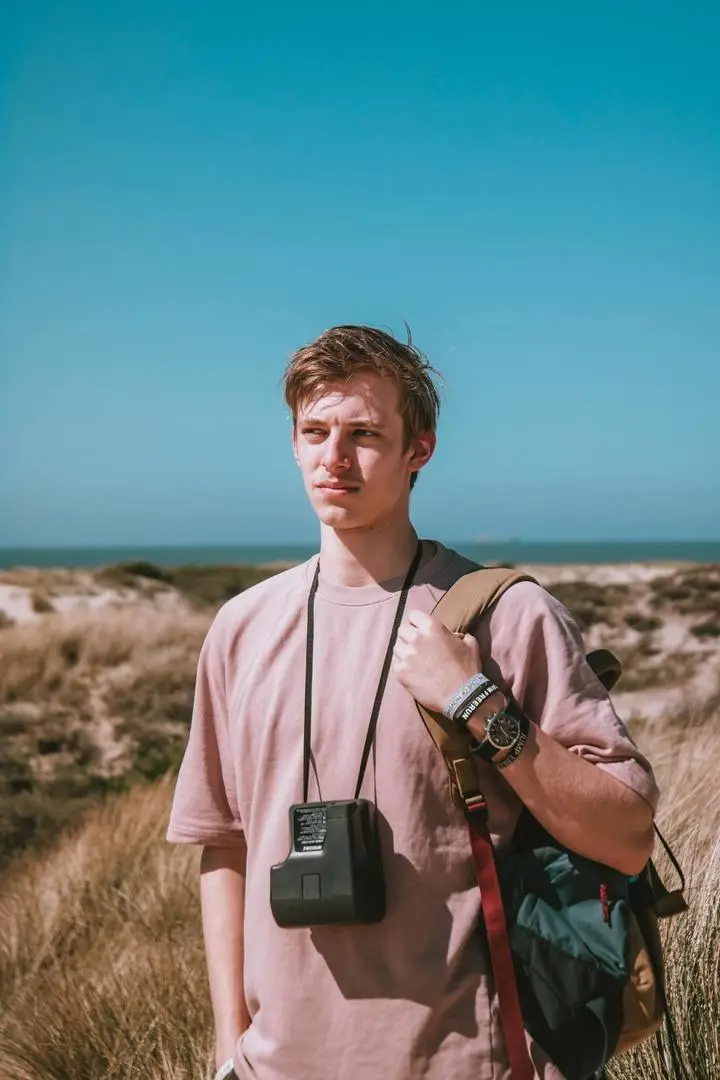
Upload any image and cut out the subject in one click. The AI removes the background and hands you a clean transparent PNG — no prompt, no manual masking, no design skills.
Swap faces in any photo in a single click — no masking, no layers, no editing skills. Just upload two photos and generate.