What Is ChatGPT Images 2.6?
ChatGPT Images 2.6 refers to the image experience in ChatGPT. You can describe an image, upload a reference, or continue editing an image in a conversation. OpenAI announced availability across ChatGPT and Codex tiers. Its help center describes GIF creation as a gradual rollout.
Developers pick a model when they send an API request. The model IDs are gpt-image-2.6-flare and gpt-image-2.6-sunburst. Both accept text and image inputs for image work. If you want to automate a batch of product images or add animation to an app, these are the names you’ll use in your integration.
What’s New in ChatGPT Images 2.6?
Turn a drawing or still image into a GIF
Ask for a short loop and describe the part that should move. You can start from a prompt, upload a still image, or use a sketch. The drawing tool itself dates back to Images 2.5. With 2.6, a rough character design can become a waving mascot or a reaction GIF you can open and save.
ChatGPT can also save a named reference photo for later conversations. If you save a character as Mascot, type @Mascot in a future image prompt to reuse the reference. That gives a creator a consistent starting image across separate briefs.
Generate images faster and preserve more detail across edits
OpenAI describes Images 2.6 generation as 50% faster than before. It also positions the update around keeping more details in place through revisions. For an online shop, that could mean swapping a backdrop while keeping the bottle’s cap, label and camera angle close to the original. Timing depends on the request, so measure from submission to usable output with the same prompt, size and quality if speed matters to your workflow.
Control planning, guide an edit and export an SVG
In the Image API, quality controls the rendering and complexity controls how much the model plans before it renders. Both 2.6 models accept low, medium and high for complexity. They default to high. For a simple backdrop change, low complexity gives you a starting point while you keep the quality your asset needs. For a poster with several objects and tight placement rules, try more planning and check the resulting layout.
An annotation layer can show the image edit endpoint where to make a change. For instance, circle a vase and ask for a new color while keeping the surrounding shelf. The API guide documents this workflow for supported 2.5 and 2.6 models. With 2.6, the generation endpoint can also return SVG for vector assets such as icons or simple illustrations.
How to Turn a Sketch Into a GIF With ChatGPT Images 2.6
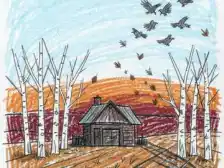
1. Start with the original sketch
I used a front-facing cat with one paw raised and a plain white background. The orange star, three whiskers on each cheek and wavy tail gave me distinct features to compare with the animation.
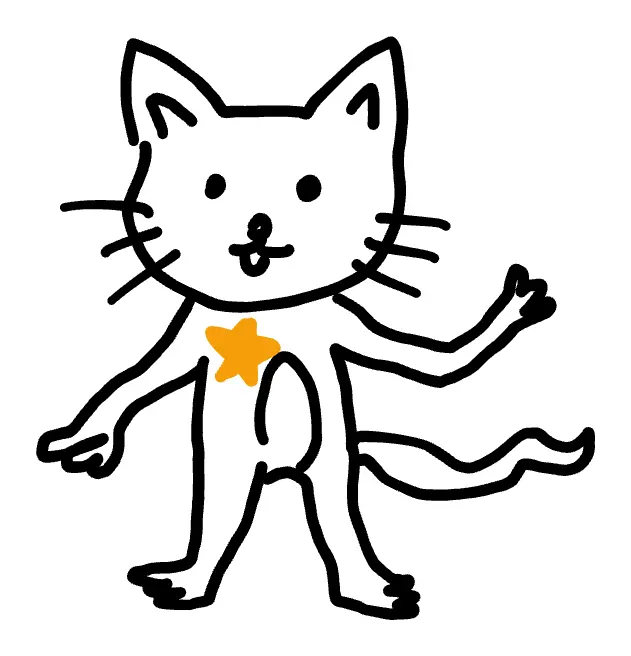
Figure 1. The original sketch uploaded to ChatGPT.
2. Animate the original sketch in ChatGPT
I uploaded the drawing above and used the prompt below. It gives the raised paw a single movement and tells ChatGPT which parts of the sketch should stay still.
Use the uploaded sketch as the visual reference to create a short, looping animated GIF.
Preserve the character’s face, body proportions, chest star, and recognizable silhouette. Refine the rough sketch into clean, simple 2D line art while keeping its hand-drawn personality.
Animate only the raised paw with one gentle side-to-side wave. Keep the head, eyes, body, chest star, camera, and white background still. Maintain consistent line thickness and character details throughout the animation.
Aim for an approximately two-second loop. Make the paw return smoothly to its starting pose as the animation repeats.
Return the result as a playable, downloadable animated GIF.
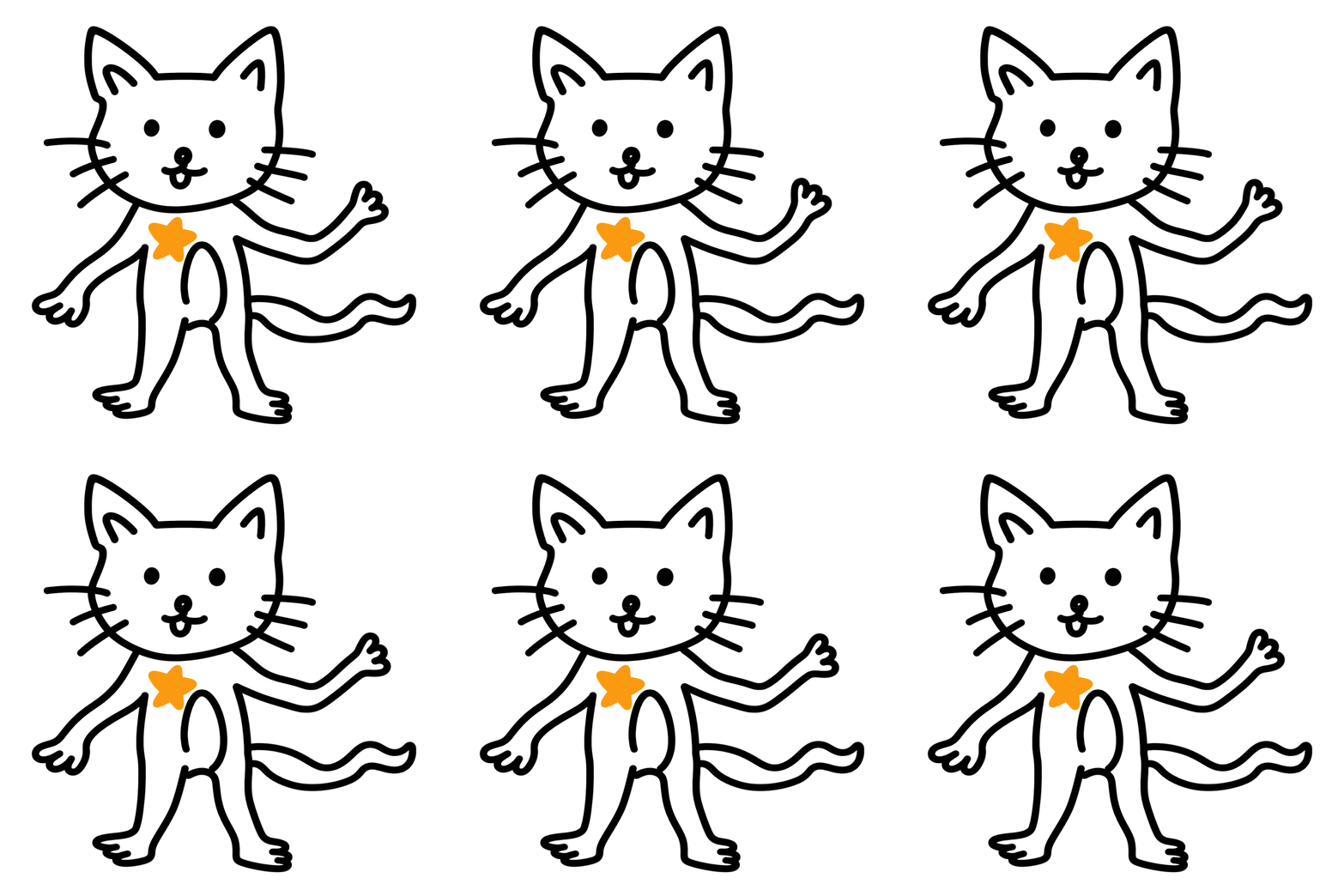
Figure 2. The GIF generated directly from the original sketch.
I waited about five minutes for the GIF to generate. The downloaded file plays as a two-second loop at 768 × 768 pixels with 48 frames. The movement stays concentrated in the raised paw. The face, whiskers, orange star, curved belly line and tail all remain recognizable, and the paw returns close to its starting position at the end of the loop.
3. Optional polish for a cleaner sketch
I used the original drawing for a separate image edit. The cleaned-up version has lighter outlines, rounder paws and shorter limbs. It keeps the orange star and raised paw, so the character is still easy to recognize.
Edit the uploaded square cat sketch into one polished, charming hand-drawn mascot illustration for an editorial sketch-to-GIF demo. Treat this as a careful clean-up of the same character.
Preserve the front-facing standing pose, the paw raised on the viewer's RIGHT in a friendly wave, the lower paw hanging to the viewer's left, the wavy tail extending to the viewer's right below the waving arm, the two triangular cat ears, three whiskers per cheek, dot eyes, cheerful little open smile, and the bright orange five-point star on the upper chest. Preserve the simple black line, white body, orange-star palette.
Refine the drawing with rounded cheeks and a slightly rounder head, a more compact softly rounded torso, shorter legs and forearms, and softly rounded feline paws with small toe curves. Make the wave silhouette easy to read, with the raised paw clearly separated from the whiskers and tail. Use smooth rounded confident ink outlines a bit lighter and more balanced than the source, with slightly thinner interior lines and subtle hand-drawn warmth.
Keep the face expressive and the orange star clear and easy to track across animation frames. Square 1:1 composition, entire cat centered with generous clean white margins. Bright pure white background. Flat minimal 2D line art, one character only. No text, labels, props, extra decorations, shadows or gradients. Deliver one beautiful standalone sketch with the pose and recognizable details of the reference.
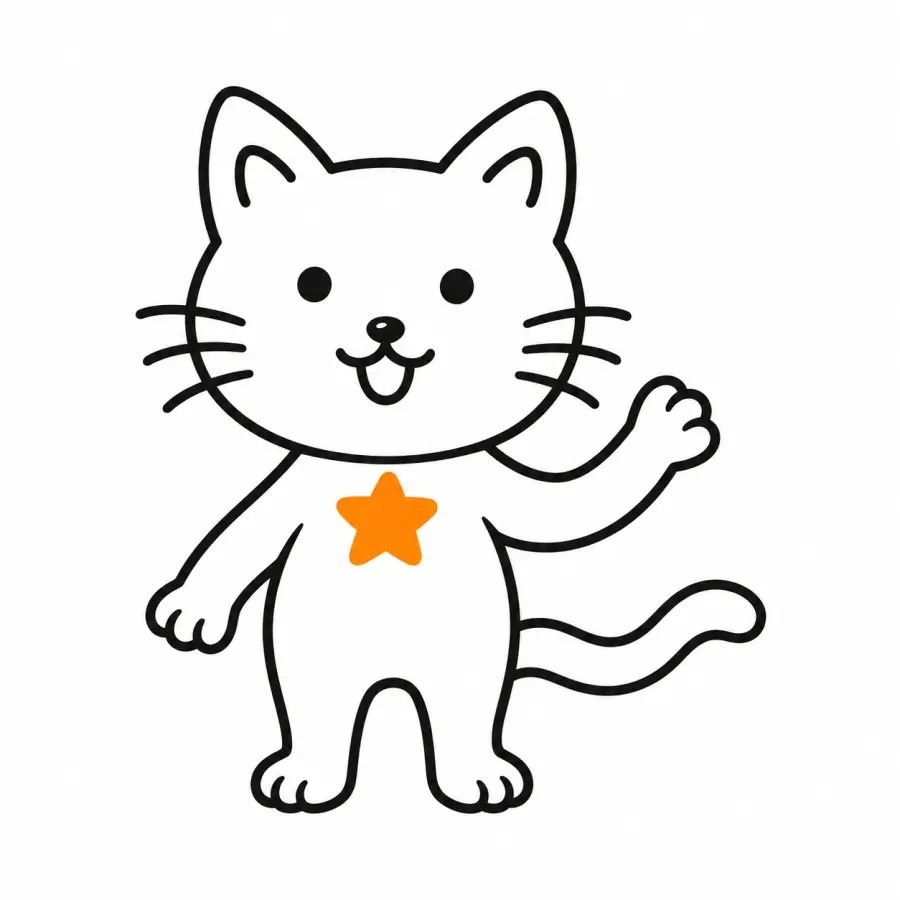
Figure 3. The polished still sketch, made in a separate edit from the same original.
To animate the polished design, upload it as the source and reuse the GIF prompt from step 2.
GPT Image 2.6 Flare vs Sunburst
| Model |
Where I’d start |
What to check |
| GPT Image 2.6 Flare |
Poster layouts, product mockups and quick GIF drafts |
OpenAI says Flare can generate an image in as little as six seconds at the low quality setting. Time your own prompt at the quality you intend to use. |
| GPT Image 2.6 Sunburst |
Detailed product photos or edits that need to preserve small features |
Start at medium or high quality. Compare the logo, label and product edges with your reference before approving the result. |
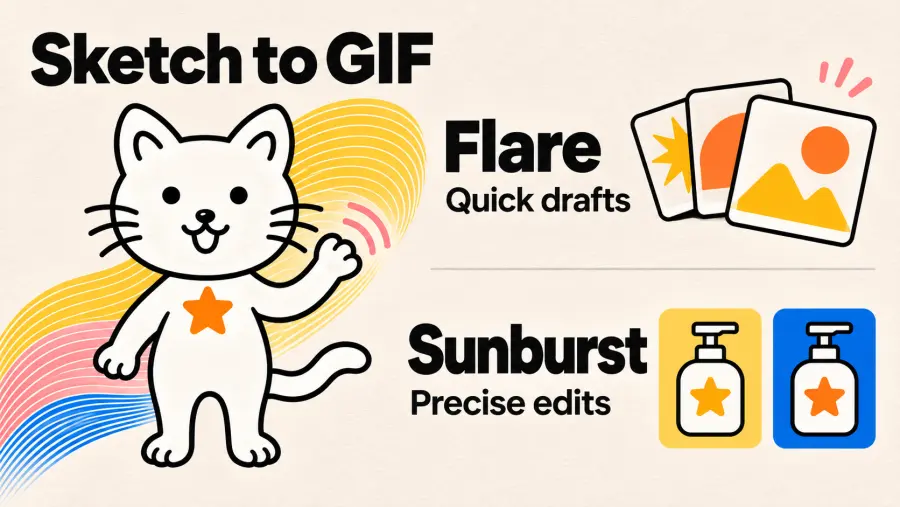
For a product campaign, I’d try the first few layouts in Flare and use Sunburst to edit the approved product image.
As checked on November 5, 2026, Arena listed Sunburst Medium at 1476 ± 10 and Flare Medium at 1462 ± 10 for single-image editing. Both scores were preliminary, with overlapping ranges.
GPT Image 2.6 vs 2.5 and GPT Image 2
| Version |
What you can use it for |
How to compare it with 2.6 |
| GPT Image 2.6 |
Static images, iterative edits and native GIF or SVG generation |
Try a short loop or an edit that needs to preserve specific parts of a source image. |
| GPT Image 2.5 Flare and GPT Image 2.5 Sunburst |
An existing workflow built around reference images, static generation and targeted revisions |
Compare like for like within each variant and log usage alongside speed. Images 2.5 release coverage |
| GPT Image 2 |
A baseline for static image generation and edits |
Run the same brief you already use in production and judge the accepted output. GPT Proto’s same-prompt tests |
The 2.5 and 2.6 variants share the same official standard token rates. In Kingy’s first-run comparison at medium quality, three still-image requests cost an estimated $0.045 with 2.5 Sunburst and $0.125 with 2.6 Sunburst. Each model edited its own generated image. Kingy’s test files and usage breakdown
To compare on a shared source, start both versions from the same approved product photo. At the same size and quality, change the label color, add a small star, then replace the background. Check whether the logo, bottle shape and previous edits survive. Divide total spend by accepted outputs to see how retries affect the cost of a usable image.
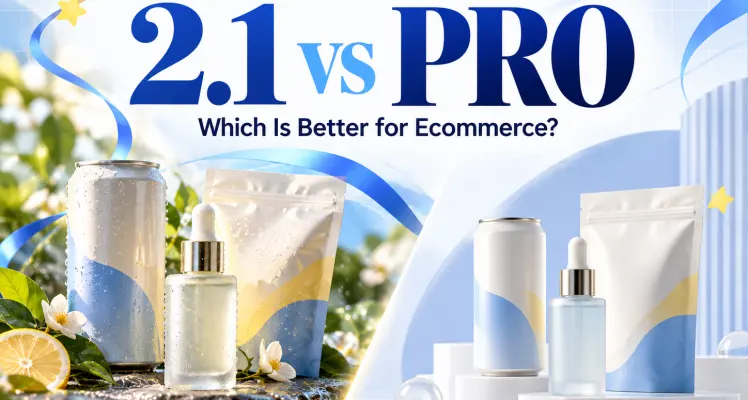
GPT Image 2.6 vs Nano Banana 2.1 and Seedream 5 Pro
| Model |
Use it when |
Comparison to run |
| GPT Image 2.6 |
You need an animated GIF or editable SVG from the image generation API, or want to revise a specific part of a still image |
Check whether the animation loops cleanly or whether the edit preserves the parts you asked it to keep. |
| Nano Banana 2.1 |
Your static image depends on several references, such as a recurring character and a separate product shot |
Try the same references at your delivery size. GPT Proto lists 1K, 2K and 4K options. |
| Seedream 5.0 Pro |
You need a batch of static product or campaign assets and want to budget by output size |
Check how many images pass review at your delivery size. GPT Proto lists separate per-image rates for 1K and 2K. |
GPT Image 2.6 API Pricing on GPT Proto
GPT Proto offers both 2.6 models at 5% below OpenAI’s standard token rates. Both variants use the rates below, in USD per million tokens.
| Billable tokens |
OpenAI standard |
GPT Proto |
| Text input |
$5.00 |
$4.75 |
| Image input |
$8.00 |
$7.60 |
| Image output |
$30.00 |
$28.50 |
For example, if a request returns 1,000 billable image output tokens, the output portion is $0.0285 on GPT Proto versus $0.0300 at OpenAI’s standard rate. Add any billed inputs to estimate the whole request. Use the response’s usage when available to compare your own prompts. Two jobs with the same token rate can use different numbers of tokens.
How to Get GPT Image 2.6 API Access on GPT Proto
Set up your account and balance. Sign in to GPT Proto and add enough balance for a small test. Start with a single output so you can inspect the file and the usage.
Open the model’s Quick Start. Choose Flare or Sunburst and click Try this model. In Quick Start, create an API key or select an existing one.
Copy the integration guide and run a test. Use Copy Markdown for AI to give the model guide to your coding assistant. Ask it to send a small request from your app’s backend and save the resulting file. Set GPTPROTO_API_KEY in your local environment before running the command below.
Generate a GIF with the API
This text-to-GIF example uses the OpenAI-compatible image generation endpoint on GPT Proto. It requests nine frames at 200 milliseconds per frame for a 1.8-second loop. It starts from a text prompt, while the earlier ChatGPT example starts from an uploaded sketch.
curl --fail --silent --show-error \
  https://gptproto.com/v1/images/generations \
  -H "Authorization: ${GPTPROTO_API_KEY:?Set GPTPROTO_API_KEY}" \
  -H "Content-Type: application/json" \
  --data-binary @- --output gif-response.json <<'JSON'
{
  "model": "gpt-image-2.6-flare",
  "prompt": "A line-drawn cat waves one paw and returns to its starting pose.",
  "size": "512x512",
  "quality": "low",
  "output_format": "gif",
  "frame_count": 9,
  "frame_duration_ms": 200
}
JSON
After the request succeeds, decode the GIF from the JSON response.
python3 - <<'PY'
import base64
import json
from pathlib import Path

response = json.loads(Path("gif-response.json").read_text())
gif_bytes = base64.b64decode(response["data"][0]["b64_json"], validate=True)
if gif_bytes[:6] not in (b"GIF87a", b"GIF89a"):
    raise SystemExit("Expected GIF bytes in the API response.")

Path("mascot-wave.gif").write_bytes(gif_bytes)
print("Saved mascot-wave.gif")
PY
Open mascot-wave.gif and watch the repeat. For an SVG request, use the same generation endpoint with output_format set to svg and n set to 1. Omit the two GIF timing fields, then decode the Base64 payload directly to an .svg file.