How to Get Kimi K3.1 Pro API Access on GPT Proto
1. Create an account and prepare a test balance
Register or sign in to GPT Proto. Check the model's current token rates and add enough credit for a small test. The pricing section below shows how to calculate an input/output budget.
You need a project your coding assistant can inspect, plus a local or server environment where you can configure a secret. For a browser application, place the model call in your backend; the frontend should call that backend.
2. Open the model's Quick Start panel
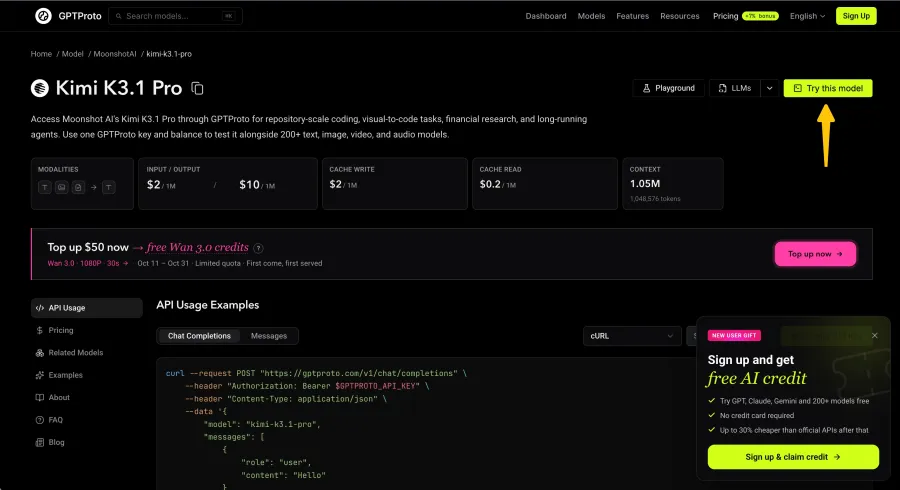
On the Kimi K3.1 Pro page, click Try this model. The Quick Start panel contains the API-key controls, request examples, streaming instructions, and Copy Markdown for AI.
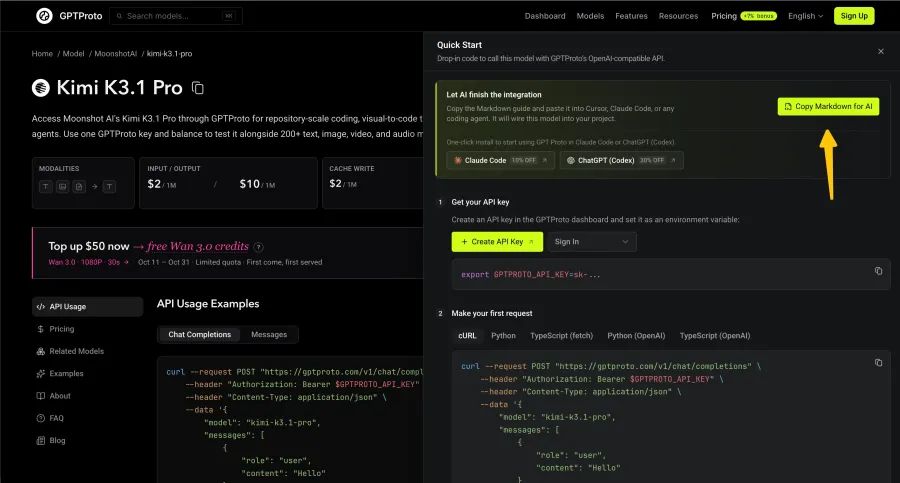
This is where you collect the integration instructions. The model-page URL opens a webpage; your application's request goes to the API endpoint shown inside the panel.
3. Create or select your API key
Use Create API Key to enter the key-creation flow. If you already have a suitable key, use Select Key. The panel uses the environment variable GPTPROTO_API_KEY.
Set the real value in your local environment or deployment secret store. Keep a placeholder in example configuration. Do not paste the real key into your coding-assistant conversation, commit it to the repository, or bundle it into frontend JavaScript.
4. Copy the guide and give your assistant an implementation task
Click Copy Markdown for AI and paste the guide into Cursor, Claude Code, Codex, or another coding assistant with access to your project. Include your language, framework, and intended feature.
Use this instruction above the copied guide:
Connect Kimi K3.1 Pro to this project using the GPT Proto guide below.

Inspect the existing code and follow its language and conventions.
Add a backend function that accepts a code diff and project context,
calls the model, and returns a Markdown review.

Use the guide's exact endpoint, model ID, and authentication.
Read the key from GPTPROTO_API_KEY on the server. Use placeholders
in example configuration and keep the key out of browser code.

Add a small connection check and handle request failures.
Report the final answer, completion status, elapsed time, and available
token usage. Keep secrets out of logs. Explain setup and run commands.
State which checks you ran and which still need my credentials.

[Paste the Markdown copied from Quick Start here.]
The assistant can prepare the implementation and setup commands. You still need to configure the key and verify the live request.
5. Run a small connection check
Follow the setup commands for your project, configure the key, and run the connection check. Request a short answer before sending a repository or a large diff.
Check that the request succeeds, the final answer contains useful text, and the output was completed. Inspect any returned usage information. An HTTP success response with truncated content still needs attention.
For an optional manual check, set GPTPROTO_API_KEY in your terminal and run this request, adapted from the model page:
curl --request POST "https://gptproto.com/v1/chat/completions" \
  --header "Authorization: Bearer $GPTPROTO_API_KEY" \
  --header "Content-Type: application/json" \
  --data '{
    "model": "kimi-k3.1-pro",
    "messages": [
      {"role": "user", "content": "Reply with one short greeting."}
    ]
  }'
This command shows the documented request configuration. A live result requires your own funded account and valid key.
Connection success is the first checkpoint. In Simon Willison's published API experiment, he shared generated SVGs and noted a visible mistake in one result. His run used Moonshot's API; it illustrates why inspecting the artifact matters. For your application, the next check is whether its review identifies a real problem.
Build a Code Review Tool with Kimi K3.1 Pro
This example suits an indie SaaS developer or a small engineering team that wants a review draft before a human approves a change.
Your application collects the diff, relevant source files, API contracts, and test information. Kimi analyzes that material and proposes findings. The application saves the report; a developer reproduces the findings and decides what to change.
Prepare a change with a known problem
Use this deliberately faulty, synthetic diff for src/tasks.js:
--- a/src/tasks.js
+++ b/src/tasks.js
@@ -1,7 +1,8 @@
 export async function listActiveTasks(api, cursor = null) {
   const page = await api.listTasks({ cursor, limit: 50 });


+  const items = page.items.filter((task) => !task.archived);
   return {


-    items: page.items,


-    nextCursor: page.nextCursor,


+    items,


+    nextCursor: items.length === 50 ? page.nextCursor : null,
   };
 }
Supply the contract alongside it: api.listTasks returns up to 50 records and a nextCursor whenever more pages exist. The UI follows that cursor until it is null, including when the current page contains no visible tasks. Filtering archived tasks must preserve access to later pages.
The test scenario contains 50 records on the first page, including 10 archived tasks, and a nextCursor of page-2. After filtering, 40 tasks remain. The cursor should still be page-2.
Give the model a bounded review task
After the connection check succeeds, ask your coding assistant to implement the workflow with this review instruction:
Review the supplied diff against the source and API contract.
Report only concrete problems supported by the supplied material.

For each finding, include the changed file and line, trigger,
observable consequence, code evidence, and a test that would expose it.
Separate confirmed findings from questions requiring more context.
If there is no supported finding, say so. Do not invent line numbers,
executed tests, or missing project behavior.

Return a Markdown review for a developer to inspect.

[Diff]
[Relevant source and API contract]
[Existing tests or clearly labeled test scenarios]
Use clearly labeled sections in the request so the model can distinguish project evidence from your instructions. Begin with the relevant files; expand the context when a finding depends on another module.
Check the report against the fixture
The expected finding for this deliberately faulty example is premature pagination termination: the filtered count controls the cursor, so the 40 visible tasks cause nextCursor to become null even though another page exists. This is the fixture's expected behavior analysis, not a captured model response.
Accept a finding only after checking its code reference and reproducing its trigger. Here, assert that the result contains 40 visible tasks and preserves page-2; the proposed change fails the cursor assertion. Repeat with a page containing only archived tasks and a valid next cursor.
Then review a control version that filters the tasks while returning page.nextCursor unchanged. The same pagination finding should disappear. This helps expose a reviewer that produces the same warning regardless of the code.
Before using real pull requests, collect several representative changes with known outcomes. Record confirmed findings, missed issues, unsupported warnings, elapsed time, and usage. A polished report still needs evidence.
Kimi K3.1 Pro API Pricing and Review Costs
The GPT Proto Kimi K3.1 Pro model page displayed these rates when checked on October 28, 2026:
| Billing item |
USD per 1 million tokens |
| Input |
$2.00 |
| Output |
$10.00 |
| Cache write |
$2.00 |
| Cache read |
$0.20 |
For a hypothetical review using 20,000 non-cached input tokens and 3,000 billable output tokens:
Input:  20,000 / 1,000,000 × $2  = $0.04
Output:  3,000 / 1,000,000 × $10 = $0.03
Input/output subtotal:             $0.07
This is a budget illustration, not a measurement of the example above. It excludes applicable cache-write charges, external tools, retries, and other charges. Include billable reasoning in the output count; the visible review alone does not establish that count.
Calculate the whole workflow. Sending the same context for a follow-up can add input usage, and a retry can add another request. Measure actual cache usage before budgeting for cache savings. Recheck the live rate card before expanding the workload.
Extend the Integration to Coding Agents and SaaS Apps
Once the single-request reviewer works, you can add a bounded tool workflow: the model requests a relevant file, your backend supplies it, and the model continues its review.
Moonshot's K3.1 Pro integration documentation says to return the complete assistant message in multi-turn conversations and tool calls, including reasoning fields and tool calls. Each tool result must match its requested call. Have your integration preserve these fields and check the behavior on GPT Proto before relying on a longer loop.
The application executes tools, validates their arguments, and enforces access. Set limits for tool calls, total time, and spending. Add per-user usage controls when exposing the reviewer inside a SaaS product.
For a stable Kimi K3.1 Pro API workflow, evaluate the complete path: connection, message handling, tools, output checks, and failure recovery. In one developer discussion, a user reported solving a coding problem while also describing long waits between turns. Treat that as an individual experience and measure your own completed-task time.
Common Setup and Output Problems
| Problem |
What to check |
| Authentication fails |
Confirm that the key belongs to GPT Proto and the header includes Bearer. |
| Model is unavailable |
Match the page's exact kimi-k3.1-pro identifier and check account access. |
| The SDK builds the wrong URL |
Use https://gptproto.com/v1 as its base URL; cURL uses the full endpoint. |
| A parameter is rejected |
Return to the minimum documented request, then add fields individually. |
| The response is incomplete |
Check completion status and the output budget, including reasoning. |
| A multi-turn review loses context |
Inspect the complete assistant message and matching tool-result history. |
| Findings lack evidence |
Supply the relevant contract and tests; require concrete references and triggers. |
| Requests time out or fail repeatedly |
Inspect the error and usage before retrying; use bounded retries for transient failures. |
Avoid repeatedly resending a large request while diagnosing authentication or parameter errors. A timeout also deserves investigation before a costly retry.
Open the Kimi K3.1 Pro page, click Try this model, and copy the integration guide to your coding assistant. Connect your project, run one small request, and verify the code review fixture before expanding to real changes.