What You Will Have at the End
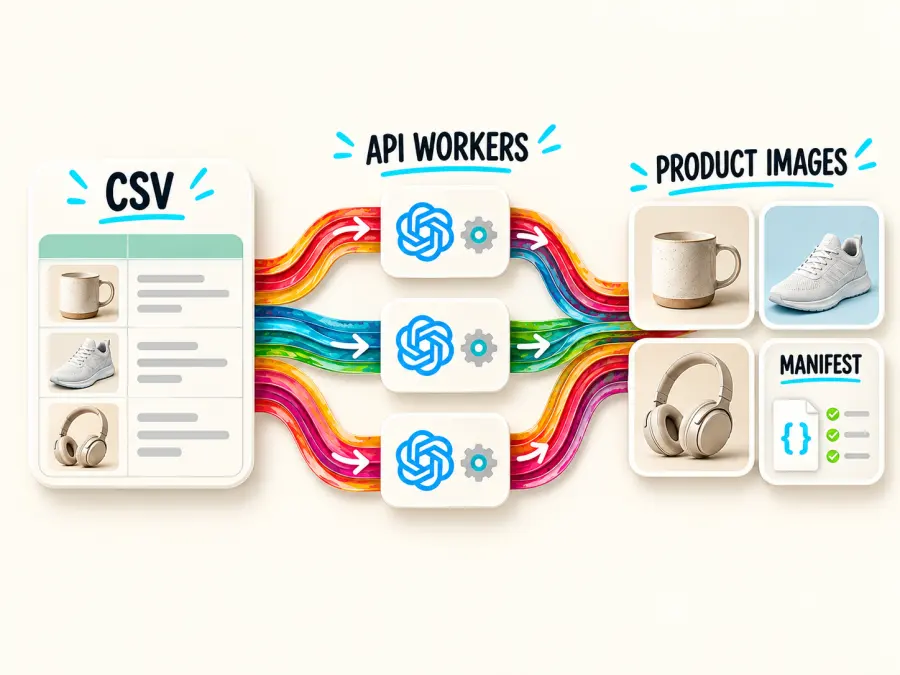
You will start with two files:
When the script runs, it creates two more items automatically:
generated/: a folder containing files such as MUG-001-01.png.
manifest.json: a record showing which products completed, failed, or still need checking.
The flow is straightforward:
products.csv → Python script → GPT Image 2 API → downloaded images
                         ↘ manifest.json
Begin with the three sample products in this guide. Once they work, replace the sample rows with your real catalog.
Beginner Terms Used in This Guide
| Term |
Plain-English meaning |
| API |
A way for your script to send instructions to GPT Image 2 without using a chat window. |
| API key |
A private password that identifies your GPT Proto account and authorizes API usage. |
| SKU |
Your own unique code for one product, such as MUG-001. It is also used in the output filename. |
| Request |
One message sent by the script to the API. In this workflow, one product normally creates one generation request. |
| Task or prediction ID |
The receipt number returned after a generation request is accepted. The script uses it to check the result. |
| Polling |
Asking the result endpoint every few seconds whether a task has finished. |
| Concurrency |
The number of products being processed at the same time. Three workers means up to three active jobs. |
| Manifest |
A local record of every SKU, task ID, result, and error. It allows a stopped script to continue safely. |
| Base64 |
Image data represented as a long text string. It must be decoded before it becomes a normal image file. |
The API workflow is similar to collecting an order from a restaurant. The first request places the order. The returned task ID is the collection number. Polling checks whether the order is ready. The output URL is where the finished item can be collected. The manifest is your receipt book.
Can ChatGPT Generate Multiple Product Images at Once?
ChatGPT can create multiple images across a conversation, so it is fine for visual exploration and a small number of manual variations. It is not a dependable catalog pipeline: there is no CSV queue, stable SKU-to-file mapping, concurrency control, or retry manifest.
The API is the better fit when the question is “How do I create multiple product images and know which file belongs to which product?”
| Need |
ChatGPT interface |
GPT Image 2 API workflow |
| Explore one concept |
Good fit |
Possible, but more setup |
| Process a CSV catalog |
Manual |
Automated |
| Use a different prompt per SKU |
Repetitive |
One row becomes one request |
| Control filenames and folders |
Manual download |
Deterministic naming |
| Resume failed work |
Manual review |
Manifest-based |
| Integrate with a DAM, PIM, or store |
Limited |
Designed for code integration |
Searches such as “ChatGPT generate multiple images at once” often mix two different goals: several variations of one prompt and many images for different products. The distinction matters once cost, file ownership, and reruns enter the picture.
What “GPT Image 2 API Batch” Can Mean
People use “batch” for three separate patterns:
1. Several variations from one prompt
Set n between 1 and 10. This is useful when a designer wants several candidates for the same product and composition. It does not create product-specific prompts for ten SKUs.
2. Several independent requests at the same time
Read multiple products from a file and submit one request per row. A small ThreadPoolExecutor provides controlled concurrency. This is the pattern used in this tutorial because each product can have its own name, color, material, angle, and background.
3. OpenAI's asynchronous Batch API
OpenAI's direct Batch API accepts JSONL request files, uses a separate rate pool, offers a 50% discount, and completes within a 24-hour window. The OpenAI Batch API guide lists /v1/images/generations and /v1/images/edits as supported endpoints.
That is a separate OpenAI feature. Do not assume the same JSONL Batch endpoint exists on GPT Proto. The GPT Proto workflow below uses its documented image endpoint and prediction-status route.
What You Need
You need a computer, Python 3, a GPT Proto API key, and a text editor. Visual Studio Code is convenient, but any editor that saves plain-text files will work.
1. Check that Python is installed
Open Terminal on macOS or Linux, or PowerShell on Windows, and run:
python --version
If Windows says that python is not recognized, try:
py --version
A result such as Python 3.11.8 means Python is ready. If neither command works, install a current Python 3 release and enable the option that adds Python to your system path.
2. Create a project folder
Create a folder named gpt-image-bulk. Inside it, create these two empty files:
bulk_product_images.py
products.csv
Paste the complete Python script from this guide into the first file. Paste the sample CSV shown below into the second file. Both files must be in the same folder unless you change the paths in the script.
3. Create and store your API key
Create an account on GPT Proto, add credit, and generate an API key. An API key should be treated like a password. Do not publish it in an article, upload it to GitHub, or paste it directly into the Python file.
Store the key temporarily in an environment variable. On macOS or Linux, run:
export GPTPROTO_API_KEY="your-key-here"
On Windows PowerShell, run:
$env:GPTPROTO_API_KEY="your-key-here"
The variable normally lasts for the current terminal window. If you close that window and open another one, set it again before running the script.
4. Install the one required Python package
The script uses requests to communicate with the API and download images. Install it with:
python -m pip install requests
Windows users who needed the py command should run py -m pip install requests instead.
5. Add your products to the CSV
CSV means “comma-separated values.” It is a simple spreadsheet format that Excel, Google Sheets, and most catalog tools can export. Add one product per row:
Create products.csv with one row per product:
sku,name,color,material,angle,background,avoid
MUG-001,Stackable coffee mug,matte navy,stoneware,three-quarter,soft warm gray,steam or hands
BAG-014,Compact crossbody bag,forest green,pebbled leather,front three-quarter,light beige,props or a model
LAMP-207,Portable table lamp,cream,powder-coated aluminum,front,clean white,visible cable or extra objects
Each column has one job:
| Column |
What to enter |
Example |
sku |
A unique product code |
MUG-001 |
name |
A short product name |
Stackable coffee mug |
color |
The exact visible color or finish |
matte navy |
material |
The main visible material |
stoneware |
angle |
The desired camera view |
three-quarter |
background |
The catalog background |
soft warm gray |
avoid |
Objects or mistakes the image should not contain |
steam or hands |
Keep the header row exactly as shown because the Python script looks for those column names. Every SKU must be unique. If a product name or field contains a comma, export the file from a spreadsheet program so that the value is quoted correctly.
Use short factual fields rather than writing a different long prompt in every row. The script will combine the fields with the same photography rules, which helps the catalog look consistent.
Step 1: Build a Reusable Product Prompt
A product prompt should separate facts that change by SKU from rules that apply to the whole catalog. This makes prompt revisions measurable: change the shared template once, regenerate a small test set, and compare it with the previous version.
def build_prompt(row):
    return f"""Create one catalog product photograph.
Product: {row['name']}
Color: {row['color']}
Material: {row['material']}
View: {row['angle']}
Background: {row['background']}

Keep the product centered with realistic proportions and material texture.
Use soft studio lighting, a natural contact shadow, and generous crop-safe space.
No text, logos, labels, people, or extra objects.
Also avoid: {row.get('avoid', 'none')}.
Return a single product image, not a collage or contact sheet."""
You do not need to edit this function for every product. When the script reads the mug row, {row['name']} becomes Stackable coffee mug; when it reads the bag row, the same placeholder becomes Compact crossbody bag. This is called a template: the structure stays the same while the product data changes.
The instruction “single product image” helps prevent a model from turning a request into a collage. The shared instructions about camera view, crop, lighting, shadow, and background help separate products look like one catalog rather than unrelated images.
If the initial results are inconsistent, edit the shared rules first. For example, replace “generous crop-safe space” with “the product should fill approximately 75% of the square canvas.” Test that change on three different product types before applying it to the whole file.
For real branded products, text-to-image is best for concept shots or generic merchandise. If exact geometry, packaging, or label placement matters, use image editing with approved product references; that workflow is covered later.
Step 2: Test One Product Before Starting the Queue
Start with one product, n=1, quality="low", and a common size such as 1024x1024. Low quality is useful for checking the composition before paying for final-quality generations.
The following cURL command is a small API test. cURL is a command-line tool that sends a web request. This exact command uses Bash syntax, so paste it into Terminal on macOS or Linux after setting your API key. Windows beginners can skip the manual cURL test and use the cross-platform Python script later in this guide.
curl --request POST \
  --url "https://gptproto.com/api/v3/openai/gpt-image-2/text-to-image" \
  --header "Authorization: Bearer $GPTPROTO_API_KEY" \
  --header "Content-Type: application/json" \
  --data '{
    "prompt": "A centered matte navy stoneware coffee mug, three-quarter catalog view, soft studio light, warm gray background, natural contact shadow, no text or props",
    "n": 1,
    "quality": "low",
    "size": "1024x1024",
    "enable_sync_mode": false,
    "response_format": "url"
  }'
Here is what the important lines mean:
| Field |
Meaning |
Authorization |
Sends your private API key so GPT Proto knows which account is making the request. |
prompt |
Describes the product image you want. |
n: 1 |
Requests one result for this prompt. |
quality: low |
Uses the lower-cost draft setting for the first test. |
size: 1024x1024 |
Requests a square image. |
enable_sync_mode: false |
Returns a task receipt first instead of keeping the request open until generation finishes. |
response_format: url |
Returns a download link when the image is ready. |
A successful first response is a JSON object that contains a prediction ID in data.id. JSON is simply a structured text format used by APIs. It may look like this shortened example:
{
  "data": {
    "id": "abc123",
    "status": "created",
    "urls": {
      "get": "https://gptproto.com/api/v3/predictions/abc123/result"
    }
  }
}
This response is not the image. It confirms that the job was accepted. Copy the real ID returned to you and query its result:
curl --request GET \
  --url "https://gptproto.com/api/v3/predictions/abc123/result" \
  --header "Authorization: Bearer $GPTPROTO_API_KEY"
Replace abc123 with your task ID. If data.status is still created or processing, wait a few seconds and run the GET command again. When it becomes completed, data.outputs contains the generated output. The complete Python script performs these checks automatically, so you will not need to repeat this manual process for every product.
See the GPT Proto GPT Image 2 text-to-image reference for the current request and response fields.
Do not launch the full catalog until one product passes these checks:
The crop leaves enough room for every storefront placement.
Color and material are close enough for the intended use.
The background and contact shadow match the catalog style.
No invented logo, label, prop, or duplicate product appears.
The result route and download code both work in your environment.
If the test returns 401 Unauthorized, the first thing to check is the API key and Authorization header. If it returns 403, check model access and account balance. Do not continue to the full catalog until this one-item test succeeds.
Step 3: Prevent “Size Must Be a Multiple of 16” Errors
GPT Image 2 accepts common presets and valid custom dimensions. For custom sizes, both edges must be multiples of 16, the longest edge cannot exceed 3,840 pixels, the aspect ratio cannot exceed 3:1, and the image must contain between 655,360 and 8,294,400 pixels. Outputs above 2560×1440 total resolution are marked experimental in the API documentation.
“Both edges must be multiples of 16” means the width and height must each divide by 16 with no remainder. Numbers such as 1024, 1200, 1536, and 2048 pass that check. A number such as 1000 does not. This rule applies to both the width and height, not only the longest side.
Validate before sending a paid request:
def validate_size(size):
    if size == "auto":
        return

    width, height = map(int, size.lower().split("x"))
    pixels = width * height

    if width % 16 or height % 16:
        raise ValueError("GPT Image 2 width and height must be multiples of 16")
    if max(width, height) > 3840:
        raise ValueError("The longest edge cannot exceed 3840 pixels")
    if max(width, height) / min(width, height) > 3:
        raise ValueError("Aspect ratio cannot exceed 3:1")
    if not 655_360 <= pixels <= 8_294_400:
        raise ValueError("Total pixels are outside the supported range")
1200x1200 is valid because both sides divide by 16. 1000x1000 is not. If a storefront ultimately needs 1000x1000, generate at 1024x1024 and resize after approval.
Supported presets include 1024x1024, 1536x1024, 1024x1536, 2048x2048, 2048x1152, 3840x2160, and 2160x3840.
Step 4: Use Controlled Concurrency, Not an Unbounded Loop
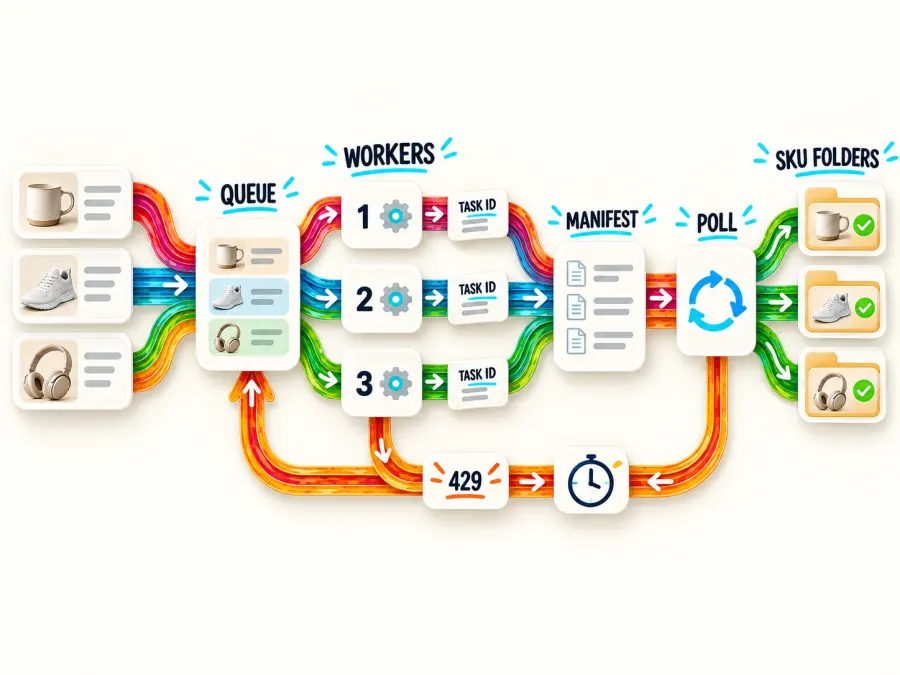
Concurrency means how many products the script works on at the same time. Think of workers as checkout lanes: one worker processes one active product; three workers allow up to three products to move through the system together.
A loop that starts hundreds of workers can run into rate limits, consume memory, and make failure recovery harder. Begin with two or three. Increase only after checking account behavior and completion times.
from concurrent.futures import ThreadPoolExecutor, as_completed

with ThreadPoolExecutor(max_workers=3) as pool:
    futures = [pool.submit(process_product, row) for row in products]
    for future in as_completed(futures):
        print(future.result())
You do not need to understand Python threading to use this example. max_workers=3 is the important setting. If you receive repeated 429 errors, reduce it to 2 or 1. If a long test runs without rate-limit errors, you can cautiously try a larger value.
The model provider's published rate limits are not automatically the limits of an intermediary API account. Treat 429 Too Many Requests and its Retry-After header as the source of truth for the active GPT Proto key. Keep concurrency configurable rather than embedding an aggressive number in the code.
OpenAI also publishes tier-based limits for direct model access. Those figures are useful context, but they should not be presented as GPT Proto's rate limits.
Step 5: Save URL and Base64 Results Correctly
GPT Proto supports response_format="url" and response_format="b64_json" for this endpoint.
Beginners should use url first. The API returns a normal image link, and the script downloads the file into the generated folder. Download it immediately because the result URL is a delivery link, not permanent asset storage. Save approved files in your own product-media folder, DAM, or object storage.
Base64 is another way to deliver the same image: the response contains a very long text string instead of a URL. It is useful when a system must keep all data inside JSON, but the text must be converted back into binary image bytes before the file can open. You do not need Base64 for the first version of this workflow.
For Base64 output, decode the string into bytes:
import base64
from pathlib import Path

def save_base64_image(value, destination):
    # Also accepts a data URI such as data:image/png;base64,...
    encoded = value.split(",", 1)[1] if value.startswith("data:") else value
    Path(destination).write_bytes(base64.b64decode(encoded, validate=True))
A common GPT Image 2 Base64 decode bug is writing the encoded text directly to a .png file. A valid image file contains decoded binary bytes, not the JSON string returned by the API.
If you use OpenAI directly instead of GPT Proto, note that GPT image models return b64_json; OpenAI's image-generation guide says URL response format is unsupported for GPT image models. The provider-specific difference is why response parsing should match the endpoint you actually call.
Step 6: Retry Without Creating Duplicate Images
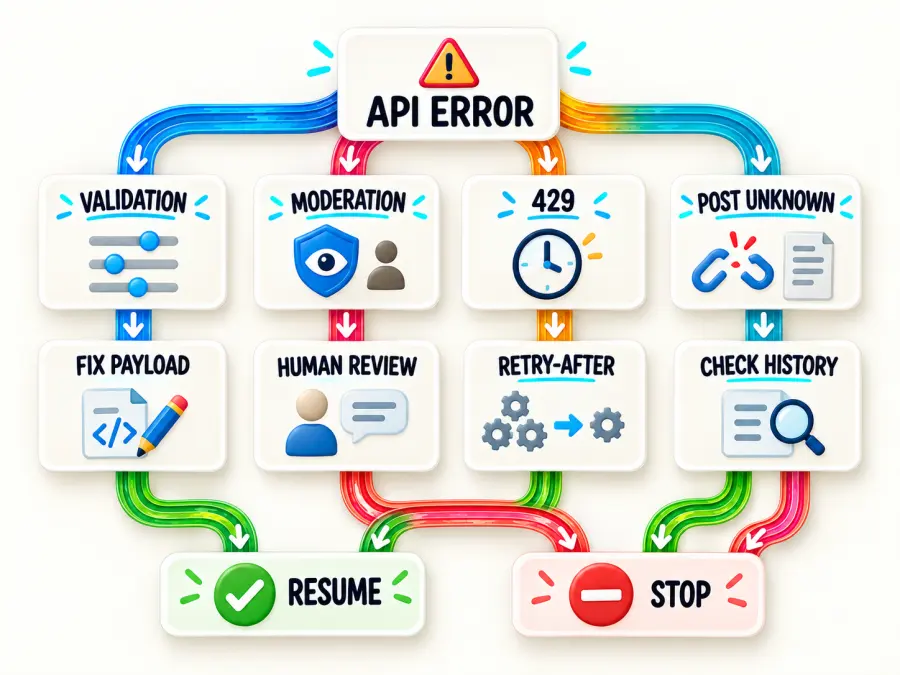
An API request can fail because the account is sending work too quickly, the network disconnects, or the generation itself is rejected. It is tempting to repeat every failed command, but that can create duplicate images.
Retries are not equally safe for every request. POST creates a new task; GET only checks an existing one.
A GET status query is safe to retry because it does not create another image.
A POST that receives a definite 429 rejection can wait for Retry-After and try again.
A POST connection timeout is ambiguous. The server may have accepted the job even though the client missed the response. Blindly repeating it can create and bill a duplicate.
A completed, failed, or moderation-blocked job should not be submitted again automatically.
The script below writes the task ID to manifest.json immediately after submission. On the next run, it polls that existing task rather than posting the same SKU again. If submission ends with an unknown network state and no task ID, the record is marked manual_check; verify the account history before retrying it.
Use exponential backoff with jitter for safe retries. Honor Retry-After when the API sends it, cap the delay, and cap the number of attempts. Repeated failures should enter the manifest, not an infinite loop.
Step 7: Handle image_generation_user_error
image_generation_user_error is a category, not a complete diagnosis. It means the request could not be generated because of something associated with the input or request. Read the inner error code and message before deciding what to change.
Typical actions are:
| Error signal |
Likely action |
moderation_blocked or policy detail |
Review the prompt and any reference image; do not retry unchanged |
| Invalid size |
Run local validation and correct the dimensions |
| Invalid parameter or unsupported format |
Compare the payload with the current endpoint reference |
Authentication failure (401) |
Check key value and authorization header |
Permission or balance failure (403) |
Check model access and balance; do not use automatic backoff |
Rate limit (429) |
Honor Retry-After, lower concurrency, retry with a cap |
Server error (500) |
Record the request and retry only when duplicate risk is understood |
Do not “fix” moderation errors by deleting words until the request slips through. Confirm that the product, intended use, reference assets, and prompt comply with the provider's policies.
For a beginner, use this order when a job fails:
Find the SKU in manifest.json.
Read its error field instead of submitting the product again immediately.
If the message names a size or parameter, correct that value.
If it is 429, lower IMAGE_WORKERS and wait before continuing.
If it is a policy or moderation error, review the product and prompt manually.
If the status is manual_check, check task history before deleting the record; the original request may already exist.
Step 8: Keep a Team-Friendly Generation Manifest
The manifest is not an API feature you need to configure. It is a JSON file created on your computer by the script. Think of it as a generation log.
For a team or business, the image folder alone is not enough. A manifest connects each asset to the SKU, prompt, settings, task ID, status, output path, and error.
Example record:
{
  "MUG-001": {
    "sku": "MUG-001",
    "status": "completed",
    "task_id": "prediction-id",
    "quality": "low",
    "size": "1024x1024",
    "prompt": "Create one catalog product photograph...",
    "files": ["generated/MUG-001-01.png"],
    "error": null
  }
}
In this record, completed means the image has been generated and downloaded. task_id is the API receipt number. files tells the team where the image was saved. If generation fails, error contains the information needed to decide whether the SKU should be fixed, retried, or reviewed.
This gives a reviewer a stable handoff. It also makes it possible to regenerate only rejected items, compare prompt versions, and trace an asset back to the request that created it. For larger teams, store the same fields in a database and add reviewer, approval status, prompt version, campaign, and rights notes.
Complete Python Script for Bulk Product Generation
The following script combines the workflow. It uses the current GPT Proto v3 text-to-image endpoint and prediction-result route, sends n=1 per SKU, defaults to three workers, and resumes known tasks from manifest.json.
The code is longer than a basic API demo because it performs several safety jobs for you:
Checks image dimensions before a request is sent.
Saves the task ID as soon as the API accepts a product.
Waits for each image without asking you to run GET commands manually.
Downloads URL results and decodes Base64 results.
Limits the number of products processed at once.
Records failures and continues known tasks after a restart.
For your first run, copy the script without changing its functions. You only need to provide products.csv and the API key. The settings near the top—SIZE, QUALITY, WORKERS, and POLL_TIMEOUT—can be adjusted later.
import base64
import csv
import json
import os
import random
import re
import threading
import time
from concurrent.futures import ThreadPoolExecutor, as_completed
from pathlib import Path
from urllib.parse import urlparse

import requests

API_ROOT = "https://gptproto.com/api/v3"
SUBMIT_URL = f"{API_ROOT}/openai/gpt-image-2/text-to-image"
RESULT_URL = f"{API_ROOT}/predictions/{{task_id}}/result"

CSV_PATH = Path(os.getenv("PRODUCTS_CSV", "products.csv"))
OUTPUT_DIR = Path(os.getenv("IMAGE_OUTPUT_DIR", "generated"))
MANIFEST_PATH = Path(os.getenv("IMAGE_MANIFEST", "manifest.json"))

SIZE = os.getenv("IMAGE_SIZE", "1024x1024")
QUALITY = os.getenv("IMAGE_QUALITY", "low")
WORKERS = int(os.getenv("IMAGE_WORKERS", "3"))
POLL_TIMEOUT = int(os.getenv("IMAGE_POLL_TIMEOUT", "900"))

API_KEY = os.environ["GPTPROTO_API_KEY"]
HEADERS = {
    "Authorization": f"Bearer {API_KEY}",
    "Content-Type": "application/json",
}

manifest_lock = threading.Lock()


class SubmissionStateUnknown(RuntimeError):
    """The POST may have reached the server, but no task ID was received."""


def validate_size(size):
    if size == "auto":
        return
    if not re.fullmatch(r"\d+x\d+", size.lower()):
        raise ValueError("Size must look like 1024x1024 or be 'auto'")

    width, height = map(int, size.lower().split("x"))
    pixels = width * height
    if width % 16 or height % 16:
        raise ValueError("GPT Image 2 width and height must be multiples of 16")
    if max(width, height) > 3840:
        raise ValueError("The longest edge cannot exceed 3840 pixels")
    if max(width, height) / min(width, height) > 3:
        raise ValueError("Aspect ratio cannot exceed 3:1")
    if not 655_360 <= pixels <= 8_294_400:
        raise ValueError("Total pixels are outside the supported range")


def build_prompt(row):
    return f"""Create one catalog product photograph.
Product: {row['name']}
Color: {row['color']}
Material: {row['material']}
View: {row['angle']}
Background: {row['background']}

Keep the product centered with realistic proportions and material texture.
Use soft studio lighting, a natural contact shadow, and generous crop-safe space.
No text, logos, labels, people, or extra objects.
Also avoid: {row.get('avoid', 'none')}.
Return a single product image, not a collage or contact sheet."""


def load_manifest():
    if not MANIFEST_PATH.exists():
        return {}
    return json.loads(MANIFEST_PATH.read_text(encoding="utf-8"))


manifest = load_manifest()


def save_record(sku, **changes):
    with manifest_lock:
        record = manifest.setdefault(sku, {"sku": sku})
        record.update(changes)
        temporary = MANIFEST_PATH.with_suffix(".json.tmp")
        temporary.write_text(
            json.dumps(manifest, indent=2, ensure_ascii=False),
            encoding="utf-8",
        )
        temporary.replace(MANIFEST_PATH)


def parse_json(response):
    try:
        return response.json()
    except ValueError:
        return {"raw_response": response.text[:1000]}


def api_error(response):
    payload = parse_json(response)
    return RuntimeError(
        f"HTTP {response.status_code}: {json.dumps(payload, ensure_ascii=False)}"
    )


def submit(prompt):
    payload = {
        "prompt": prompt,
        "n": 1,
        "quality": QUALITY,
        "size": SIZE,
        "enable_sync_mode": False,
        "response_format": "url",
    }

    # Retry only a definite 429 rejection. A connection failure is ambiguous:
    # the job may exist even though this client did not receive its ID.
    for attempt in range(5):
        try:
            response = requests.post(
                SUBMIT_URL,
                headers=HEADERS,
                json=payload,
                timeout=(10, 180),
            )
        except requests.RequestException as exc:
            raise SubmissionStateUnknown(str(exc)) from exc

        if response.status_code != 429:
            if response.status_code >= 400:
                raise api_error(response)
            body = parse_json(response)
            data = body.get("data", body)
            task_id = data.get("id")
            if not task_id:
                raise RuntimeError(f"Submission returned no data.id: {body}")
            return task_id

        if attempt == 4:
            raise api_error(response)
        retry_after = response.headers.get("Retry-After")
        delay = float(retry_after) if retry_after and retry_after.isdigit() else 2**attempt
        time.sleep(min(30, delay) + random.random())

    raise RuntimeError("Submission retry loop ended unexpectedly")


def get_result(task_id):
    deadline = time.monotonic() + POLL_TIMEOUT
    delay = 2.0

    while time.monotonic() < deadline:
        try:
            response = requests.get(
                RESULT_URL.format(task_id=task_id),
                headers=HEADERS,
                timeout=(10, 60),
            )
        except requests.RequestException:
            time.sleep(delay + random.random())
            delay = min(10, delay * 1.5)
            continue

        if response.status_code == 429 or response.status_code >= 500:
            retry_after = response.headers.get("Retry-After")
            wait = float(retry_after) if retry_after and retry_after.isdigit() else delay
            time.sleep(min(30, wait) + random.random())
            delay = min(10, delay * 1.5)
            continue
        if response.status_code >= 400:
            raise api_error(response)

        body = parse_json(response)
        data = body.get("data", body)
        status = str(data.get("status", "")).lower()

        if status in {"completed", "succeeded"}:
            outputs = data.get("outputs") or []
            if not outputs:
                raise RuntimeError(f"Completed task returned no outputs: {body}")
            return outputs
        if status in {"failed", "canceled", "cancelled"}:
            raise RuntimeError(json.dumps(data.get("error") or body, ensure_ascii=False))

        time.sleep(delay)
        delay = min(10, delay * 1.25)

    raise TimeoutError(f"Task {task_id} exceeded {POLL_TIMEOUT} seconds")


def filename_part(value):
    cleaned = re.sub(r"[^A-Za-z0-9._-]+", "-", value.strip())
    return cleaned.strip("-._") or "product"


def extension_from_response(response, url):
    content_type = response.headers.get("Content-Type", "").split(";", 1)[0]
    by_type = {"image/png": ".png", "image/jpeg": ".jpg", "image/webp": ".webp"}
    if content_type in by_type:
        return by_type[content_type]
    suffix = Path(urlparse(url).path).suffix.lower()
    return suffix if suffix in {".png", ".jpg", ".jpeg", ".webp"} else ".png"


def save_output(output, sku, index):
    OUTPUT_DIR.mkdir(parents=True, exist_ok=True)
    stem = f"{filename_part(sku)}-{index:02d}"

    if isinstance(output, dict):
        output = output.get("url") or output.get("b64_json") or output.get("data")
    if not isinstance(output, str):
        raise TypeError(f"Unsupported output value: {output!r}")

    if output.startswith(("http://", "https://")):
        response = requests.get(output, timeout=(10, 180))
        response.raise_for_status()
        destination = OUTPUT_DIR / f"{stem}{extension_from_response(response, output)}"
        destination.write_bytes(response.content)
        return str(destination)

    encoded = output.split(",", 1)[1] if output.startswith("data:") else output
    destination = OUTPUT_DIR / f"{stem}.png"
    destination.write_bytes(base64.b64decode(encoded, validate=True))
    return str(destination)


def process_product(row):
    sku = row["sku"].strip()
    prompt = build_prompt(row)
    previous = manifest.get(sku, {})

    if previous.get("status") == "completed":
        return sku, "skipped: already completed"
    if previous.get("status") == "manual_check" and not previous.get("task_id"):
        return sku, "skipped: verify task history before resubmitting"
    if previous.get("status") == "failed":
        return sku, "skipped: review the recorded error before retrying"

    task_id = previous.get("task_id")

    try:
        if not task_id:
            task_id = submit(prompt)
            save_record(
                sku,
                status="submitted",
                task_id=task_id,
                quality=QUALITY,
                size=SIZE,
                prompt=prompt,
                files=[],
                error=None,
            )

        save_record(sku, status="processing")
        outputs = get_result(task_id)
        files = [save_output(value, sku, i) for i, value in enumerate(outputs, 1)]
        save_record(sku, status="completed", files=files, error=None)
        return sku, f"completed: {', '.join(files)}"

    except SubmissionStateUnknown as exc:
        save_record(
            sku,
            status="manual_check",
            task_id=None,
            quality=QUALITY,
            size=SIZE,
            prompt=prompt,
            files=[],
            error=f"Submission state unknown: {exc}",
        )
        return sku, "manual check required"
    except TimeoutError as exc:
        # Keep the task ID. The next run will poll this job instead of submitting
        # the SKU again, so a slow generation does not become a duplicate.
        save_record(sku, status="poll_timeout", task_id=task_id, error=str(exc))
        return sku, f"poll timed out; resume task {task_id} on the next run"
    except Exception as exc:
        save_record(sku, status="failed", task_id=task_id, error=str(exc))
        return sku, f"failed: {exc}"


def main():
    validate_size(SIZE)
    if WORKERS < 1:
        raise ValueError("IMAGE_WORKERS must be at least 1")

    with CSV_PATH.open(newline="", encoding="utf-8-sig") as handle:
        products = list(csv.DictReader(handle))

    required = {"sku", "name", "color", "material", "angle", "background"}
    missing = required - set(products[0]) if products else required
    if missing:
        raise ValueError(f"CSV is missing columns: {sorted(missing)}")

    skus = [row["sku"].strip() for row in products]
    if not all(skus):
        raise ValueError("Every CSV row must have a non-empty SKU")
    if len(skus) != len(set(skus)):
        raise ValueError("CSV contains duplicate SKUs; make each SKU unique before running")

    with ThreadPoolExecutor(max_workers=WORKERS) as pool:
        futures = [pool.submit(process_product, row) for row in products]
        for future in as_completed(futures):
            sku, message = future.result()
            print(f"[{sku}] {message}")


if __name__ == "__main__":
    main()
How to Run the Script: Beginner Walkthrough
1. Confirm the two input files
Open your gpt-image-bulk folder and confirm that it contains:
bulk_product_images.py, containing the complete Python code.
products.csv, containing the header and at least one product row.
Do not save the script as bulk_product_images.py.txt. If your editor hides file extensions, check the file type before continuing.
2. Open the terminal in that folder
The terminal must be looking at the same folder as the two files. You can use cd followed by the folder path, for example:
cd path/to/gpt-image-bulk
You can confirm the current folder with pwd on macOS/Linux or Get-Location in PowerShell.
3. Set the API key and install requests
Set GPTPROTO_API_KEY using the command shown in the setup section. Then install requests if you have not already done so:
python -m pip install requests
4. Run the file
On macOS, Linux, and most Python installations:
python bulk_product_images.py
On Windows, use this if your Python command is py:
py bulk_product_images.py
The first product may take time to finish. The terminal has not necessarily frozen while the API is generating. When tasks complete, you should see lines similar to:
[MUG-001] completed: generated/MUG-001-01.png
[BAG-014] completed: generated/BAG-014-01.png
[LAMP-207] completed: generated/LAMP-207-01.png
The folder will now contain generated/ and manifest.json. Open the generated images and compare each one with the matching CSV row. Then open manifest.json in a text editor to confirm that every successful SKU has "status": "completed".
5. Understand what happens when you run it again
The script reads manifest.json before it sends new requests. Completed SKUs are skipped. A task that previously stopped during polling keeps its task ID and is checked again. A record marked manual_check or failed is not submitted automatically.
This is intentional. It prevents “run the command again” from becoming “pay for every successful image again.” If a failed record is safe to retry, remove only that SKU's record from manifest.json after reviewing its error. Do not delete the entire manifest unless you intentionally want to submit the whole catalog again.
6. Move from drafts to final images
For a first pass, keep IMAGE_QUALITY=low and IMAGE_WORKERS=2 or 3. Review the drafts and copy only approved product rows into a new file named products-final.csv.
For a separate final run on macOS or Linux, use new output and manifest names so the draft files remain untouched:
PRODUCTS_CSV=products-final.csv \
IMAGE_OUTPUT_DIR=generated-final \
IMAGE_MANIFEST=manifest-final.json \
IMAGE_QUALITY=high \
python bulk_product_images.py
In Windows PowerShell, set the same values first and then run the script:
$env:PRODUCTS_CSV="products-final.csv"
$env:IMAGE_OUTPUT_DIR="generated-final"
$env:IMAGE_MANIFEST="manifest-final.json"
$env:IMAGE_QUALITY="high"
py bulk_product_images.py
This produces final images in generated-final/ while preserving the draft images and draft manifest for comparison.
GPT Image 2 Pricing for Bulk Jobs
GPT Image 2 pricing is token-based, so there is no honest single “cost per product image” for every job. Text input, reference-image input, output size, quality, and the number of results all affect the total.
For beginners, “per one million tokens” is a billing unit, not a monthly subscription or a requirement to buy one million tokens in advance. Your prompt becomes text-input tokens. A reference product photo used for editing becomes image-input tokens. The generated picture becomes image-output tokens. A text-to-image request has no reference-image input charge because no source image was uploaded.
At the time of writing, the GPT Proto model page lists these rates per one million tokens:
| Token category |
GPT Proto listed rate |
OpenAI standard rate |
| Text input |
$4.00 |
$5.00 |
| Image input |
$6.40 |
$8.00 |
| Cached image input |
$1.60 |
$2.00 |
| Image output |
$24.00 |
$30.00 |
That is 20% below the listed OpenAI standard token rates. Prices can change, so check the live GPT Image 2 model page before publishing a quote or starting a large run.
OpenAI's pricing reference also gives useful output-only examples for common sizes. A 1024x1024 image is listed at about $0.006 on low, $0.053 on medium, and $0.211 on high quality; a 1536x1024 or 1024x1536 image is about $0.005, $0.041, and $0.165 respectively. Input tokens are additional. See the current OpenAI API pricing page rather than treating these figures as permanent.
For a catalog estimate, run a 20-item pilot that reflects the real mix of products. Record actual spend, approved-image rate, and regeneration rate. Then calculate:
estimated catalog cost =
  average API cost per attempt
  × average attempts per approved image
  × number of products
The regeneration rate is easy to overlook. A cheap draft that needs four attempts can cost more than a better-controlled medium-quality job approved on the first or second attempt.
When to Use Reference Images Instead of Text-to-Image
Pure text-to-image is suitable when the product is generic, the image is conceptual, or the exact packaging does not need to match a sellable item. It should not be the default for exact SKU representation.
Use the GPT Image 2 image-edit endpoint when you need to preserve an existing product's form, colors, packaging, or design language. GPT Image 2 accepts up to 16 PNG, WebP, or JPEG reference images under 50 MB each in the official-format documentation, and it uses high input fidelity automatically. GPT Proto's provider-format endpoint accepts image URLs or Base64 data URIs; see its GPT Image 2 image-edit reference.
Good reference sets include:
One clean front or three-quarter product photo.
A second angle when shape is ambiguous.
A close-up for important material texture or controls.
A separate style reference for lighting and background, clearly identified in the prompt.
Reference images improve control but do not guarantee pixel-perfect labels, small text, or product dimensions. A human reviewer should compare generated assets with the source product before publication.
Production Checklist for Business and Team Use
Before moving from a pilot to bulk generation:
Lock a prompt version and store it in the manifest.
Use one immutable SKU as the primary asset key.
Generate drafts at low quality; render only approved compositions at the final setting.
Keep worker count configurable and reduce it after repeated 429 responses.
Save task IDs before polling.
Download every temporary result URL immediately.
Separate failed, manual_check, and completed states.
Never retry moderation, permission, or balance errors unchanged.
Check sample results for geometry, color, labels, shadows, crop, and duplicate objects.
Preserve source/reference rights and record review approval.
Keep API keys in a secret manager or environment variable, not a CSV or repository.
For prompt development before automating the catalog, the GPT Image 2 prompt examples can help establish a visual direction. Convert the chosen direction into structured fields before running it at scale.
Start with a Small Catalog Slice
The API call is the easy part. Reliable bulk generation comes from separating one product from one variation, limiting concurrency, validating inputs, saving prediction IDs, and making every run resumable.
Start with 10 to 20 representative SKUs on low quality. Measure approval and regeneration rates, correct the shared prompt, and only then expand the queue. You can review the current parameters and pricing on the GPT Image 2 model page, or create an account from the GPT Proto homepage when you are ready to run the script.