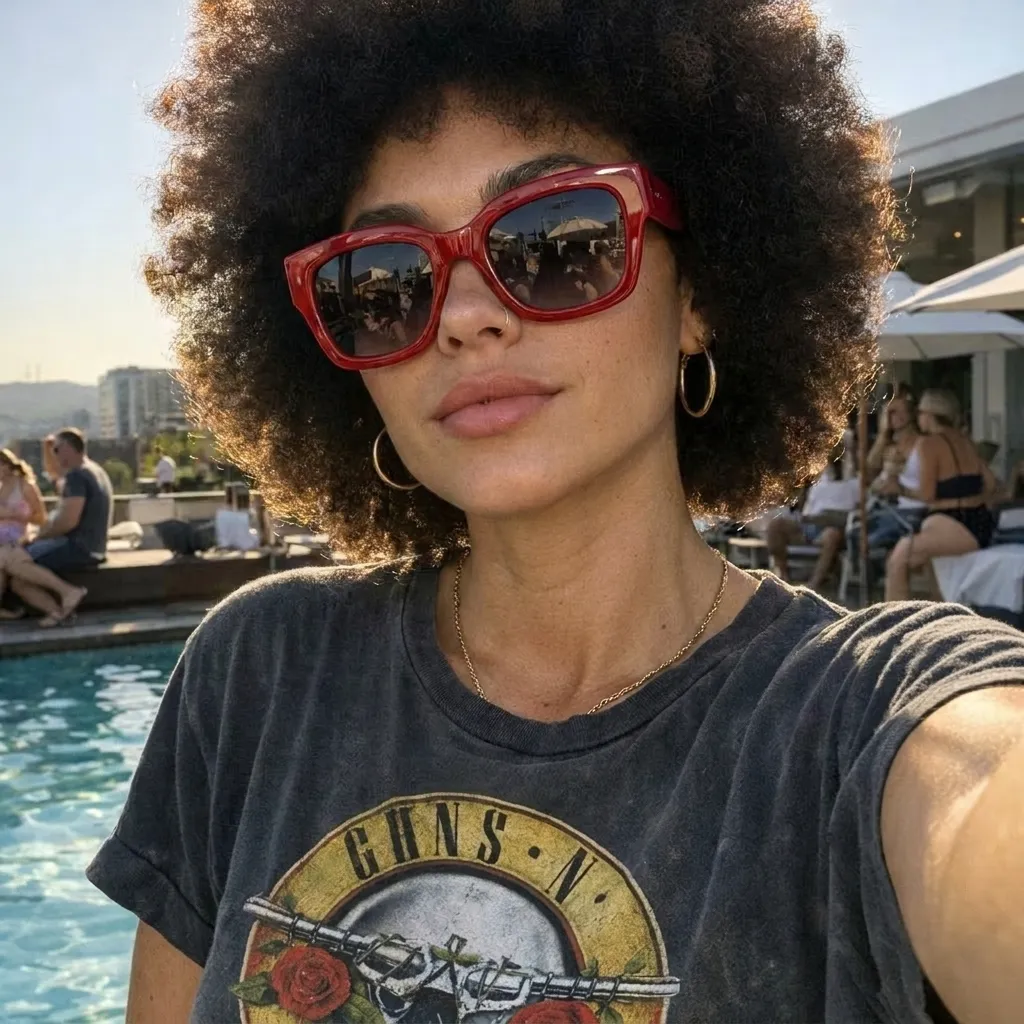
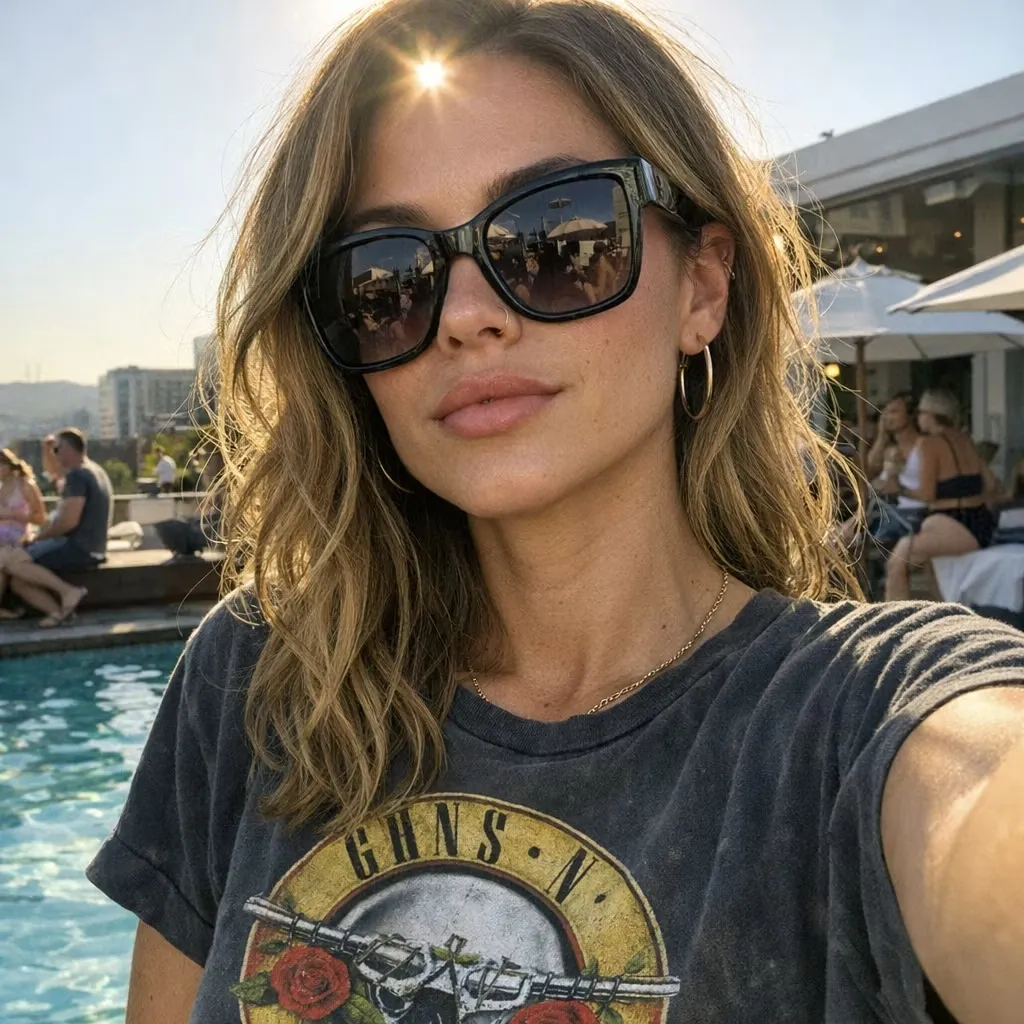
Editor de Imagens com IA
Envie uma foto, descreva o que deseja alterar e deixe a IA editar a imagem online. Remova ou substitua objetos, troque fundos, ajuste a iluminação, reestilize cenas e crie novas variações com instruções de texto simples.
Upload a photo and describe exactly what you want gone. Remove unwanted people, text, clutter, wires, props, or overlays while AI rebuilds the cleared area to fit the surrounding scene.
Images
List of URLs of input images for editing. The maximum number of images is 14.
BEFORE & AFTER
Compare source images and edited results across portraits, product photos, travel shots, property images, and busy backgrounds.
PROMPT IDEAS
Choose a prompt that matches your image, then replace the bracketed details with the exact object, location, and background in your photo.
Remove the person standing [location]. Reconstruct the [background] naturally. Keep the main subject, facial features, pose, lighting, camera angle, and all other people unchanged.
Remove the [unwanted objects] from the background. Fill the cleared area with matching [wall, floor, landscape, or furniture]. Preserve the subject, composition, colors, and lighting.
Remove the [prop, cable, label, packaging fragment, or reflection] beside the product. Keep the product shape, logo, materials, colors, shadows, camera angle, and background unchanged.
Remove the [wire, pole, or sign] from [location]. Rebuild the missing [sky, building, road, or foliage] with matching perspective, texture, and lighting. Do not alter the rest of the scene.
Remove the text reading “[text]” from [location]. Recreate the covered [surface or background] using the surrounding color, texture, spacing, and lighting. Keep all other text unchanged.
Remove the [sticker, emoji, frame, or graphic overlay] from [location]. Restore the covered area to match the surrounding image while preserving the subject and composition.
Remove the unwanted [reflection or shadow] on [surface]. Restore the surface with consistent material, color, texture, highlights, and lighting. Keep intentional shadows and reflections unchanged.
Remove the [small object or distraction] near [location]. Preserve the person’s face, hair, skin texture, body proportions, clothing, pose, lighting, and background.
WHAT IT IS
An AI object remover is an image-editing tool that removes specified visual elements and generates replacement content for the space they occupied.
Instead of working with clone stamps, layers, or manual selections, you can upload a source image and describe the intended change in natural language. A prompt may identify a person, prop, wire, sign, text block, reflection, sticker, or other distraction. You can also describe its location, explain how the cleared area should look, and state which subjects or details must remain unchanged.
The tool interprets both the uploaded image and your instruction, then creates an edited version that attempts to match the surrounding texture, perspective, color, and lighting. Because the result is generative, it should always be reviewed. Large removals, heavy occlusion, faces, typography, straight lines, and repeating patterns may require a revised prompt or an additional pass.
The model uses the source image and your written instruction together to decide what should change and what should remain visually consistent.
Interpret the Requested Change: The AI reads the image and prompt to identify the named element, its location, nearby objects, and any preservation instructions. Specific wording reduces ambiguity when several similar people or objects appear in the scene.
Reconstruct the Edited Scene: After removing the target, the model generates plausible visual content for the newly exposed area using the surrounding scene as context. It does not recover the original hidden pixels behind the object. Since the output is regenerated, small details outside the target area can also change and should be checked.
TOOL COMPARISON
Use an object remover to edit selected elements inside a scene. Use a background remover when you want to isolate the main subject from the entire backdrop.
| Dimension | AI Object Remover | Background Remover |
|---|---|---|
| Primary Goal | Remove one or more specified elements from an image | Separate the foreground subject from the entire background |
| User Input | A source image plus a text instruction describing the removal | Usually a source image with automatic subject detection |
| What Remains | Most of the original scene and background | The main foreground subject |
| Output | An edited scene with generated content filling the cleared area | A transparent cutout, solid background, or replacement background |
| Best For | Photobombers, clutter, props, wires, signs, text, and small distractions | Product cutouts, profile photos, catalog images, and background replacement |
| Choose It When | You want to keep the scene but remove selected details | You no longer need the original background |
PROMPT TIPS
Clear instructions help the model locate the target, preserve important details, and generate a more appropriate replacement for the cleared area.
Name the Exact Object: Identify the person, item, text, reflection, shadow, or overlay you want removed instead of using vague phrases such as “clean this up.”
Describe Its Location: If similar elements appear more than once, specify “on the left,” “behind the product,” “in the upper-right corner,” or another clear spatial reference.
State What Must Remain Unchanged: Ask the AI to preserve the main subject, face, pose, product shape, logo, composition, camera angle, colors, lighting, or other important details.
Include Connected Details: Mention attached cables, cast shadows, reflections, supports, or overlapping parts when they should disappear with the main object.
Describe the Desired Fill: Explain whether the cleared space should become matching sky, wall, floor, grass, water, fabric, shelving, or another visible part of the scene.
Make One Main Removal at a Time: Separate unrelated edits into multiple generations. A focused instruction is easier to evaluate and revise.
Use a Clear Source Image: Start with the largest available version and avoid repeated compression, severe blur, heavy obstruction, or screenshots with unclear details.
Review Difficult Geometry: Check faces, hands, text, logos, product edges, straight lines, reflections, and repeating patterns before using the result.
Continue editing with tools for broader prompt-based changes, complete background removal, watermark cleanup, and image enhancement.
Envie uma foto, descreva o que deseja alterar e deixe a IA editar a imagem online. Remova ou substitua objetos, troque fundos, ajuste a iluminação, reestilize cenas e crie novas variações com instruções de texto simples.
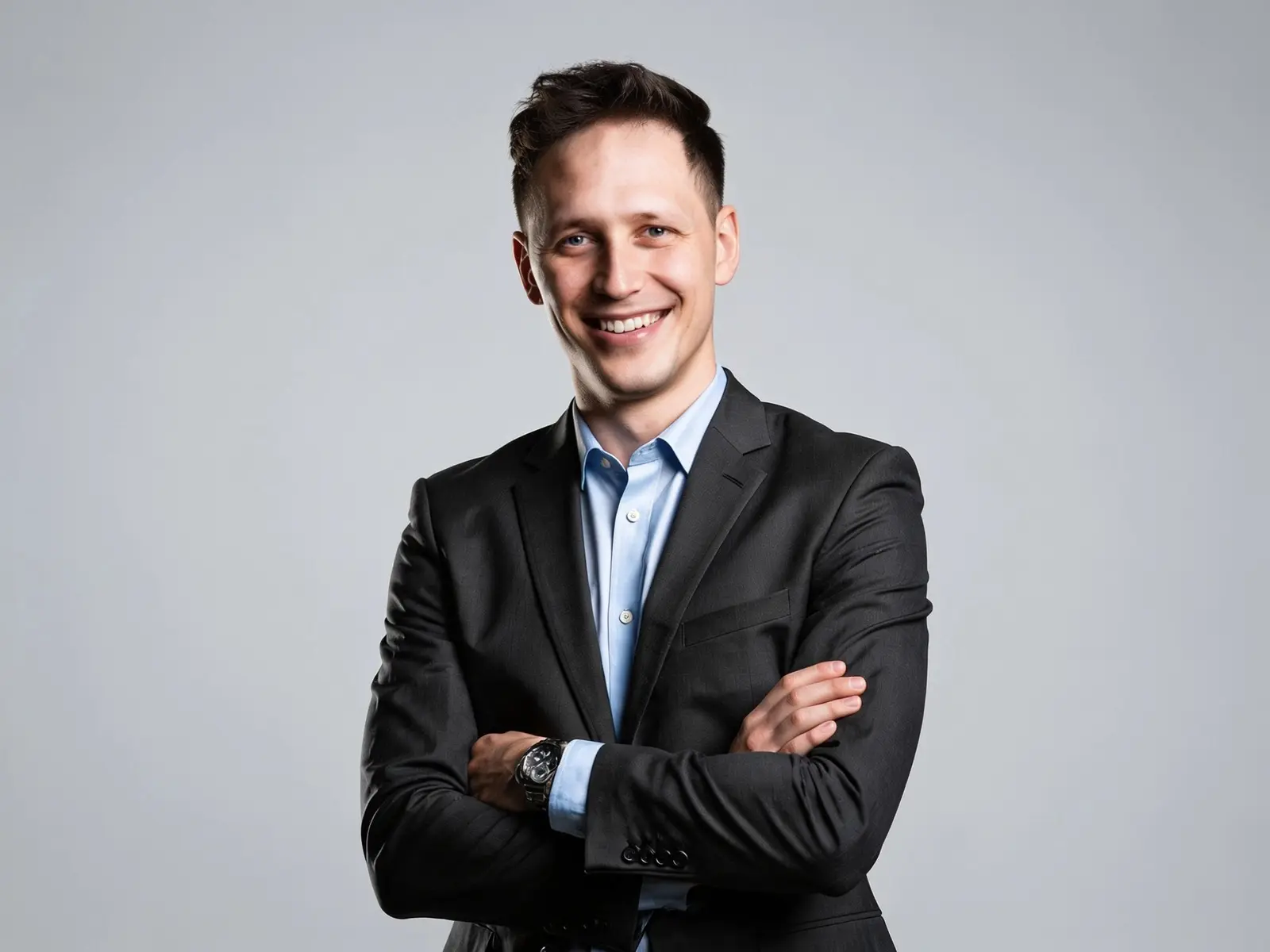
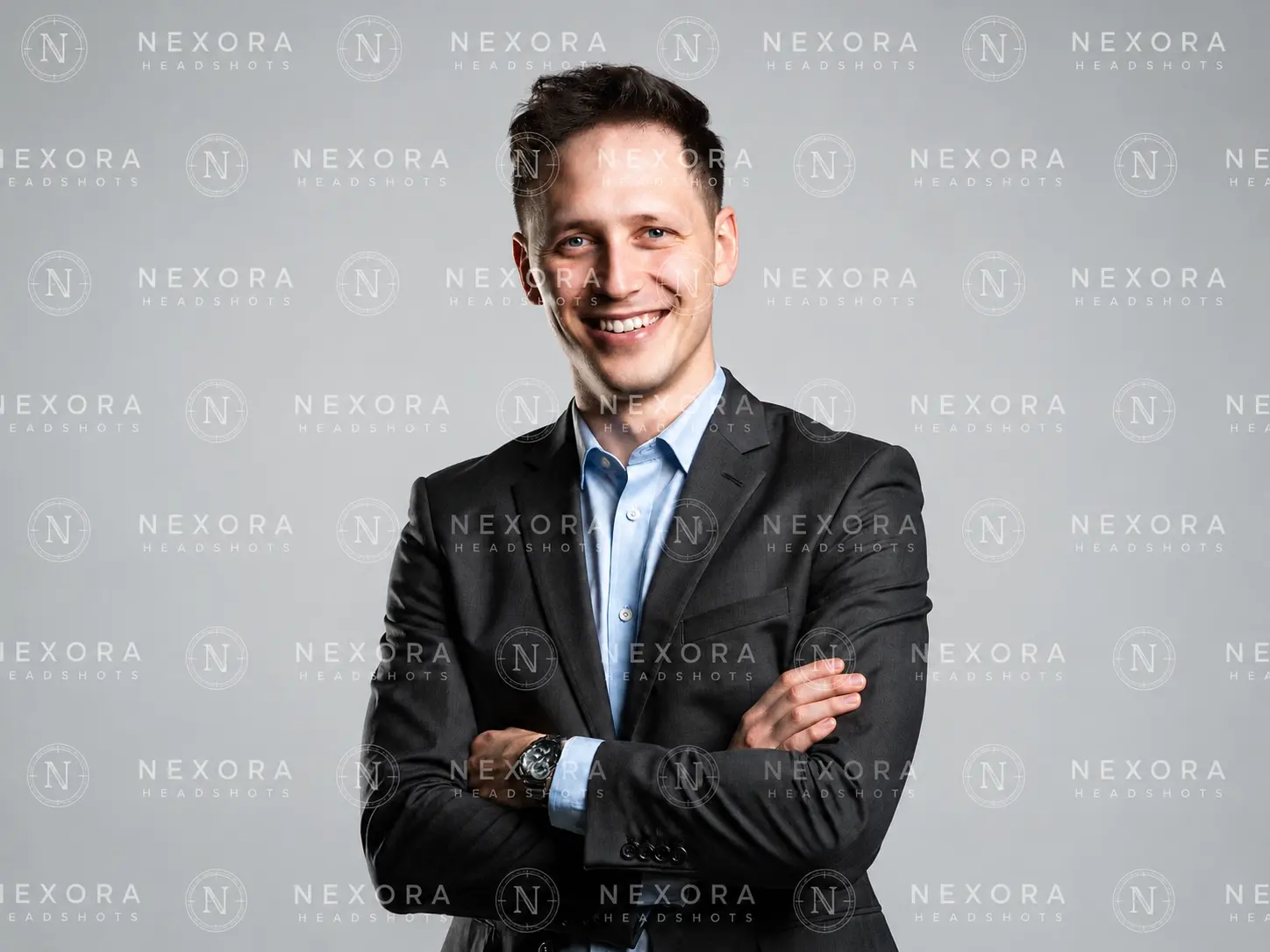
Remova logotipos, textos e carimbos de data visíveis de uma imagem online — um envio, um clique e sem necessidade de software de edição.
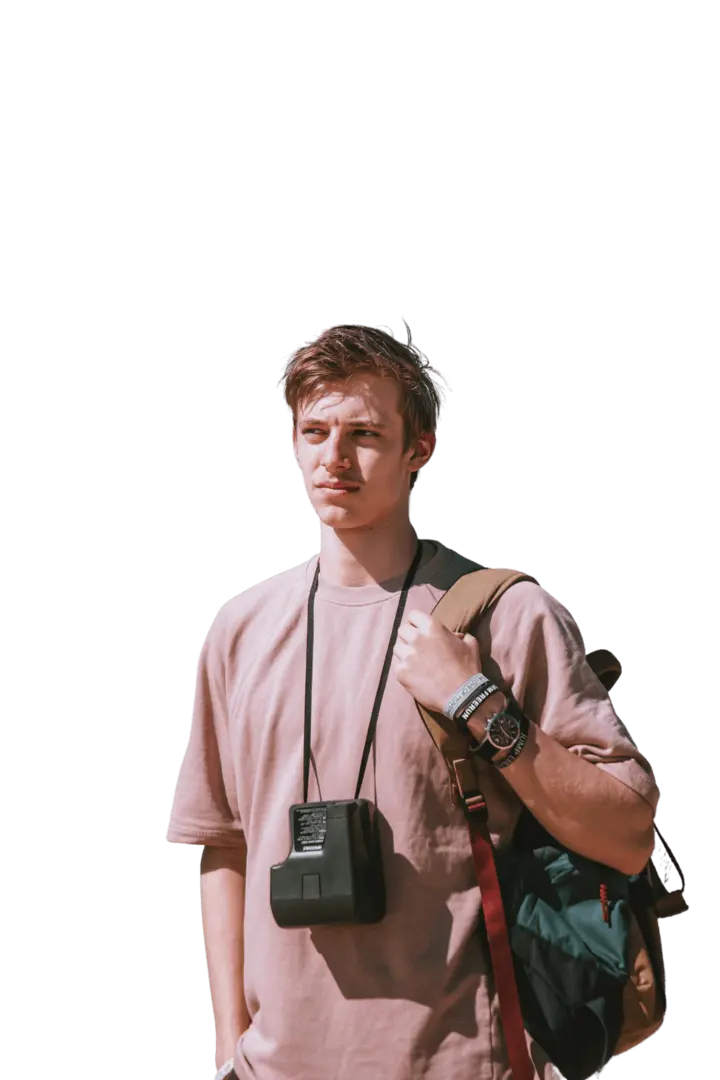
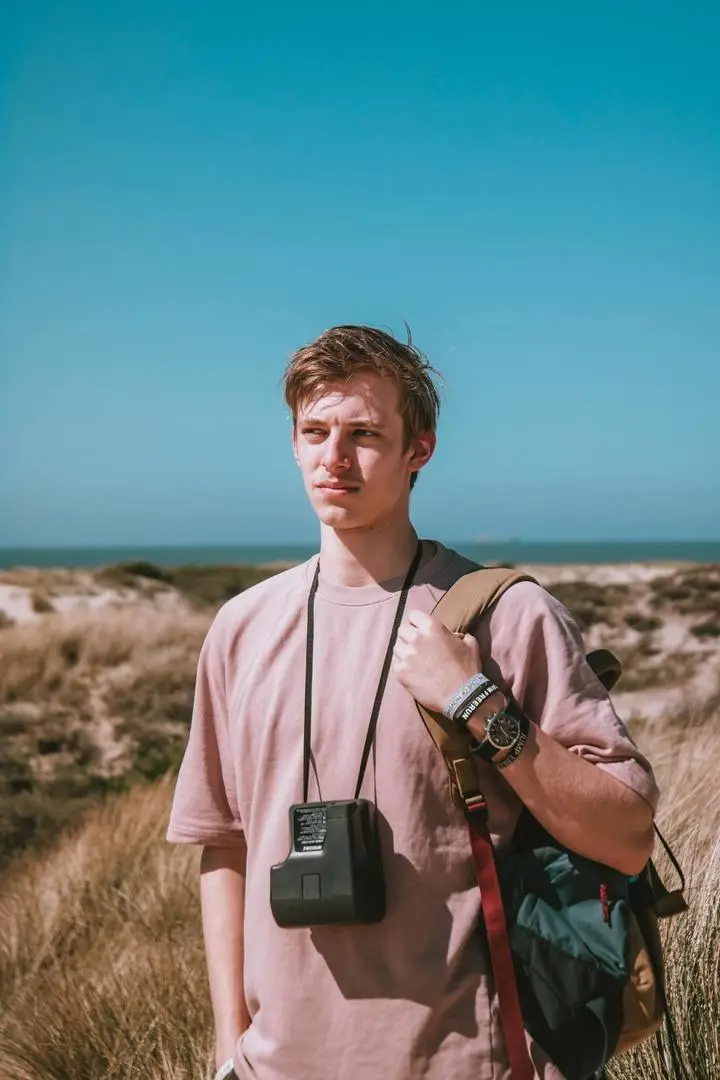
Envie qualquer imagem e recorte o assunto com um clique. A IA remove o fundo e entrega um PNG transparente e limpo — sem prompt, sem máscara manual, sem habilidades de design.
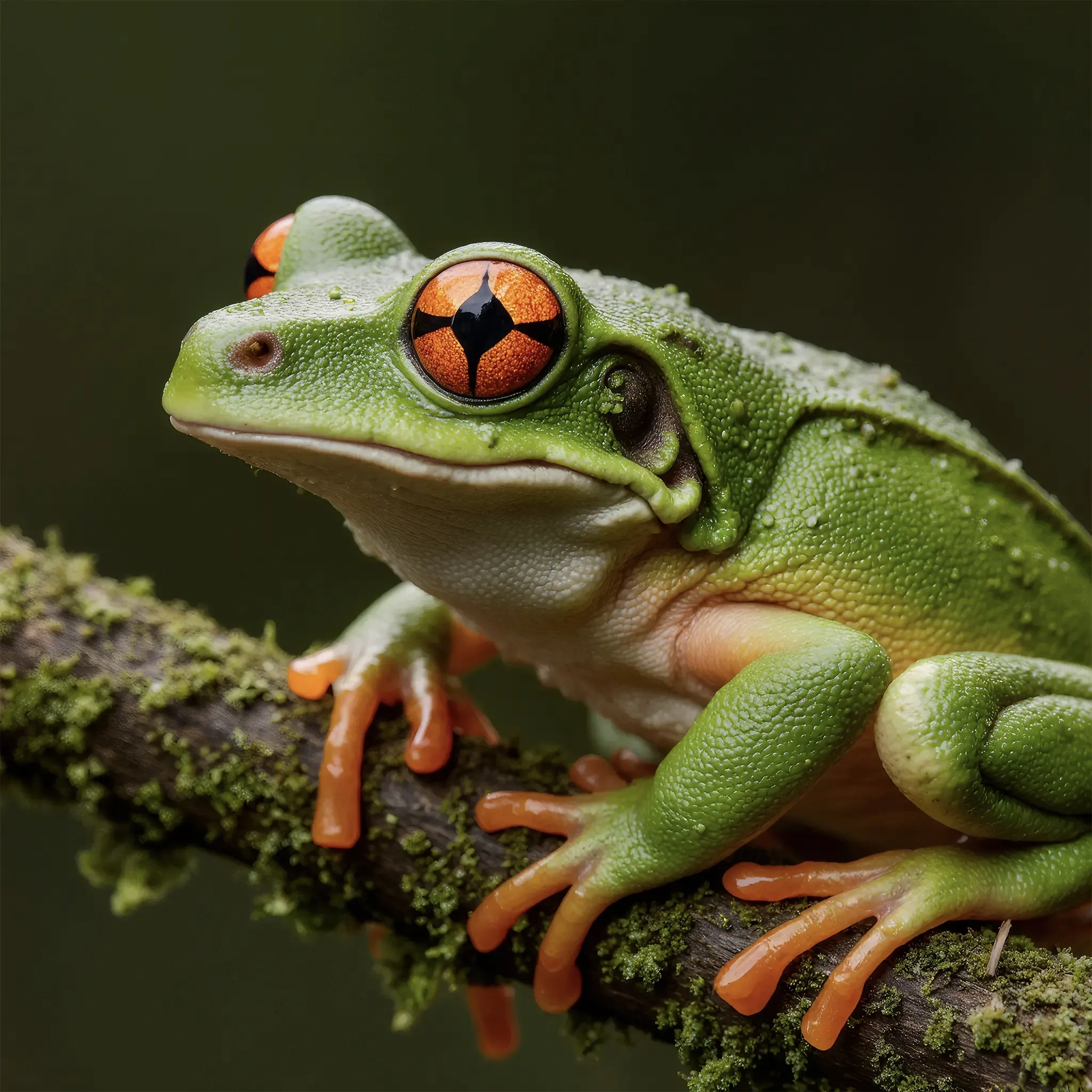
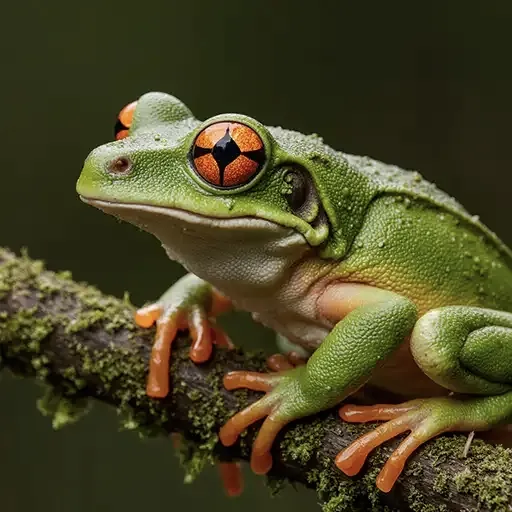
Aprimorador de Imagens com IA. Envie uma imagem de baixa resolução ou borrada e deixe a IA melhorar a qualidade da imagem instantaneamente — mais nitidez, menos ruído e resolução de até 4K. Sem prompt, sem habilidades de edição. Um clique e baixe sua foto aprimorada.
Aprenda a criar seu próprio personagem de IA sem programar. Conecte uma API, escreva um cartão de personagem, escolha um LLM, gerencie a memória e estime os custos.
Copie 20 prompts gratuitos do Seedream 5.0 Pro para design de embalagens de caixas, rótulos, linhas de SKUs, imagens de e-commerce, mockups de prateleira e anúncios de campanha.
Compare 5 geradores de imagem para vídeo com IA sem censura online em 2026. Explore opções gratuitas e pagas, preços, privacidade, suporte a uploads e principais limitações.
Crie um vídeo cinematográfico de perseguição com corrida usando o Seedance 2.0, com um prompt pronto para copiar e colar, movimento de câmera realista, áudio espacial e código de API executável.
See how users apply prompt-based object removal to clean up photos, product images, social content, and creative projects.