The Best AI Photo Editors at a Glance
| AI photo editor |
Best for |
Runs on |
Pricing model |
Main limitation |
| Adobe Photoshop |
Professional editing and compositing |
Windows, macOS, iPad, web |
Subscription |
Steepest learning curve |
| Adobe Lightroom |
RAW photos and batch workflows |
Windows, macOS, web, iOS, Android |
Subscription |
Not designed for complex layer-based composites |
| Luminar Neo |
AI-first desktop editing |
Windows, macOS |
Subscription or license options |
Less precise than Photoshop for demanding retouching |
| Topaz Photo |
Denoising, sharpening, and upscaling |
Windows, macOS |
Subscription |
A specialist enhancer, not a complete design suite |
| Canva |
Beginners and social content |
Web, desktop, iOS, Android |
Freemium |
Limited pixel-level and RAW control |
| Pixlr |
Quick online editing |
Web, iOS, Android |
Freemium |
Output control trails professional desktop tools |
| PhotoRoom |
Product and e-commerce photos |
Web, iOS, Android |
Freemium |
Too specialized for full photography workflows |
| HeadshotPro |
Generating professional headshots |
Web |
Package or credit based |
Generates new portraits rather than precisely retouching one photo |
| GPT Proto AI Image Editor |
Prompt-based online edits |
Web |
Usage based |
Generated edits can change details you wanted to preserve |
Quick picks
Best AI photo editor overall: Adobe Photoshop
Best for professional photographers: Adobe Lightroom
Best for beginners: Canva
Best online AI photo editor: Pixlr
Best for photo repair and enhancement: Topaz Photo
Best for removing a person from an image: Photoshop or Adobe Firefly for control; a prompt-based editor for speed
Best for professional headshots: HeadshotPro for generation; Photoshop for retouching an existing portrait
Prompt-based option from GPT Proto: GPT Proto AI Image Editor
If you already know that you want a fast prompt workflow, you can upload a photo and describe your edit in GPT Proto Canvas. For an important client image, keep the original and inspect faces, hands, logos, text, edges, and reflections before publishing the result.
How We Chose the Best AI Image Editors
"AI photo editor" now describes several different kinds of software. A fair comparison has to account for that difference. We evaluated each product against the job it is designed to perform rather than rewarding the app with the longest feature list.
Our selection criteria were:
Editing quality and realism: Can the tool make a useful change without obvious seams, plastic skin, broken details, or inconsistent light?
Control: Can users select, mask, undo, refine, or preserve important areas?
Ease of use: How quickly can a beginner reach a usable result?
Professional workflow support: Does it support RAW files, layers, batch processing, color management, or high-resolution export where relevant?
Task coverage: Can it handle object removal, portrait work, enhancement, background editing, or another clearly defined job?
Availability: Is it usable on the web, desktop, mobile, or through an API?
Value and restrictions: Does the plan structure make sense for occasional edits, ongoing creative work, or high-volume production?
We also considered an important failure mode: an AI can produce an attractive image while still being a poor editor. If it changes a person's identity, a product label, or the shape of an object that was supposed to remain untouched, it has not completed the editing task accurately.
1. Adobe Photoshop: Best AI Photo Editor Overall
Best for: Professional retouching, compositing, precise object removal, and creative production
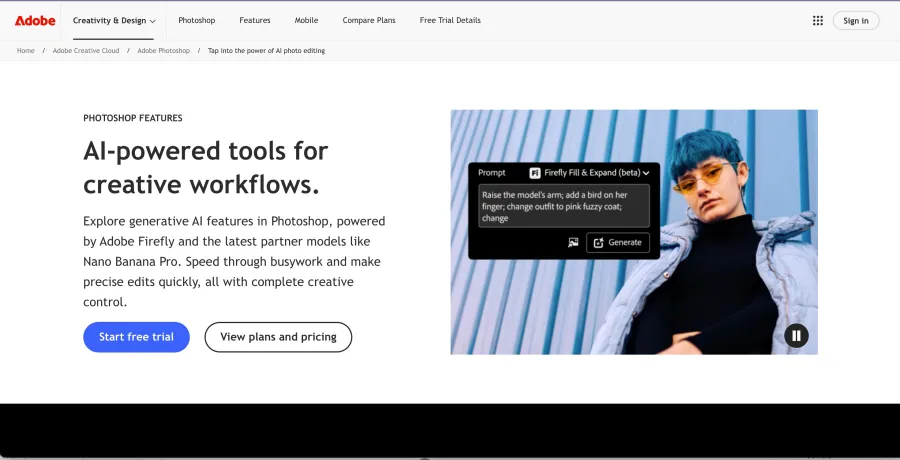
Adobe Photoshop remains the strongest all-round choice because its AI features sit inside a mature layer-based editor. Generative Fill and Generative Expand can add, remove, or extend content, while selections, masks, adjustment layers, the Remove tool, and manual retouching give the user ways to correct the AI.
That second part matters. A one-click editor may deliver a convincing result on the first attempt, but Photoshop is better when the result is almost right and needs a controlled fix. It is particularly suitable for advertising, editorial composites, high-end portraits, and images containing difficult edges or overlapping objects.
The tradeoff is time. Photoshop requires more learning than Canva, Pixlr, or a prompt-only editor. It also uses a subscription model, and some generative features depend on cloud processing and plan allowances.
Choose Photoshop if: you need the deepest editing control or expect to combine AI output with manual retouching.
Skip it if: you only need occasional one-click edits and do not want to learn layers and masks.
2. Adobe Lightroom: Best for Professional Photography Workflows
Best for: RAW processing, AI masks, consistent color, and editing many photos from one shoot
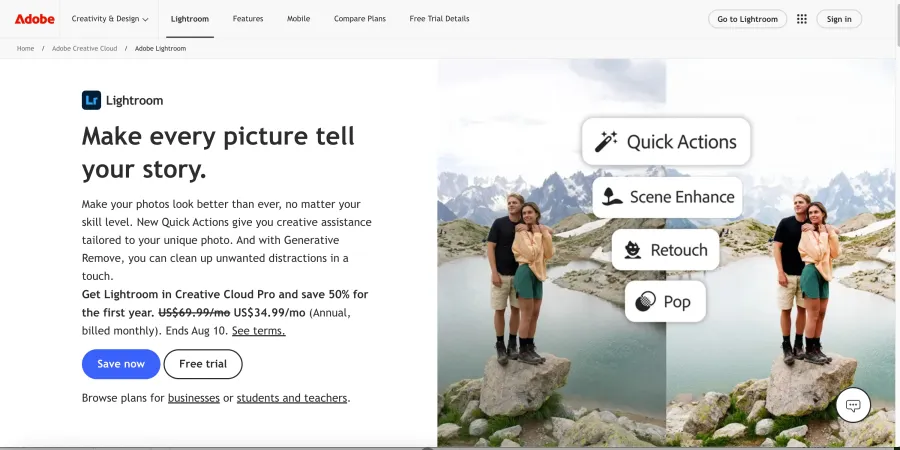 Adobe Lightroom is often a better professional photo AI editor than Photoshop when the work begins with hundreds of camera files. It is built around organizing, developing, and synchronizing edits across a photo library.
Its AI-assisted selections can isolate a subject, background, sky, people, or specific portrait features. Photographers can then adjust exposure, color, detail, and local contrast without manually tracing every mask. AI Denoise and other adaptive tools also fit naturally into a RAW workflow.
Lightroom is less suitable for complex composites, typography, or pixel-by-pixel reconstruction. Many professionals use it with Photoshop rather than choosing between them: Lightroom handles selection, color, and volume; Photoshop handles intricate manipulation.
Choose Lightroom if: you are a portrait, wedding, event, travel, or commercial photographer who needs speed and consistency across many images.
Skip it if: your primary task is replacing objects, building composites, or designing social graphics.
3. Luminar Neo: Best AI-First Desktop Editor
Best for: Enthusiast photographers who want strong AI assistance without a Photoshop-style workflow
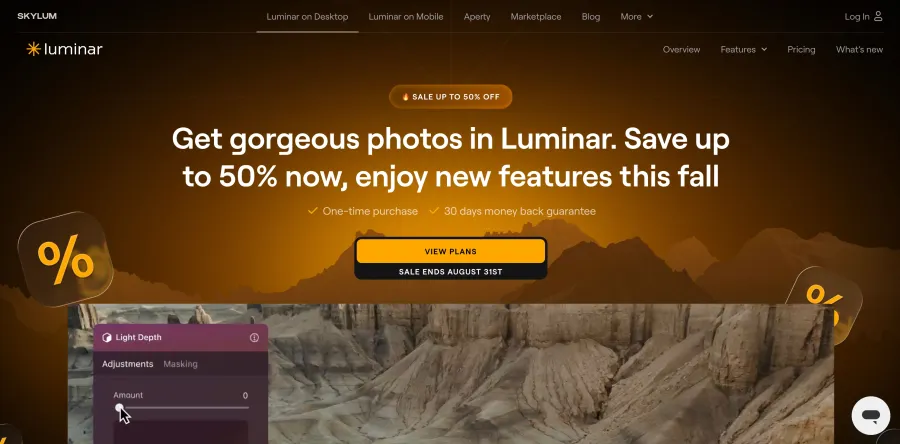 Luminar Neois designed around visible, task-oriented AI tools. Portrait enhancement, sky replacement, relighting, object removal, and generative expansion are easier to discover than their equivalents in a large professional suite.
This makes Luminar Neo a useful middle ground. It offers more photography-focused control than a template editor but presents less friction than Photoshop. It is a strong fit for landscape, travel, real-estate, and portrait photographers who want quick creative improvements from a desktop app.
The limitation is precision. Automatic sky replacement or portrait enhancement can look impressive at first glance while still requiring close inspection around hair, glasses, trees, architecture, and reflected light. Users producing large prints or commercial work should review those details at full resolution.
Choose Luminar Neo if: you want an approachable desktop photo editor with AI throughout the workflow.
Skip it if: you need the best masking, deep compositing, or a high-volume catalog workflow.
4. Topaz Photo: Best for Denoising, Sharpening, and Upscaling
Best for: Improving low-light, blurry, noisy, or undersized photos
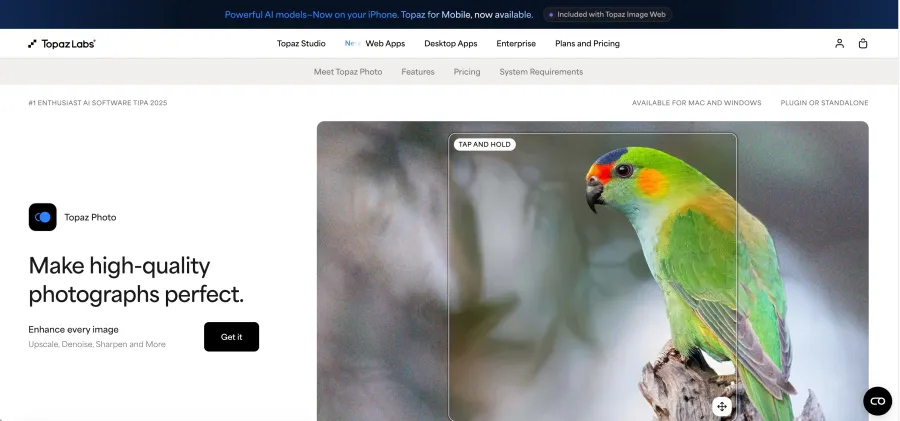
Topaz Photo is a specialist rather than a general creative editor. Its main value is technical recovery: reducing noise, improving focus, restoring face detail, and enlarging files that are too small for the intended output.
That makes it useful for wildlife, sports, events, scanned family photos, cropped images, and older camera files. It can also complement Lightroom or Photoshop as part of a larger workflow.
Enhancement should not be confused with true detail recovery. Any AI upscaler predicts detail that was not clearly present in the source. Aggressive settings can create brittle hair, false texture, halos, or unnaturally sharp faces. The best result is usually the least amount of processing needed to solve the visible problem.
Choose Topaz Photo if: your main problem is image quality rather than layout or creative manipulation.
Skip it if: you need a full editor for color grading, graphic design, or complex object changes.
5. Canva: Best AI Photo Editor for Beginners
Best for: Social posts, presentations, ads, simple portraits, and fast team content
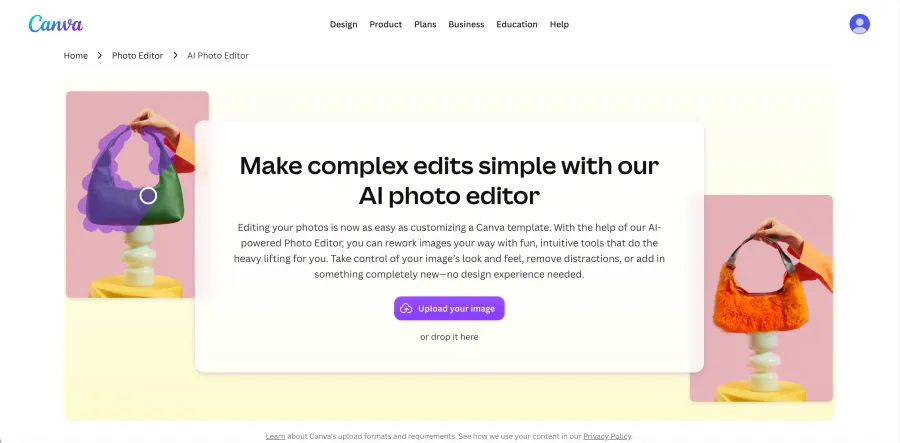 Canva's AI photo editing tools make common tasks approachable for people who do not identify as photo editors. Background removal, object erasing, generative expansion, template resizing, text, and brand assets all live in one design workflow.
For a beginner, that integration is often more valuable than maximum technical quality. A user can clean up a photo, place it into a layout, add copy, resize the design for several platforms, and share it without switching applications.
Canva is not a replacement for a professional RAW processor or a layer-heavy retouching suite. Fine edges, exact color, print production, and complex composites remain better suited to other tools. Some AI capabilities also depend on a paid plan or usage allowance.
Choose Canva if: speed, templates, and collaborative content production matter more than pixel-level control.
Skip it if: you edit camera RAW files, require non-destructive professional retouching, or need exact high-resolution output.
6. Pixlr: Best AI Photo Editor Online
Best for: Browser-based edits without installing a desktop application
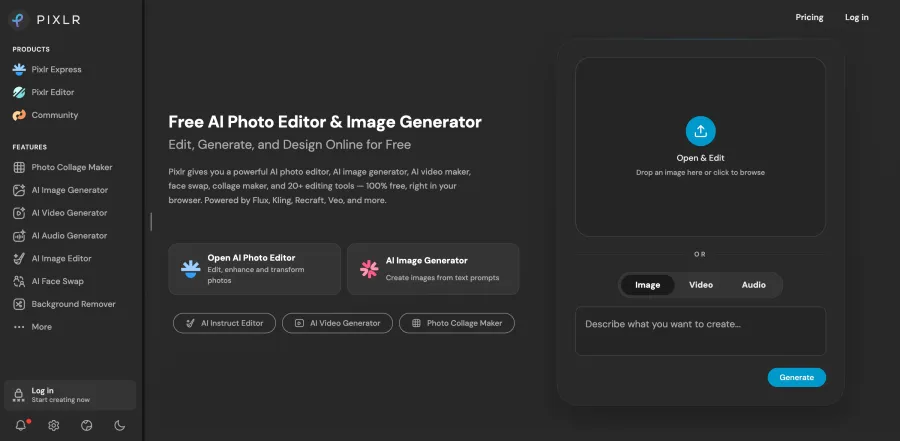 Pixlr is one of the most practical answers to “what is the best AI photo editor online?” It combines familiar image-editing controls with separate AI tools for tasks such as cutouts, object removal, expansion, generation, and enhancement.
Unlike a purely prompt-based product, Pixlr retains a more traditional canvas experience. That is useful when you want a quick AI result but still need to crop, adjust, layer, or refine the image manually. It is accessible on almost any modern computer and offers a lower learning barrier than Photoshop.
Browser convenience comes with limits. Performance depends on the device and connection, and professional users may miss deeper RAW support, color-management options, plug-ins, and fine masking controls.
Choose Pixlr if: you want a capable online editor with both AI shortcuts and recognizable manual controls.
Skip it if: you need a production-grade desktop workflow or routinely edit large, complex files.
7. PhotoRoom: Best for Product and E-Commerce Photos
Best for: Product cutouts, backgrounds, shadows, marketplace images, and batch catalog work
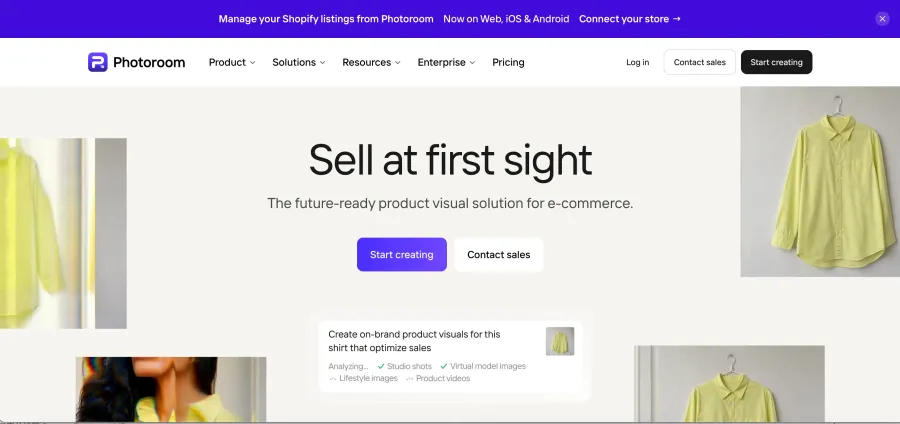
PhotoRoom is optimized for a narrower job than Photoshop or Lightroom: turning ordinary product photos into clean commercial assets. Its tools focus on background removal, generated scenes, shadows, resizing, and repeatable presentation across a catalog.
Specialization makes it faster for sellers. A general editor can perform the same kinds of changes, but it may require more setup for each image. PhotoRoom is designed around the repeated needs of marketplace listings, social commerce, menus, resale, and small product teams.
The generated background still needs to respect product geometry. Check packaging text, transparent materials, reflective surfaces, fine accessories, and the contact point between the object and its shadow. A visually attractive result is not acceptable if the product itself has changed.
Choose PhotoRoom if: most of your images are products and you value a repeatable, commerce-focused workflow.
Skip it if: you need a general photography editor for landscapes, events, or advanced portrait work.
8. HeadshotPro: Best for Professional AI Headshots
Best for: Creating multiple business portraits without arranging a new photo shoot
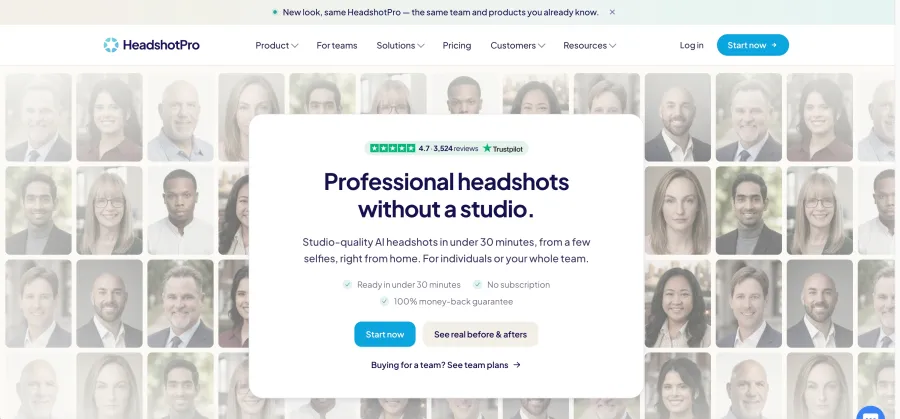 HeadshotPro belongs to a different category from conventional photo editors. It uses uploaded reference photos to generate new professional portraits with different clothing, lighting, and studio-style backgrounds.
This is useful for remote teams, LinkedIn profiles, speaker pages, and individuals who need several headshot options. The workflow is easier than manually rebuilding a casual selfie in Photoshop.
It is important to understand the tradeoff: a headshot generator creates a new representation of the person. It is not simply correcting exposure or removing a blemish from one original photograph. Facial structure, hair, jewelry, clothing, and small identity details can drift. Review whether the result still looks recognizably and honestly like the subject.
For retouching a strong existing portrait, Photoshop, Lightroom, or a restrained portrait editor may be the better choice. For generating a range of studio-like alternatives, a dedicated headshot service is more convenient.
Choose HeadshotPro if: you need newly generated corporate headshots from several reference images.
Skip it if: you must preserve one source photo exactly or need editorially authentic photography.
9. GPT Proto AI Image Editor: A Prompt-Based Online Editing Option
Best for: Describing background, object, lighting, outfit, and style changes in plain language
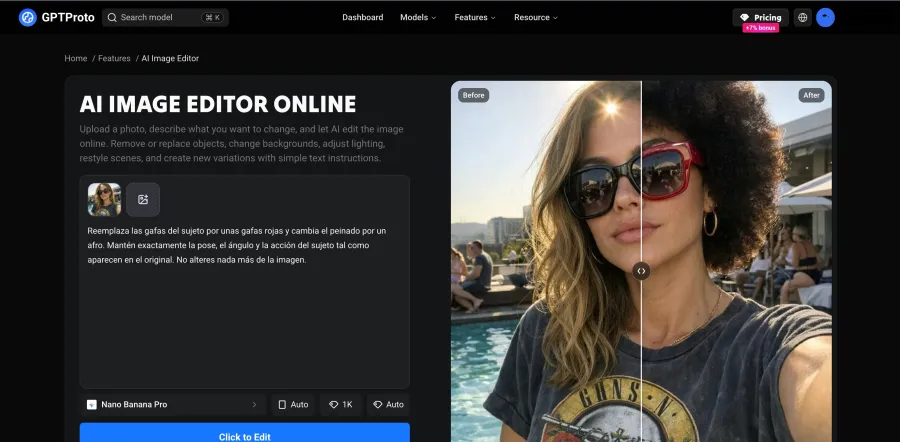 GPT Proto AI Image Editor lets users upload a photo and explain an edit instead of constructing it with layers, masks, and brushes. Typical instructions include removing a background person, changing an outfit, refining a portrait, creating a product setting, or adjusting the lighting while asking the model to preserve the subject.
The main advantage is speed from intention to first result. It is also useful for exploring several creative directions before committing to detailed production work. Users can access the editing workflow online, while developers and teams can explore image-capable models through the wider GPT Proto platform.
The limitation is result-based control. Prompting the AI to “keep everything else unchanged” reduces ambiguity but does not guarantee pixel-level preservation. Generated edits may alter faces, hands, logos, text, proportions, or background details. Traditional software remains the better final-production tool when every element must stay exact.
Disclosure: GPT Proto operates this website and publishes this article. We include the editor because it directly serves the prompt-based online editing use case; it should not be interpreted as an independent hands-on award.
Choose GPT Proto if: you want to make fast edits by describing the result in natural language.
Skip it if: you need deterministic masks, exact typography, strict product fidelity, or a fully local workflow.
Which Is the Best AI Photo Editor to Remove a Person From an Image?
For a professional result, Photoshop is the safest overall choice because you can combine automatic removal with selections, masks, cloning, and manual correction. Adobe Firefly, Pixlr, and prompt-based editors are faster when the background is simple and the edit is low risk.
The hardest part is not erasing the person. It is reconstructing what was behind them. Compare tools using scenes that contain:
repeating lines such as fences, windows, tiles, or railings;
shadows and reflections connected to the person;
overlapping hair, arms, furniture, or crowds;
text, logos, faces, or recognizable landmarks;
detailed textures such as water, brick, foliage, or patterned fabric.
Inspect the result at 100% zoom. Look for repeated textures, bent lines, duplicated objects, incomplete shadows, and invented facial details. When the removed person covers a large or meaningful part of the scene, no AI can know the true hidden background; it can only generate a plausible replacement.
For a quick prompt edit, try:
Remove the person in the background and reconstruct the missing area naturally. Preserve the main subject, surrounding objects, original lighting, shadows, camera perspective, and composition.
Best AI Photo Editors by Use Case
| Your goal |
Best starting point |
Why |
| Professional composite or detailed retouch |
Photoshop |
AI plus precise manual control |
| Edit hundreds of RAW photos |
Lightroom |
Catalog, synchronization, AI masks, and photo-first workflow |
| Learn AI editing quickly |
Canva |
Simple interface and ready-made designs |
| Edit entirely in a browser |
Pixlr |
AI tools plus a conventional editing canvas |
| Remove a person from a complex image |
Photoshop |
Multiple repair methods when AI removal is imperfect |
| Improve blur, noise, or resolution |
Topaz Photo |
Focused enhancement workflow |
| Produce product listing images |
PhotoRoom |
Commerce-specific backgrounds, shadows, and resizing |
| Generate corporate headshots |
HeadshotPro |
Dedicated portrait-generation workflow |
| Describe an edit with a prompt |
GPT Proto AI Image Editor |
Direct natural-language editing online |
AI Photo Editor vs. AI Image Generator
An AI photo editor starts with an existing image and tries to change part of it. An AI image generator normally starts with a written prompt and creates a new image. Modern tools blur this boundary, but the distinction still matters.
| Question |
AI photo editor |
AI image generator |
| Starting point |
An existing photo |
Usually a text prompt or references |
| Main goal |
Preserve most of the source while changing selected details |
Create a new composition |
| Typical tasks |
Retouching, removal, enhancement, masking, background changes |
Concepts, illustrations, scenes, advertising ideas |
| Main risk |
Unwanted changes to details that should remain |
Inconsistency with a precise real-world source |
| Best control method |
Layers, masks, local adjustments, or preservation instructions |
Prompting, references, seed, aspect ratio, and model choice |
ChatGPT, Gemini image models, and other generators can edit uploaded photos, but they often regenerate more of the scene than a conventional editor would. That can be desirable for creative transformation and risky for product, identity, documentary, or client-critical work.
Developers comparing generation and image-to-image capabilities can browse GPT Proto's image model collection. Match the model to the task instead of assuming the newest or largest model is automatically the best editor.
How to Choose the Best Photo AI Editor for You
Start with the task that consumes the most time.
Choose a professional editor if control is non-negotiable
Use Photoshop when you need layers, masks, exact selections, compositing, typography, or careful correction. Use Lightroom when your priority is RAW development and consistency across a shoot.
Choose an online editor if speed matters most
Pixlr is a strong general browser editor. Canva is better when the image is going directly into a designed post or presentation. A prompt-based editor is convenient when you can describe the desired change more easily than you can perform it manually.
Choose a specialist for a specialist problem
Topaz Photo is more focused on image quality than design. PhotoRoom focuses on commerce. HeadshotPro focuses on generated business portraits. These tools can beat a general editor within their niche while being a poor choice outside it.
Check privacy and usage terms before uploading
Cloud editors send images to remote servers. That may be unsuitable for confidential client work, unreleased products, identity documents, medical images, children, or contract-restricted media. Confirm retention, model-training, deletion, and commercial-use policies with the vendor.
Test preservation, not just visual appeal
Use one representative image before committing to a plan. Check whether the editor preserves identity, logos, text, colors, proportions, and framing. The most beautiful result is not necessarily the most accurate edit.
Final Verdict
The best AI photo editor is the one that preserves what matters while reducing the work required for your most common task.
Choose Photoshop for the best overall control.
Choose Lightroom for professional RAW and batch photography.
Choose Canva for beginner-friendly content creation.
Choose Pixlr for general online editing.
Choose Topaz Photo for technical enhancement.
Choose PhotoRoom for product images.
Choose HeadshotPro for generated professional headshots.
Choose GPT Proto AI Image Editor for fast, prompt-based changes.
No AI result should be accepted uncritically. Keep the original, review important details at full resolution, and use manual editing when accuracy matters more than speed.
If you are building an editing workflow rather than choosing a single app, explore GPT Proto to compare image models, use one account across multiple model providers, and evaluate which model best fits each production task.