AI Object Remover Online

Upload a photo and describe exactly what you want gone. Remove unwanted people, text, clutter, wires, props, or overlays while AI rebuilds the cleared area to fit the surrounding scene.

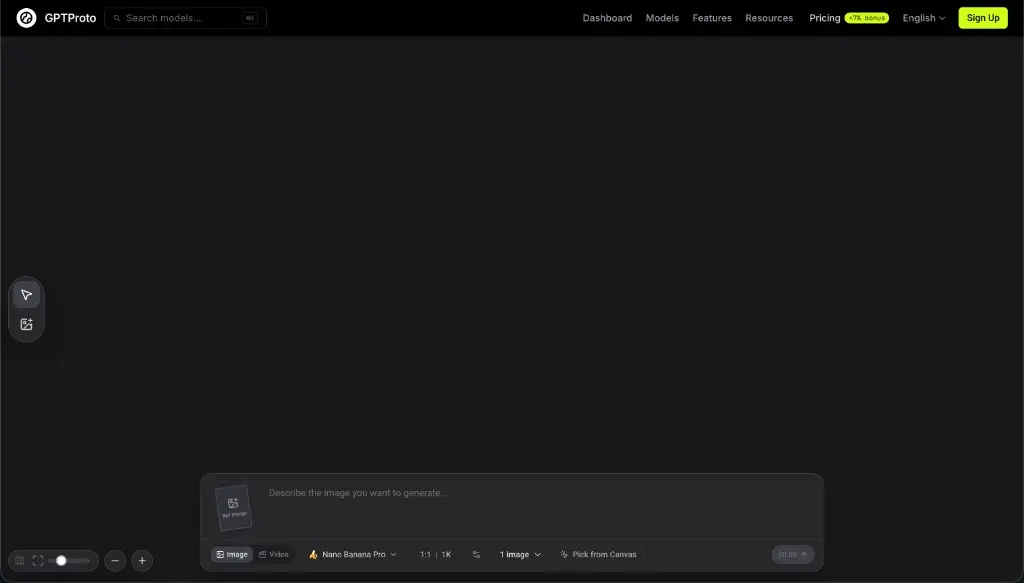
Images

List of URLs of input images for editing. The maximum number of images is 14.

History
Descargar

BEFORE & AFTER

See AI Object Removal in Action

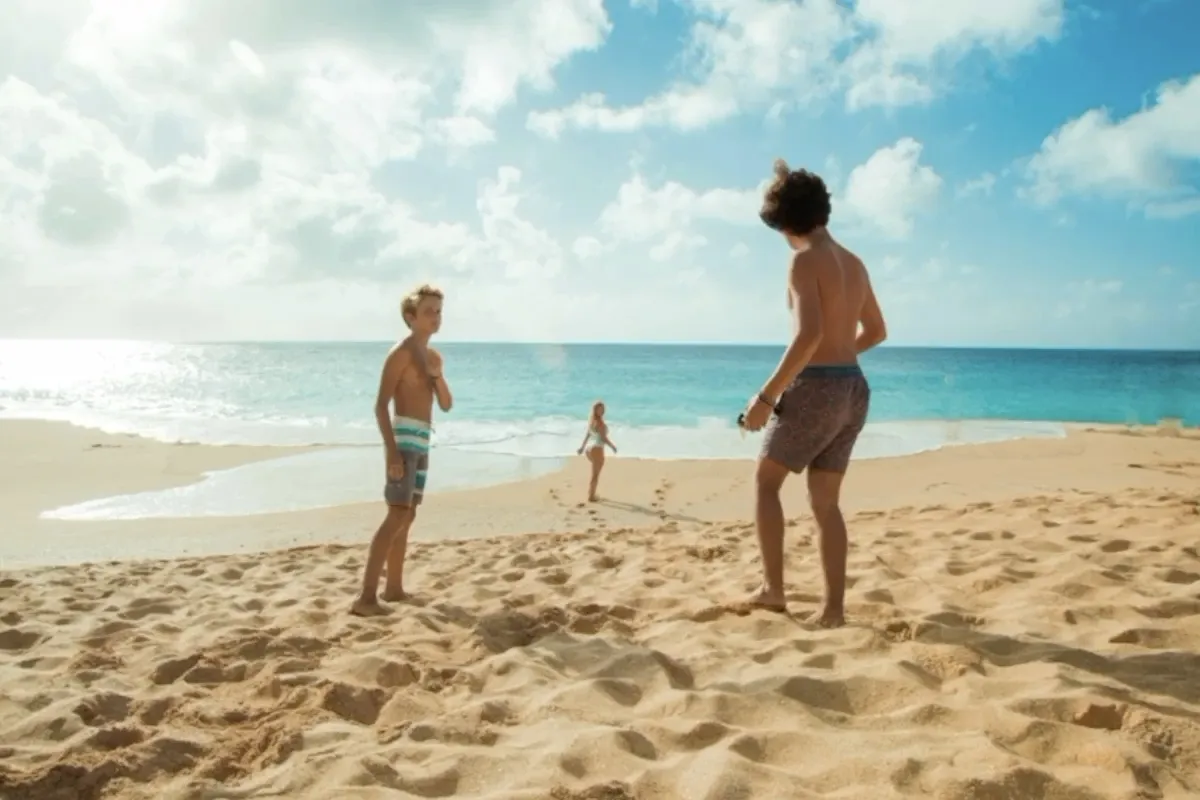
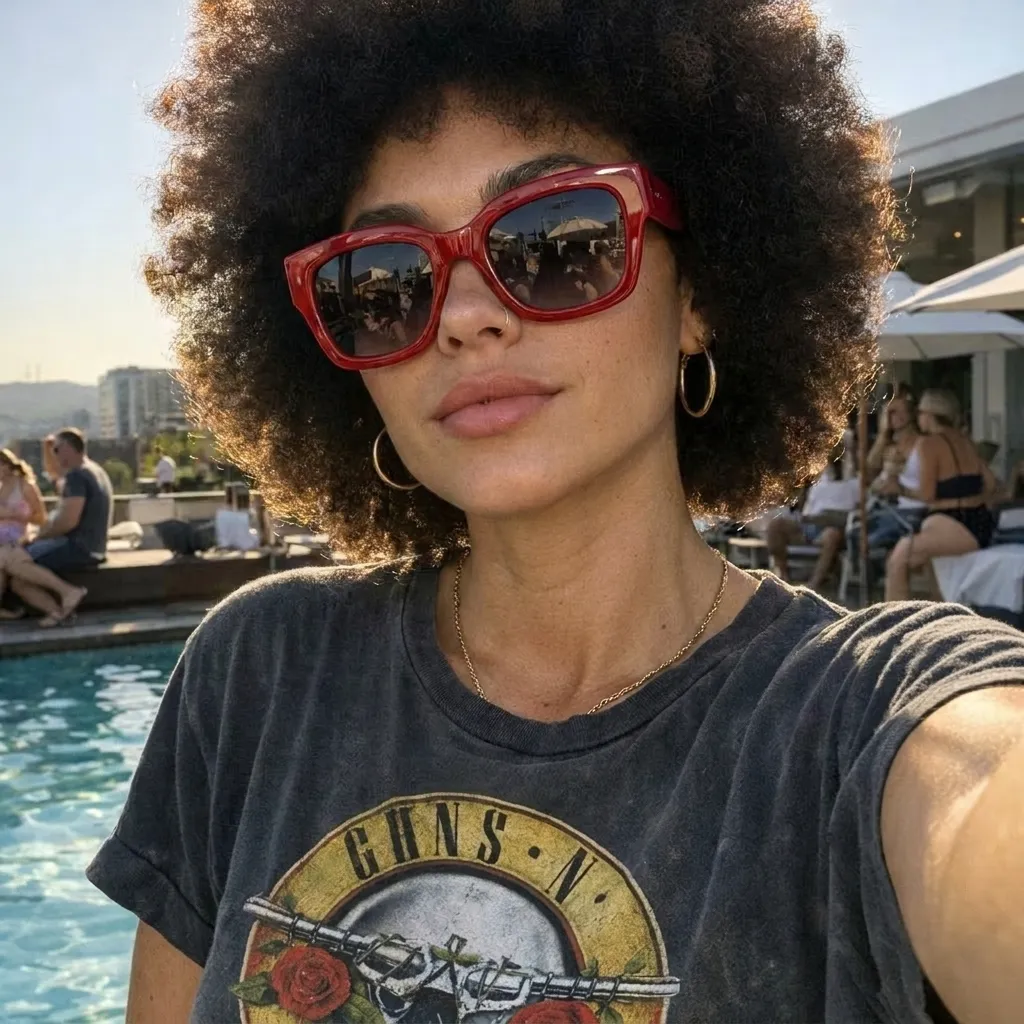
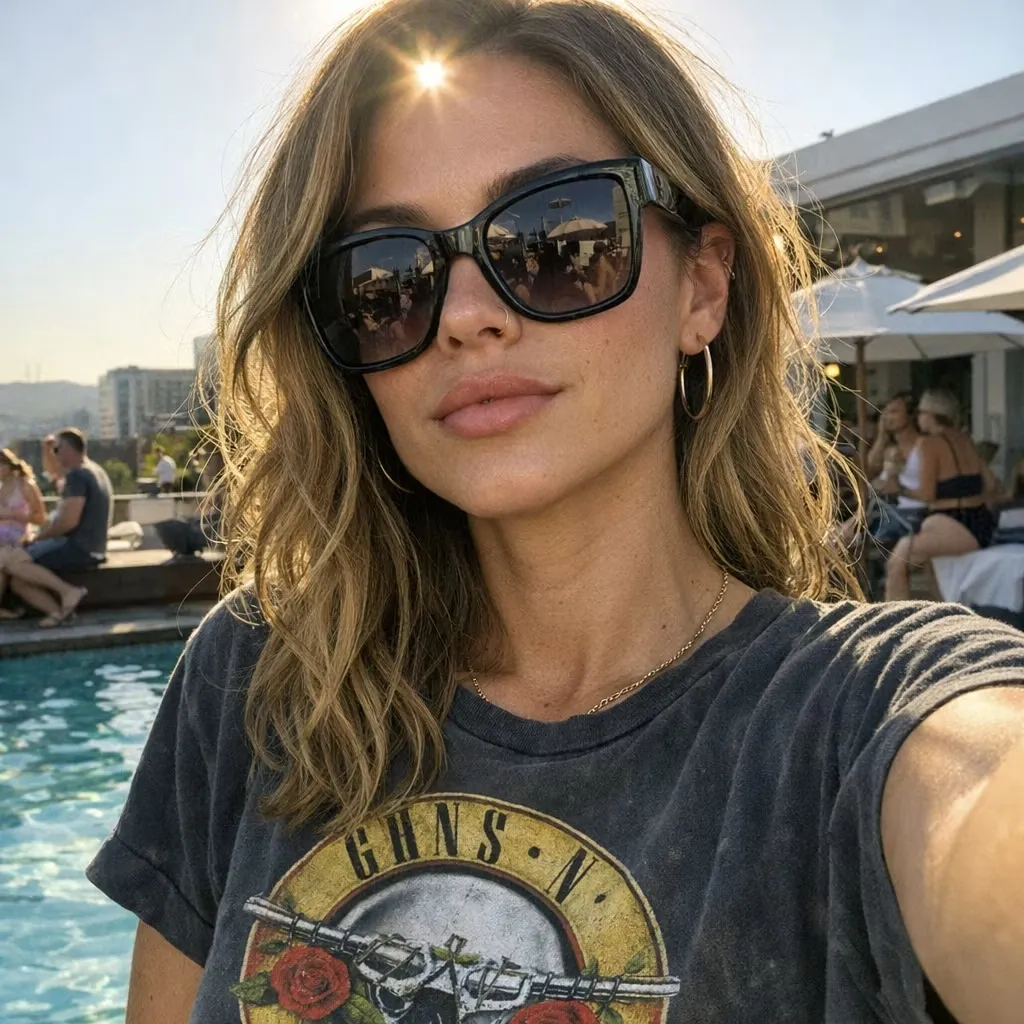
Compare source images and edited results across portraits, product photos, travel shots, property images, and busy backgrounds.

PROMPT IDEAS

AI Object Removal Prompts You Can Copy

Choose a prompt that matches your image, then replace the bracketed details with the exact object, location, and background in your photo.

  • Remove a Photobomber

    Remove the person standing [location]. Reconstruct the [background] naturally. Keep the main subject, facial features, pose, lighting, camera angle, and all other people unchanged.

  • Clear Background Clutter

    Remove the [unwanted objects] from the background. Fill the cleared area with matching [wall, floor, landscape, or furniture]. Preserve the subject, composition, colors, and lighting.

  • Clean Up a Product Photo

    Remove the [prop, cable, label, packaging fragment, or reflection] beside the product. Keep the product shape, logo, materials, colors, shadows, camera angle, and background unchanged.

  • Remove Wires, Poles, or Signs

    Remove the [wire, pole, or sign] from [location]. Rebuild the missing [sky, building, road, or foliage] with matching perspective, texture, and lighting. Do not alter the rest of the scene.

  • Delete Text or Captions

    Remove the text reading “[text]” from [location]. Recreate the covered [surface or background] using the surrounding color, texture, spacing, and lighting. Keep all other text unchanged.

  • Remove Stickers or Overlays

    Remove the [sticker, emoji, frame, or graphic overlay] from [location]. Restore the covered area to match the surrounding image while preserving the subject and composition.

  • Remove a Reflection or Shadow

    Remove the unwanted [reflection or shadow] on [surface]. Restore the surface with consistent material, color, texture, highlights, and lighting. Keep intentional shadows and reflections unchanged.

  • Remove a Small Portrait Distraction

    Remove the [small object or distraction] near [location]. Preserve the person’s face, hair, skin texture, body proportions, clothing, pose, lighting, and background.

WHAT IT IS

What Is an AI Object Remover?

An AI object remover is an image-editing tool that removes specified visual elements and generates replacement content for the space they occupied.

Instead of working with clone stamps, layers, or manual selections, you can upload a source image and describe the intended change in natural language. A prompt may identify a person, prop, wire, sign, text block, reflection, sticker, or other distraction. You can also describe its location, explain how the cleared area should look, and state which subjects or details must remain unchanged.

The tool interprets both the uploaded image and your instruction, then creates an edited version that attempts to match the surrounding texture, perspective, color, and lighting. Because the result is generative, it should always be reviewed. Large removals, heavy occlusion, faces, typography, straight lines, and repeating patterns may require a revised prompt or an additional pass.

How Prompt-Based Object Removal Works

The model uses the source image and your written instruction together to decide what should change and what should remain visually consistent.

  • Interpret the Requested Change: The AI reads the image and prompt to identify the named element, its location, nearby objects, and any preservation instructions. Specific wording reduces ambiguity when several similar people or objects appear in the scene.

  • Reconstruct the Edited Scene: After removing the target, the model generates plausible visual content for the newly exposed area using the surrounding scene as context. It does not recover the original hidden pixels behind the object. Since the output is regenerated, small details outside the target area can also change and should be checked.

TOOL COMPARISON

AI Object Remover vs Background Remover

Use an object remover to edit selected elements inside a scene. Use a background remover when you want to isolate the main subject from the entire backdrop.

Dimension AI Object Remover Background Remover
Primary Goal Remove one or more specified elements from an image Separate the foreground subject from the entire background
User Input A source image plus a text instruction describing the removal Usually a source image with automatic subject detection
What Remains Most of the original scene and background The main foreground subject
Output An edited scene with generated content filling the cleared area A transparent cutout, solid background, or replacement background
Best For Photobombers, clutter, props, wires, signs, text, and small distractions Product cutouts, profile photos, catalog images, and background replacement
Choose It When You want to keep the scene but remove selected details You no longer need the original background

PROMPT TIPS

How to Write Better Object Removal Prompts

Clear instructions help the model locate the target, preserve important details, and generate a more appropriate replacement for the cleared area.

  • Name the Exact Object: Identify the person, item, text, reflection, shadow, or overlay you want removed instead of using vague phrases such as “clean this up.”

  • Describe Its Location: If similar elements appear more than once, specify “on the left,” “behind the product,” “in the upper-right corner,” or another clear spatial reference.

  • State What Must Remain Unchanged: Ask the AI to preserve the main subject, face, pose, product shape, logo, composition, camera angle, colors, lighting, or other important details.

  • Include Connected Details: Mention attached cables, cast shadows, reflections, supports, or overlapping parts when they should disappear with the main object.

  • Describe the Desired Fill: Explain whether the cleared space should become matching sky, wall, floor, grass, water, fabric, shelving, or another visible part of the scene.

  • Make One Main Removal at a Time: Separate unrelated edits into multiple generations. A focused instruction is easier to evaluate and revise.

  • Use a Clear Source Image: Start with the largest available version and avoid repeated compression, severe blur, heavy obstruction, or screenshots with unclear details.

  • Review Difficult Geometry: Check faces, hands, text, logos, product edges, straight lines, reflections, and repeating patterns before using the result.

Frequently Asked Questions

What is an AI object remover?

An AI object remover edits an image by removing a specified person, item, text block, overlay, or other visual element. It then generates plausible replacement content for the cleared space using the surrounding scene as context.

How do I remove an object from a photo with AI?

Upload the photo, enter a prompt that names the object and its location, state what should remain unchanged, and generate the edit. Review the result closely and revise the prompt if the reconstructed area needs another pass.

Do I need to manually highlight the object?

No. This GPTProto tool uses a source image and a written instruction. Describe the target clearly in the prompt, especially when the image contains several similar objects or people.

Can AI remove people, text, wires, or background clutter?

Yes, these are common object-removal tasks. Results depend on image complexity, object size, overlap, and how clearly the prompt identifies the target. Text, faces, straight lines, and repeating patterns deserve extra review.

Can I remove a watermark, logo, or caption?

The tool can edit visible text and overlays, but you should remove watermarks, logos, or captions only from images you own or have permission to modify. The tool does not grant rights to third-party content.

What should I include in an object removal prompt?

Name the exact object, describe its location, state what must remain unchanged, include connected shadows or reflections when relevant, and explain how the cleared area should be filled.

Does AI recover the real background hidden behind an object?

No. The hidden pixels are not available in the uploaded image. The AI generates a plausible replacement based on nearby colors, textures, perspective, lighting, and the instructions in your prompt.

Will the rest of my image remain exactly unchanged?

You can ask the model to preserve specific subjects and details, but a generative edit may still introduce small changes outside the target area. Compare the result with the source image before publishing or delivering it.

Is the AI Object Remover free?

GPTProto uses pay-as-you-go credits rather than requiring a fixed editing subscription. Sign in and check the price shown in the tool before generating.

Can I use an edited image commercially?

Commercial use depends on your rights to the source image, the content being removed, and the terms that apply to the generated output. Do not use the tool to remove ownership marks or alter third-party content without permission.

What Users Say About Our AI Object Remover

See how users apply prompt-based object removal to clean up photos, product images, social content, and creative projects.

Maya Chen

E-commerce Store Owner

“I use it to remove packaging clutter, small props, and distracting objects from product photos. I can describe exactly what should disappear while asking the AI to preserve the product shape, colors, and lighting.”

Daniel Brooks

Travel Content Creator

“Photobombers and background distractions used to ruin otherwise great shots. Now I upload the image, describe the person or object I want removed, and generate a cleaner version without opening complicated editing software.”

Sofia Martinez

Social Media Manager

“I like being able to specify both what should be removed and what must remain unchanged. That makes it useful for cleaning up campaign images while protecting the main subject, composition, and brand details.”

Ethan Walker

Freelance Photographer

“It works well for removing signs, cables, reflections, and other small distractions. Adding the object’s location and describing how the empty area should be filled usually gives me a much more natural result.”

Olivia Reed

Real Estate Marketing Specialist

“I use it to clear temporary clutter and distracting items from listing photos. Prompt-based editing gives me more flexibility because I can identify a specific object without removing the entire background.”

Noah Kim

Small Business Owner

“I do not have much photo-editing experience, but the workflow is easy to understand. I simply upload an image and write what I want removed, what should stay, and how the background should look afterward.”