Best Unrestricted AI Photo Editors at a Glance
| Rank |
Editor |
Runs |
Editing method |
Current cost signal |
Best for |
Main trade-off |
| 1 |
GPT Proto |
Online |
Reference-image prompting |
Credits required; Seedream 4.5 currently shows about $0.034 per run |
Fast browser editing |
Images are routed to a third-party model provider |
| 2 |
ComfyUI |
Local or self-hosted |
Masks, inpainting, node workflows |
Free software; hardware is not free |
Maximum control |
Highest setup burden |
| 3 |
Draw Things |
On-device |
Prompted transformations and Infinite Canvas |
Free |
Private offline editing |
Performance depends on the device |
| 4 |
Krita AI Diffusion |
Local or connected server |
Inpainting and outpainting inside Krita |
Free, GPL-3.0 |
Artists who already use a canvas editor |
Plugin and model setup required |
| 5 |
InvokeAI |
Local or self-hosted |
Unified Canvas, brushes, in/out-painting |
Self-hosted software |
Repeatable studio workflows |
More administration than a browser tool |
| 6 |
AUTOMATIC1111 |
Local |
img2img, inpainting, outpainting, batch editing |
Free, AGPL-3.0 |
Stable Diffusion power users |
Older, denser interface |
| 7 |
NanoImage |
Online |
Prompt-based image editing |
20 signup credits; edits currently show 5 credits each |
Quick trial without local setup |
Free allowance covers roughly four edits |
| 8 |
ZenCreator |
Online |
Vendor-listed inpainting, restyling and enhancement |
Plans advertised from $19.99/month |
Hosted editing with several tools in one account |
Most evidence is vendor-published |
What Does “Unrestricted” Mean for Photo Editing?
“Unrestricted” is an imprecise marketing word. I use it here in a narrower, testable sense: the editor accepts an existing image, preserves the prompt instead of silently softening it, and gives the user meaningful control over the transformation.
It does not mean unlimited free use. GPT Proto still charges credits, NanoImage's free allowance is finite, and local software still consumes your own hardware and electricity. It also does not remove copyright, consent, privacy, or publicity obligations.
There is a second boundary worth keeping clear. Text-to-image starts from words; image-to-image starts from pixels. If you want a blank-canvas tool, use this comparison of unrestricted AI image generators. The rankings below are for editing a photo you already have.
How I Evaluated These Editors
I used six filters:
Real image input: Can the tool accept an existing image rather than merely generate a similar one?
Edit control: Does it support whole-image instructions, masks, inpainting, outpainting, or more than one of these?
Preservation: Can the workflow tell the model what must remain unchanged?
Prompt handling: Does the service describe prompt rewriting or blocking clearly?
Cost and privacy: What is actually free, where is the image processed, and who else receives it?
Availability: Was the editor or its documentation live during this review?
That last check removed one apparent contender. OpenMediaTools advertised no-login editing and up to four input images, but its page displayed “Tool currently unavailable” when checked. A dead free tool is not a recommendation.
1. GPT Proto — Best Online Unrestricted AI Photo Editor
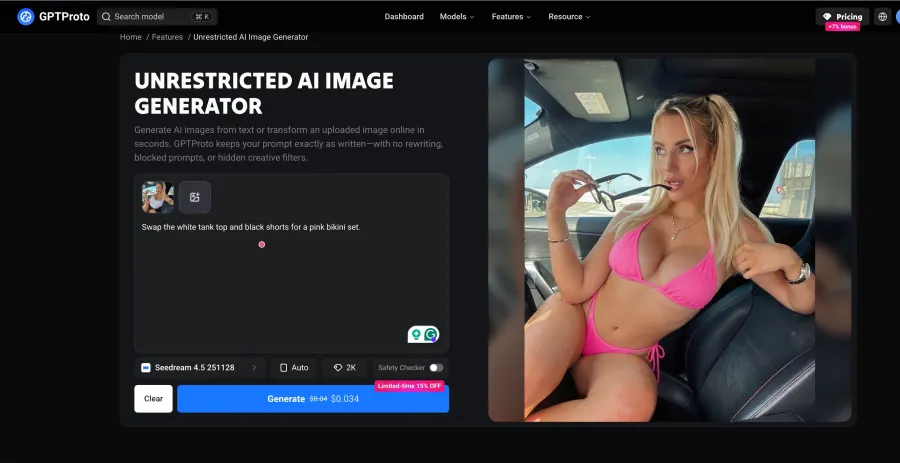
GPT Proto's unrestricted image editor has the cleanest path from source image to finished variation in this list. Upload a photo, add one or more references, describe the change, choose the output settings, and generate. The current interface includes a 2K option plus follow-up actions for upscaling and animation.
The useful detail is prompt handling. GPT Proto says it sends the prompt as entered and does not apply a hidden pre-generation keyword block. The interface also exposes a Safety Checker control. In other words, “unrestricted” refers to creative input and prompt preservation—not an absence of every safeguard or service rule.
For edits, be explicit about what stays fixed:
Replace the gray studio background with a sunlit kitchen. Keep the person's face, pose, clothing, camera angle, and crop unchanged.
That preservation sentence matters. A vague “put this person in a kitchen” instruction gives the model permission to reinterpret the entire frame.

The cost: the live Seedream 4.5 image-edit model page showed approximately $0.034 per run during verification. Final charges can vary with the selected model and settings.
The trade-off: this is a hosted service. GPT Proto's privacy policy says input images and prompts are transmitted to the third-party model provider selected for the request. It also says API input/output content is generally retained only for the short period needed to process the transaction and debug errors. If a photograph cannot leave your machine, choose a local editor instead.
2. ComfyUI — Best for Maximum Local Control
ComfyUI is the strongest option when “unrestricted” means controlling the entire workflow yourself. Its official Mask Editor documentation describes drawing and editing masks directly on a loaded image, while the official inpainting workflow covers replacing selected regions rather than regenerating the whole frame.
The project is a graph-based GUI, API, and backend distributed under GPL-3.0. That node structure lets you choose the checkpoint, sampler, mask path, ControlNet or reference conditioning, upscaler, and output chain. Few hosted editors expose that much.
Control is the advantage. Configuration is the bill. You need compatible hardware, model files, storage, and enough patience to diagnose broken custom nodes after an update. I would choose ComfyUI for repeatable production workflows, not for a one-off background replacement.

3. Draw Things — Best Free Offline Option
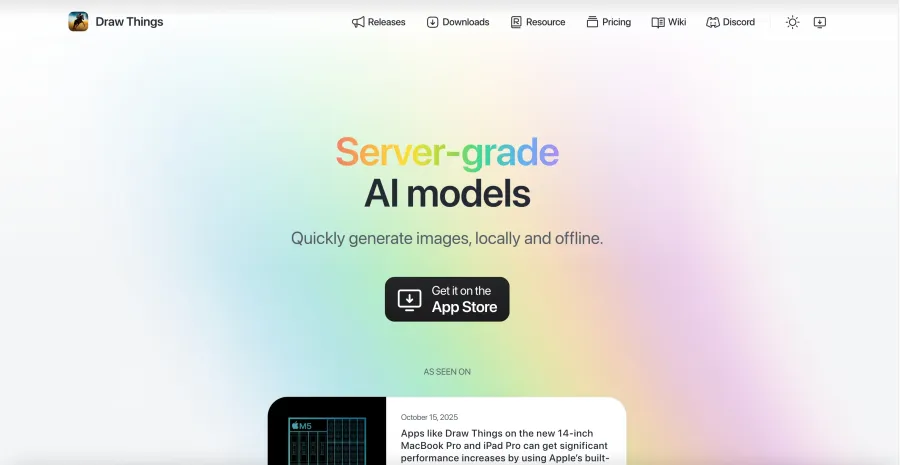
Draw Things is the practical middle ground between a browser editor and a full ComfyUI installation. Its official site says the app is free, runs locally and offline, and keeps the workflow on the device. It also lists Infinite Canvas, photo transformations, enhancement, and local LoRA training.
This is the best fit when privacy matters but a node graph does not. Infinite Canvas is particularly useful for extending a crop or rebuilding the space around a subject.
The cost moves from credits to hardware. Large models and high-resolution edits still demand memory, storage, and time. “Free” describes the software, not unlimited compute.

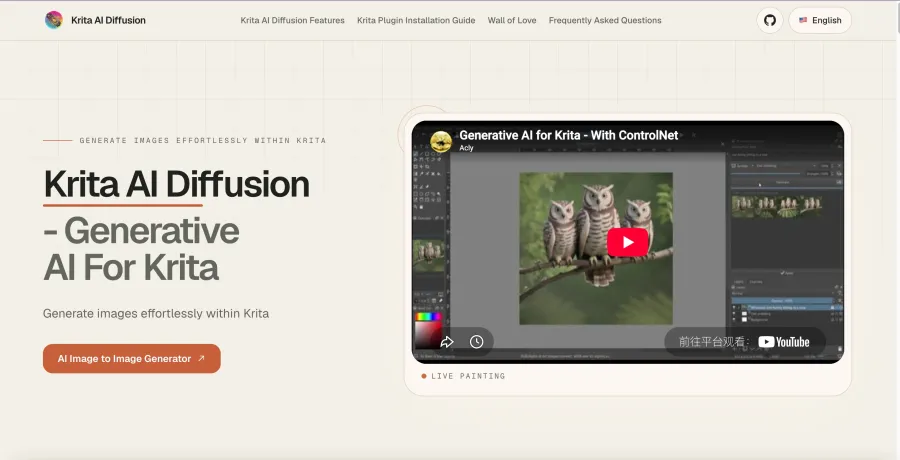
4. Krita AI Diffusion — Best for Canvas-Based Editing
Krita AI Diffusion brings generative editing into an established painting interface. The project's official repository lists inpainting and outpainting with an optional text prompt, plus the ability to use a custom ComfyUI server. It is distributed under GPL-3.0.
This arrangement is better than a prompt-only box when the edit begins with a brush. An artist can select a precise region, paint a rough guide, generate into that area, and manually correct the result without exporting between separate applications.
The trade-off is assembly. You need Krita, the plugin, and either local model infrastructure or a configured server. It earns its place through editing control, not instant setup.

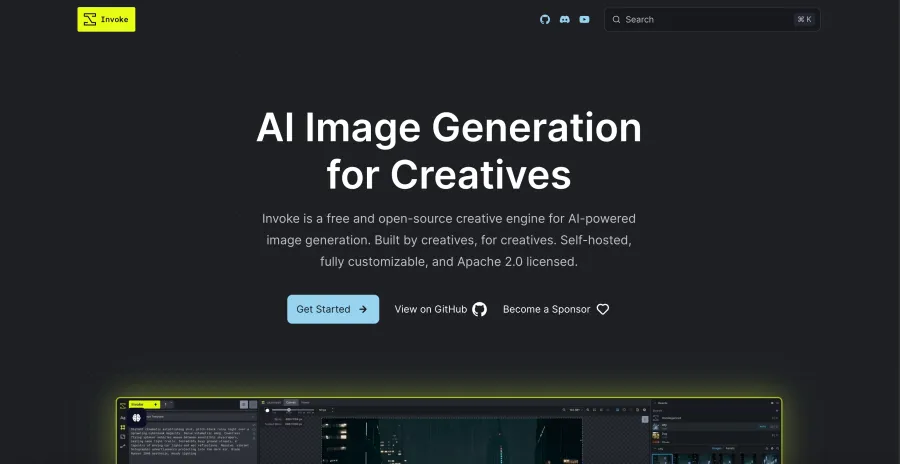
5. InvokeAI — Best for Structured Creative Workflows
InvokeAI's Unified Canvas supports brush tools, inpainting, outpainting, and the broader generation workflow in one workspace. Its node-based workflow manager can save and share repeatable pipelines, while the gallery retains images and generation metadata for later remixing.
That makes InvokeAI a better fit for a studio process than a single novelty edit. You can refine a photograph, preserve the settings, and hand the same workflow to another person.
The downside is similar to ComfyUI: someone has to operate the infrastructure. Browser tools hide model downloads, updates, queues, and storage. InvokeAI makes those parts your responsibility.

6. AUTOMATIC1111 — Best for Stable Diffusion Power Users
AUTOMATIC1111 remains useful because its official feature list includes img2img, inpainting, outpainting, batch processing, face restoration, and several upscaling options. It is a direct toolbox rather than a guided editor.
That breadth helps when you already know denoising strength, masks, checkpoints, and extensions. Batch img2img is also valuable when the same transformation must be applied to a folder instead of one photo.
The interface is the tax. New users face many controls before seeing a good result, and extensions add another maintenance layer. Choose it for access to the Stable Diffusion ecosystem, not for a tidy first session.
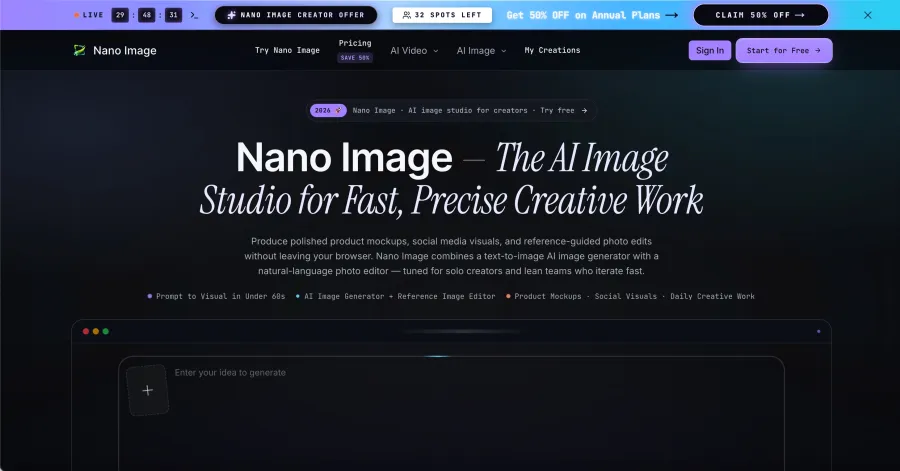
7. NanoImage — Best Simple Credit-Based Alternative
NanoImage offers a straightforward browser workflow: choose Image Edit, upload or select a source, enter an instruction, and choose output options that currently include 2K and 4K.
Its pricing page makes the free limit easier to calculate than the word “free” suggests. Registration currently provides 20 one-time credits, while the editor displays 5 credits per generation. That is roughly four edits at the displayed rate. The next plans list $9.99 per month for 300 credits and $29.99 per month for 1,000 credits—up to 60 or 200 generations respectively if each still costs five credits.
The simple interface is the benefit. The small trial is the catch. It is enough to see whether the workflow suits you, not enough for ongoing free editing.

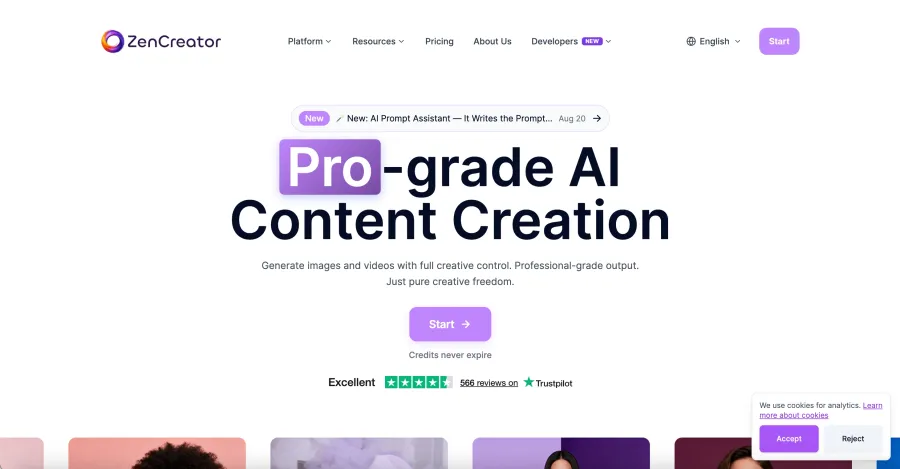
8. ZenCreator — Best-Documented Hosted Alternative
ZenCreator's current product page advertises inpainting, style transfer, upscaling, retouching, exports up to 4K, and plans starting at $19.99 per month. It also claims encrypted processing and automatic file deletion.
Those features make it relevant to this search. The evidence quality keeps it at number eight. Its ranking article, privacy claims, performance claims, and product recommendation all come from the same company, and I did not independently reproduce its results. Treat the specifications as vendor statements until you verify them with your own non-sensitive image.

Can Developers Automate the Editing Workflow?
Yes. GPT Proto exposes image editing through the Seedream 4.5 endpoint as well as through the browser interface. The live model page currently documents the following cURL request.
Set INPUT_IMAGE_URL to an HTTPS image URL that the model can retrieve:
export GPTPROTO_API_KEY="your_api_key"
export INPUT_IMAGE_URL="https://your-domain.example/input-photo.jpg"
curl --request POST \
"https://gptproto.com/api/v3/doubao/seedream-4-5-251128/image-edit" \
--header "Authorization: Bearer $GPTPROTO_API_KEY" \
--header "Content-Type: application/json" \
--data "{
\"prompt\": \"Replace the background with a daylight studio. Keep the subject, face, pose, clothing, and crop unchanged.\",
\"images\": [\"$INPUT_IMAGE_URL\"],
\"size\": \"2048*2048\",
\"enable_sync_mode\": false,
\"enable_base64_output\": false
}"
The Python equivalent prints the submission response so you can capture its result ID:
import os
import requests
url = "https://gptproto.com/api/v3/doubao/seedream-4-5-251128/image-edit"
headers = {
"Authorization": f"Bearer {os.environ['GPTPROTO_API_KEY']}",
"Content-Type": "application/json",
}
payload = {
"prompt": (
"Replace the background with a daylight studio. "
"Keep the subject, face, pose, clothing, and crop unchanged."
),
"images": [os.environ["INPUT_IMAGE_URL"]],
"size": "2048*2048",
"enable_sync_mode": False,
"enable_base64_output": False,
}
response = requests.post(url, headers=headers, json=payload, timeout=120)
response.raise_for_status()
print(response.json())
For an asynchronous request, copy the returned result ID and query the documented status endpoint:
import os
import requests
result_id = os.environ["GPTPROTO_RESULT_ID"]
url = f"https://gptproto.com/api/v3/predictions/{result_id}/result"
headers = {"Authorization": f"Bearer {os.environ['GPTPROTO_API_KEY']}"}
response = requests.get(url, headers=headers, timeout=60)
response.raise_for_status()
print(response.json())
Online vs. Local Unrestricted Photo Editors
| Question |
Online editor |
Local editor |
| Setup |
Usually an account, upload, and prompt |
Install software, models, and dependencies |
| Privacy |
Images leave the device and may reach model providers |
Images can remain on your hardware |
| Hardware |
Provider supplies compute |
You supply memory, storage, and processing time |
| Cost |
Credits or subscription |
Software may be free; hardware and electricity are not |
| Control |
Faster start, fewer low-level settings |
Masks, nodes, checkpoints, and extensions |
| Maintenance |
Provider handles updates |
You handle updates and broken dependencies |
The decision is less philosophical than it sounds. If the image is a replaceable product mockup, an online editor saves time. If it is confidential client material that cannot leave a controlled machine, local processing is the sensible default.
Which Unrestricted AI Photo Editor Should You Choose?
Choose GPT Proto when you want to upload a photo, describe an edit, and get a result without managing local models.
Choose ComfyUI when masks, model selection, reusable nodes, and local processing matter more than convenience.
Choose Draw Things when you want a free offline starting point with less setup.
Choose Krita AI Diffusion when the task begins with drawing, selecting, and correcting on a canvas.
Choose InvokeAI when a team needs organized, repeatable visual workflows.
Choose AUTOMATIC1111 when you already understand Stable Diffusion settings and want its extension ecosystem.
Try NanoImage when four approximate trial edits are enough to evaluate a simple web interface.
Verify ZenCreator yourself when its hosted feature list fits the job but independent evidence matters to you.
Turn an Edited Photo Into Video
A finished edit often becomes the first frame of a video workflow. Before sending it to a motion model, check the face, hands, logos, text, and background edges at full resolution; video generation tends to magnify small defects across multiple frames.
For the next step, compare the workflows in GPT Proto's image-to-video generator guide or review the broader AI video model ranking.
Final Verdict
For most people who want an unrestricted AI photo editor online, GPT Proto is the most direct starting point: upload the image, state the edit and the elements that must stay fixed, then continue into upscaling or animation from the same workflow.
ComfyUI remains the stronger choice for maximum local control. Draw Things is the easier free offline option. The price of that privacy is your own hardware and setup time.
Try the GPT Proto unrestricted AI image editor, beginning with a non-sensitive test image and one narrowly defined change.