The Image Upscale Reality Check
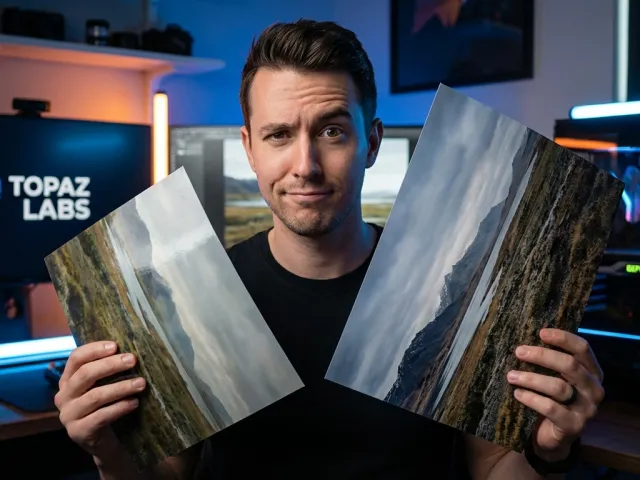
We've all been there. You find an old photo or a low-res digital asset that looks like it was captured on a potato. You try a quick image upscale, hoping for a miracle, but you end up with a waxy, plastic mess that looks more like a bad oil painting than a high-definition photograph. It's frustrating because the promise of AI technology often hits a wall when it meets real-world pixels.
The truth is, not every image upscale is created equal. Some tools prioritize speed, while others focus on preserving the soul of the original shot. If you're tired of losing texture or seeing your subjects turn into smooth-skinned aliens, you need to understand what's actually happening under the hood when you click that "enhance" button.
Why Most Image Upscale Tools Fail
The biggest complaint I hear from practitioners is the "plastic" effect. Most generic AI upscalers use over-aggressive smoothing to hide noise. While this removes grain, it also kills the fine details—the pores in skin, the weave in fabric, or the grit in a stone wall. A proper image upscale shouldn't just make things bigger; it should intelligently reconstruct missing data.
And then there's the hardware issue. Trying to run a high-quality image upscale locally can turn your PC into a space heater. If you aren't careful, pushing a file to 16K or 32K resolution becomes a total hardware hog that crashes your system before the render even finishes. You need a tool that balances raw power with efficiency.
Another major pain point is anatomy. Have you ever noticed how some AI tools give people extra fingers or weirdly shaped ears during an image upscale? It happens because the model doesn't understand human structure; it only understands pixel patterns. To avoid this, we have to look at models that actually "see" what they are enhancing.
So, where do we go from here? If you're looking for professional results without the headache, it's time to explore a more refined image upscale solution that respects the original context of your visuals. This isn't just about blowing up a file; it's about smart reconstruction that holds up under scrutiny.
Battle of the Titans for Your Next Image Upscale
When you browse communities like Reddit, a few names keep popping up. People are passionate about their choice of image upscale software because the results vary wildly. You have the "Goats" like SeedVR2 and the "Heavyweights" like Topaz, each bringing a different philosophy to the table. Let's look at how they stack up in the real world.
Choosing the right tool depends on your specific goal. Are you upscaling an old 1024x midjourney generation to 8k? Or are you trying to save a blurry family photo? The approach you take for a photorealistic image upscale is vastly different from what you'd use for an anime-style illustration or a technical diagram.
SeedVR2 vs. Aiarty Image Enhancer
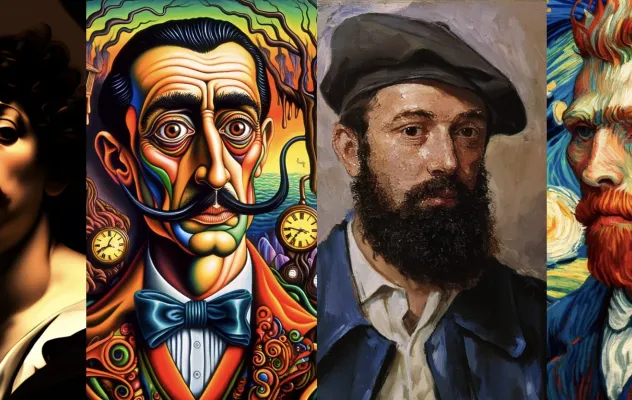
SeedVR2 is often called the "Goat" by users who deal with older AI generations. It's astonishing how you can take a 1024x image and perform an image upscale to 8k while keeping things sharp. But there's a catch: it can occasionally create a "leathered" effect on skin. It's great for detail, but sometimes it over-sharpens textures until they look unnatural.
On the other side, Aiarty is winning fans because it avoids that "waxy" look. In my experience, Aiarty keeping texture detail is the real win. Most tools screw this up by smoothing everything out. During an image upscale with Aiarty, you get to keep the grit. However, be warned: pushing these models to extreme resolutions like 16K is a massive hardware hog.
"The real magic of a high-end image upscale isn't in the resolution count; it's in the preservation of micro-textures that make an image feel grounded in reality."
Topaz Photo AI and the Professional Price Tag
Topaz is the undisputed heavyweight in the image upscale space. It's professional-grade, offering incredible noise reduction and detail preservation. If you're a photographer, this is often the go-to. But let's be honest: the move to a mandatory subscription model is a massive hurdle for many casual users or small studios.
When you perform an image upscale with Topaz, you're paying for years of R&D. It handles low-light noise better than almost anything else. But if you're on a budget, that monthly bill starts to hurt. That's why many people are looking for ways to manage your API billing more effectively by using pay-as-you-go models instead of locked-in subscriptions.
Topaz also requires a beefy GPU. If you're running a laptop from five years ago, don't expect a fast image upscale experience. You'll be waiting minutes for a single frame. This is why the industry is shifting toward cloud-based processing where the heavy lifting happens on remote servers rather than your local machine.
Ultimately, Topaz is for those who need a foolproof, high-quality image upscale and are willing to pay the premium. For everyone else, the current market offers several alternatives that provide 90% of the quality at a fraction of the cost or through more flexible access methods.
Free and Open Source Image Upscale Alternatives
Not everyone has a hundred dollars to drop on a specialized tool. Fortunately, the open-source community has been doing some incredible work. You can get a very respectable image upscale without spending a dime if you know where to look. It requires a bit more technical setup, but the results are often comparable to paid software.
The beauty of open source is the transparency. You know exactly what model is being used. Whether it's Real-ESRGAN or SwinIR, you have control over the parameters. This level of customization is vital for users who find that commercial image upscale tools are a bit too "opinionated" in how they handle sharpening and noise.
The Power of Upscayl and Real-ESRGAN
Upscayl is the hero of the free world. It's an open-source desktop app that makes the image upscale process incredibly simple. It's "clutch" for quick tests. If you just need to see if a low-res thumbnail can be saved, Upscayl is your first stop. It uses models like Real-ESRGAN to provide a clean, sharp output.
But there's a downside. Upscayl often struggles with highly compressed or low-quality images. If your source material is full of JPEG artifacts, a simple image upscale might actually amplify those mistakes. It doesn't have the sophisticated "healing" capabilities of some paid AI models, so you have to be mindful of your input quality.
To get the most out of these free tools, many experts recommend a multi-step approach. You might start with a free image upscale to get the basic dimensions, then run the output through an enhancer to fix the textures. It's more work, but it saves you the subscription fee while maintaining high standards.
If you're looking for a wider variety of models without installing five different apps, you can explore all available AI models in one place. This allows you to jump between different open-source and proprietary engines to find the perfect fit for your specific image upscale task without the technical overhead of manual installations.
Technical Workflows for a Better Image Upscale
If you're deep into AI art generation, especially with Stable Diffusion, you know that a simple click isn't always enough. The best results often come from complex workflows. A professional image upscale in 2024 usually involves more than one pass. It's about layering different techniques to solve specific problems like anatomy or background blur.
Here's the thing: most people just throw their image into a tool and hope for the best. But if you want to avoid that "AI look," you need to be more surgical. This involves using control layers and tiling techniques that allow the AI to focus on small sections of the image at a time during the image upscale process.
The ControlNet and Tiled Diffusion Strategy
For SDXL users, the "old" ControlNet tile + tiled diffusion method is still gold, especially for anime or complex illustrations. This method breaks the image into smaller tiles, performs an image upscale on each one, and سپس stitches them back together. This prevents the model from getting "confused" by the overall composition while it's trying to add detail.
This approach significantly reduces the chance of the AI hallucinating new objects. When you perform an image upscale using tiled diffusion, you maintain much better control over the final output. It ensures that a hand remains a hand and doesn't turn into a cluster of flesh-colored blobs. It's the most reliable way to scale to massive sizes.
However, tiling can sometimes create visible seams if the settings aren't perfect. You have to balance the overlap and the denoising strength. A high-quality image upscale requires a delicate touch. If your denoising is too high, the AI will change the content. If it's too low, you won't get any new detail. It's a game of increments.
To see how these different workflows can be automated, you might want to try GPT Proto intelligent AI agents. These agents can help orchestrate complex tasks, ensuring that your image upscale workflow follows the best practices without you having to manually tweak every single slider in a complicated interface.
Solving the Anatomy Problem with Klein 9B
One of the more interesting tools mentioned in pro circles is Klein 9B. Some users prefer it over SEEDVR2 because it can actually fix anatomy. During an image upscale, Klein 9B doesn't just sharpen; it recalculates the structure of the subject. If an arm looks slightly off in the original, this model can often "repair" it.
But there's a significant tradeoff. Klein 9B can turn subjects into "different people." It takes so much creative liberty during the image upscale that the original likeness might be lost. This is a common problem in the AI world: do you want accuracy or do you want "perfection"? It's a choice you have to make based on the project.
If you are upscaling a portrait of a specific person, Klein 9B might be too aggressive. But for a generic character or a landscape, its ability to add realistic structure is unparalleled. It's a powerful tool in the image upscale arsenal, provided you understand that it's acting more like a co-artist than a simple magnifying glass.
Ultimately, the best image upscale often comes from a "blend." You take the structural improvements from one model and the texture preservation from another. By combining these outputs in Photoshop or a specialized AI node, you get a result that is both anatomically correct and rich in original detail.
Expert Pro-Tips for a Natural Image Upscale Result
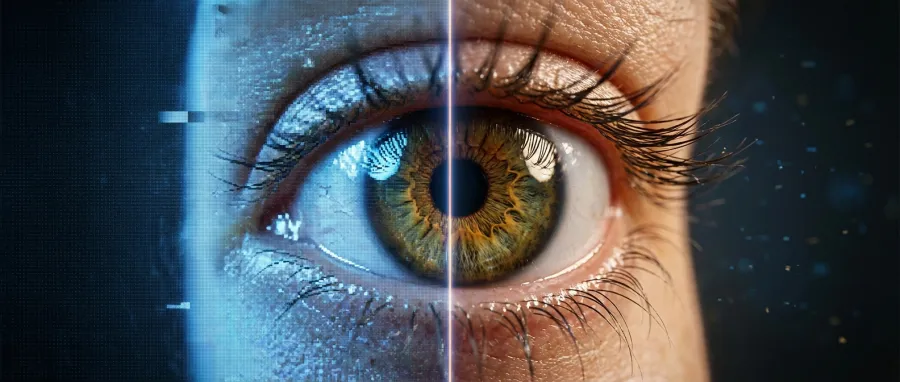
After performing thousands of renders, you start to pick up little tricks that the manuals don't tell you. These "hacks" are what separate the amateurs from the practitioners who consistently produce stunning work. The goal is always to make the image upscale look like it wasn't upscaled at all—just a high-resolution original.
One of the most effective techniques is blending. After you finish your image upscale, you shouldn't just take the file as-is. You can use a blend node to merge the upscaled version with the original. This reduces the artificial sharpness and brings back the original tone and color balance that the AI might have shifted.
The Downscale-Upscale Loophole
Here is a counter-intuitive trick: try downscaling your image by 50% before you perform the image upscale. It sounds crazy, right? Why would you make it smaller first? But here's the logic: by downscaling, you remove some of the low-quality noise and artifacts that confuse the AI. You're giving the model a cleaner, albeit smaller, canvas.
When you then run the image upscale on that 50% version, the AI often adds more convincing details than it would have if you started at 1024x. It's a way to "reset" the image's pixel data. This "downscale then upscale" method is a favorite among Redditors who find that direct upscaling produces too much jitter or noise in the final result.
Another tip is to use the "image zoom" concept. Instead of just blowing up the whole frame, sometimes you only need to enhance a specific part. If you're interested in more dynamic ways to manipulate your visuals, you can learn about the image upscale and zoom workflow to see how experts handle focal points without losing overall quality.
Finally, always check your lighting. An image upscale can often mess with the highlights and shadows, making the image look flat. A quick post-process pass to re-adjust the levels can make your AI-enhanced photo look vastly more professional. Don't trust the tool to get the aesthetics perfect; trust it for the pixels, but keep the creative control for yourself.
| Method |
Best For |
Main Drawback |
| Direct AI Upscale |
Quick social media posts |
Can look waxy or plastic |
| Tiled Diffusion |
Massive 8K+ resolutions |
Slow and hardware intensive |
| Down-then-Up |
Noisy or low-quality source |
Loss of some original "soul" |
| Blend Node |
Natural photorealism |
Requires manual post-work |
Choosing the Right Image Upscale Path for Your Needs
So, what's the verdict? The "best" image upscale tool doesn't exist in a vacuum. It depends entirely on your workflow, your budget, and your hardware. If you are a professional photographer, Topaz is hard to beat. If you are an AI artist experimenting with SDXL, tools like SeedVR2 or Klein 9B are your best friends.
But let's talk about the friction. Setting up all these different tools is a pain. You have to manage different subscriptions, keep your drivers updated, and learn five different interfaces. For many of us, we just want a unified way to access the best tech without the administrative overhead of a dozen different accounts.
Performance-First vs. Cost-First AI
This is where things are changing. Instead of buying every single software package, people are moving toward unified API platforms. You can access an image upscale model that is performance-first when you need the absolute highest quality, or switch to a cost-first mode for quick drafts and bulk work. It's about being smart with your resources.
Platforms like GPT Proto are leading this shift. By offering up to 70% discount on mainstream AI APIs, you can run an expensive image upscale model without the "sticker shock" of a monthly subscription. It's a one-stop access point for multi-modal models including OpenAI, Google, and Midjourney, all through a single unified API interface standard.
This unified approach is a game-changer for developers and power users. You can read the full API documentation to see how easy it is to integrate a high-quality image upscale into your own apps or workflows. No more jumping between websites; just one clean connection to the world's best AI models.
Whether you choose to go the open-source route with Upscayl or use a professional-grade API, the goal remains the same: better pixels, less plastic. The technology for a perfect image upscale is finally here. You just need to know which tool to pick for the specific problem sitting on your screen right now.
Written by: GPT Proto
"Unlock the world's leading AI models with GPT Proto's unified API platform."