



Al-Shamus
@im_shahid7
117
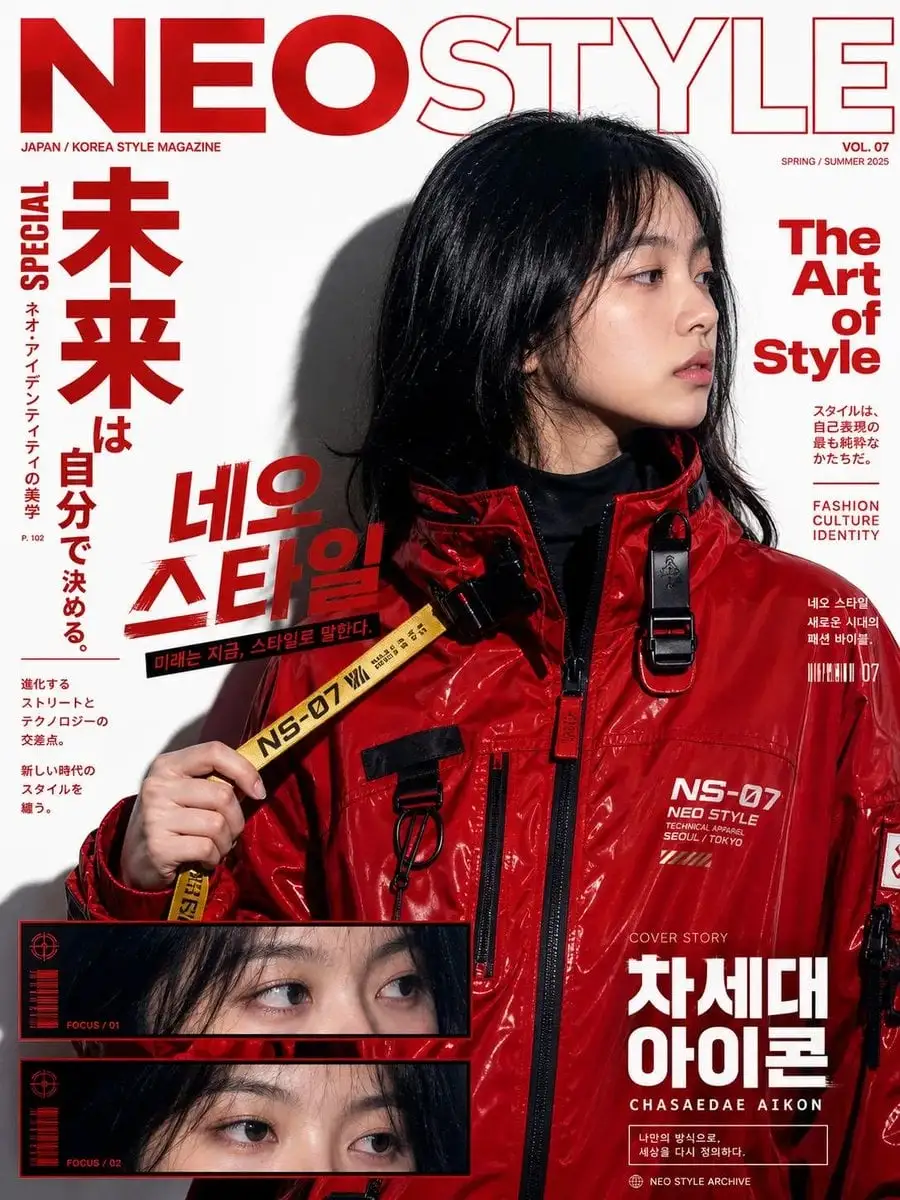
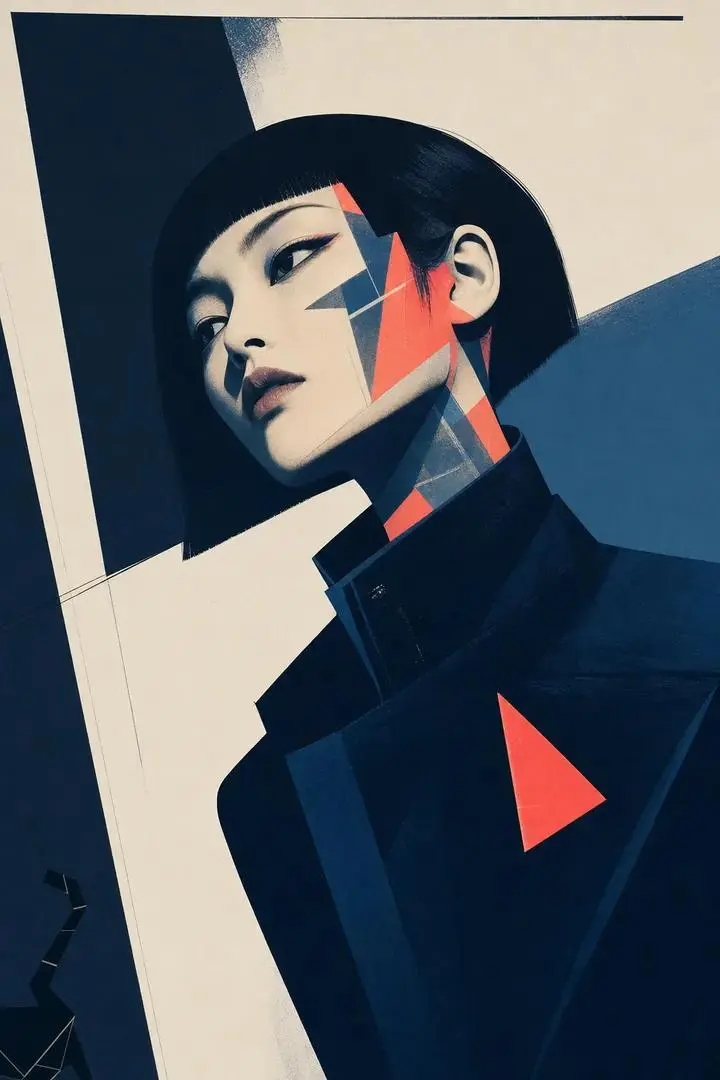
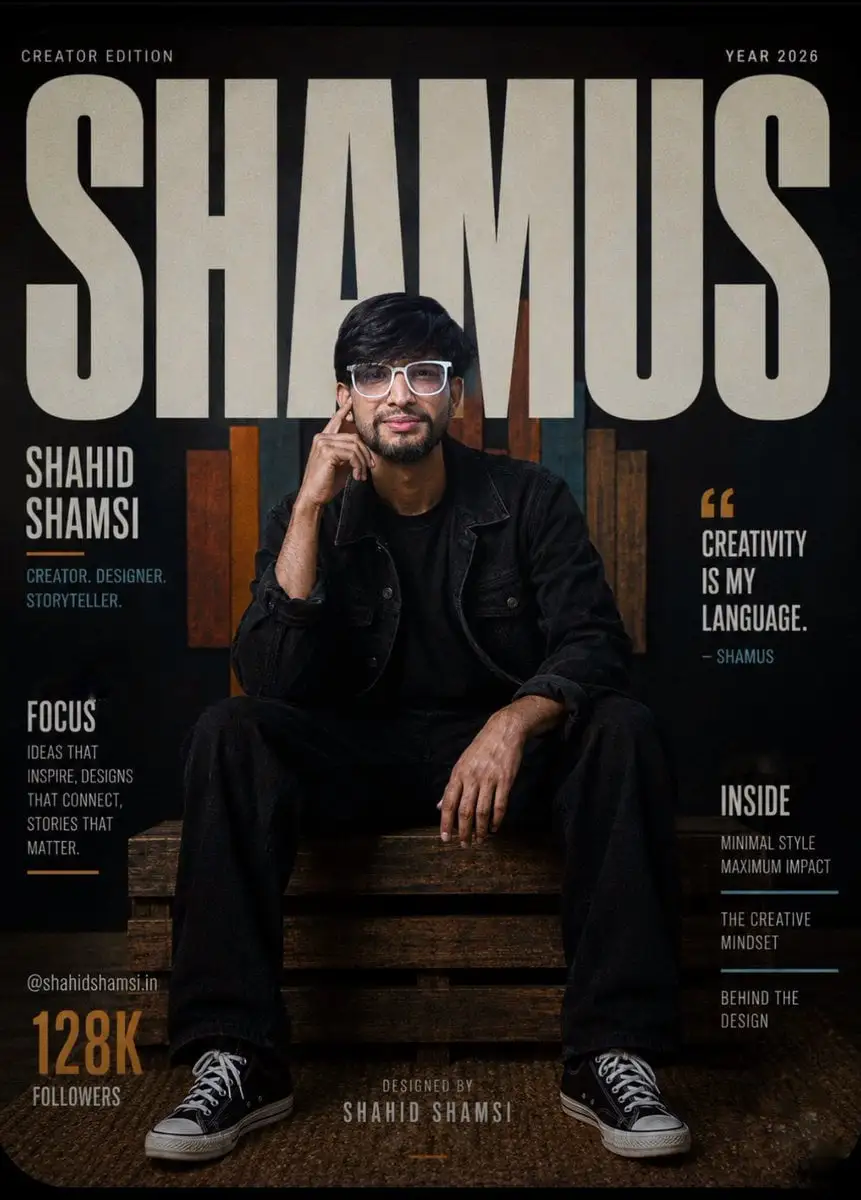
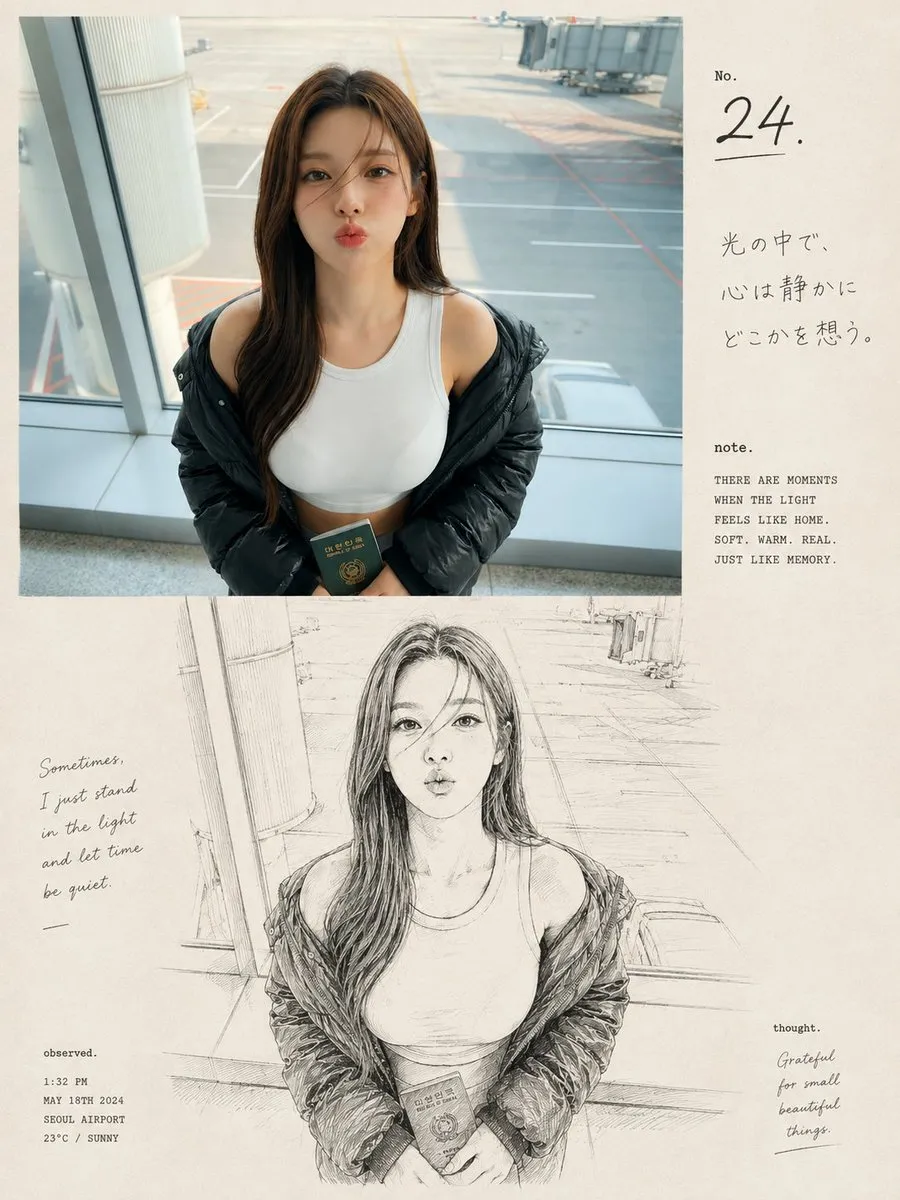
Explore awesome examples for posters, portraits, products, ads, illustrations, infographics, and more—then customize the prompt behind any image.
About
Discover the prompt behind every image you want to recreate.
Discover the prompt behind every image you want to recreate.
Most prompt lists show you a wall of text before you know whether any of it is useful. This GPT Image 2 prompt collection works visually: browse the finished images first, then open the prompt behind the result that catches your attention.
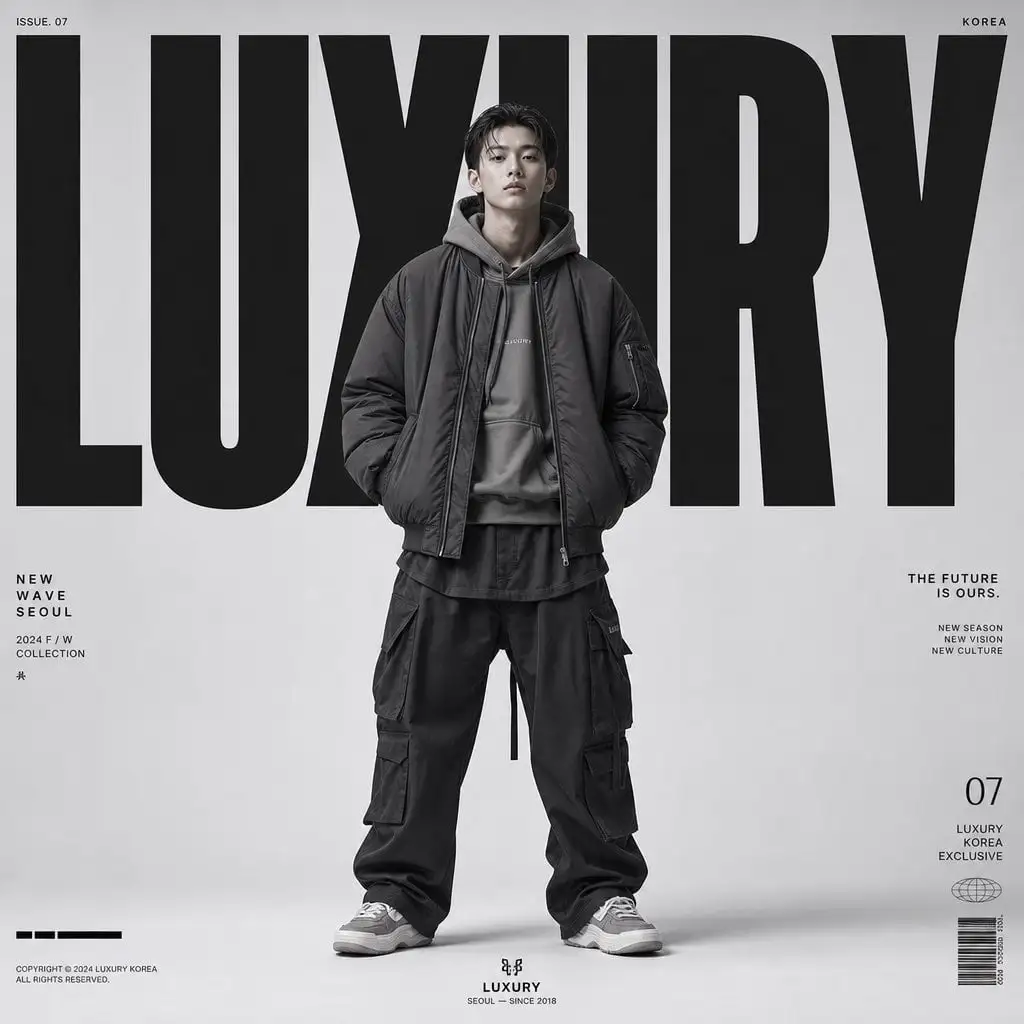
Explore trending examples for posters, portraits, product photography, advertisements, illustrations, infographics, editorial layouts, character designs, social media graphics, and more. New discoveries from public creator communities are added regularly, giving you fresh ideas across realistic, commercial, artistic, minimal, cinematic, and experimental styles.
Open any image to read its full prompt, explore related results, download the example when available, or select Use Idea. GPTProto will carry the prompt into the image generator, where you can change its subject, written text, product, composition, colors, style, or reference images. Once you have created your version, you can also use it as the starting point for an image-to-video generation.
Prompt Tips
Define the image’s purpose, composition, text, and reference roles clearly to produce more usable results.
Start with the image’s purpose. Specify whether you need a poster, product hero image, advertisement, portrait, thumbnail, infographic, editorial layout, or social media graphic.
Describe the composition deliberately. Include the camera angle, subject placement, framing, background, negative space, and aspect ratio instead of relying only on a visual style.
Use exact subject and product details. Replace vague descriptions with specific materials, colors, proportions, clothing, environments, audiences, and brand characteristics.
Write required text exactly. Put headlines, labels, and calls to action inside quotation marks. Specify their position, hierarchy, relative size, visual style, and whether additional text is allowed.
Give every reference image a clear role. Explain which image controls the identity, clothing, product, composition, color palette, or style rather than asking the model to simply combine them.
State what must remain unchanged during edits. When modifying an existing image, protect important details such as the face, pose, product shape, logo, layout, lighting, or camera perspective.
Refine one problem at a time. If the composition already works, request a targeted correction such as fixing the headline or replacing the background. Rewriting the entire prompt may remove successful details.
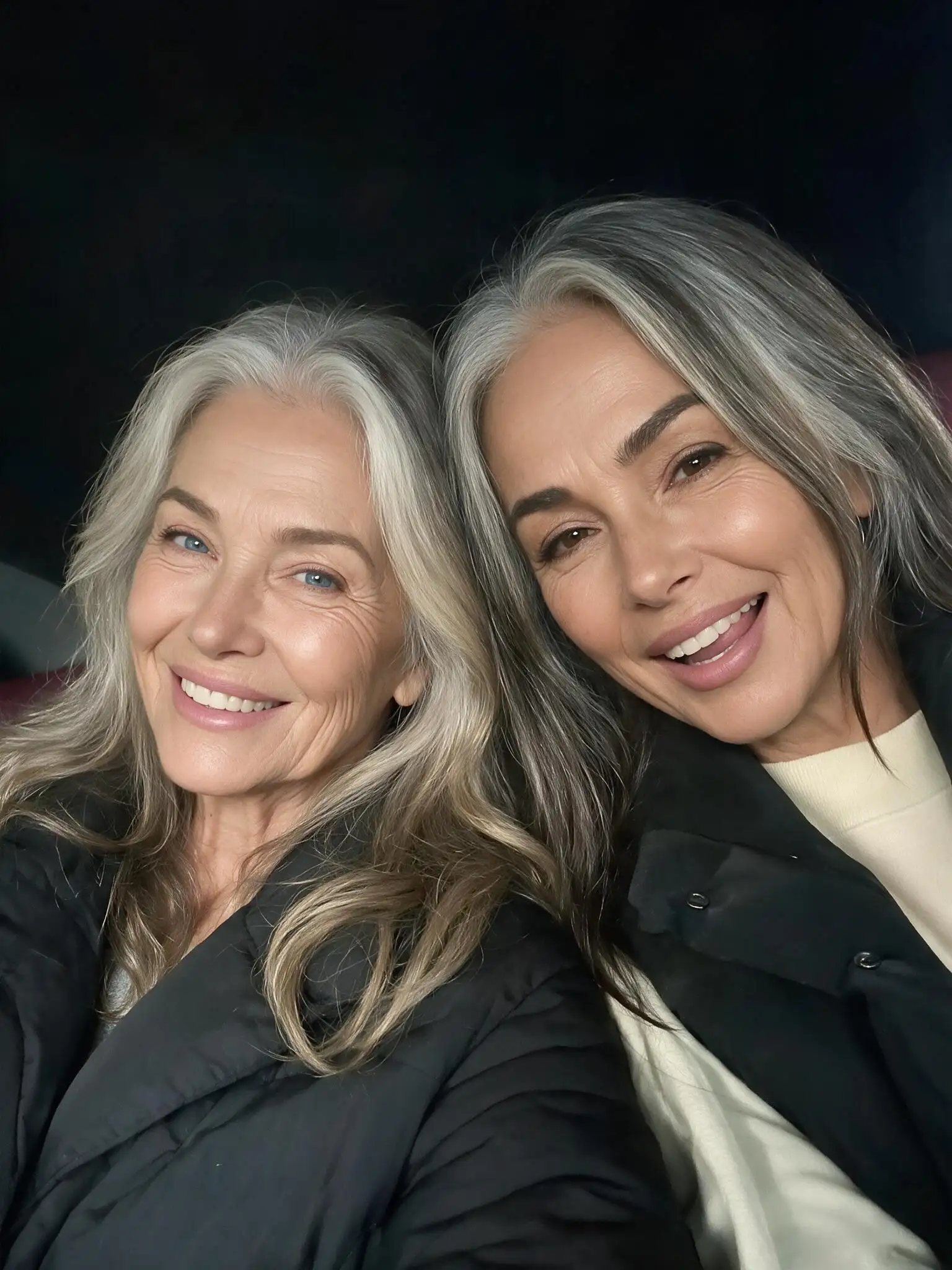
Upload a portrait or start with a text prompt to create an older, younger, teen, or baby version. Choose an example to load its prompt, adjust the age and details, and generate your result online.
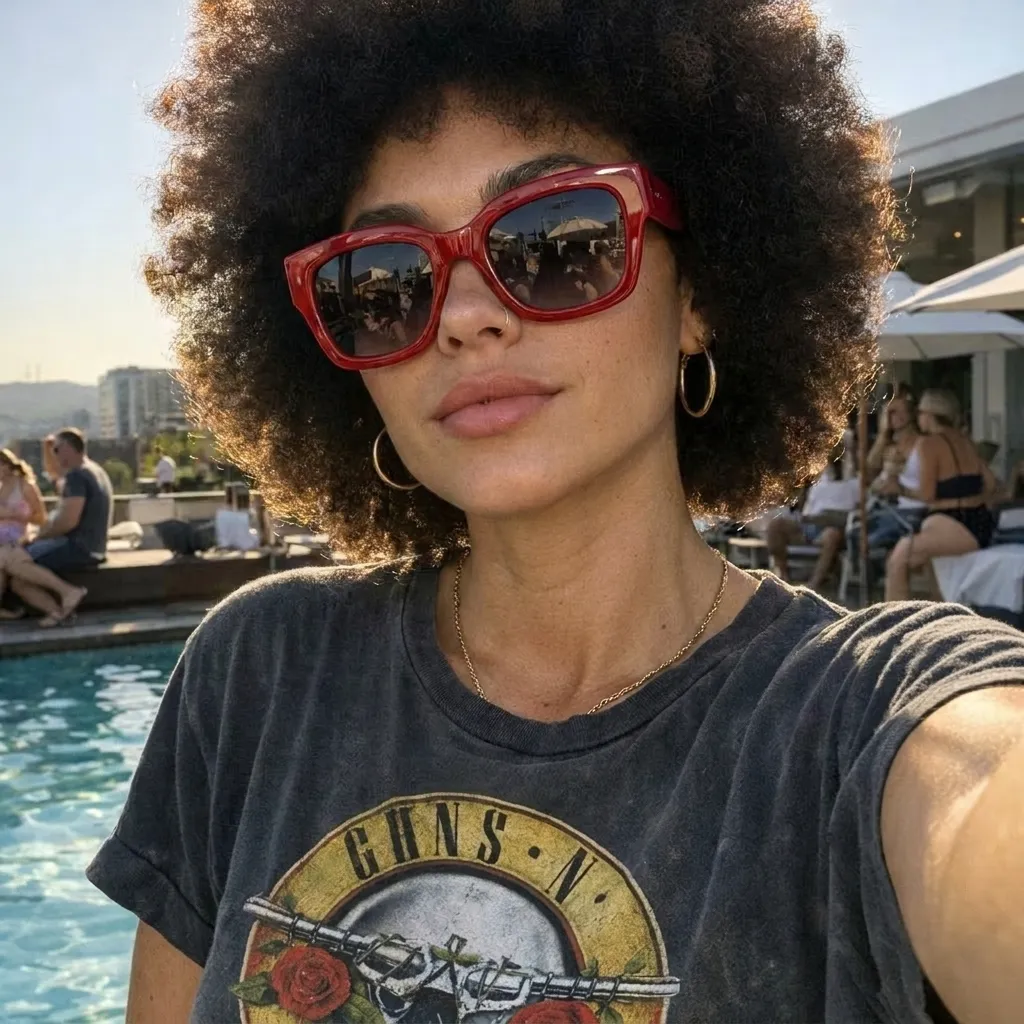
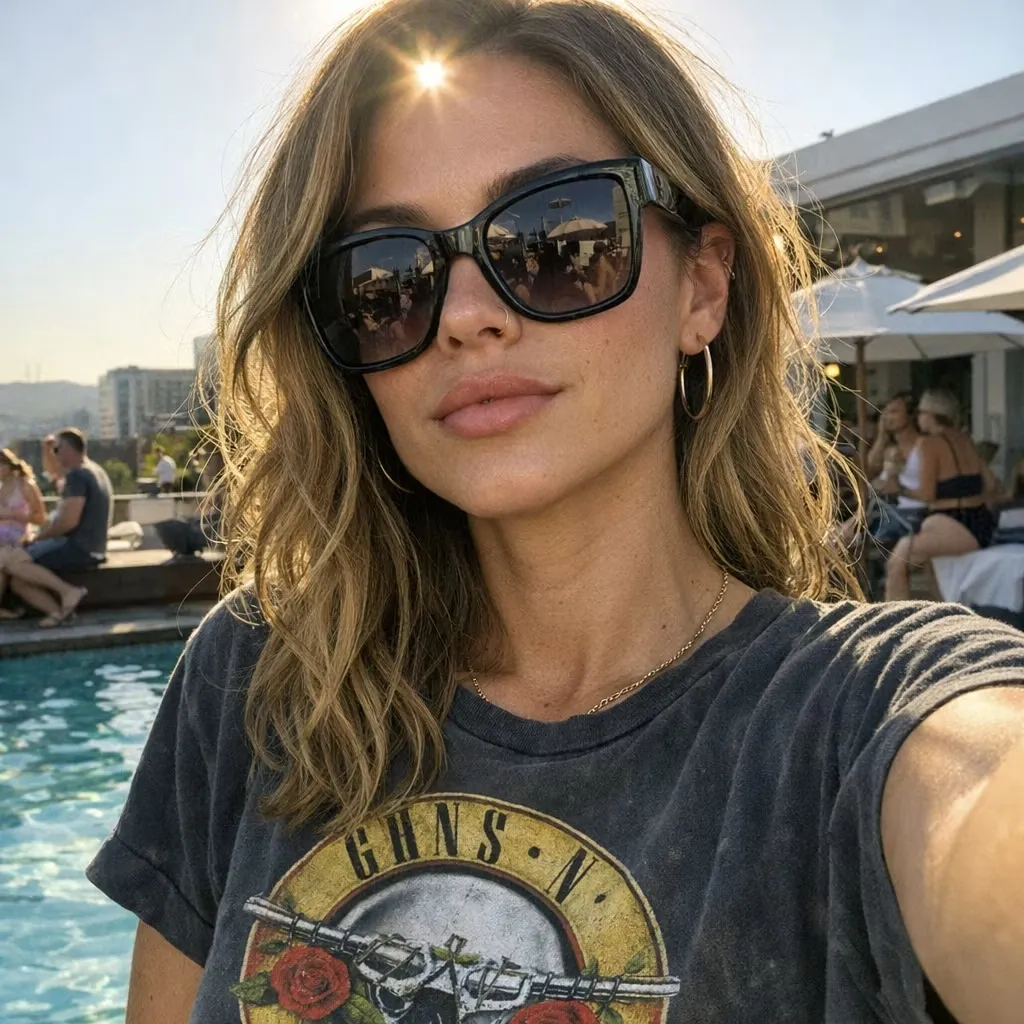
Upload a photo, describe what you want to change, and let AI edit the image online. Remove or replace objects, change backgrounds, adjust lighting, restyle scenes, and create new variations with simple text instructions.
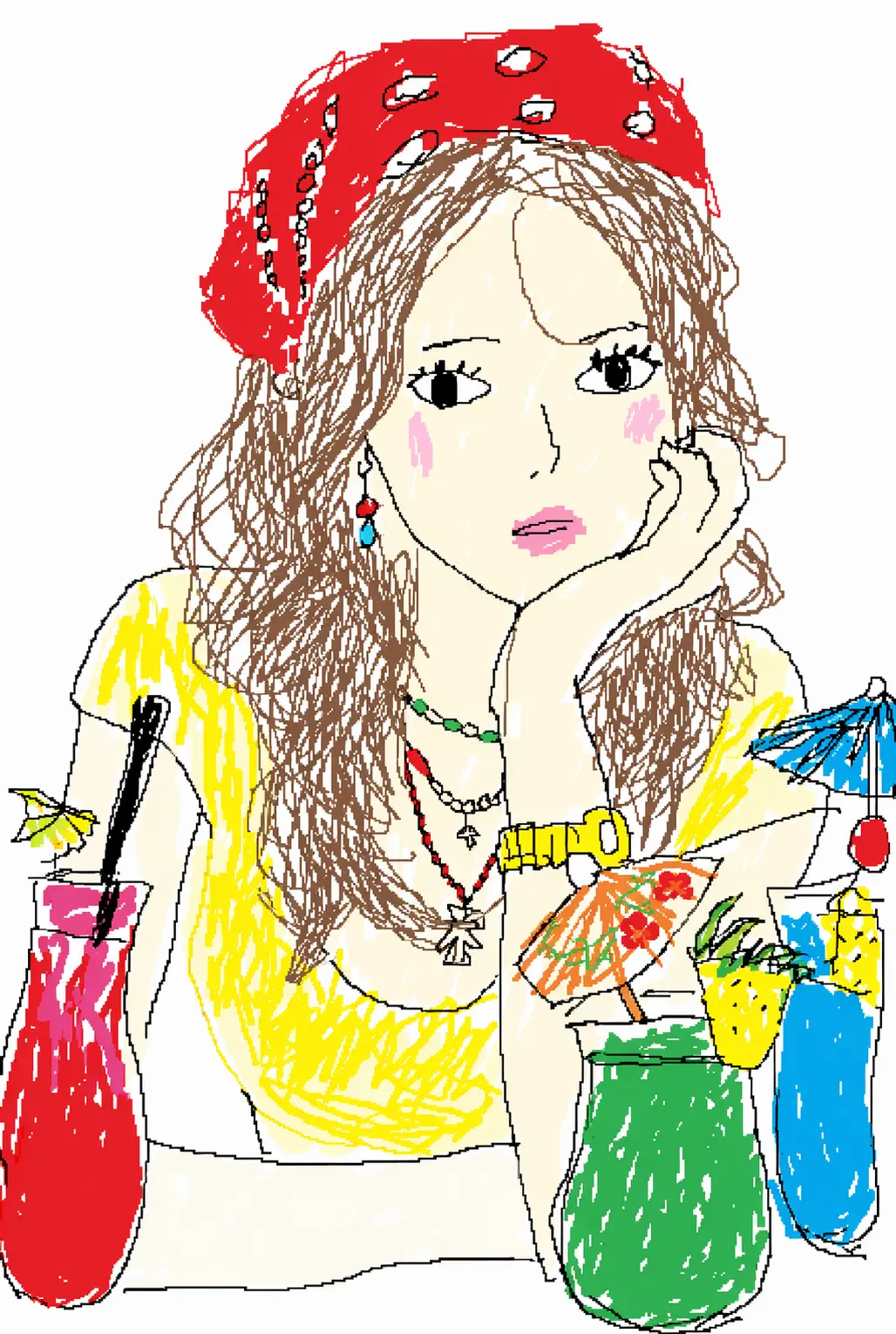
Turn any photo into a funny, mouse-drawn MS Paint doodle with AI. Upload a portrait, pet, meme, screenshot, or product shot and get crude, wobbly Microsoft Paint–style artwork — no prompt to write, no drawing skill needed. Just upload and generate..
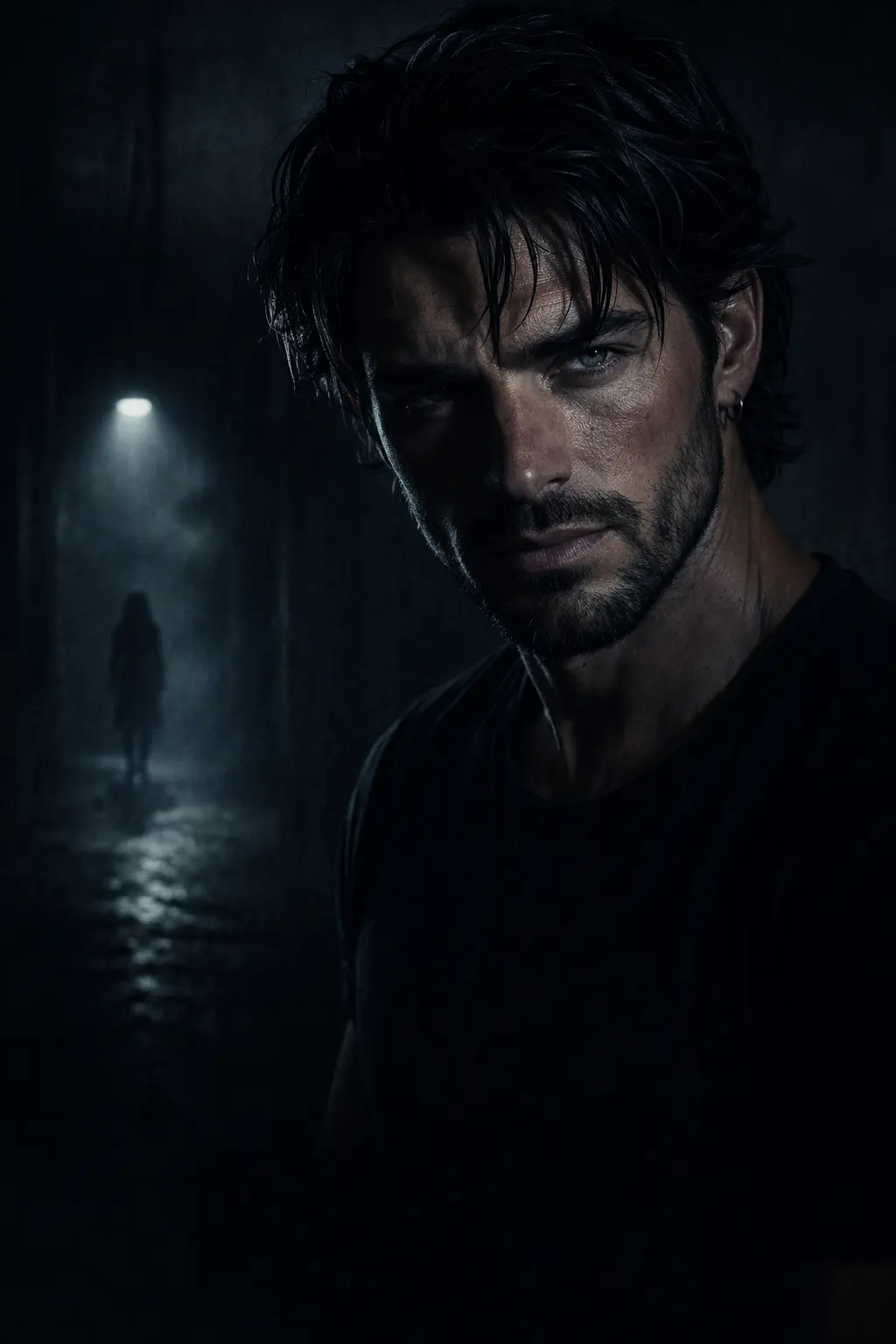
Upload one photo and star in your own movie poster — or type a concept and the AI builds it from scratch. The AI movie poster generator wraps a full film poster around your shot: genre lighting, cinematic color, and a clean area for your title, in fantasy, horror, blockbuster, indie, or animated looks. Runs online in your browser, no design software.

We tested 7 AI packaging design tools on what actually breaks mockups — on-pack text. Real prices, API access, and which to use in 2026.
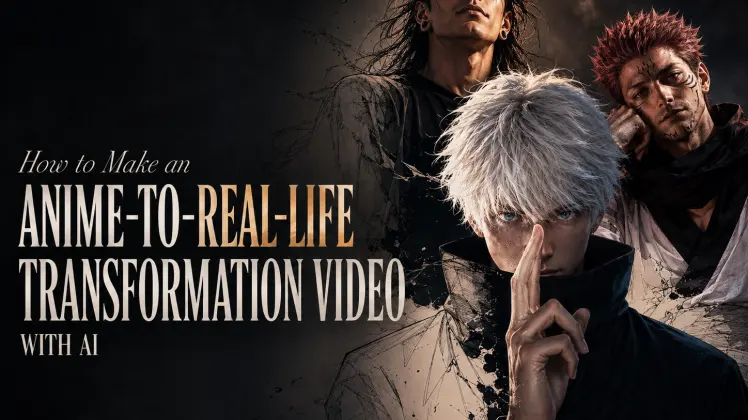
Learn how to turn an anime image into a realistic transformation video with matched first and last frames, prompts, sound, and editing tips.
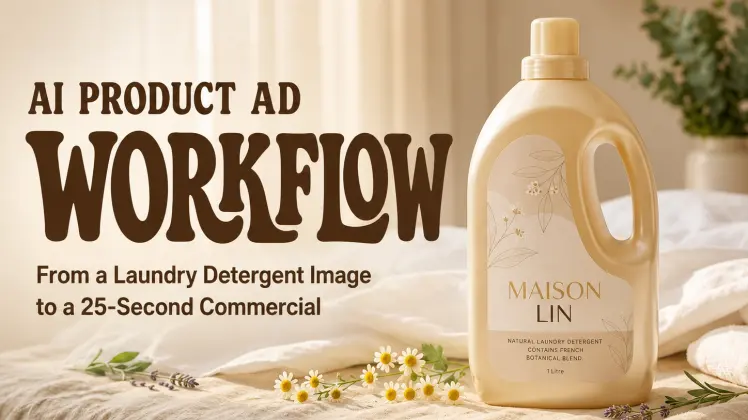
Turn one product image into a storyboard-led 25-second AI commercial using GPT Image 2 and Seedance 2.5, with prompts, shot timing, and QA tips.
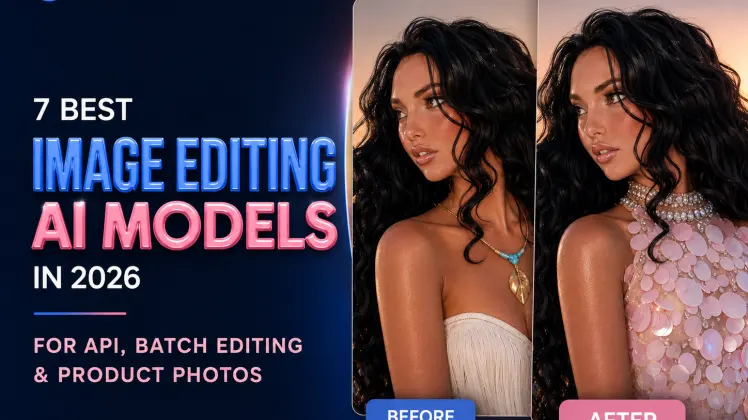
Compare 7 image editing AI models for APIs, batch workflows, product photos, text edits, and brand consistency, with the best pick for each task.
Real feedback from image creators using GPT Image 2 prompts.



![Create a stylized travel poster for [GERMANY].](https://oss-us.gptproto.com/growth/gallery/images/2056681833283387458_0.jpg?x-oss-process=image/format,webp)





![PRODUCT: [Product Name Or Photo]](https://oss-us.gptproto.com/growth/gallery/images/2075307262399176752_0.jpg?x-oss-process=image/format,webp)

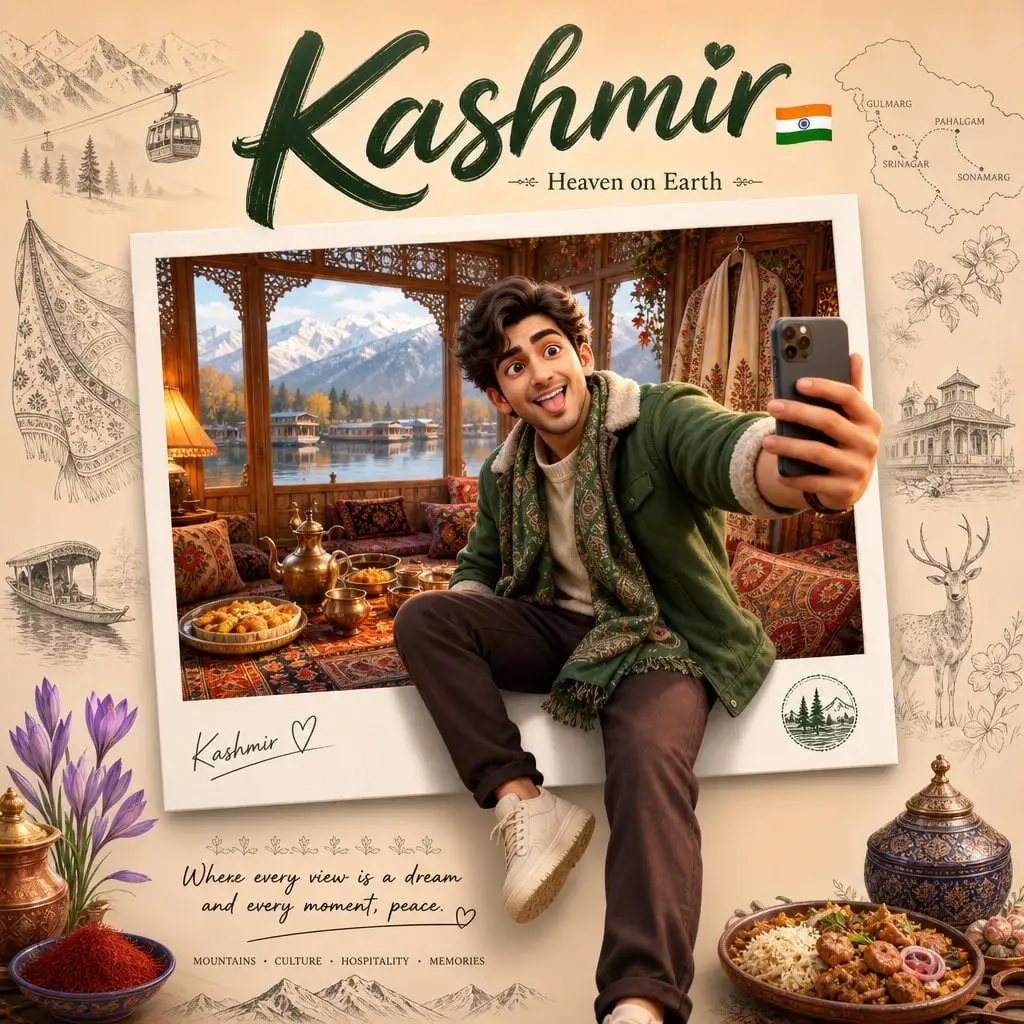
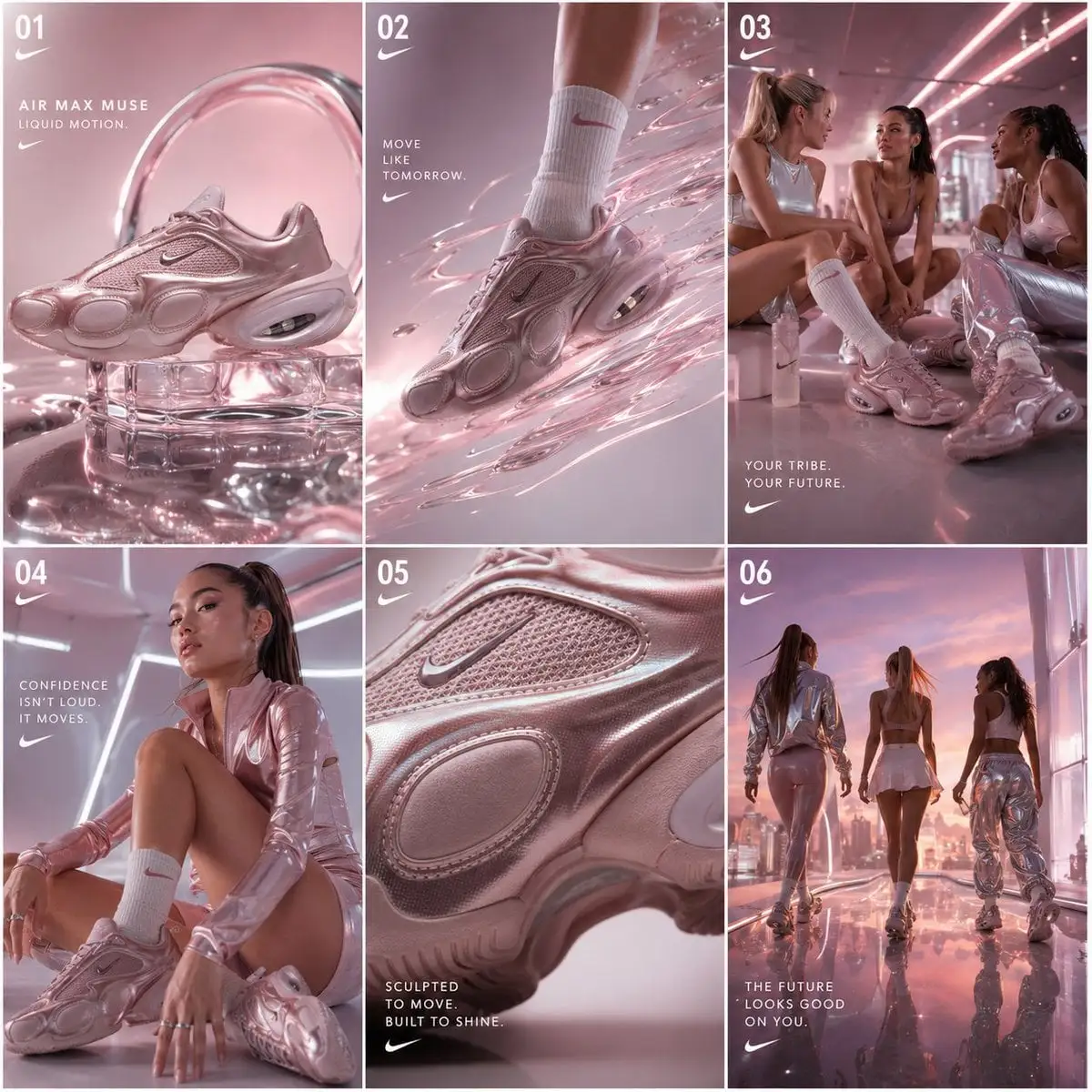

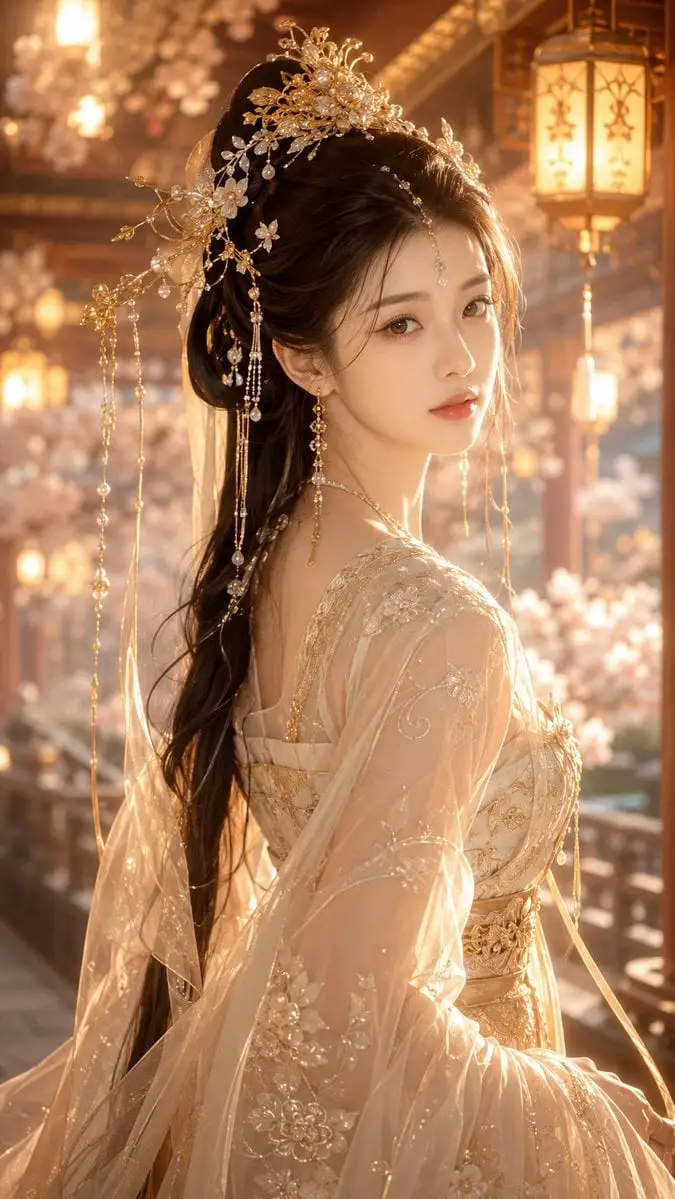

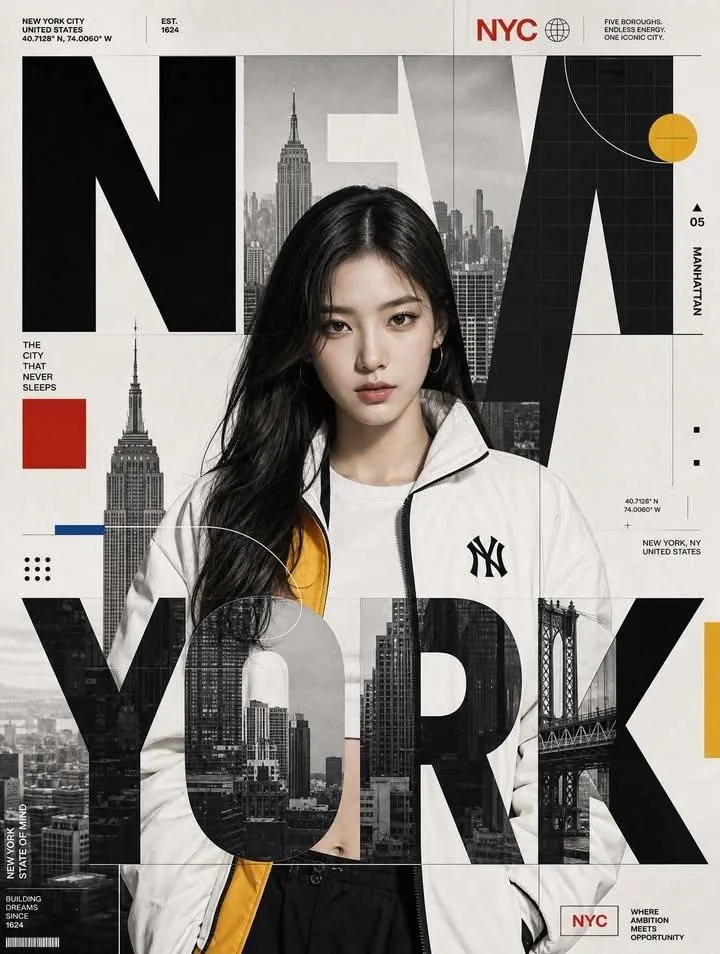










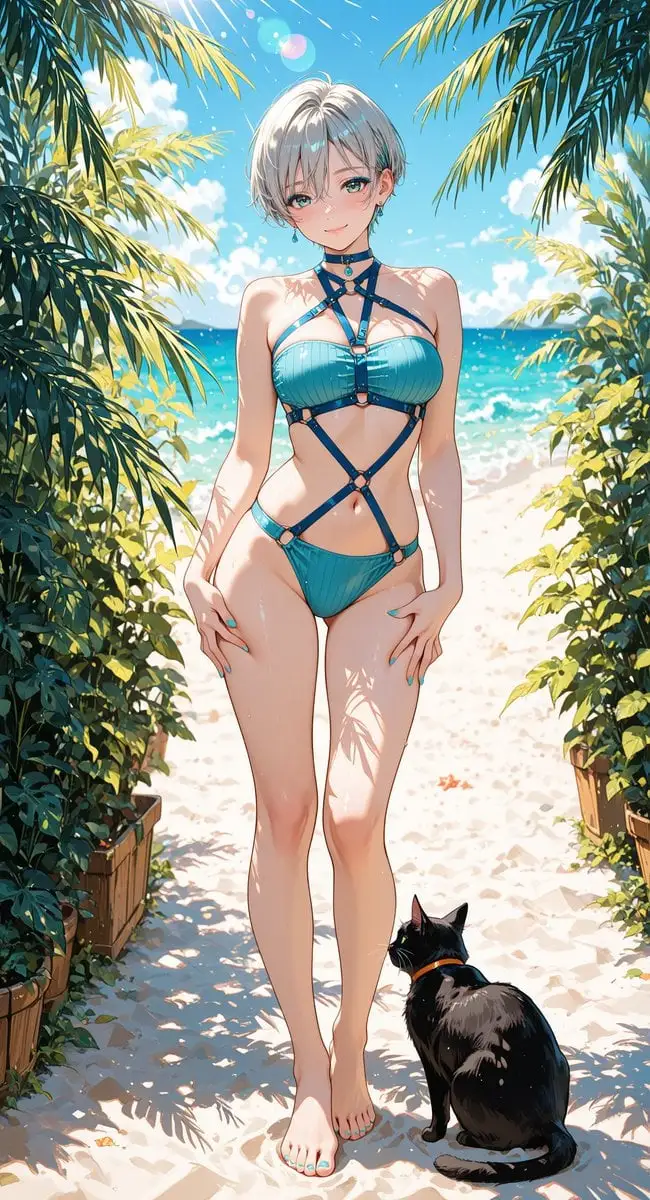

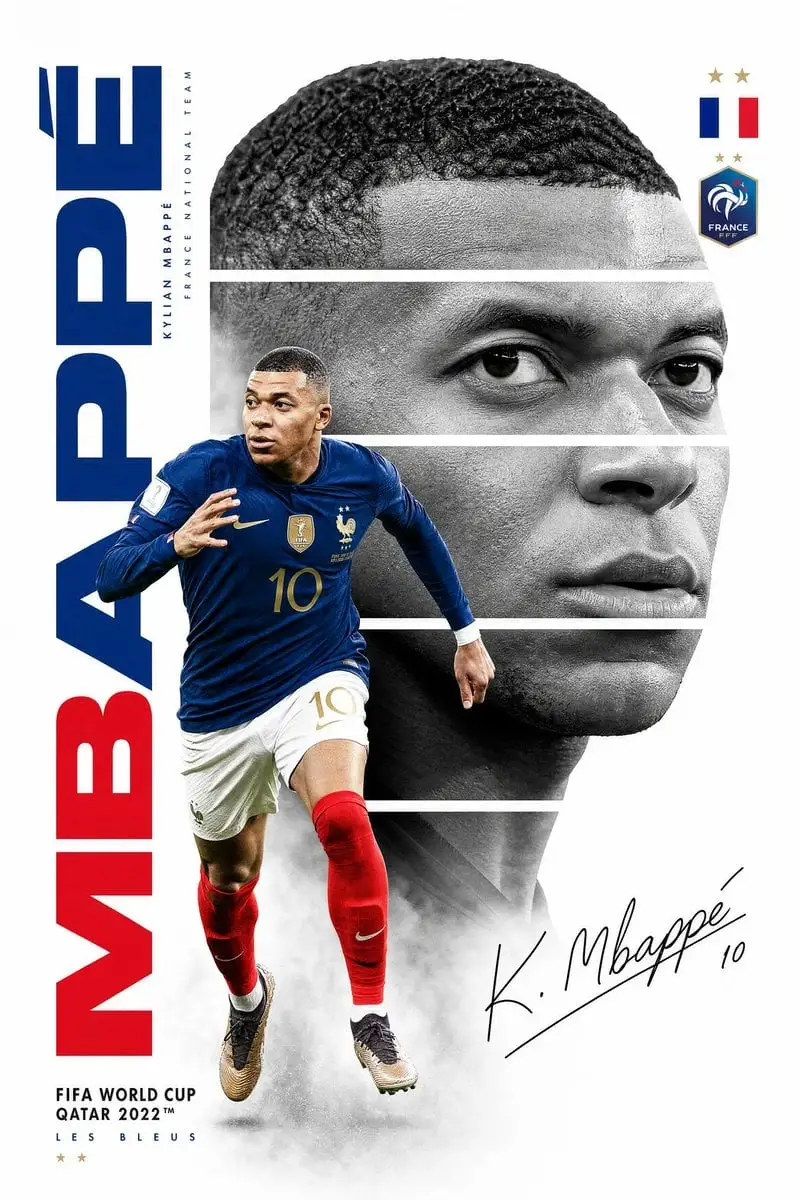

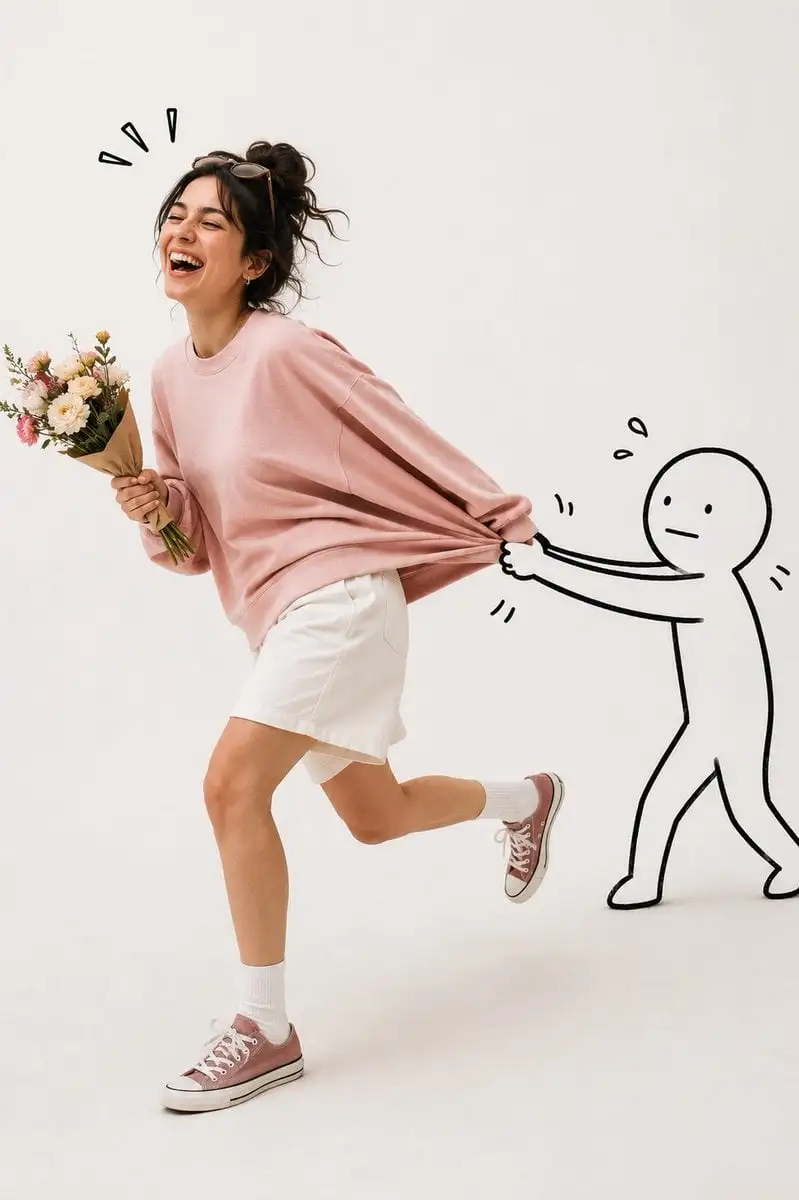

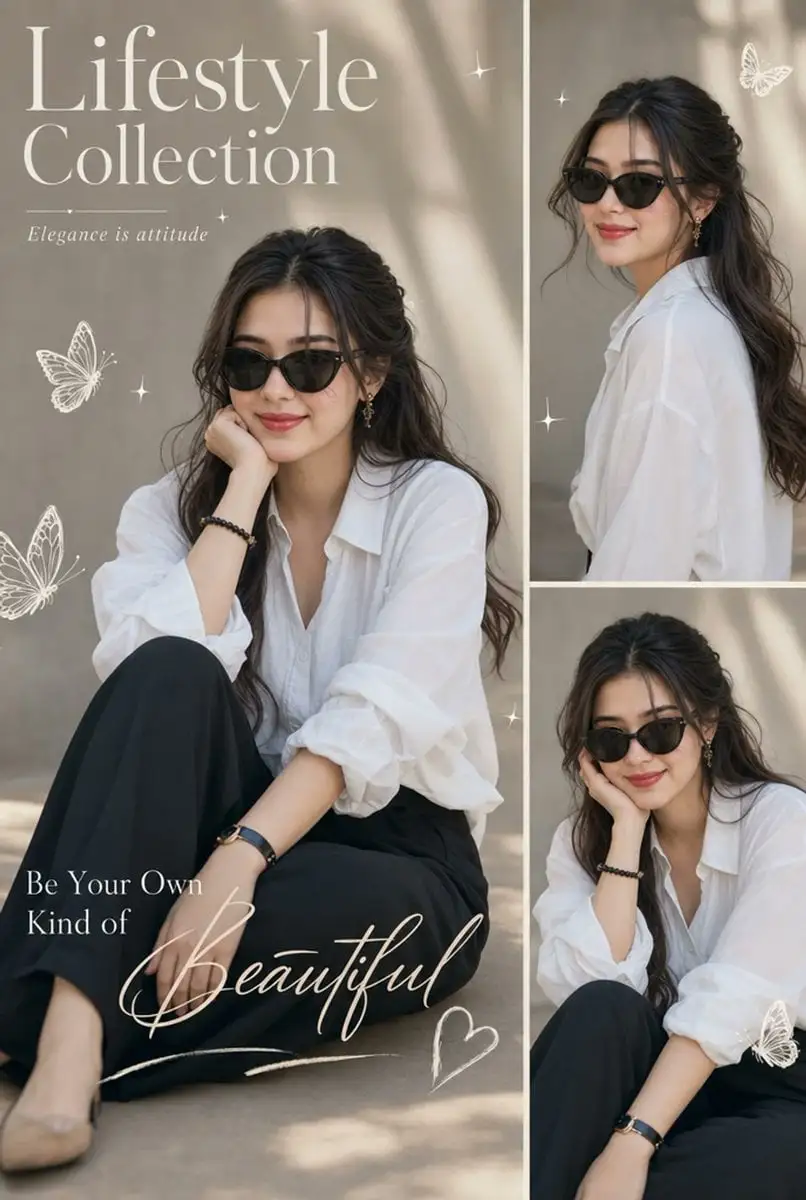

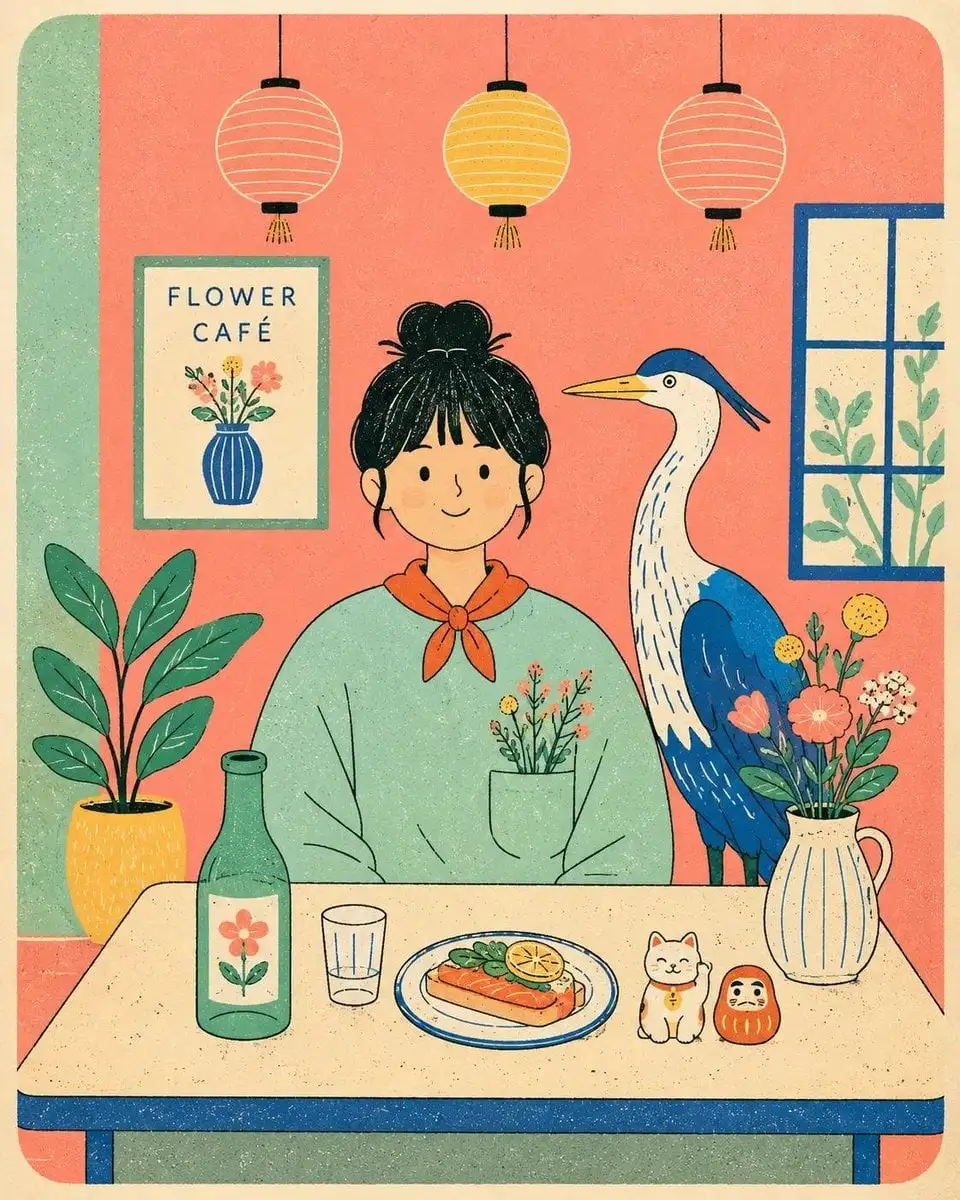

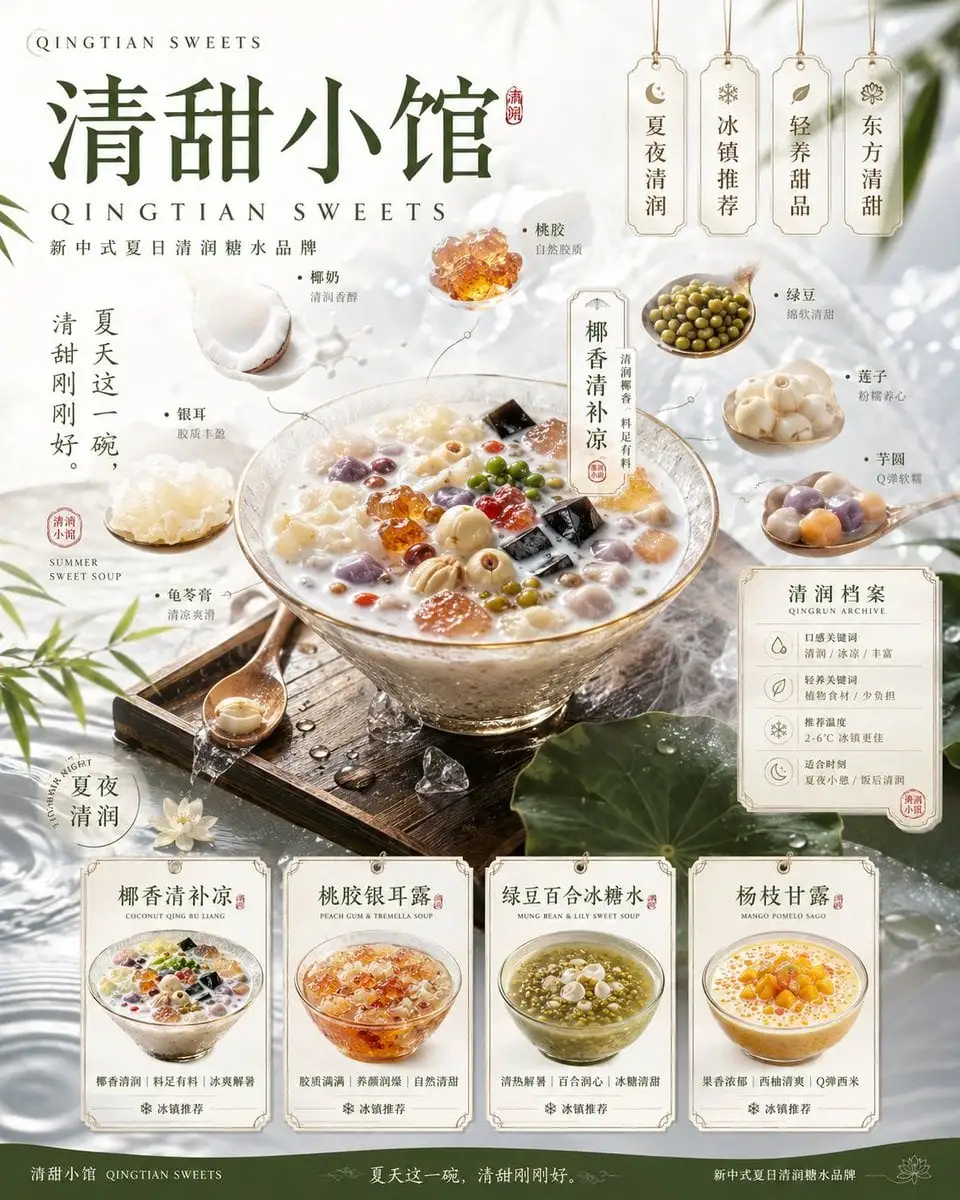

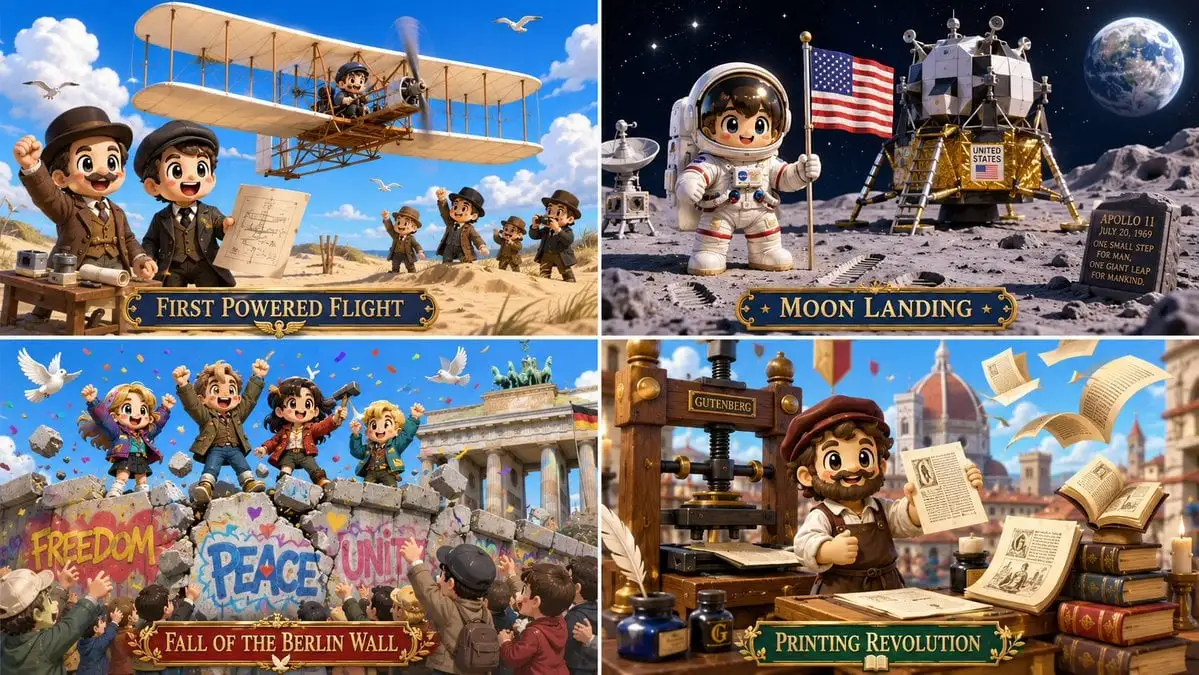

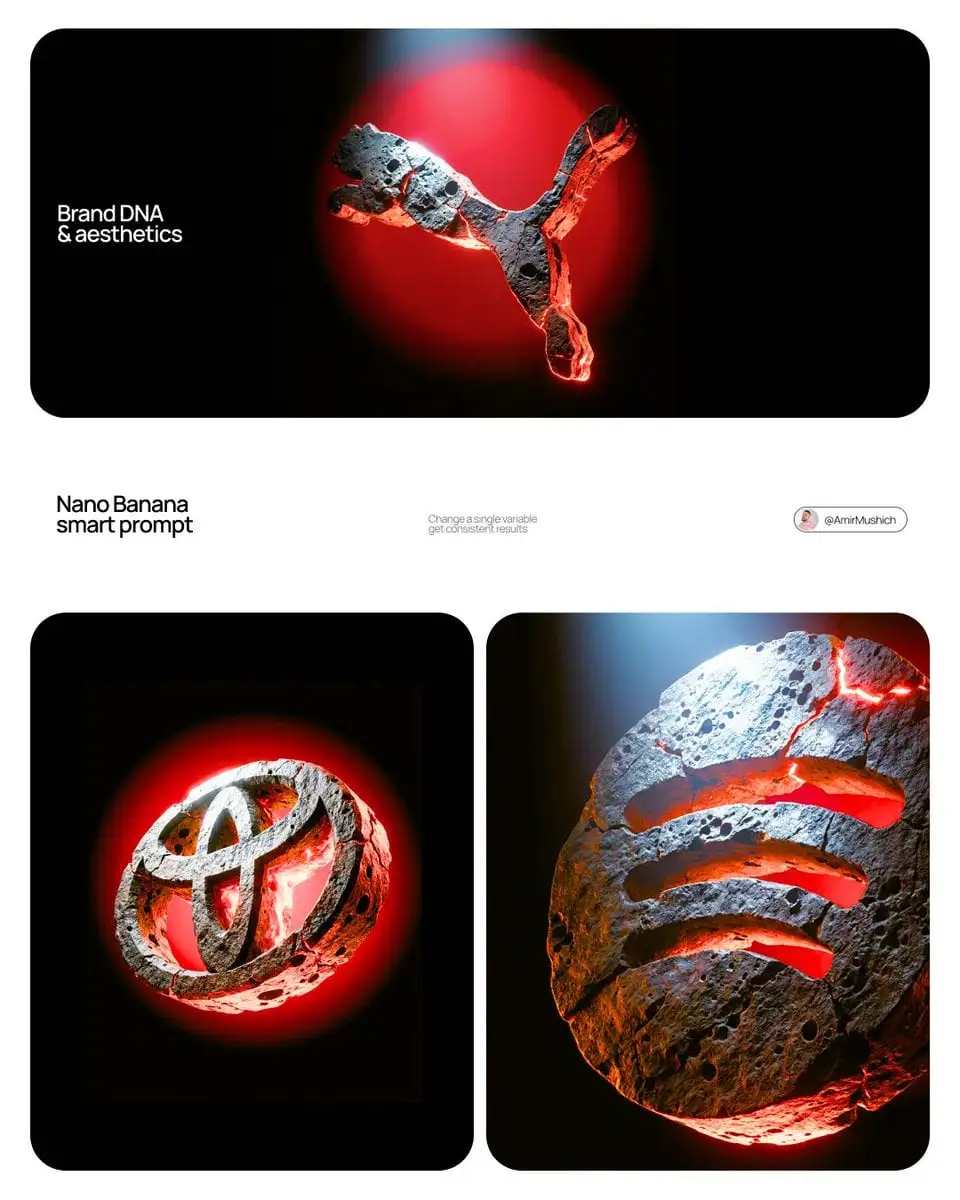

![Create a technical infographic of [OBJECT] with a 45-degr...](https://oss-us.gptproto.com/growth/gallery/images/2019103270447505848_0.jpg?x-oss-process=image/format,webp)
![A vintage lithograph poster of a [Subject], printed with ...](https://oss-us.gptproto.com/growth/gallery/images/2069375206477701121_0.jpg?x-oss-process=image/format,webp)

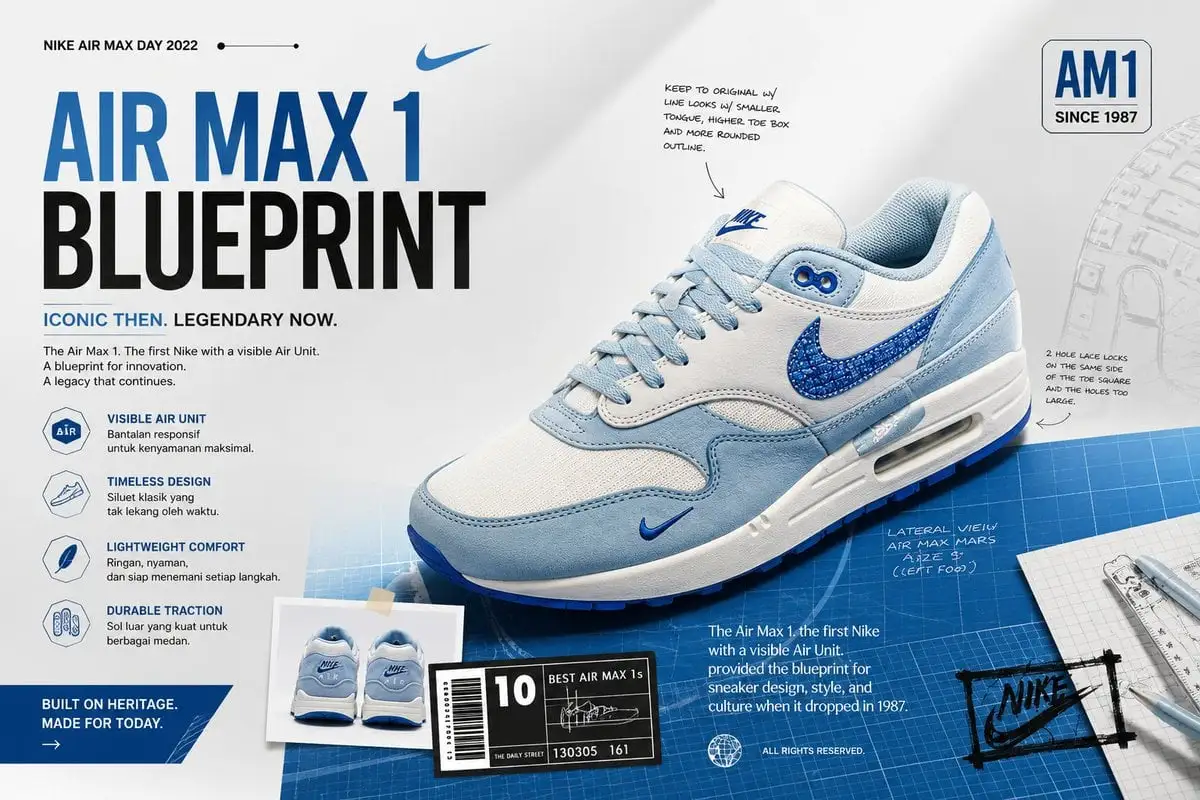

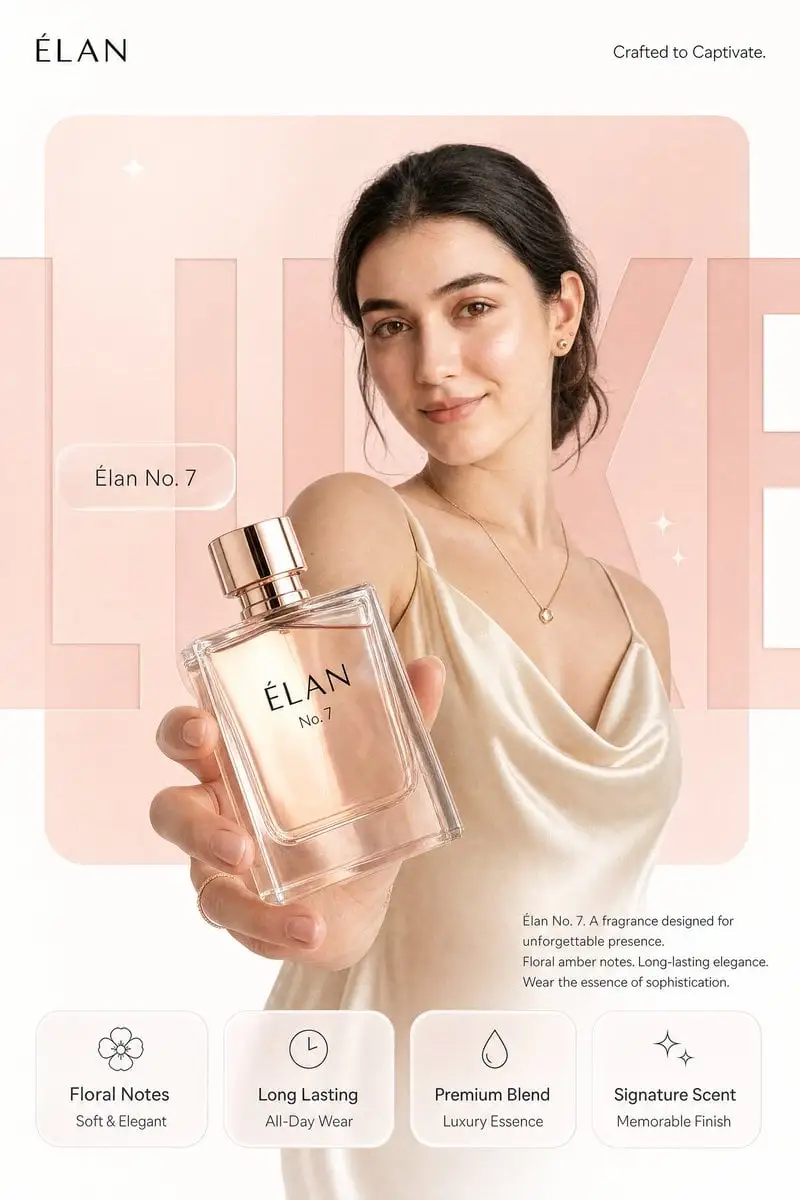

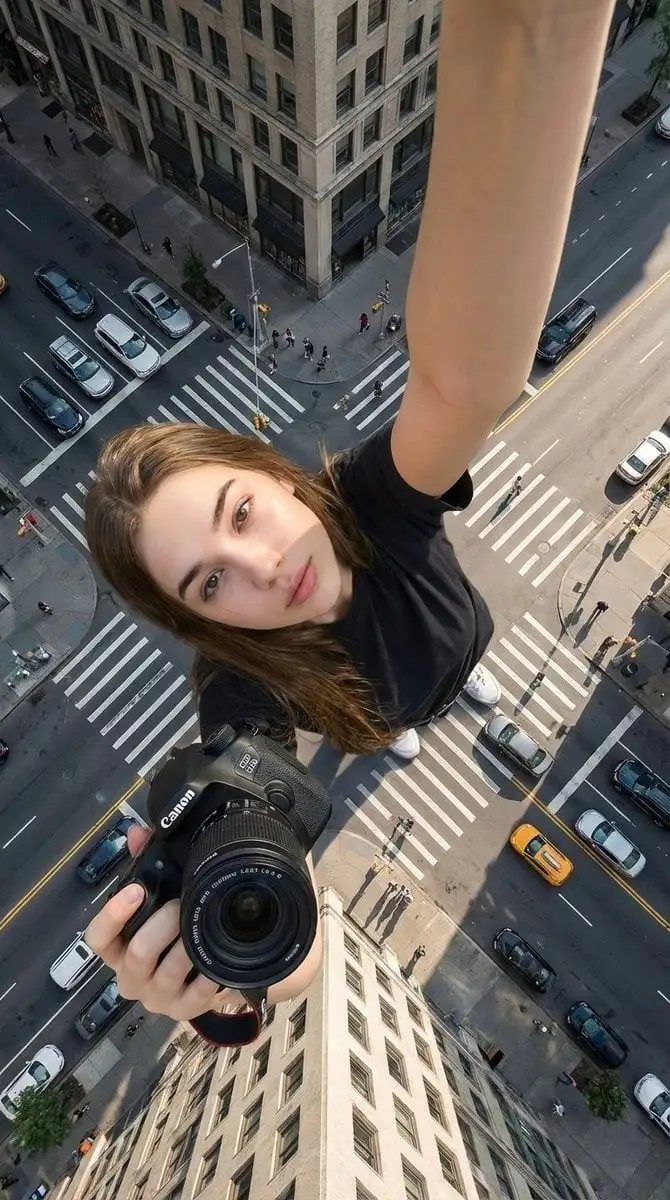

![inflatable [product], transparent plastic material, high-...](https://oss-us.gptproto.com/growth/gallery/images/2050214422510211452_0.jpg?x-oss-process=image/format,webp)