制限なしAI画像生成ツール
プロンプトの制限やフィルターがないAI画像生成ツールです。説明文を入力するか写真をアップロードすると、GPTProtoがあなたの言葉をそのままモデルに送信します。月額プランは不要、生成した分だけお支払いいただく仕組みです。
Upload a photo, choose the output size, and let AI generate new space around the original frame. Reformat portraits, product shots, landscapes, and artwork without cropping away the part you want to keep.
Images
Including reference images of the element, scene, style, etc.max 10
Turn a tightly cropped or incorrectly sized photo into a wider, taller, or differently shaped image without learning a traditional editing workflow.
Sign up for GPTProto and add credits to your account. Credits are used only when you generate an expanded image.
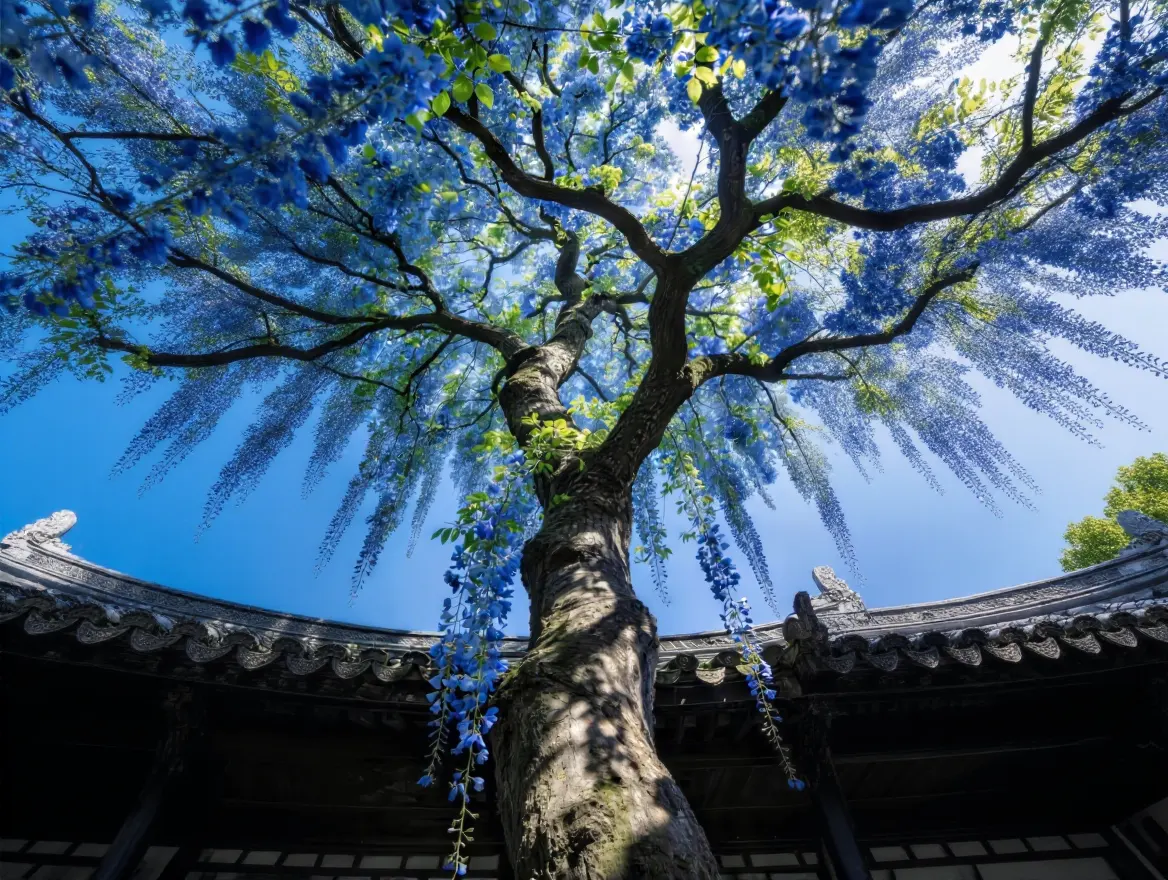
Upload the image you want to expand, then select the output size or aspect ratio that fits your post, banner, product image, or other layout.
Click Expand Image. The tool creates new visual content around the original frame to fill the selected canvas. Review the result, download it, or generate another version.
Examples
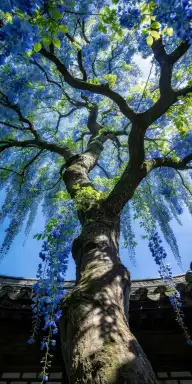
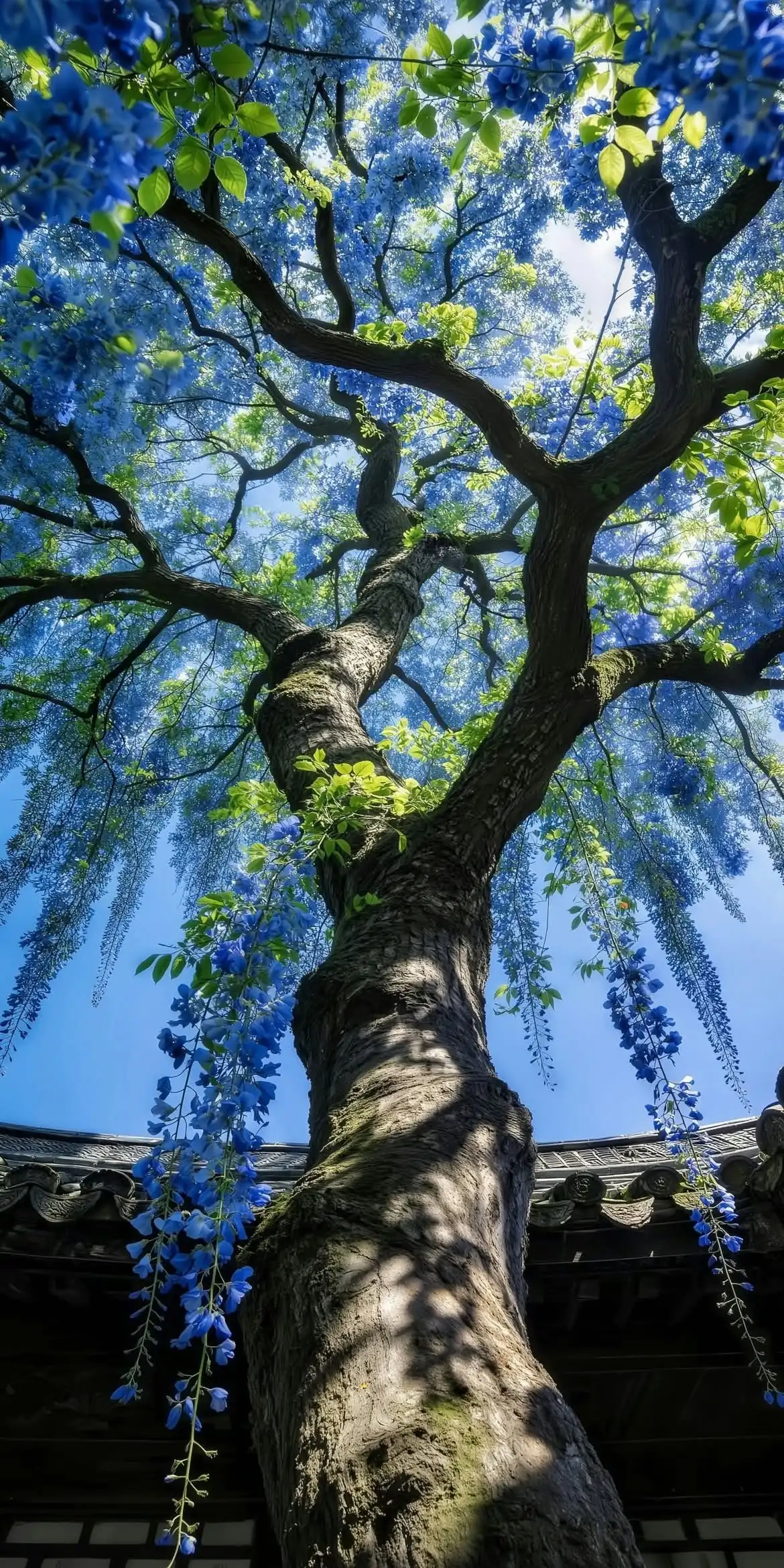
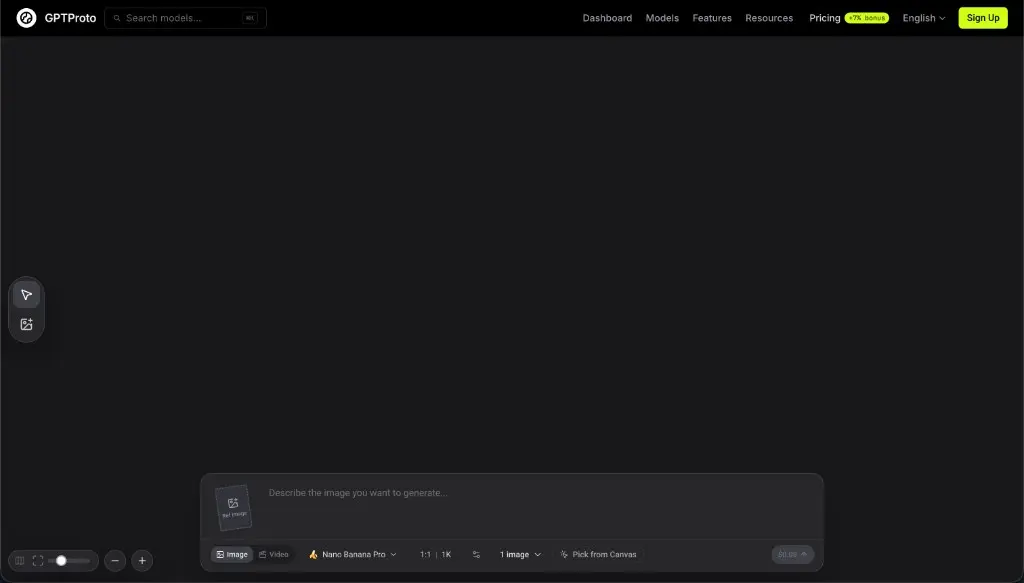
See how one source image can be reframed for different layouts. Each example should show the original image beside the expanded result and display the selected output ratio.
Create
Use the AI image expander when the original photo is useful but its frame does not fit the layout you need.
Turn one photo into square, portrait, vertical, or landscape layouts for Instagram posts, Stories, Reels, thumbnails, and other social content without cutting the main subject out of frame.
Add more background around a product to create room for prices, headlines, feature lists, or calls to action in ads, marketplace graphics, and promotional images.
Convert a portrait or square source into a wider visual for landing-page headers, blog covers, email graphics, shop banners, and campaign layouts.
Uncrop tightly framed portraits, continue open scenery, or add breathing room around a subject when the original composition feels too narrow or crowded.
What it is
An AI image expander is an online image-editing tool that generates new content beyond the original borders of a photo. This process is often called AI outpainting or uncropping. Instead of stretching the existing pixels or removing part of the image, the tool places the source inside a larger canvas and creates the missing background around it.
You can use AI to expand an image horizontally, vertically, or into a different aspect ratio. Common uses include turning a portrait into a banner, converting a square image into an Instagram Story, adding more background around a product, and widening an AI-generated illustration.
The generated area is based on visible details near the source image edges, including color, lighting, texture, perspective, and surrounding objects. Because the added area is generated, results can vary between attempts.
How it work
AI expansion creates the part of the scene that was not included in the original frame. It does not simply enlarge or repeat the existing pixels.
Reads the visible scene: The tool examines the image edges and uses the visible background, lighting, colors, perspective, and textures as context.
Builds a larger canvas: Your selected size determines where new image space is needed around the original photo.
Generates the missing area: The model creates new visual content for the empty canvas while trying to continue the existing scene.
Blends the boundary: The generated area is joined to the source near its edges so the result reads as one larger composition.
The tool is intended to keep the original subject as the center of the composition, but generative output is not identical every time. Check details near the expanded edges before publishing the image.
Different tools
These tools solve different image problems. Choose the one that matches the result you need.
| Dimension | AI Image Expander | Crop Tool | Image Resizer | AI Upscaler |
|---|---|---|---|---|
| Primary Goal | Add new image area beyond the original frame | Remove unwanted parts of an image | Change pixel dimensions or file size | Increase resolution and improve visible detail |
| What Happens to the Frame | The canvas becomes wider, taller, or differently shaped | The canvas becomes smaller | The existing image is scaled | The image usually keeps the same composition |
| What Happens to the Subject | The goal is to keep the subject while generating space around it | Part of the subject or background may be removed | The subject may become larger or smaller | The subject remains in the same position |
| New Content Generated | Yes, outside the original borders | No | No | Detail may be reconstructed, but the scene is not extended |
| Best For | Uncropping, banners, social ratios, product backgrounds | Tightening a composition | Meeting exact pixel requirements | Enlarging a small or soft image |
| Choose It When | You need more scene without cutting away the source | You no longer need the outer parts | The current composition already fits | The frame is correct but the resolution is too low |
Image sizes
| Size or Ratio | Common Uses |
|---|---|
| 1:1 Square | Product listings, profile images, square social posts |
| 4:5 Portrait | Instagram feed posts, product promotions, mobile-first graphics |
| 9:16 Vertical | Stories, Reels, Shorts covers, vertical promotional content |
| 16:9 Widescreen | YouTube thumbnails, website heroes, presentation covers, video backgrounds |
| 4:3 Standard | Blog images, slides, editorial layouts, general web graphics |
| Wide Banner | Website headers, shop banners, advertisements, campaign graphics |
| Custom Size | Exact campaign, print, marketplace, or layout requirements — include only if supported |
Better Tips
The source image and the amount of new canvas both affect the result. Use these checks before generating and before publishing.
Keep the main subject inside the original frame: Faces, products, text, and other important elements are easier to preserve when they are not already cut off at the image edge.
Start with a moderate expansion: A very large jump gives the model more missing space to invent. If the first result feels inconsistent, expand the image in smaller stages.
Use continuous backgrounds when possible: Sky, water, walls, floors, studio backdrops, grass, and other continuous surfaces usually give the model clearer context than crowded shelves or repeated objects.
Upload the clearest source available: Expansion adds new canvas space, but it does not automatically restore a blurry or heavily compressed original. Upscale a small source first when necessary.
Choose a size that fits the scene: A wider format adds space mainly to the sides, while a taller format requires more content above and below. Pick the direction that makes sense for the composition.
Review important details: Check faces, hands, product shapes, logos, text, reflections, architecture, and repeating patterns before using the expanded result.
Generate another version when needed: AI-generated areas can vary. A second result may produce a background or composition that fits the source more naturally.
use case
AI image expansion can help adapt one approved visual to several marketing layouts. A square product shot can become a website banner, a portrait campaign image can become a landscape ad, and an existing photo can gain extra background space for copy without placing text over the subject.
Product listings: Fit one product image into different marketplace or catalog layouts.
Advertising: Create space for a headline, offer, price, or call to action.
Social campaigns: Reformat the same visual for feeds, Stories, covers, and posts.
Website graphics: Adapt source images for hero sections, shop banners, and blog covers.
Before using an expanded image commercially, make sure you have the right to use the source photo, artwork, product, logo, and other protected material. Review generated details for accuracy before publishing them in an advertisement, listing, print file, or client project.
プロンプトの制限やフィルターがないAI画像生成ツールです。説明文を入力するか写真をアップロードすると、GPTProtoがあなたの言葉をそのままモデルに送信します。月額プランは不要、生成した分だけお支払いいただく仕組みです。
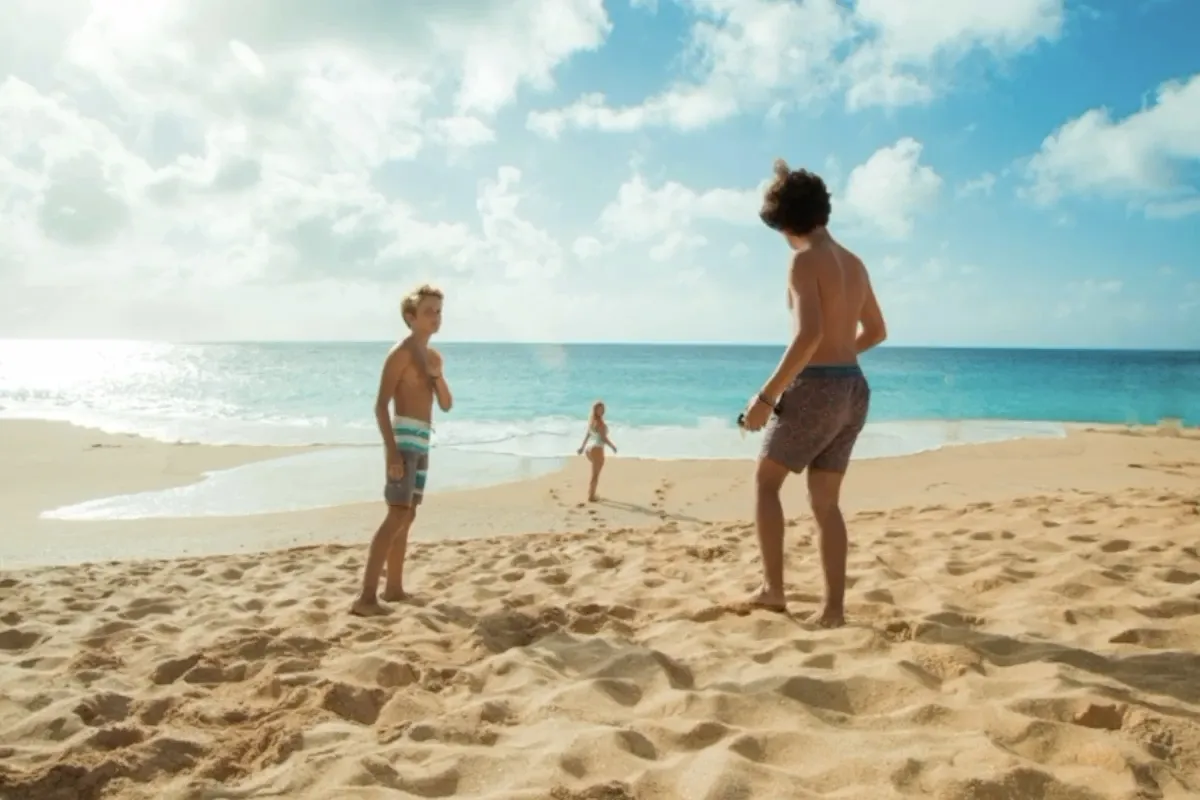
写真をアップロードし、削除したいものを正確に説明してください。不要な人物、テキスト、不要物、電線、小道具、オーバーレイを削除し、AIが周囲のシーンに合うよう消去した領域を再構築します。
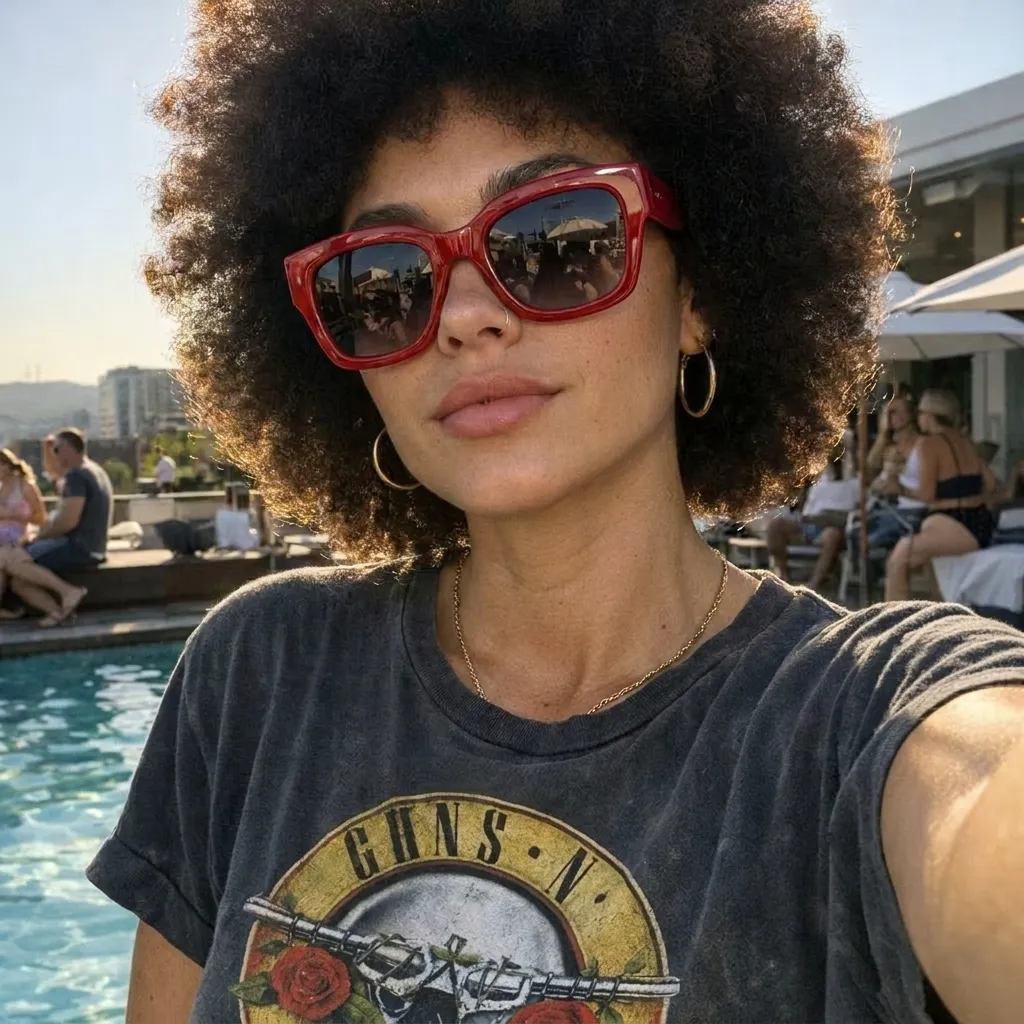
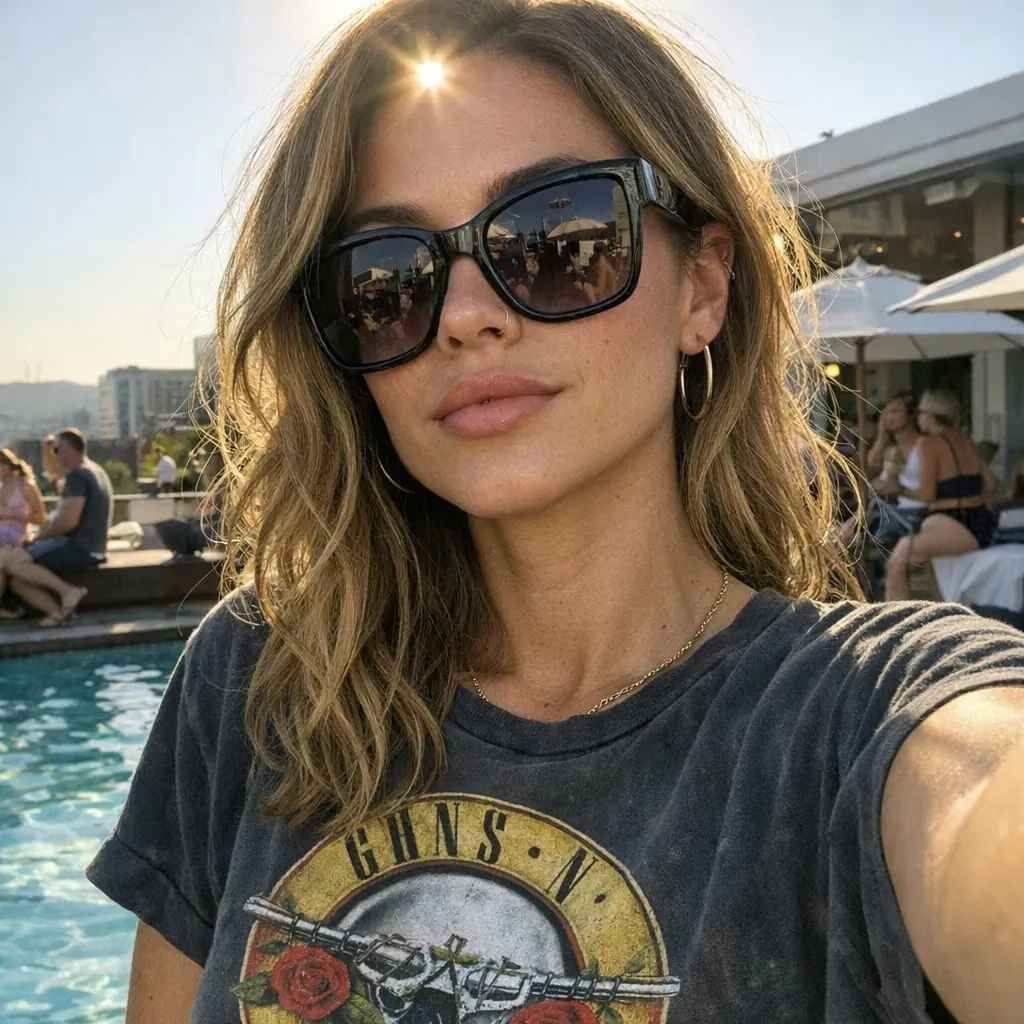
写真をアップロードし、変更したい内容を説明して、AIにオンラインで画像を編集させましょう。オブジェクトの削除や置き換え、背景の変更、照明の調整、シーンのスタイル変更、簡単なテキスト指示による新しいバリエーションの作成が可能です。
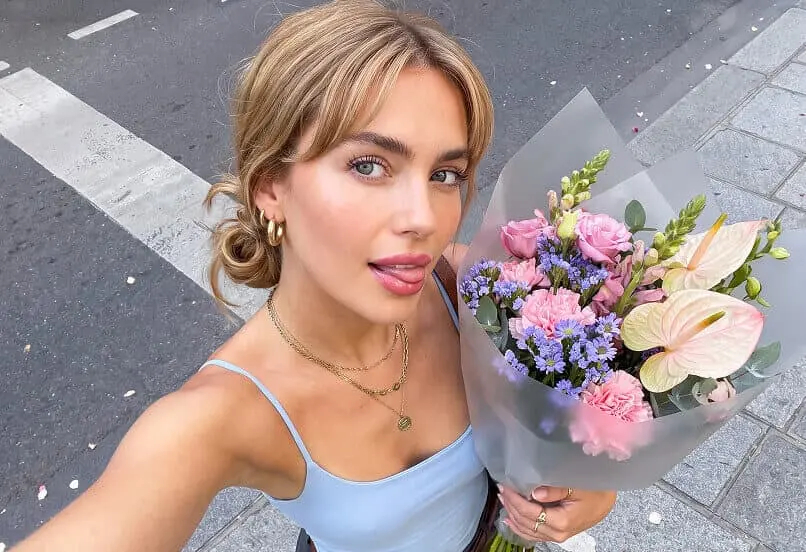
AI画像高画質化低解像度またはぼやけた写真をアップロードして、AIで画質を即座に高めましょう。ディテールはより鮮明に、ノイズは少なく、解像度は最大4Kに。プロンプトも編集スキルも不要です。ワンクリックで高画質化した写真をダウンロードできます。
写真や参考動画を使って動画の顔を自分に入れ替える方法、ちらつきや斜めの角度によるエラーの修正方法、最適なワークフローの選び方をご紹介します。
6つのAI画像APIルートを、UI、ストックフォト、商品の計18出力でテストしました。画像品質、テキスト精度、料金、開発者との相性を比較します。
MidjourneyとSeedance 2.5を使ってAIライブ壁紙を作成しましょう。Windows、Android、iPhone、Macでのモーションプロンプトと設定手順を解説します。
3つの実製品テストを経て、Eコマースに最適なAI画像モデルを検証。製品の忠実度、広告テキストの正確性、初回生成結果、コストを比較します。