Cute Wallpaper Generator

Create personalized cute wallpapers from a text prompt or an uploaded image. Design kawaii characters, pastel patterns, pet illustrations, phone lock screens, and desktop backgrounds online with GPTProto.

Examples

Cute Wallpaper Generator Examples

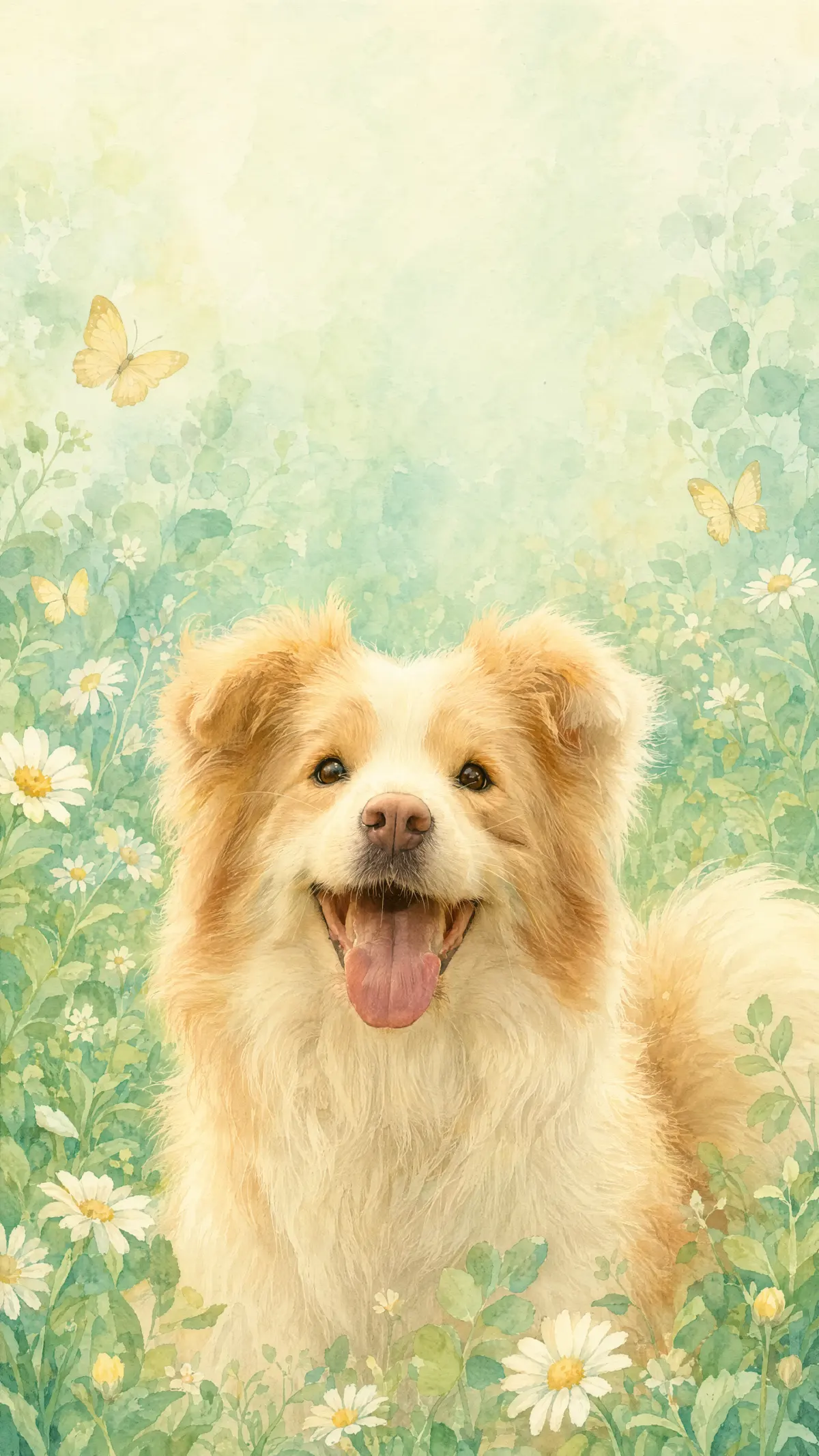
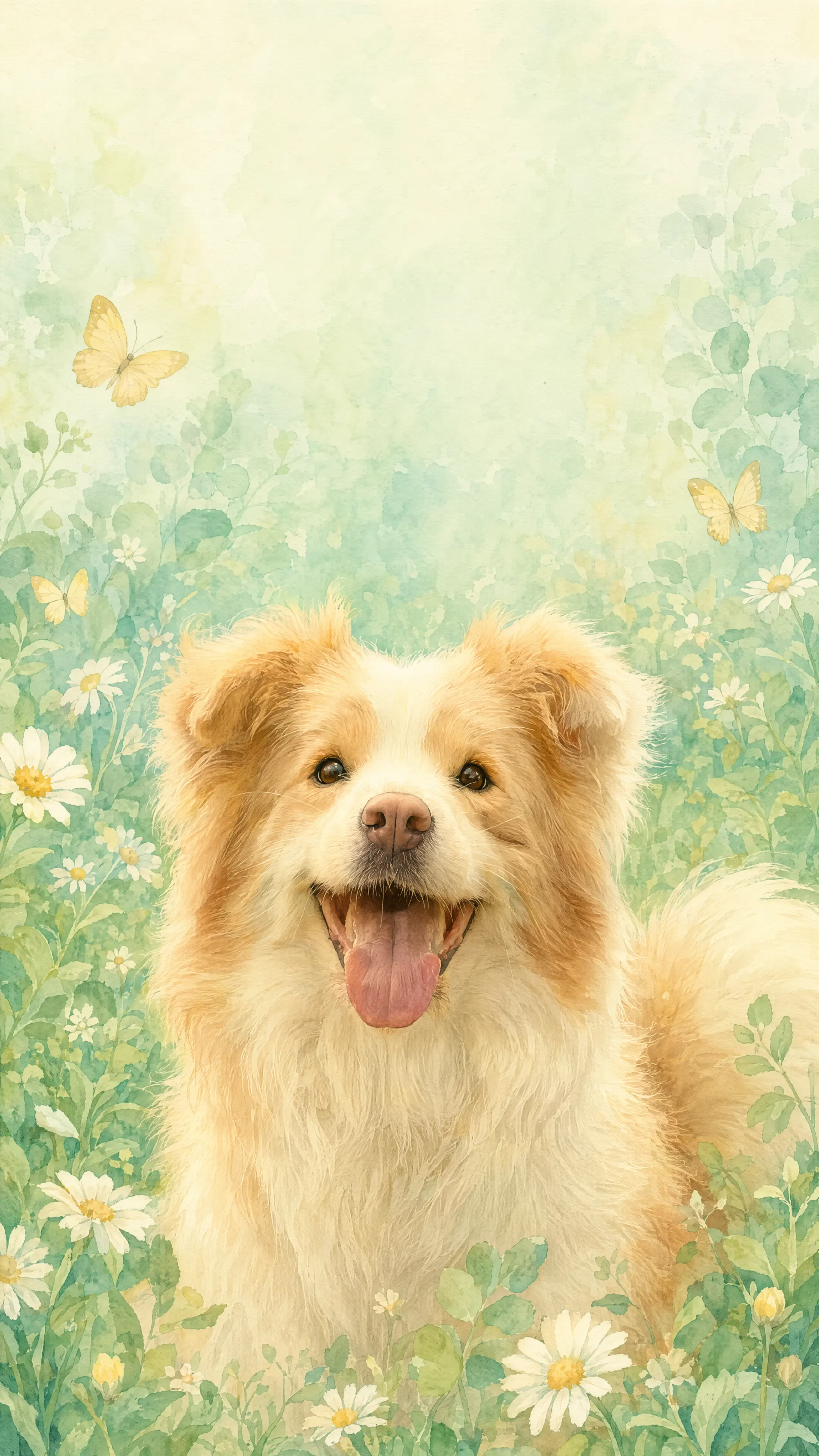
Choose a wallpaper you like to load its prompt into the generator. Use the prompt as written or change the subject, colors, visual style, and screen layout before generating your own version.

Use Case

What You Can Create

Create wallpapers for different screens, subjects, and visual styles instead of searching through a fixed background library.

  • Cute Phone Lock Screens

    Design vertical lock screens with a clear focal point and quieter space around the clock, date, and notifications. Try pastel animals, flowers, clouds, food characters, or an original chibi subject.

  • Desktop and Tablet Backgrounds

    Create wider backgrounds for laptops, monitors, and tablets. Place the main subject away from app icons, folders, docks, or taskbars so the wallpaper remains attractive and practical.

  • Personalized Photo Wallpapers

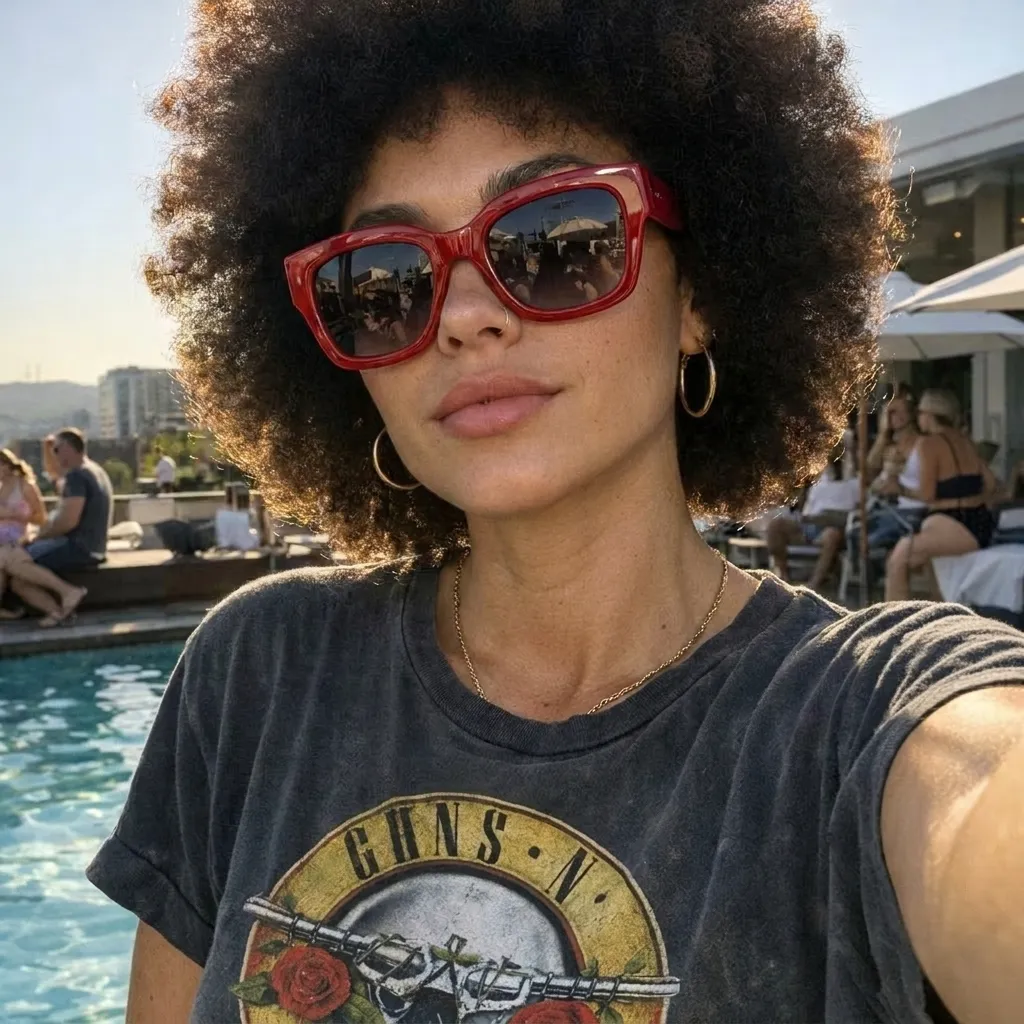
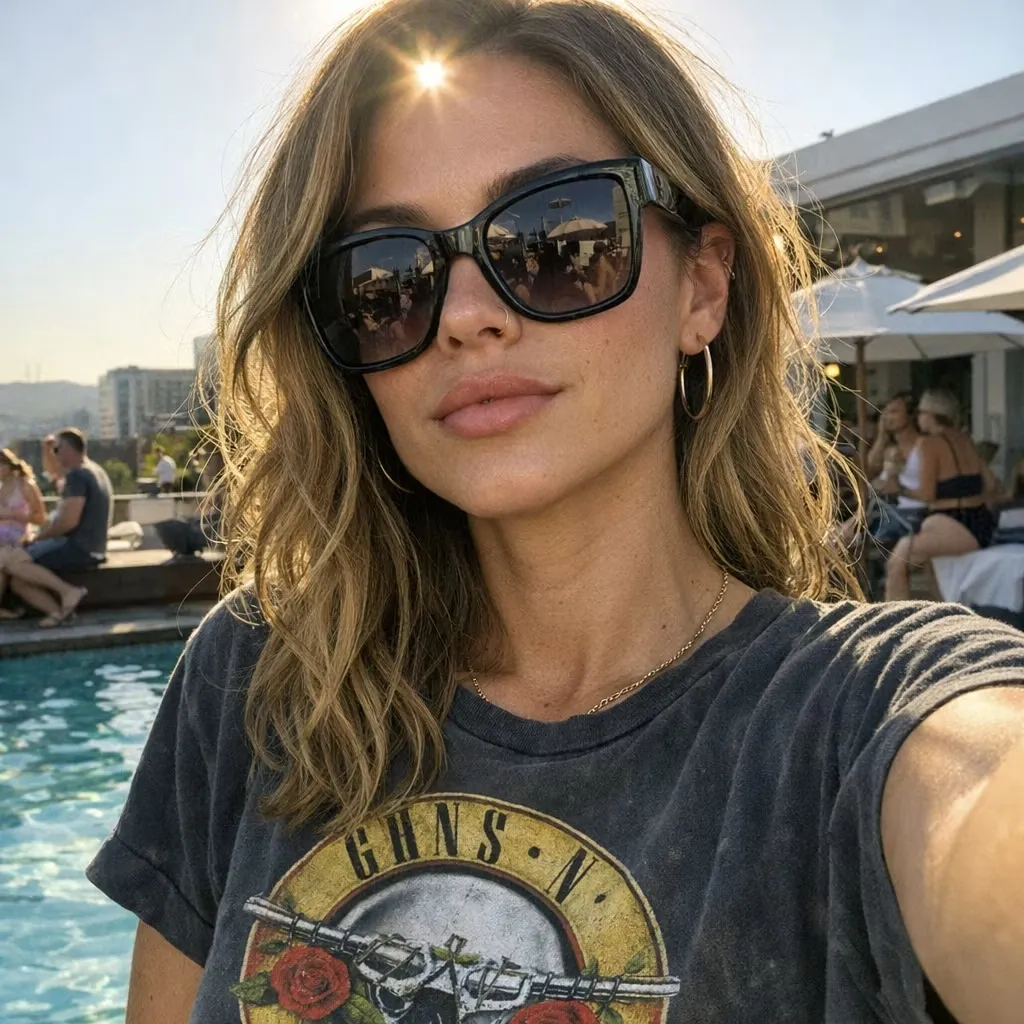
    Upload a photo of yourself, a pet, a friend, or a favorite place and describe how it should be restyled. Ask the generator to preserve recognizable features while changing the palette, background, or art direction.

  • Original Kawaii and Aesthetic Art

    Generate original cute characters, repeating patterns, cottagecore scenes, watercolor florals, dreamy landscapes, and dark minimalist designs without relying on a pre-made template.

What it is

What Is a Cute Wallpaper Generator?

A cute wallpaper generator is an AI image tool that creates a new screen background from a written prompt or transforms an uploaded image into a different visual direction.

Instead of browsing a fixed collection, you can describe the subject, color palette, art style, background, and layout you want. The generator interprets those instructions and produces a new image that can be used as a phone, tablet, or desktop wallpaper.

With text to image, the prompt defines the complete visual. With image to image, the uploaded file provides a reference for the subject, pose, colors, or composition. The prompt then explains what should change and what should remain close to the source.

AI-generated results can vary between generations. Treat an example prompt as a creative starting point rather than a way to reproduce every pixel of the displayed wallpaper.

t2i or i2i

Text to Image or Image to Image: Choose How You Start

Choose the input route that matches the wallpaper you want to make.

Text to Image: Enter a written description to create an original wallpaper from scratch. Name the subject, art style, color palette, background elements, mood, orientation, and the area that should remain visually quiet.

Image to Image: Upload an existing photo or illustration and explain how it should be restyled. State which visible details should remain recognizable, such as a pet’s markings, a person’s hairstyle, the main pose, or the original subject placement.

Guide

How the Generator Turns Your Idea into a Wallpaper

The prompt and source image define what the generator should prioritize. Clear screen-layout instructions are just as important as the chosen art style.

Building the Subject and Visual Direction

For text to image, the prompt establishes the main subject, supporting elements, palette, lighting, texture, and illustration style. A focused description gives the generator a clearer hierarchy than a long list of unrelated style words.

For image to image, the uploaded file supplies visible reference information. Details that are clear, well lit, and large enough to inspect are easier to carry into the new result than details hidden by blur, heavy filters, cropping, or visual clutter.

Planning the Composition Around the Screen

A wallpaper still needs to work behind interface elements. Describe where the main subject should appear and which area should contain fewer details. For example, a phone lock screen may need open space near the upper center, while a desktop background may need a calmer area on the left for files and shortcuts.

Prompt tips

How to Write a Better Cute Wallpaper Prompt

Specific visual instructions make it easier to control both the style and the screen layout.

Prompt Formula: Main subject + cute visual style + color palette + background elements + screen composition + details to preserve + overall mood

  1. Name the Main Subject: Identify the animal, person, original character, object, pattern, flower, food, or landscape that should lead the composition.

  2. Define What “Cute” Means: Use a more specific direction such as soft kawaii illustration, rounded chibi proportions, watercolor storybook art, pastel clay render, cozy cottagecore, or minimal doodle art.

  3. Choose a Limited Color Palette: Name two to four main colors so the result feels coordinated. Examples include blush pink and cream, lavender and pale blue, mint and warm yellow, or black with small pastel accents.

  4. Describe the Background: Add stars, clouds, flowers, ribbons, tiny hearts, gingham, sparkles, soft gradients, or a repeating pattern only when those details support the main subject.

  5. Plan the Screen Layout: State whether the wallpaper is vertical or landscape, where the main subject should sit, and where the generator should leave quieter negative space for clocks, app icons, folders, or widgets.

  6. Protect Important Source Details: For an uploaded image, name the visible traits that should remain recognizable. Ask the generator to preserve the face, pet markings, pose, clothing colors, object shape, or important background features that matter to the result.

Better Results

How to Get Better Cute Wallpaper Results

The prompt, source image, and intended screen all affect the final composition.

  1. Keep One Main Idea: Start with one subject and one visual direction. Add secondary decorations only when they support that idea.

  2. Use a Coordinated Palette: A short palette usually creates a more consistent background than a long list of competing colors.

  3. Leave Useful Negative Space: Tell the generator where to keep the background quieter so interface elements do not cover the focal subject.

  4. Use a Clear Reference Image: For image to image, upload the largest clear version available. Avoid severe blur, heavy compression, strong beauty filters, or screenshots filled with interface elements.

  5. Change One Main Variable at a Time: If the first result is close, revise the palette, subject position, background, or art style separately instead of replacing the entire prompt.

  6. Review Small Details: Check faces, paws, hands, repeated patterns, text, edge cropping, and the area behind clocks or icons before setting the result as a wallpaper.

You May Also Like

Frequently Asked Questions

What is a cute wallpaper generator?

A cute wallpaper generator creates a new screen background from a text prompt or transforms an uploaded image into a chosen cute visual style. You can describe the subject, colors, background, composition, and intended device instead of selecting a fixed wallpaper from a library.

Can I generate a cute wallpaper from text?

Yes. Enter a text prompt that describes the main subject, style, palette, background, orientation, and layout. You do not need to upload an image when you want to create a completely new design.

Can I turn my own photo into a cute wallpaper?Can I turn my own photo into a cute wallpaper?

Yes. Upload the photo and describe how you want it restyled. State which details should remain recognizable and what should change, such as the art style, colors, background, decorations, or subject placement.

Can I make wallpapers for phones, tablets, and desktops?

You can create vertical or landscape wallpaper compositions for different screens. Use the size options available in the generator and describe the intended device in the prompt. Some cropping may still be needed because screen dimensions vary by device.

How do I use a wallpaper from the example gallery?

Choose an example to load its prompt into the generator. You can generate from the original prompt or change the subject, colors, art style, layout, and other details before creating your version.

Will the same example prompt create the exact same wallpaper?

Not necessarily. A copied prompt preserves the creative direction, but normal generation variation, uploaded references, size choices, and prompt changes can produce a different composition. Use the example as a starting point.

What should I include in a cute wallpaper prompt?

Include the main subject, a specific cute art direction, a short color palette, background elements, orientation, subject placement, and any area that should remain visually quiet. For image to image, also state which source details must remain recognizable.

Can the generator create kawaii wallpaper?

Yes. Describe the type of kawaii result you want, such as a rounded animal character, an original chibi figure, a pastel food pattern, or a soft illustrated landscape. Use original subjects rather than protected characters or logos unless you hold the necessary rights.

Can I add a quote or other text to the wallpaper?

You can request visible text in the prompt, but generated lettering may contain spelling or layout errors. Provide the exact wording, ask for a simple text area, and review every letter before using or sharing the image.

Is the Cute Wallpaper Generator free to use?

Image generation uses GPTProto credits. Create an account, add balance, and check the current cost displayed in the generator before you create an image.

Can I use a generated wallpaper commercially?

Usage rights can depend on the selected model, the source material, and the content you request. Review the current GPTProto and model terms, use only source images you have permission to upload, and avoid protected characters, logos, or artwork unless you have the required rights.

What Creators Use It For

From personal lock screens to themed content sets, creators can use the generator for several practical image workflows.

Daniel Kim

Content Creators

Create coordinated phone backgrounds for seasonal posts, visual themes, mood boards, or audience downloads while keeping the same palette and art direction across multiple generations.

Sofia Martinez

Digital Artists

Explore new character, pattern, color, and composition ideas before refining a selected direction in a separate image-editing workflow.

Liam Patel

Pet Owners

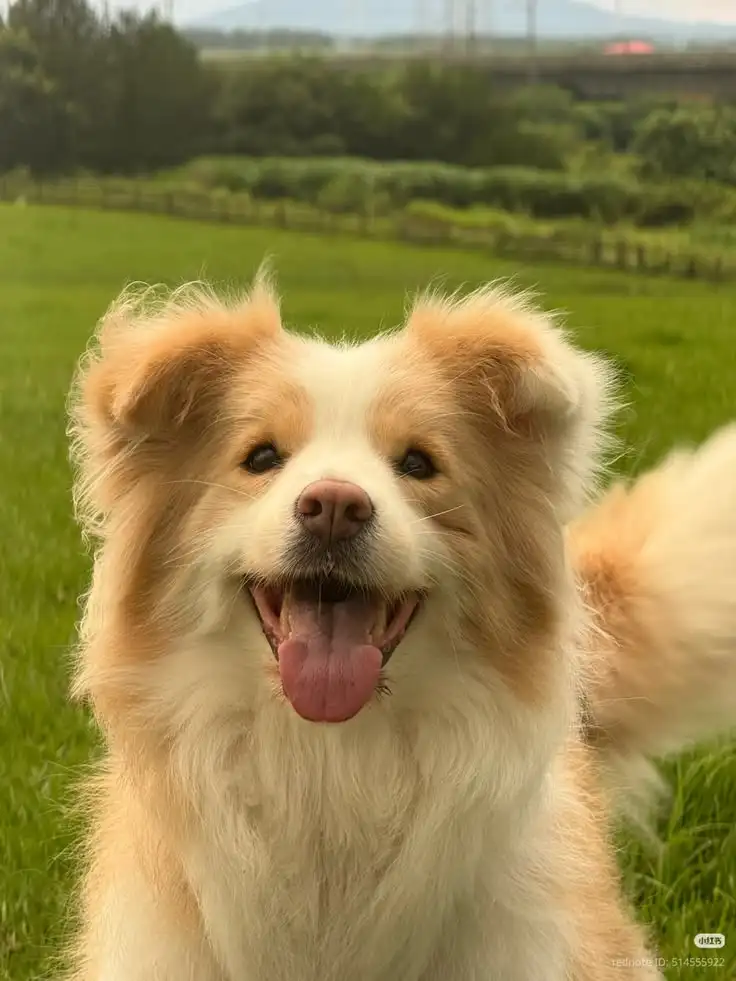
Turn a clear pet photo into a softer illustrated wallpaper while asking the generator to preserve recognizable markings, expression, and pose.

Ava Collins

Designers

Create early wallpaper concepts for different screen orientations, then review spacing, contrast, cropping, and interface visibility before final use.