AI Story Board Generator

Turn a script, shot list, or simple scene idea into a multi-panel storyboard image online. Start from text, upload a visual reference, or choose an example to load its prompt and adapt the characters, actions, camera shots, layout, and drawing style to your project.

Examples

AI Storyboard Examples and Prompt Templates

Explore AI-generated storyboard examples for different stories and visual styles. Select an example to load its complete prompt into the generator, then replace the subject, action, setting, panel count, or art direction before generating.

Create

What You Can Create

Use the AI story board generator to explore a sequence before you commit to filming, animation, or individual video clips.

  • Short Films and AI Video Planning

    Arrange key story beats, character actions, and camera choices before producing separate scenes or AI video clips.

  • Animation and Cartoon Stories

    Test character poses, visual jokes, transitions, and scene progression in anime, 3D animation, cartoon, or pencil-sketch styles.

  • Tutorials and Explainer Videos

    Divide a process into ordered visual steps, including detail shots, action notes, and a clear final result.

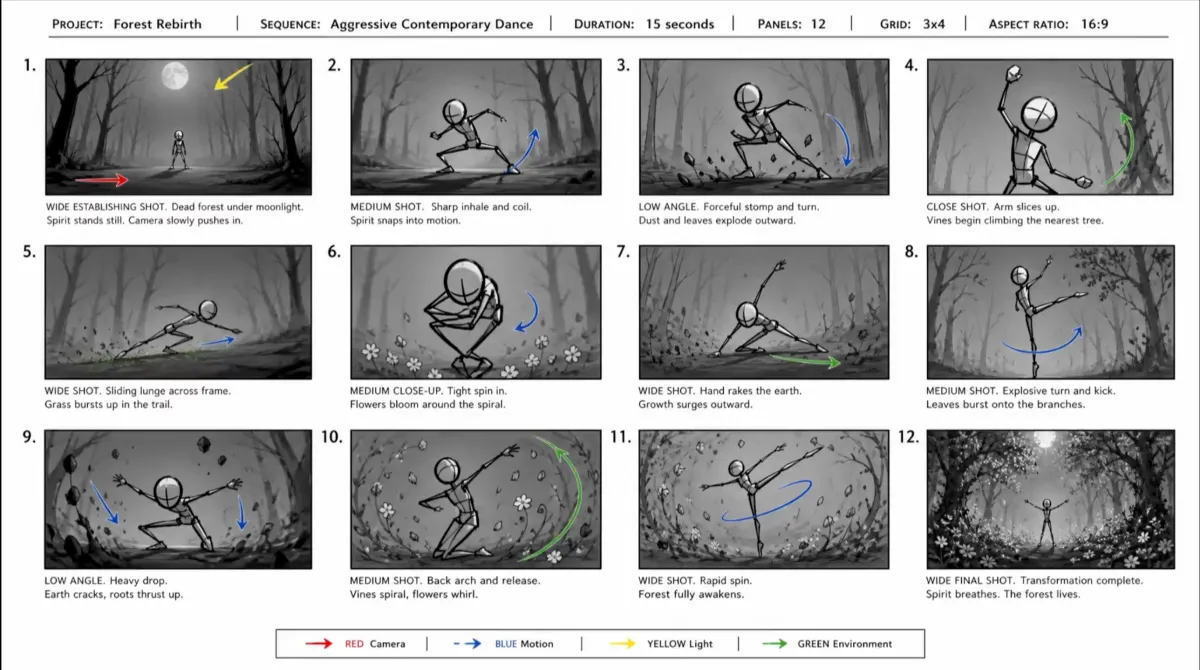
  • Dance and Action Sequences

    Plan poses, formations, movement direction, and changes in framing across a performance, chase, or fight sequence.

What it is

What Is an AI Storyboard Generator?

An AI storyboard generator is an image-generation tool that turns a written scene sequence or visual reference into a single image containing multiple ordered panels. Each panel represents a moment, action, composition, or camera view that helps communicate how a story could progress.

On GPTProto, you can begin with a text prompt or combine an uploaded image with written instructions. The examples on this page are reusable prompt templates: selecting one loads its prompt into the generator so you can adapt the subject, setting, sequence, layout, and rendering style.

The output is a generated storyboard sheet rather than a timeline of separately editable frames. Treat it as a concept and planning reference. Check panel order, character appearance, hands, props, captions, and shot details before using the result in a presentation or production workflow.

t2i or i2i

Text to Image or Image to Image: Choose How You Start

Choose the input method that matches the material you already have.

Text to Image: Describe the complete storyboard without uploading a source image. Include the story premise, recurring character details, setting, number of panels, grid arrangement, visual style, and the action or camera view required in each panel.

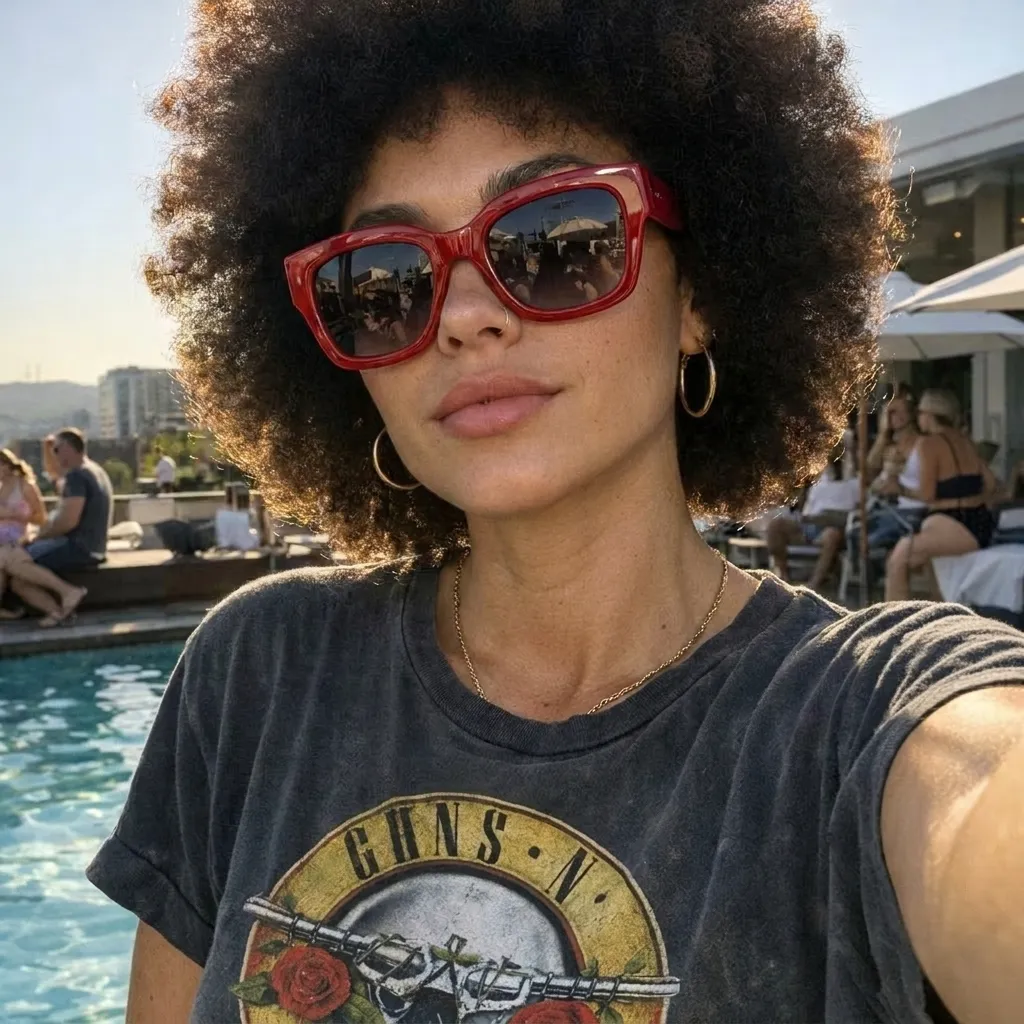
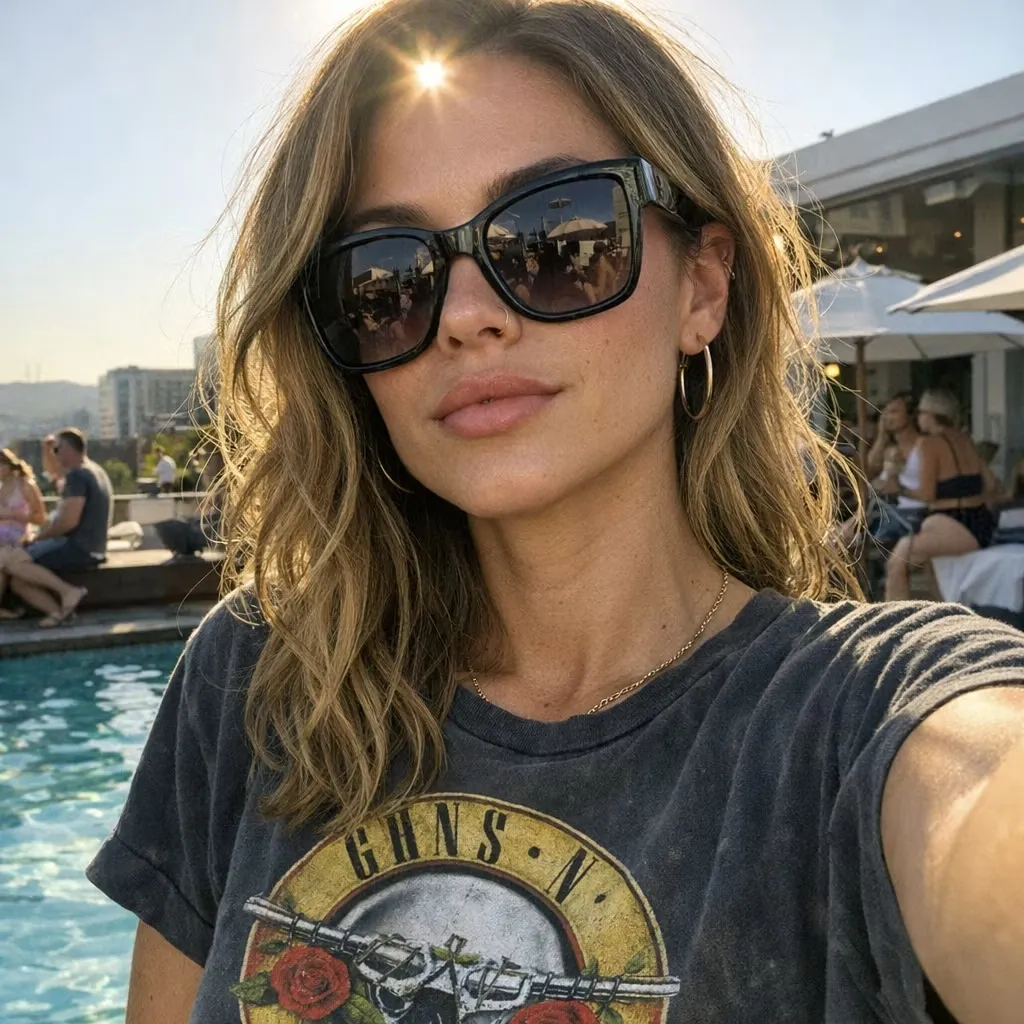
Image to Image: Upload a character design, location, pose reference, style reference, or existing storyboard and explain how it should guide the new result. State which visible details should remain recognizable and which parts of the story, layout, action, or art direction should change.

Start from an Example: Select a finished storyboard on this page to load its full prompt. Keep the useful structural instructions, then replace the example's characters, actions, locations, captions, and style with your own concept.

Prompt

How a Prompt Becomes a Storyboard Sheet

The prompt gives the image model both a page-level structure and a sequence of individual story beats.

  • Page Structure: Specify the total panel count, column and row arrangement, reading direction, borders, gutters, title area, captions, and overall image ratio.

  • Continuity Anchor: Repeat the defining details of recurring characters, costumes, locations, and props so the sequence has a clearer visual connection.

  • Shot Sequence: Assign one principal moment to each numbered panel. Move from an establishing image to action, reaction, detail, transition, and payoff according to the needs of the story.

  • Visual Direction: Describe whether the sheet should look like pencil thumbnails, anime line art, cinematic photographs, grayscale production sketches, 3D animation, or another consistent treatment.

Because the complete board is generated as one image, small text, exact numbering, anatomy, and repeated details may need another attempt or a more focused prompt.

Customize

How to Customize an AI Storyboard Prompt

Start with a clear structure, then replace one group of details at a time.

Prompt Formula: Story premise + recurring character and setting + panel count and grid + visual style + panel-by-panel shot list + labels or production notes + consistency requirements + exclusions

  • Define the Story in One Sentence: State who the sequence follows, what they are trying to do, what changes, and how the sequence ends.

  • Create a Character Anchor: Fix the character's apparent age range, hairstyle, facial traits, clothing, body type, and signature props. Repeat the same description whenever the character appears.

  • Choose the Panel Count and Grid: Write an exact request such as “eight panels in a 4 × 2 grid” or “twelve panels in a 4 × 3 grid, read left to right.” The ratio of the complete sheet and the shape of each individual frame are separate choices.

  • Give Each Panel One Main Beat: Describe one visible action, reaction, reveal, or transition per panel. If a panel contains too many events, split the sequence across more frames or another storyboard sheet.

  • Vary the Shot Types: Mix wide, medium, close-up, overhead, low-angle, over-the-shoulder, or point-of-view compositions when they help explain space, emotion, or action.

  • Set the Drawing or Rendering Style: Keep one shared direction across the sheet, such as rough graphite thumbnails, clean anime line art, monochrome concept art, stylized 3D animation, or cinematic realism.

  • Request Only Useful Text: Use short panel numbers, shot names, actions, or timing notes. Long dialogue and dense production instructions are harder to render legibly inside a generated image.

Better

How to Get Better AI Storyboard Results

Clear constraints help the model produce a more readable sequence and make later revisions easier.

  • Open with Geography: Use an establishing panel to show where the characters and important objects are before moving into closer shots.

  • Keep Screen Direction Clear: Describe where characters enter, look, move, or exit so adjacent panels do not appear disconnected.

  • Repeat Important Details: Keep the same wording for recurring faces, hairstyles, wardrobe, props, colors, and environmental features.

  • Use References Selectively: Upload a clear image that shows the character, location, pose, or style you need. Explain what the model should borrow rather than expecting it to infer your intention.

  • Separate Action from Camera Notes: State what the subject does and how the frame observes it. For example: “The runner turns the corner; low-angle side tracking shot.”

  • Limit On-Image Text: Short titles and numbers are easier to check. If precise dialogue or technical notes matter, add them in your editing or presentation software after generation.

  • Review the Complete Sheet: Check the number and order of panels, recurring characters, hands, props, background geography, captions, movement arrows, and any duplicated or missing elements.

  • Revise One Variable at a Time: Keep the parts that work and change only the unclear action, camera angle, layout, character detail, or art direction in the next prompt.

Explore More AI Online Tools

Continue developing your storyboard characters, frames, and video clips with related GPTProto tools.

Frequently Asked Questions

What is an AI story board generator?

An AI story board generator creates an image containing multiple ordered visual panels from a written prompt or reference image. The panels can represent actions, compositions, camera views, tutorial steps, or other key moments in a sequence.

How do I use a storyboard example on this page?

Select an example to load its preset prompt into the generator. Replace the original story, characters, setting, actions, panel arrangement, or visual style while keeping any structural instructions that suit your project. Review the complete prompt before generating.

Can I create a storyboard using only text?

Yes. Choose text-to-image and describe the story premise, recurring characters, setting, panel count, grid, style, and the main event or shot in each panel. You do not need to upload an image when the written description contains enough visual direction.

Can I upload a reference image for my storyboard?

Yes. Choose image-to-image and upload a character, location, pose, style reference, or existing board. Add a prompt explaining what should remain recognizable and what the generated sequence should change. Only upload material you have the right to use.

Can I change the number of panels and the layout?

You can request a panel count and arrangement in the prompt, such as eight panels in a 4 × 2 grid or twelve panels in a 4 × 3 grid. Generated layouts and numbering are not guaranteed to be exact, so check the result and refine the instruction when necessary.

How can I keep characters consistent across storyboard panels?

Use one fixed character description throughout the prompt, including hairstyle, facial traits, clothing, body type, colors, and recurring props. A clear reference image can also guide appearance, but you should still check every panel for changes or duplicated features.

Can the generator add shot numbers, captions, and movement arrows?

You can request short numbers, labels, captions, and color-coded arrows. Keep the wording brief because small generated text may contain spelling errors or become difficult to read. Add exact production notes later in design or editing software when accuracy is essential.

Can I turn the generated storyboard directly into an AI video?

The result is a static storyboard sheet, not an automatically edited video. Use it to choose your shots, prepare separate reference frames, and write motion prompts. You can then create individual clips with an AI video generator and assemble them in sequence.

Can I edit one panel separately on this page?

The generator creates the storyboard as one composite image rather than a set of independently editable frames. To revise one moment, describe the change and regenerate the sheet, or crop the relevant panel and edit it separately with the AI Image Editor.

Is the AI storyboard generator free to use?

You need a GPTProto account and sufficient credits to generate a storyboard. The charge depends on the selected model and generation settings. Review the displayed cost before starting a generation.

Can I use an AI-generated storyboard commercially?

Commercial use depends on the selected model, your intended use, and the rights attached to any uploaded or prompted material. Review the applicable model terms and avoid using copyrighted characters, logos, artwork, scripts, or identifiable people without the necessary permission.

What Creators Use It For

Use role-based cards here instead of fabricated reviews or star ratings.

Sofia Martinez

Content Creator

Explore several ways to stage a short social video before spending credits on separate clips.

Liam Patel

Indie Filmmaker

Communicate shot order, framing, character positions, and visual tone during early planning.

Ava Collins

Animator

Test poses, expressions, transitions, and scene progression before detailed drawing or animation.

Noah Bennett

Marketing Team

Visualize tutorial, product, campaign, or explainer concepts before presenting the direction to collaborators.