You can follow the same process without writing code: create or choose an image, ask an image-capable chat model for a motion prompt, animate the image, and download the result. The final step depends on your device. Windows and Android can use video wallpaper apps; iPhone needs a compatible Live Photo for its animated Lock Screen.
How to Make AI Live Wallpaper with Midjourney and Seedance 2.5
Create AI live wallpapers with Midjourney and Seedance 2.5. Follow motion prompts and setup steps for Windows, Android, iPhone, and Mac.
Содержание
Choose an Image and Wallpaper Size
Decide where the wallpaper will live before generating it. A wide composition gives a desktop room for icons. A portrait composition gives a phone room for its clock and widgets. Putting a face against the edge makes later cropping harder.
| Target screen | Starting composition | Suggested working size |
|---|---|---|
| Standard widescreen desktop | Landscape, 16:9 | 1920 × 1080 |
| Portrait phone | Portrait, 9:16 | 1080 × 1920 |
| Ultrawide or another screen shape | Match the target screen's aspect ratio | Match the display where practical |
These are starting points, not universal device requirements. A tall phone screen may crop a 9:16 video further. Preview the fit before deciding that an image is finished, and avoid stretching it to fill a different shape.
If you already have an image you want to animate, keep it and skip image generation. Otherwise, browse the Midjourney prompt collection, open an example, and adapt its prompt to your subject, colors, and composition. Continue to the AI image generator to make your own version with Midjourney.
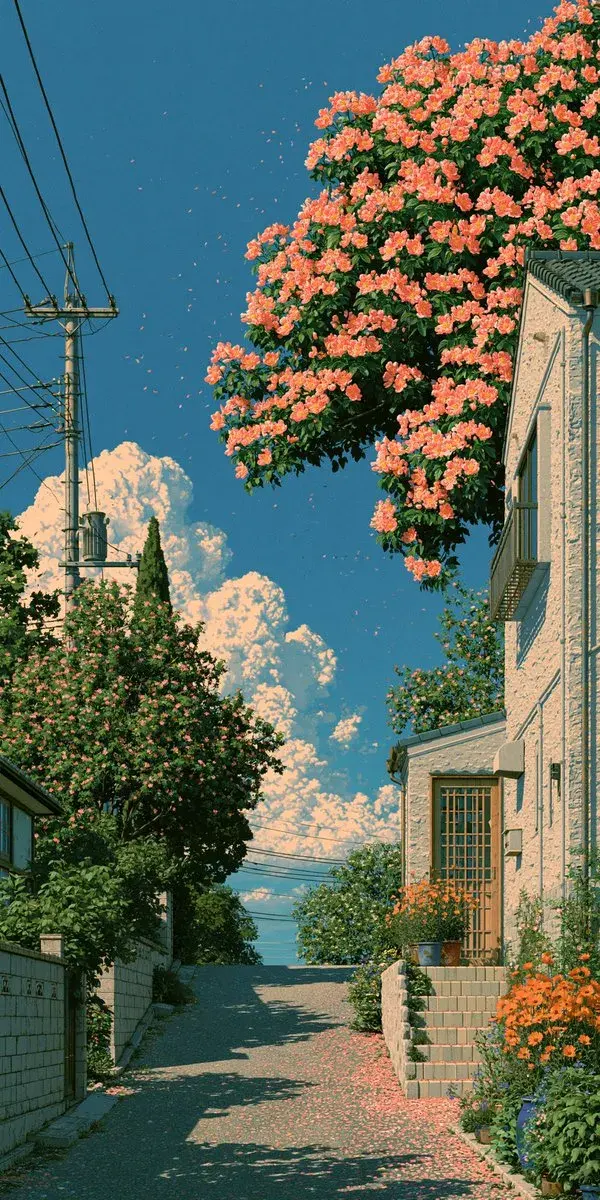
For an easy first project, choose a scene with an obvious source of gentle movement: leaves, water, clouds, loose hair, or small lights. The flower-lined street example is useful because the trees can move while the buildings stay still.
Use your own image or one you have permission to reuse. If you plan to offer wallpaper downloads publicly, check that your permission also covers redistribution.
Ask AI to Write a Motion Prompt for Your Image
Open GPT Proto Chat, choose a model that accepts images, and upload your picture. Tell it what should move, what should stay fixed, and where you intend to use the result. If the selected model cannot accept an image, switch to one that can, or describe the scene in text.
You do not need to invent camera terminology. Start with this request and replace the bracketed details:
Look at the attached image and write one English image-to-video prompt for Seedance 2.5. I want to turn this image into a 5-second live wallpaper for [a phone / a desktop].

The movement I want: [leaves swaying gently, a few glowing particles drifting, or loose hair moving in a light breeze].

Keep the original composition, art style, subject identity, and major objects. Use a locked camera, with no zoom, pan, scene change, or cuts. Keep the movement subtle enough to use behind icons and a clock.

Identify the parts that should remain still. Avoid adding new people, objects, text, or logos. Ask for an ending composition close to the opening so the clip is easier to repeat, without promising a perfect loop.

Return only the finished video prompt.
Read the answer before copying it. If the AI adds a camera orbit, dramatic turn, or a new character, remove that instruction. A wallpaper usually needs less action than a social video.
For the flower-lined street, a reusable motion prompt could be:
Animate the supplied flower-lined street illustration as a calm 5-second portrait wallpaper. Lock the camera completely and preserve the original framing, colors, and illustration style. Let the flowering branches and small leaves sway gently in a light breeze. Keep the buildings, windows, road, utility poles, and cables stable. Preserve the bright daytime lighting without sudden changes. No people, vehicles, new objects, text, zoom, pan, or scene transition. Let the branch movement settle near its starting position toward the end for an easier repeating playback.
This is a suggested prompt for recreating the idea, not the original generation log for the supplied example. The output still needs a visual check.
Animate the Image with Seedance 2.5
Create a GPT Proto account and add balance if needed. Open the AI video generator, select Seedance 2.5, and upload your image as the reference. Paste the motion prompt into the text field.
For this workflow, choose a five-second duration and 1080p output, matching the settings shown in the generator and the supplied examples. Keep the output orientation consistent with your source image, using the aspect-ratio control if the selected mode provides one. Check the displayed charge for your settings before generating.
| Setting | Choice for this tutorial | Purpose |
|---|---|---|
| Input | Your image plus a motion prompt | Guide the appearance and movement |
| Video model | Seedance 2.5 | Animate the reference image |
| Duration | 5 seconds | Keep the first attempt short and easy to inspect |
| Resolution | 1080p | Match the example files |
| Audio | Off where the selected mode offers that option | Keep the wallpaper focused on the visual |
Click Generate and review the completed clip before downloading. If a face changes shape or a building bends, simplify the movement request and try again. Keep the same source image so you can see what changed.
The Seedance 2.5 model page provides a route for readers who want model details or API access. This tutorial uses the web generator, so creating an API key is not part of the steps.
Preview, Check the Loop, and Download
Watch the clip at normal speed, then play it several times in a row. Check the face, hands, architectural edges, and any small decorations. Also look at how the last frame returns to the first.
A wallpaper app can repeat a video automatically. That does not make the transition between repetitions invisible. If the subject ends in a different position, the restart may still jump.
For a distracting restart, first try a calmer prompt with a fixed camera. You can also trim to a section whose beginning and end are closer, or use a short crossfade in a video editor. Check the edited result: crossfades can create ghosting, and reversing a clip can make falling petals or rising sparks move backward. Neither is a universal fix.
Download the original MP4 rather than recording the preview window. The four supplied files use H.264 video at 24 fps and contain AAC audio tracks. A sound track in the file does not guarantee that the wallpaper app will play it; mute playback where that option exists.
Keep the original download, and make a separate copy if you crop or convert it for another device. There is no need to turn every video into a GIF first.
Four AI Live Wallpaper Examples
The supplied clips show two landscape compositions and two portrait compositions. Their file dimensions are listed below; all run for approximately five seconds at 24 fps.
| Example | Video dimensions | Framing to start with |
|---|---|---|
| Space girl and glowing plants | 1920 × 1080 | Landscape desktop |
| Fantasy portrait with a black dragon | 1080 × 1920 | Portrait phone |
| Stargazing girl | 1920 × 1080 | Landscape desktop |
| Flower-lined street | 1080 × 1920 | Portrait phone |
The prompts below are reusable suggestions for similar movement. They are not presented as the exact prompts used to create the supplied videos. Device setup instructions later in this guide are based on official documentation; these clips have not been verified on every listed device.
Space Girl and Glowing Plants
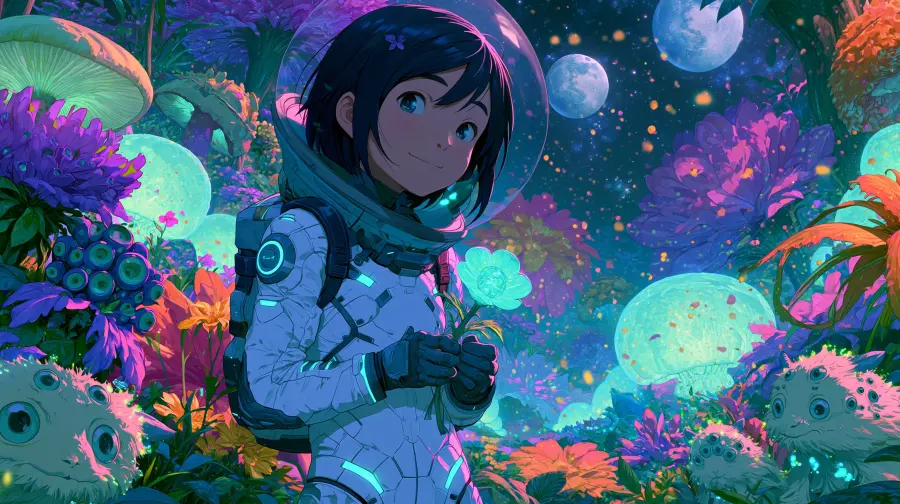
The landscape illustration offers several places to introduce motion without changing the character's pose. Start with the surrounding plants and lights, keeping the face, hands, and spacesuit steady.
Keep the camera fixed and preserve the astronaut girl's face, pose, hands, and spacesuit. Add gentle swaying to the surrounding plants, slow drifting light particles, and a soft pulse in the glowing flowers. Keep the moons stable and the original illustration style intact. No walking, camera movement, scene change, new objects, or text. Create a calm 5-second landscape animation with the final composition close to the opening.
Fantasy Portrait with a Black Dragon
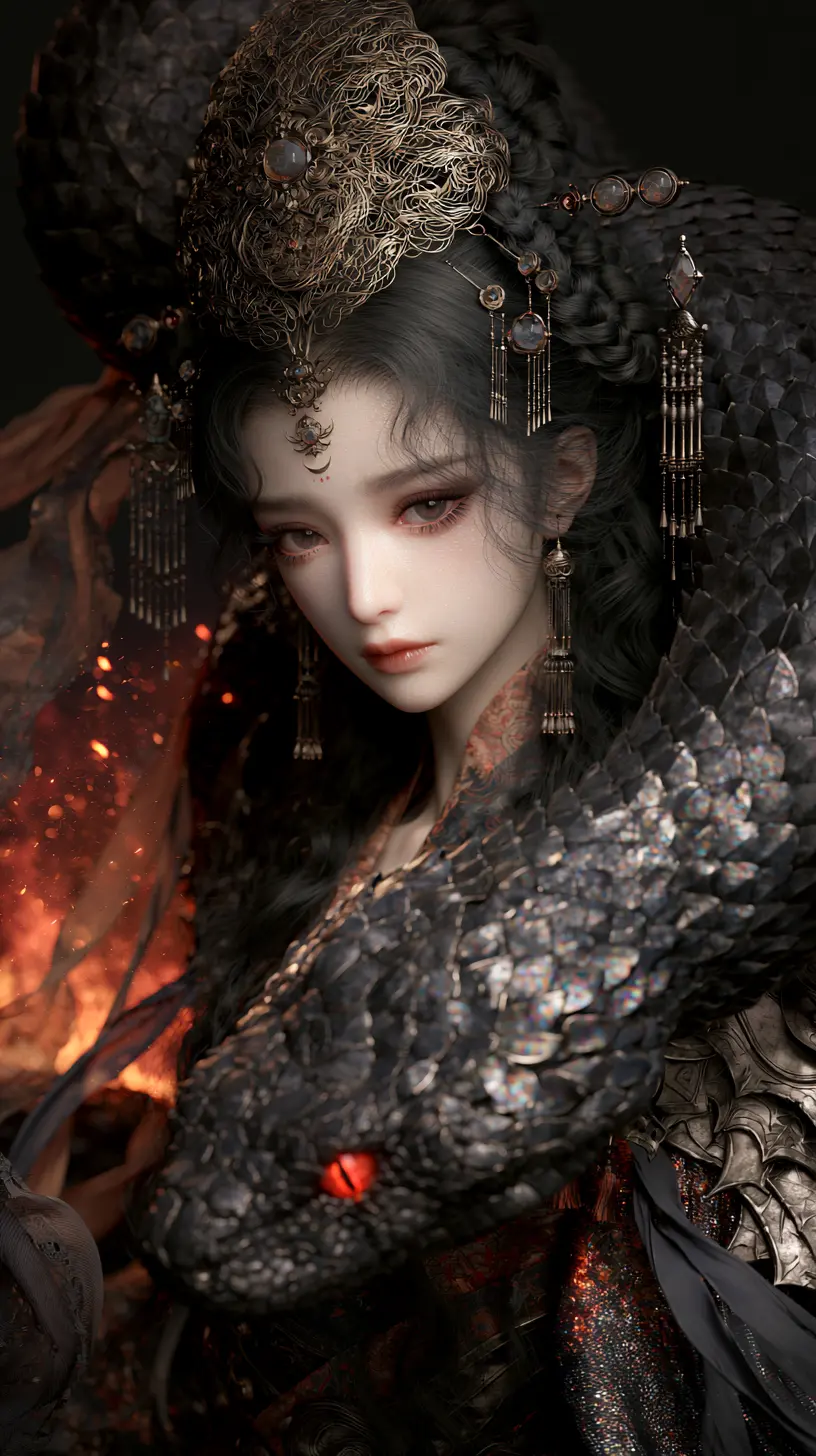
Treat the face, dragon, and elaborate headdress as the anchors. Start with loose strands of hair and small hanging ornaments. Large dragon movements make this a more demanding animation task.
Animate the supplied fantasy portrait for 5 seconds with a completely locked camera. Preserve the woman's identity, expression, clothing, headdress, and the black dragon's shape. Add only a faint breeze through loose hair and a very slight sway to hanging ornaments. Allow a few background embers to drift while keeping the existing warm lighting stable. No dragon attack, head turn, facial reshaping, zoom, text, or scene change.
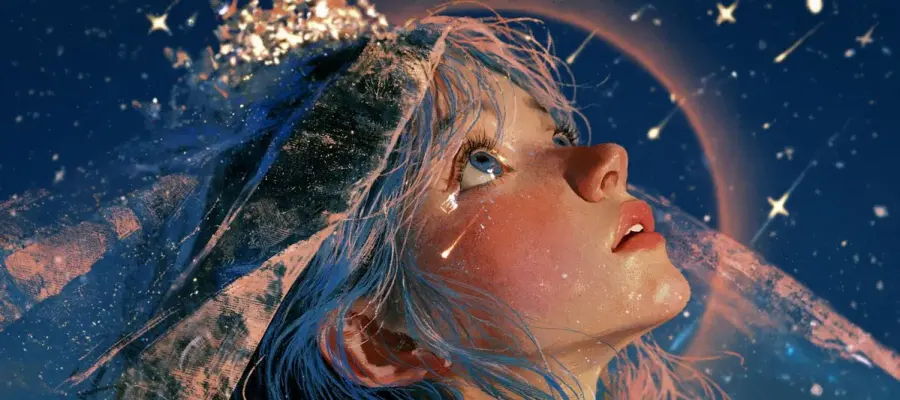
Stargazing Girl
Use the existing stars and hair to suggest movement while preserving the upward gaze. Inspect the face and halo at the restart: either can make a small jump noticeable.
Preserve the girl's upward gaze, facial features, original painterly texture, and framing. Keep the camera locked. Animate a few loose strands of hair with a soft breeze and let the existing stars twinkle gently. Add a slow, subtle glow variation to the halo without changing its position or shape. No head turn, lip movement, zoom, cuts, text, or new objects. Make a quiet 5-second wallpaper animation with minimal changes in composition.
Flower-Lined Street
Use the street prompt from the earlier step. The scene separates the moving elements from the fixed ones: flowers and leaves can sway while the road, buildings, and cables hold their shape. Check that the model has not added a forward camera movement.
Set Your Live Wallpaper on Your Device
Keep the MP4 on the device where you want to use it. Pick the appropriate route below; a video download and an iPhone Live Photo are different files.
Windows: Import the Video into Lively Wallpaper
Lively Wallpaper is a free, open-source Windows application. Its official project supports dragging media into the app to use as wallpaper.
Install Lively using a download option linked from the official project.
Open the app and drag your downloaded MP4 into it.
Complete any import prompts and select the imported wallpaper.
Choose the target display and adjust the fit using the available controls.
Check the desktop with your usual icons visible and mute the video if needed.
Use a landscape clip for a standard widescreen monitor. If you want the wallpaper after restarting Windows, review the app's startup settings. This route applies to the desktop; it is not a promise of an animated Windows Lock Screen.
Android: Import a Local Video into Wallpaper Engine
The Wallpaper Engine Android app supports importing local videos and GIFs. The official website lists Android 10 or newer as the requirement. You can use a video already on your phone without transferring a desktop wallpaper collection.
Save the MP4 to your phone and install the Android app.
Open its add/import control and choose the option for a local file.
Select the video and preview its framing.
Apply it using the system wallpaper picker.
Choose the Home Screen or other destinations offered by your device.
Lock Screen support varies by manufacturer. If the system does not offer that destination, do not assume the video is broken. Wallpaper Engine also provides quality and frame-rate controls, plus a pause option for power-saving mode. Adjust these if needed rather than assuming every device should use the highest setting. See the official Android compatibility guidance.
On supported Samsung Galaxy devices, you may be able to use the built-in route instead: open Wallpaper and style, select Gallery, choose the video, trim it if prompted, and apply it to the destination offered. Samsung documents video wallpaper setup, but menus and availability depend on the device and software. Follow the Samsung wallpaper guide for the applicable route.
iPhone: Convert a Short Section into a Live Photo
For this workflow, convert the video into a compatible Live Photo first. Apple documents Live Photo Lock Screen animation on iOS 17 and later, playing when you wake the device. It does not mean the full five-second MP4 will continuously loop behind your Home Screen icons. See Apple's setup instructions.
Save the video to your iPhone and open intoLive.
Start from the app's Live Wallpaper menu.
Import the video and select a short section with visible, controlled movement.
Follow the trimming step, then share/save the result as a Live Photo.
Open Settings → Wallpaper → Add New Wallpaper → Photos → Live Photo.
Select your converted image, enable its motion control if available, and tap Add to finish setup.
Lock and wake the phone to check the animation.
The current intoLive guide describes a roughly one-to-two-second segment for this feature. Keep your five-second MP4 as the source and choose its best section instead of expecting the whole clip to play.
If motion is unavailable, first confirm that you created the file through Live Wallpaper rather than an ordinary editing project. Then try another section and check the preview again. Conversion alone does not guarantee that iOS will accept every result for animated wallpaper.
Mac: Import the Video into a Compatible Wallpaper App
One documented option is Backdrop. Its developer provides a local-video workflow in the Mac video wallpaper guide:
Install Backdrop after checking its current system requirements and plan options.
Open the Create tab.
Drag in your MP4.
Trim or adjust playback speed if needed.
Click Apply and check the result on your desktop.
These steps concern a moving video background. A wallpaper that changes still images with the time of day is a different effect.
Start with one image and one gentle movement. Find a visual in the Midjourney prompt collection, or take an image you already like to the AI video generator and make your first five-second wallpaper clip.
Bring Your Ideas to Life
Turn a simple prompt or reference into polished AI images and videos in seconds—no setup required.
Start creating
Похожие функции
Все функции
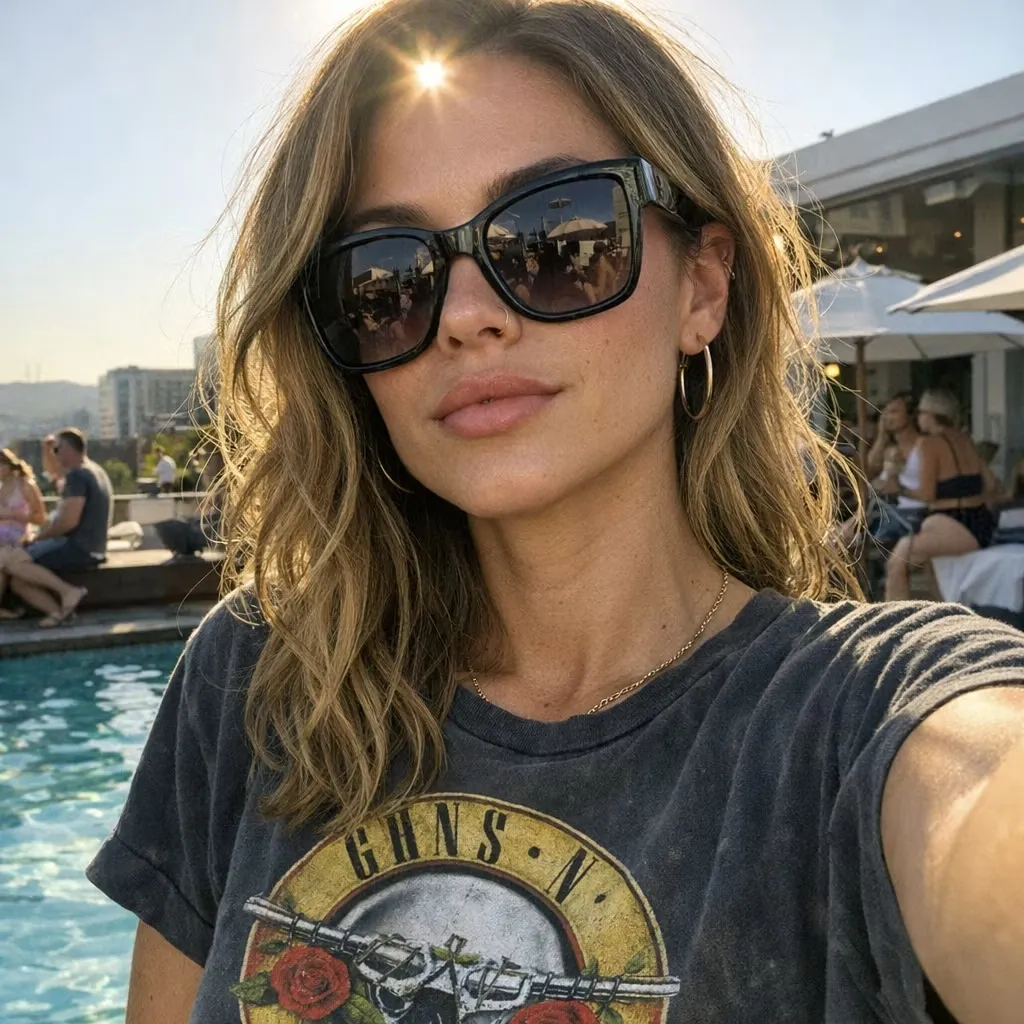
AI-редактор изображений
Загрузите фотографию, опишите изменения и редактируйте изображения онлайн с помощью ИИ. Заменяйте фон, удаляйте объекты, меняйте стиль сцен и скачивайте результат.
Генератор милых обоев
Создавайте милые обои онлайн по текстовому запросу или загруженному изображению. Откройте для себя идеи обоев в стиле кавай, пастель, с питомцами, цветочных, для телефона и рабочего стола с GPTProto.
Похожие модели
Все модели


FAQ
Do I need Midjourney if I already have a picture?
No. Upload your existing image to an image-capable chat model for help with the motion prompt, then use it as the reference in Seedance 2.5. Midjourney is the image-creation option in this workflow, not a required conversion step.
Can I make a live wallpaper with Midjourney alone?
Midjourney can generate short videos from images and provides low-motion and looping controls. You still need the appropriate device setup method to use the downloaded video as wallpaper. This guide uses Seedance 2.5 for the animation stage of the supplied examples. See Midjourney's video documentation.
Can I create an AI live wallpaper in 4K?
A 4K deliverable requires a corresponding video output or a separate video-upscaling step. The examples here are 1080p. Writing “4K” in the prompt or choosing an image upscaler does not establish the downloaded video's resolution. Check the actual file dimensions, and label an upscaled version accurately.
Why does my downloaded live wallpaper not move?
Check that you are using the video in a wallpaper app, rather than applying its thumbnail as a still image. On iPhone, check the Live Photo conversion and motion setting. On Android, check whether the destination you selected supports live wallpaper.
Why does the wallpaper jump when it repeats?
The final frame probably differs from the opening frame. Try less movement, a locked camera, or a trimmed section with closer matching endpoints. A repeating player cannot remove a visual mismatch between the two ends of the clip.
Is making an AI live wallpaper free?
You can browse the Midjourney prompt collection for inspiration, but image and video generation may require a funded GPTProto account. Check the generation charge before submitting. Wallpaper installation is a separate step: Lively is free, while other apps may have paid features or plans.
Похожие статьи
Ещё блоги
What Is ChatGPT Images 2.5? Features, Sketch, Speed, and Flare vs Sunburst
ChatGPT Images 2.5 is OpenAI's latest image-generation and editing system inside ChatGPT. Released on September 8, 2026, it focuses on a practical problem that earlier image models often handled poorly: changing one part of an image without forcing you to rebuild everything else. The release combines a stronger image model with Sketch, templates, direct comments, background removal, and prompt sharing. OpenAI also released two related API models—GPT-Image-2.5 Flare and GPT-Image-2.5 Sunburst. The short version is that ChatGPT Images 2.5 is less about generating one impressive image and more about revising the same image without repeatedly starting over. That shift matters for product mockups, campaign assets, character variations, infographics, and any workflow where consistency across edits is more valuable than a lucky first result. Try gpt-image-2.5-sunburst
Schuyler Stacy | 2026-09-09
6 Cheapest AI Image Generators in 2026: Real Cost per Image
The cheapest AI image generator depends on what you are trying to buy. If you want three or four personal images, a free browser tool costs less than any paid API. If you need hundreds of images inside an app, however, changing free limits and manual downloads are not a workable cost model. For API generation, GPT Image 1 Mini has the lowest starting cost in this comparison at approximately $0.0035 for a low-quality 1024×1024 image , plus a small text-input charge. Its bill changes with quality, dimensions, and token usage. Nano Banana 2 Lite is the cheapest predictable flat-rate option at $0.0202 per 1K image. That distinction matters. One is the lowest possible entry price; the other is easier to put into a startup budget. All prices below were checked on September 3, 2026, and all six models can be accessed through GPTProto’s AI image generator . Gen Image Right Now
Schuyler Stacy | 2026-09-03
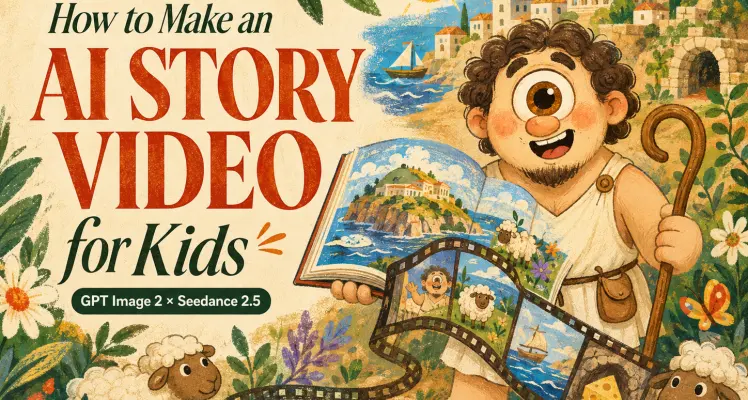
How to Make an AI Story Video for Kids with GPT Image 2 and Seedance 2.5
A 15-second story does not have room for a hero’s entire journey. It has room for one character, one memorable idea, and one clean ending. For this test, we made a short, English-language children’s animation inspired by The Odyssey . Polyphemus is reimagined as a friendly, slightly goofy cyclops who introduces his island, his sheep, and his impressive collection of cheese. We used GPT Image 2 to establish the character’s appearance, then used Seedance 2.5 to generate the animation, dialogue, captions, and sound. The finished export runs for 15.07 seconds at 1920×1080, 16:9, and 30 fps. More importantly, it gives us something real to inspect: what stayed consistent, what Seedance added on its own, and what still needed to be corrected during editing.
Schuyler Stacy | 2026-08-31

Generate Multiple Images at Once in ChatGPT
TL;DR Mastering how to generate multiple images at once in chatgpt involves a combination of structured prompting in the chat UI and using specific parameters or loops via the OpenAI API. While the standard interface defaults to single outputs, you can bypass this bottleneck with grid layouts and batch commands. Most users struggle because the web interface is designed for conversational simplicity, not high-volume production. By understanding the underlying mechanics of DALL-E 3, you can start treating the tool like a creative factory rather than a simple chatbot. This guide explores the transition from manual one-off requests to automated or structured batch workflows, ensuring you never have to wait for a single image to render before starting the next creative concept.
Schuyler Stacy | 2026-08-31