Since its launch, Claude Code has quickly become a trusted daily assistant for developers worldwide. This command-line tool brings the power of Anthropic's latest AI models directly into your terminal, making coding faster and more efficient. Whether you're debugging complex issues, building new features, or managing large codebases, mastering the Claude CLI can significantly boost your productivity. The key to unlocking its full potential lies in understanding the right commands for each situation.
Interactive Commands for Daily Coding
1. Starting Your First Claude Session
The most basic command to begin working with Claude is simply typing claude in your terminal. This launches an interactive REPL session where you can have ongoing conversations with Claude about your code. The interface responds to your queries in real time, making it perfect for exploratory coding tasks.
If you already know what you want to ask, you can provide an initial prompt right from the start: claude "explain the authentication flow in this project". This approach saves time by jumping straight into your question without additional steps.
2. One-Shot Queries for Scripts
For quick answers without starting a full interactive session, use print mode with the -p flag. The command claude -p "your query" returns results directly to your terminal output, making it ideal for scripting and automation. This mode works well when you need fast answers that can be piped into other commands or saved to files.
3. Data Pipeline Integration
Claude can process input from other commands through standard input pipes. Running cat file.txt | claude allows you to send file contents directly to Claude for analysis or transformation. This feature becomes especially powerful when combined with bash scripts or git workflows, enabling automated code reviews or batch analysis across multiple files.
Session Management for Better Context
4. Continuing Previous Conversations
When you need to pick up where you left off, the -c flag continues your previous conversation. Type claude -c to resume the last session with all its context intact. You can even combine this with print mode: claude -c -p "your follow-up query" for quick continuations without entering interactive mode.
5. Working with Named Sessions
For more control over which conversation you want to resume, Claude supports session IDs. Use claude -r "session_id" "your query" or the longer form claude --resume session_id to jump back into specific past conversations. This feature proves invaluable when juggling multiple projects or features simultaneously.
7. Managing Context Windows
Long conversations can consume significant context space. The /clear command resets your current session, giving you a clean slate while staying in the same terminal session. This slash command works during interactive mode and helps maintain focus on the current task without carrying unnecessary historical context.
For conversations that might exceed context limits, use --max-turns N to set a specific limit on how many turns the session will run. This proactive approach prevents unexpected context compression during critical work.
Project Configuration Commands
7. Keeping Claude Updated
Regular updates ensure you have access to the latest features and improvements. Run claude update periodically to get the newest version of the CLI tool. This simple maintenance command keeps your development environment current with Anthropic's latest releases.
8. Setting Working Directories
When working across multiple projects, claude --add-dir path lets you add or switch between different working directories. This command helps Claude understand which codebase context to load, making its suggestions more relevant to your current project.
9. Choosing the Right Model
Different tasks call for different models. Use claude --model claude-opus-4 to switch between Claude versions based on your needs. Opus excels at complex reasoning tasks, while Sonnet offers faster responses for everyday coding work.
10. Creating Project Context
The /init command creates a CLAUDE.md file in your project root directory. This special file serves as Claude's memory for your project, storing information about architecture, dependencies, and coding conventions. Think of it as giving Claude a project handbook that it references during every session.
Custom Automation Commands
11. Building Your Own Commands
One of Claude's most powerful features is custom slash commands. Create a .claude/commands folder and add markdown files with your frequently used prompts. For example, a file named review.md becomes the /review command. These shortcuts save time by storing complex instructions you use repeatedly.
Commands support argument passing with the $ARGUMENTS placeholder. A command like /fix-issue 123 can be set up to automatically pull GitHub issue details, analyze the problem, and implement a fix. This level of automation transforms Claude from a coding assistant into a full workflow engine.
12. Lifecycle Hooks for Quality Control
Hooks automate tasks at specific points in your workflow. Configure them in your project settings to trigger actions like code formatting, static analysis, or test runs whenever Claude makes changes. For instance, a post-edit hook can automatically run linters on modified files, ensuring code quality without manual intervention.
Common hook patterns include running black on Python files after edits, executing tests before commits, or sending notifications when specific tasks complete. These integrations make Claude work seamlessly with your existing development practices.
Claude Code Command Reference Table
|
Command Category
|
Command
|
Purpose
|
|
Session Start
|
claude
|
Launch interactive REPL
|
|
Quick Query
|
claude -p "query"
|
One-shot print mode
|
|
Continue
|
claude -c
|
Resume last conversation
|
|
Named Resume
|
claude -r session_id
|
Return to specific session
|
|
Clear Context
|
/clear
|
Reset current session
|
|
Update Tool
|
claude update
|
Get latest CLI version
|
|
Set Directory
|
claude --add-dir path
|
Change working directory
|
|
Switch Model
|
claude --model name
|
Select Claude version
|
|
Initialize
|
/init
|
Create project context file
|
|
Pipe Input
|
cat file | claude
|
Process file contents
|
Productivity Tips for Power Users
Plan Mode for Complex Tasks
When tackling substantial features or refactors, Claude's plan mode creates a detailed strategy before writing code. This approach reduces token usage and improves output quality by establishing clear objectives upfront. Even for smaller tasks, using plan mode can lead to better results by encouraging thoughtful problem decomposition.
Stay Current with Date Context
Claude's training data has limitations regarding current dates. When using web search or time-sensitive features, explicitly mention the current date or use bash commands like date to provide accurate temporal context. This small step prevents confusion in tasks involving recent events or version checks.
Design Clear Escape Paths for Subagents
If you use subagents for task delegation, ensure they have fallback options when required information isn't available. A subagent stuck without necessary data might produce incomplete results or hang. Give subagents clear alternatives like requesting user input or marking items as incomplete rather than forcing completion.
Leverage MCP for Enhanced Capabilities
Model Context Protocol servers dramatically expand what Claude can do. Like APIs for programs, MCP provides standardized ways for Claude to interact with external services. Tools like Playwright MCP give Claude visual capabilities through screenshots, enabling tasks like web browsing automation or frontend testing that would otherwise be impossible.
Recommended: GPT Proto for Affordable Claude Access
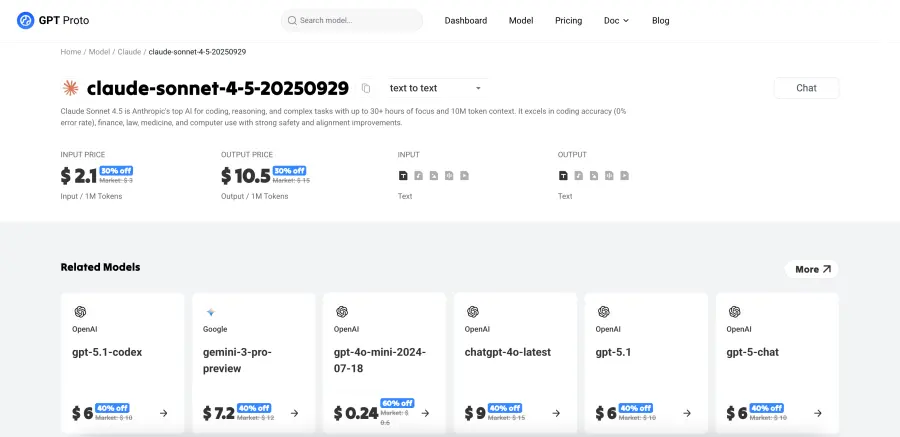
For developers seeking cost-effective access to Claude Code API, GPT Proto offers an excellent solution. The platform provides affordable API access to the newest models including Claude Sonnet 4.5 and Haiku 4.5, enabling you to integrate Claude's capabilities into your applications at scale.
Beyond Claude, GPT Proto supports other leading coding models like GPT 5.1 Codex and Gemini 3 Pro. This flexibility lets you choose the best model for each task while managing costs effectively. The platform's unified interface simplifies working with multiple AI providers, reducing integration complexity.
Whether you're building AI-powered development tools, automating workflows, or experimenting with different models, GPT Proto's pay-as-you-go pricing makes it accessible for projects of all sizes. Visit gptproto.com to explore their model offerings and start building with affordable, powerful AI.
FAQs about Claude Code CLI
How do I authenticate Claude Code for the first time?
On first use, Claude prompts you to log in through your browser. You can authenticate using your Claude Pro or Max subscription, or set up API token authentication if you prefer programmatic access.
Can I use Claude Code without an internet connection?
No, Claude Code requires internet connectivity to communicate with Anthropic's API servers. All processing happens on their infrastructure, ensuring you always have access to the latest model capabilities.
What's the difference between Opus and Sonnet models?
Opus provides deeper reasoning and handles more complex tasks but runs slower. Sonnet offers faster responses suitable for everyday coding work. Choose based on task complexity and time constraints.
How do I share custom commands with my team?
Store custom commands in .claude/commands within your project repository. When checked into version control, these commands become available to all team members working in the codebase.
Is there a limit to context window size?
Each model has specific context limits, though recent updates have significantly expanded capacity. Monitor the context indicator in your session and use /clear or /compact to manage long conversations.
Can Claude edit files directly?
Yes, Claude can read, write, and modify files when granted appropriate permissions. You control these permissions through configuration settings or runtime approval prompts.
Conclusion
Mastering Claude Code CLI commands opens up new possibilities for efficient development. From basic interactive sessions to advanced automation with custom commands and hooks, these tools reshape how developers work. The commands covered here provide a foundation for building workflows that match your specific needs.
Success with Claude comes from understanding which commands fit which situations. Interactive mode serves exploration and learning. Print mode suits scripting and automation. Custom commands capture organizational knowledge. Hooks enforce quality standards. Together, these features create a development environment where AI assistance feels natural and productive.
As you integrate these commands into your daily workflow, you'll discover patterns that work best for your projects and team. The CLI's flexibility means there's no single right way to use it. Experiment with different approaches, build custom solutions, and share what works with your colleagues. The result is a more efficient, enjoyable coding experience powered by intelligent assistance exactly where you need it.