What You Need Before Connecting GPT Proto to Janitor AI
Before opening the Janitor AI proxy settings, prepare the following:
| Required item |
What it is used for |
| Janitor AI account |
Opening and managing a character chat |
| GPT Proto account |
Accessing supported language models |
| GPT Proto API key |
Authenticating the proxy request |
| Available balance |
Paying for the tokens processed by the selected model |
| Exact model string |
Telling GPT Proto which model Janitor AI should call |
You can review Janitor AI model and API usage before choosing a model.
Create or copy your API key from the GPT Proto dashboard. Keep the full key private. Do not publish it in a screenshot, character definition, shared prompt, public repository, or support post.
How to Use Janitor AI with GPT Proto APIs
Janitor AI lets you connect an external language model through its Proxy provider. For GPT Proto, you need a complete Chat Completions endpoint, a GPT Proto API key, and an exact model string.
The full setup takes five steps.
Step 1: Create or Copy Your GPT Proto API Key
Sign in to GPT Proto and open the API key section of your dashboard. Create a new key or copy an existing active key.
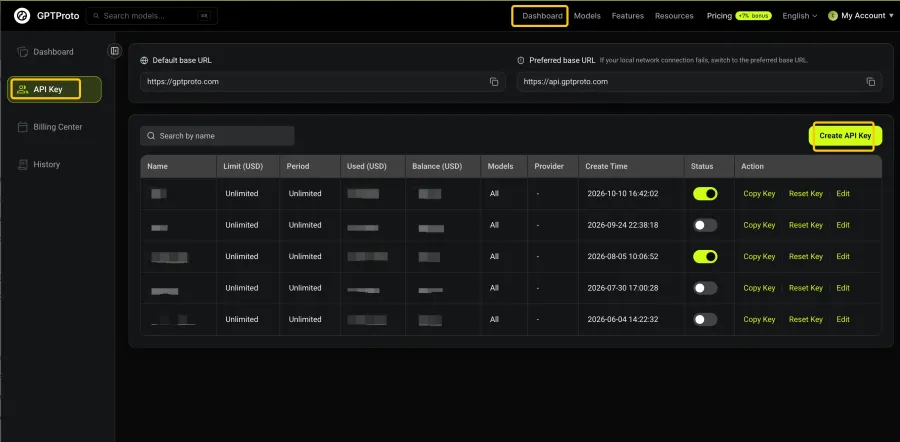
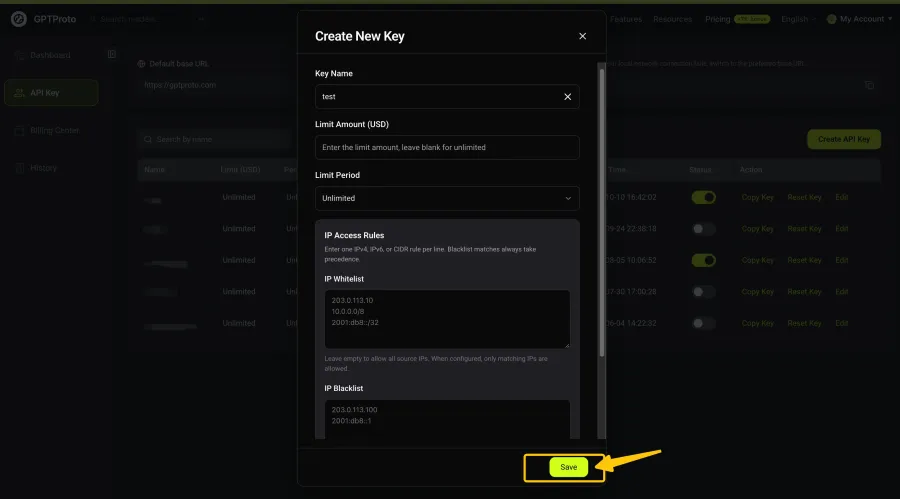
Copy the key itself. Do not add quotation marks, Bearer, or spaces before or after it when pasting it into Janitor AI.
If the key appears in any screenshot, cover the entire value before publishing the image. Hiding only the middle section may still reveal identifying parts of the credential.
Step 2: Open Janitor AI API Settings
Open a character chat in Janitor AI. Click the menu beside the provider information in the upper-right area of the chat, then select Settings.
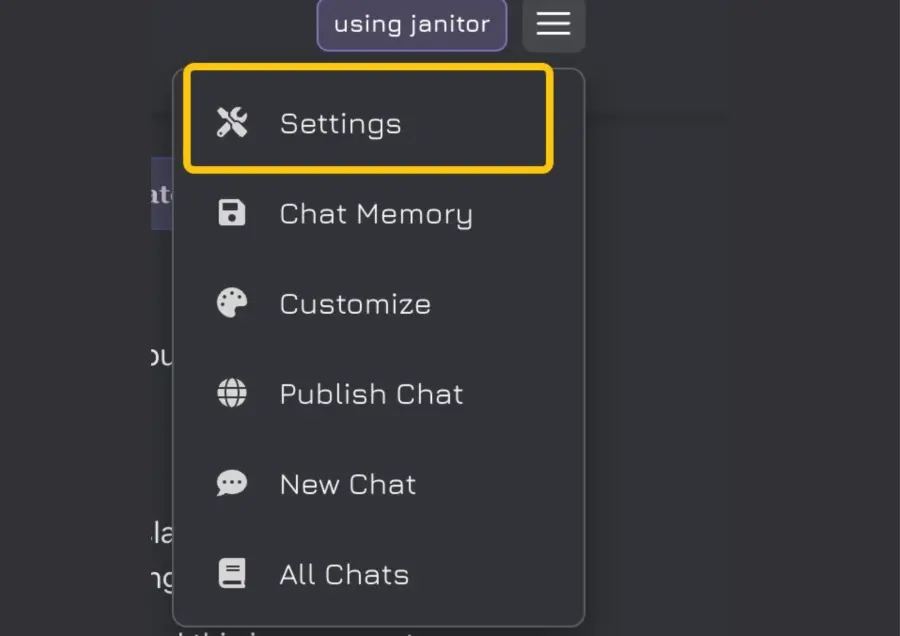
The API settings are managed inside the chat interface. Opening a public character profile alone will not display the configuration fields shown in the following steps.
Step 3: Select Proxy and Create a Configuration
In the settings panel, change Provider to Proxy. Under Proxy configurations, click + New.
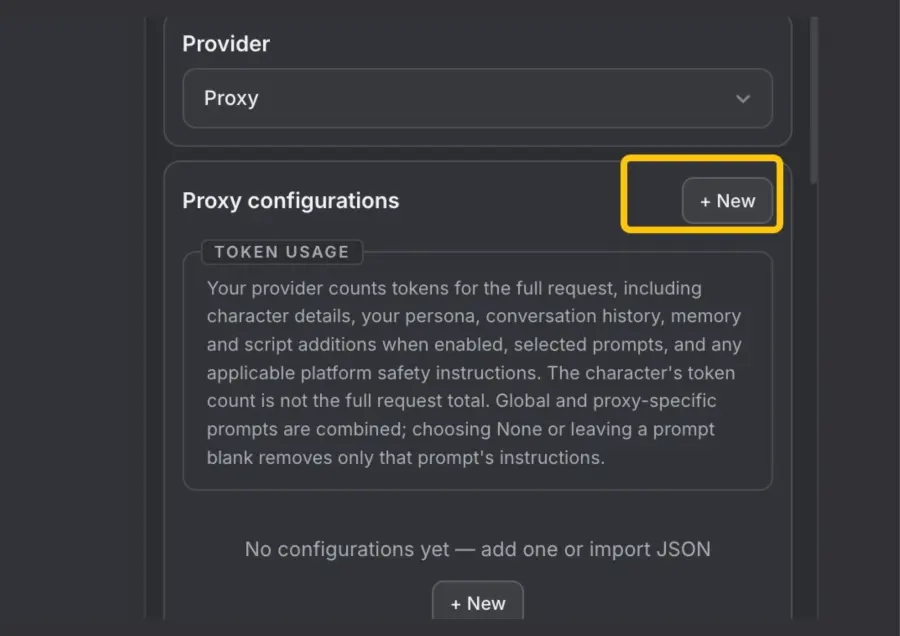
The notice shown in this panel is worth reading. A Janitor AI request may contain more than your latest message. Character information, your Persona, chat history, Memory, and an additional prompt can all become part of the context sent to the model.
That means two messages of similar length do not necessarily cost the same. A reply generated near the beginning of a chat usually carries less context than one generated after a long conversation.
Step 4: Enter the GPT Proto Proxy URL, API Key, and Model
Enter the following values:
| Janitor AI field |
Value |
| Name |
GPT Proto |
| Proxy URL |
https://gptproto.com/v1/chat/completions |
| API Key |
Your GPT Proto API key |
| Model |
deepseek-flash |
| Custom prompt |
Optional; leave blank during the first test |
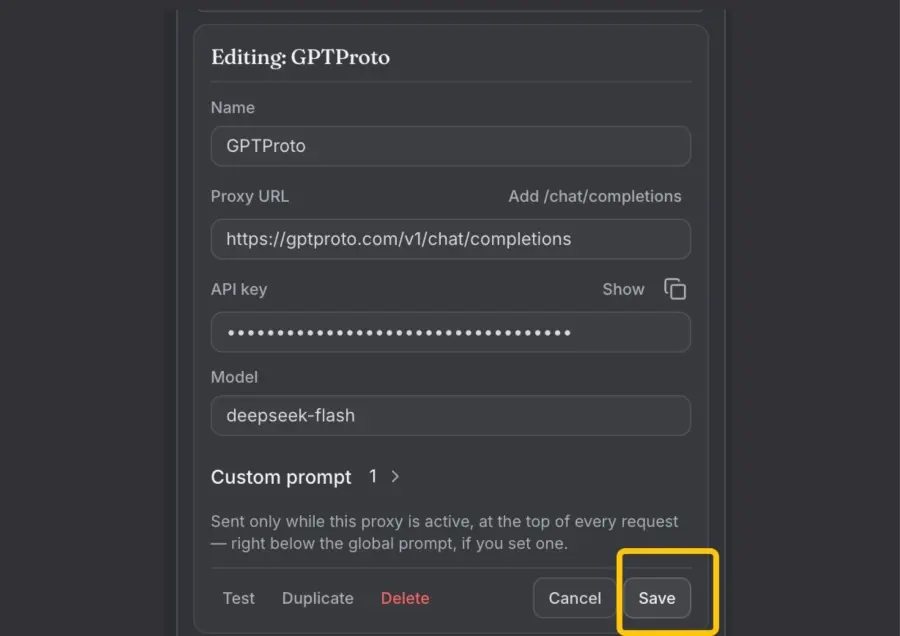
The most important detail is the Proxy URL.
Some OpenAI-compatible clients ask for a base URL such as:
https://gptproto.com/v1
Janitor AI’s Proxy URL field needs the complete Chat Completions request address:
https://gptproto.com/v1/chat/completions
GPT Proto uses that complete endpoint in its API quickstart. Entering only /v1 can send the request to the wrong route and produce a Not Found or connection error.
The model field is equally strict. This test uses deepseek-flash, which is the current GPT Proto model string for DeepSeek Flash. It is an example, not the only model Janitor AI can use.
Do not guess a model string from the model’s public name. Copy the identifier shown on the corresponding GPT Proto model page or in the current dashboard.
Step 5: Save, Refresh, and Send a Real Message
Click Save after completing the fields.
If Janitor AI immediately reports a network or fetch error, do not delete the configuration yet. Follow this order:
Save the configuration.
Refresh the entire Janitor AI browser page.
Reopen the chat if necessary.
Confirm that Proxy remains the active provider.
Send a short message such as Hello.
Check whether the character returns a reply.
What happened in my test: Janitor AI initially showed a network or fetch error even though the URL, API key, and model string were correct. I saved the configuration, refreshed the full browser page, and sent a real chat message. The same configuration worked after the refresh.
This is not a guaranteed fix for every network error. It is a low-cost first check before you start changing otherwise valid credentials.
A Janitor AI community discussion describes the same save-and-reload workaround, but it should be treated as user-reported troubleshooting rather than an official rule. reddit.com
Why Does Janitor AI Say “Failed to Fetch” or “Network Error”?
A fetch error does not prove that your GPT Proto API key is invalid.
The message describes the visible result—the browser did not receive the response it expected—but it does not identify one definite cause. The failure may happen in the saved Janitor AI configuration, the browser request, the proxy URL, the authentication step, the selected model, or the upstream API request.
Start with the simplest possibility: Janitor AI may not have fully applied the newly saved configuration to the current chat page. Save, refresh, and try one real message.
If that does not work, check the following:
The Proxy URL includes /v1/chat/completions.
The API key was copied completely.
The key does not contain quotation marks or extra spaces.
The model string matches GPT Proto exactly.
Your GPT Proto account has available balance.
The selected model is currently available.
A browser extension or privacy setting is not blocking the request.
The conversation is not sending an unusually large context.
Do not repeatedly create new API keys until you have checked the URL and model string. Replacing a valid key will not fix a request sent to the wrong endpoint.
Janitor AI Proxy Settings: Common Errors and Fixes
Use the message visible in Janitor AI to decide what to inspect first.
| What you see |
What to check first |
First action |
| Failed to Fetch or Network Error |
Saved page state, endpoint and browser blocking |
Save, refresh the full page and send a real message |
| 401 Unauthorized |
API key |
Recopy the key without spaces, quotes or Bearer |
| 404 or Not Found |
Proxy URL |
Use the complete /v1/chat/completions address |
| Model not found |
Model string |
Copy the exact current identifier from GPT Proto |
| Connection succeeds but no reply appears |
Balance, model status and request size |
Test a short message in a new chat |
| Replies fail later in a long conversation |
Growing context or output limits |
Start a fresh chat or reduce retained context |
| One browser works but another fails |
Extensions, cached state or privacy controls |
Test a private window or another browser |
Failed to Fetch or Network Error
Save the configuration and reload the entire page first. Then send a real message instead of relying only on the initial configuration test.
If the message still appears, copy the endpoint again and test without content blockers. Temporary availability problems on either service can produce a similar symptom, so avoid assuming that one platform is definitely at fault based on this message alone.
401 Unauthorized
A 401 response normally points to authentication.
Make sure the API Key field contains only the GPT Proto key. Remove Bearer, quotation marks, line breaks, and accidental spaces. If the same key also fails in a direct API request, create a replacement key from your GPT Proto dashboard.
404 or Not Found
A 404 response usually means the request reached a server but used an unavailable path.
For this configuration, use:
https://gptproto.com/v1/chat/completions
Do not stop at:
https://gptproto.com/v1
The second value is a base URL used by some clients, not the complete endpoint required in this Janitor AI field.
Model Not Found
The model’s display name and its API identifier are not always identical.
For the model used in this test, the correct value is:
deepseek-flash
Capitalization, spaces, version numbers, and punctuation matter. If you change models, copy the new identifier from GPT Proto instead of editing the old string by hand.
The Connection Works but the Character Does Not Reply
First, try a new conversation with a short message.
If the short test works, the earlier chat may have accumulated a larger context through the character definition, Persona, Memory and conversation history. If the short test also fails, check the current model status and your GPT Proto balance.
Optional: Test GPT Proto Before Blaming Janitor AI
A direct API request helps separate a Janitor AI configuration problem from a GPT Proto credential or model problem.
Replace YOUR_GPTPROTO_API_KEY with your private key and run:
curl --request POST "https://gptproto.com/v1/chat/completions" \
  --header "Authorization: Bearer YOUR_GPTPROTO_API_KEY" \
  --header "Content-Type: application/json" \
  --data '{
    "model": "deepseek-flash",
    "messages": [
      {
        "role": "user",
        "content": "Reply with: API connection works."
      }
    ]
  }'
This request follows the current Chat Completions format shown on the DeepSeek Flash API page.
Read the result this way:
If the cURL request works but Janitor AI fails, focus on the Janitor AI fields, saved page state, or browser.
If both return an authentication error, check the API key.
If both return a model error, check the model string.
If the API reports insufficient balance, add balance before testing Janitor AI again.
If the API succeeds but a long Janitor AI conversation fails, test a fresh chat with less context.
Do not post the complete cURL command in a public support thread after inserting your real key.
Can You Use Other GPT Proto Models with Janitor AI?
Yes. deepseek-flash is the model used in this walkthrough, not a Janitor AI requirement.
To switch models, replace the Model value with another text model identifier currently supported by GPT Proto. In most cases, the following values can remain unchanged:
Only the Model field needs to change.
Retest the configuration after switching because models can differ in output style, context handling, response time, availability and cost. A model that performs well for coding or document analysis is not automatically the best choice for character dialogue.
If roleplay behavior is the priority, compare the trade-offs in Best Uncensored LLM APIs for Roleplay. Here, “uncensored” refers to API control and model behavior within lawful use—not permission to ignore a provider’s terms or applicable rules.
How Much Does a Janitor AI Conversation Cost?
There is no single fixed price per Janitor AI message when you use an external API.
GPT Proto charges for the selected model according to the tokens processed. The request may include:
A longer conversation can therefore cost more per reply than a fresh chat, even when your latest message contains the same number of words.
Check the current model rate on GPT Proto Pricing or its individual model page. Begin with a short conversation, observe actual usage, and then decide whether the model fits your expected chat length and budget.
Using Janitor AI vs Building Your Own Roleplay App
Connecting a proxy is suitable when you want to keep using Janitor AI’s existing character and chat interface. It does not give you control over Janitor AI’s frontend, account system or platform availability.
| Your goal |
Better next step |
| Chat with existing Janitor AI characters |
Connect GPT Proto through the Proxy provider |
| Compare models suited to character dialogue |
Read the roleplay model comparison |
| Control your own interface, memory and moderation |
Build a separate roleplay application |
| Create reusable character logic for your product |
Design your own character system with an API |
If you need product-level control, see how to build a roleplay application with an AI API. For character definitions, memory design and application logic, continue with How to Create Your Own AI Character with an API.
These are different use cases. Connecting GPT Proto to Janitor AI lets you supply the model behind an existing interface. Building your own application gives you more control, but you must also handle the interface, storage, safety rules, user accounts and operating costs yourself.
Final Configuration Checklist
Before contacting support or replacing your API key, verify these four values:
Provider: Proxy
Proxy URL: https://gptproto.com/v1/chat/completions
API Key: Your private GPT Proto key, without Bearer
Model: An exact current GPT Proto model string, such as deepseek-flash
Then use this order:
Save the configuration.
Refresh the entire page.
Confirm that Proxy is still selected.
Send one short message.
If it fails, check the URL, API key, model string, balance and browser—in that order.
Once the connection works, Janitor AI can remain your chat interface while GPT Proto supplies the selected model. If you need control over character memory, model routing or the product interface itself, the next step is to build your own roleplay application with an AI API.